SSOGEN / Okta JDE single sign-on for EnterpriseOne
Integration
Okta JDE single sign-on for EnterpriseOne
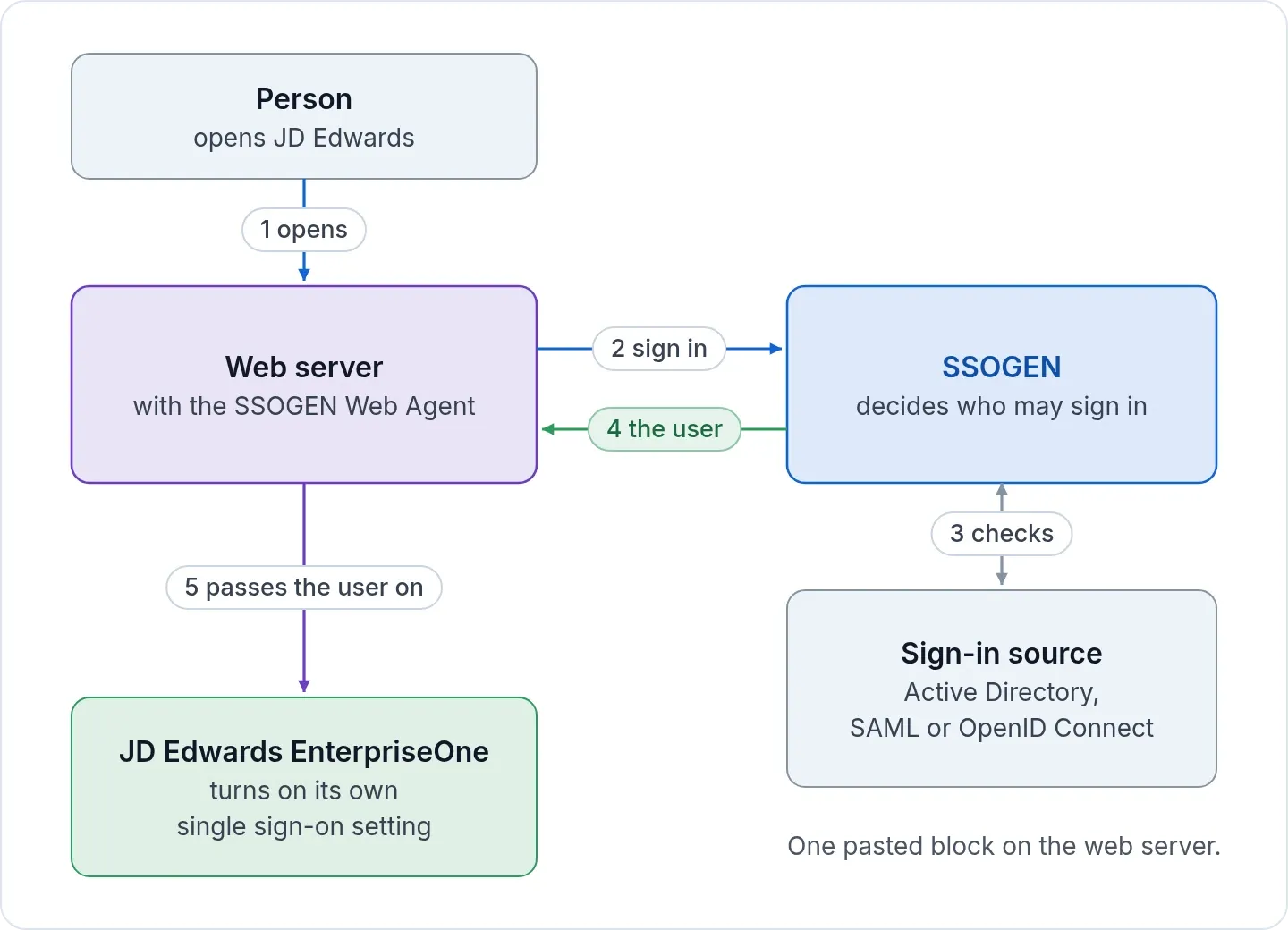
Create one SAML 2.0 app integration for SSOGEN in Okta, and the Web Agent in front of EnterpriseOne passes the user ID to JD Edwards.
In Okta
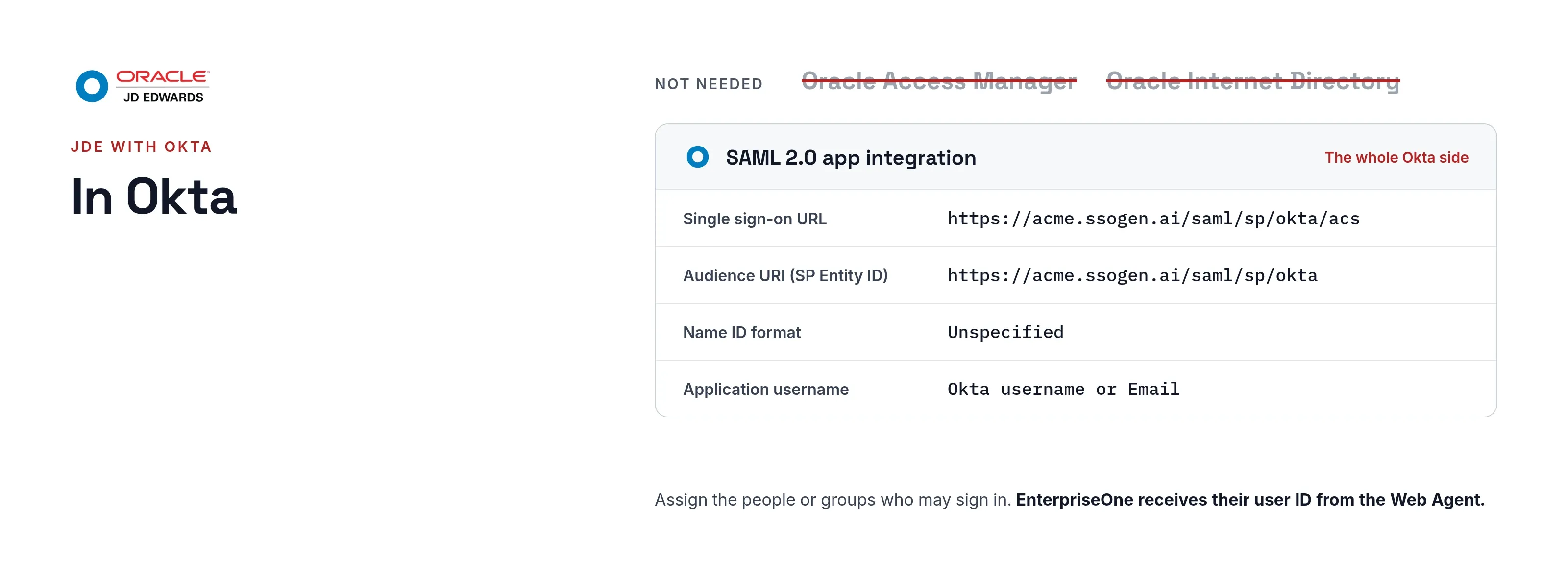
Create one SAML 2.0 app integration for SSOGEN (a connection ID of okta is used here):
| Okta field | Value |
|---|---|
| Single sign-on URL | https://acme.ssogen.ai/saml/sp/okta/acs |
| Audience URI (SP Entity ID) | https://acme.ssogen.ai/saml/sp/okta |
| Name ID format | Unspecified |
| Application username | Okta username or Email |
Leave Assertion Signature at Signed, because SSOGEN requires a signed assertion. On the Assignments tab, assign the people or groups who may use JD Edwards. The full Okta steps and the SSOGEN screens are on Okta as the sign-in source.
In SSOGEN and in JD Edwards
- Add Okta as an identity provider in SSOGEN and activate it, as the Okta page says.
- Register JD Edwards as a Web Agent application. Under Identify the person by, pick the value that equals the EnterpriseOne user ID. Pick
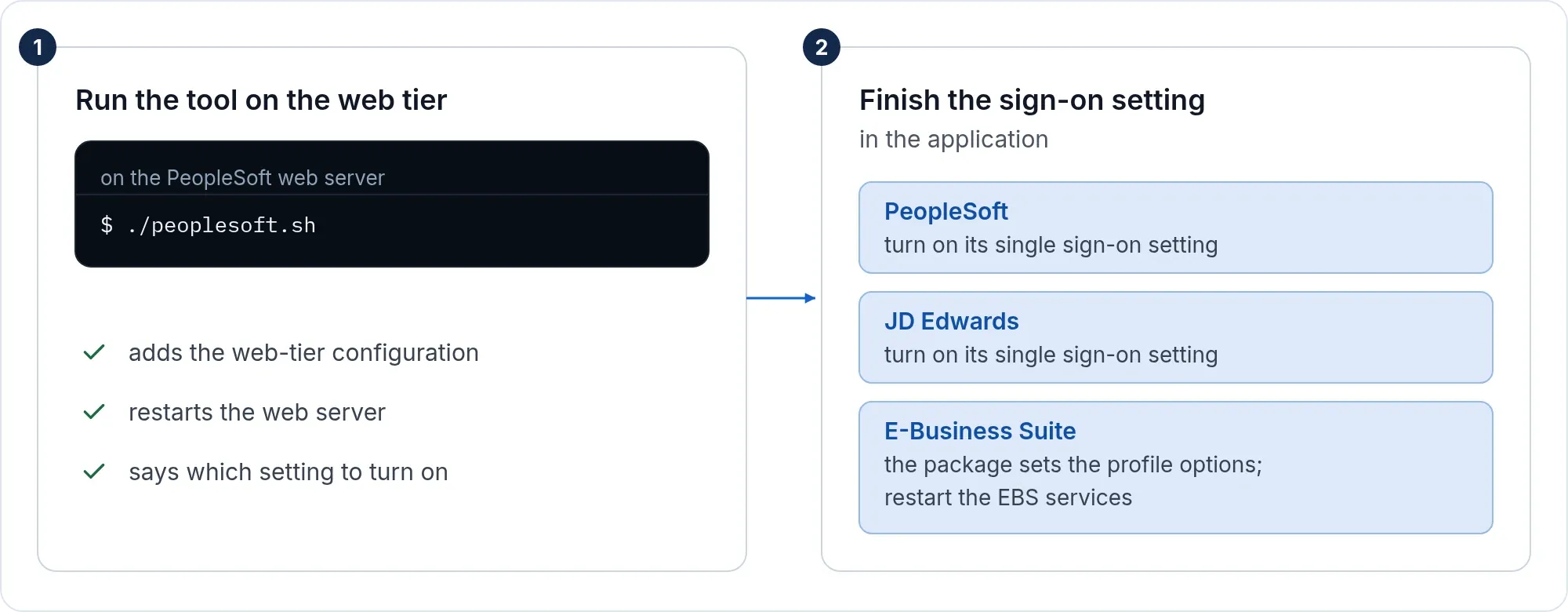
emailfor e-mail addresses andsource_usernamefor directory sign-in names. Pickusernameonly when the IDs match the SSOGEN account name. Over SAML, that name is built from the Name ID, such asokta_john.doe_acme.example. - Run the tool and set Server Manager as on the JD Edwards page.
Okta signs the person in the way your org is set up. That can be a form, Okta’s multi-factor, or Windows desktop sign-in (Kerberos). SSOGEN adds its own second factor only where a policy asks for one.
What people see
A person opens https://jde.acme.example/jde. SSOGEN sends the browser to Okta. The person signs in there, or passes through when an Okta session exists. The EnterpriseOne home page then opens. JD Edwards now works like any other app behind Okta. One Okta session covers them all, both ways. SSOGEN shows no page of its own on the way in or out.
If it does not work
Okta problems show on an Okta error page or in SSOGEN’s Try connection result. Web server and EnterpriseOne problems are listed on the JD Edwards page.
| Symptom | What to do |
|---|---|
| Okta says the user is not assigned to the application | Assign the person on the app’s Assignments tab, directly or through a group. |
| Try connection says “The assertion was addressed to a different service provider.” | Audience URI (SP Entity ID) in Okta differs from SSOGEN’s SP entity ID. Paste it again and check https and the connection ID. |
| “You cannot sign in with this provider” | The sign-in restriction still admits only people already linked to Okta. Choose Anyone this provider vouches for on the provider’s Configuration tab. |
| One person gets a second SSOGEN account | The Application username in Okta changed, so SSOGEN sees a new Name ID. Keep a value that is unique and never changes. |
| Name ID format is EmailAddress in Okta | Choose the same format in SSOGEN. Both sides must agree. |
| Sign-ins stop after a certificate change, and the signature does not verify | Fetch the Okta metadata again in SSOGEN and activate the revision. Do this before you activate the new certificate in Okta. |
| Sign-in works, EnterpriseOne does not know the user | The value SSOGEN sends must equal an EnterpriseOne user ID, in capitals. Change Identify the person by or the user IDs. |
Sign-out
The EnterpriseOne sign-off link calls /ssogen/logout. By default, that ends the web server session only. The SSOGEN session and the Okta session stay open.
- Shared computers. Add
SSOGENLogoutScope ssoto the configuration the tool wrote. Signing off then ends the SSOGEN session as well, so the next person must sign in. - End the Okta session too. On the provider’s Configuration tab, turn on Also sign out of this provider and choose IdP SLO URL. SSOGEN then lists
https://acme.ssogen.ai/saml/sp/okta/slo-returnin its metadata as the return address.
More on scopes: sign-out on every page.