SSOGEN / Multi-factor authentication with number matching on every push
SSOGEN
Multi-factor authentication with number matching on every push
Multi-factor authentication with push approval: the phone shows six numbers, the person taps the one on the sign-in page, then confirms with face or fingerprint.
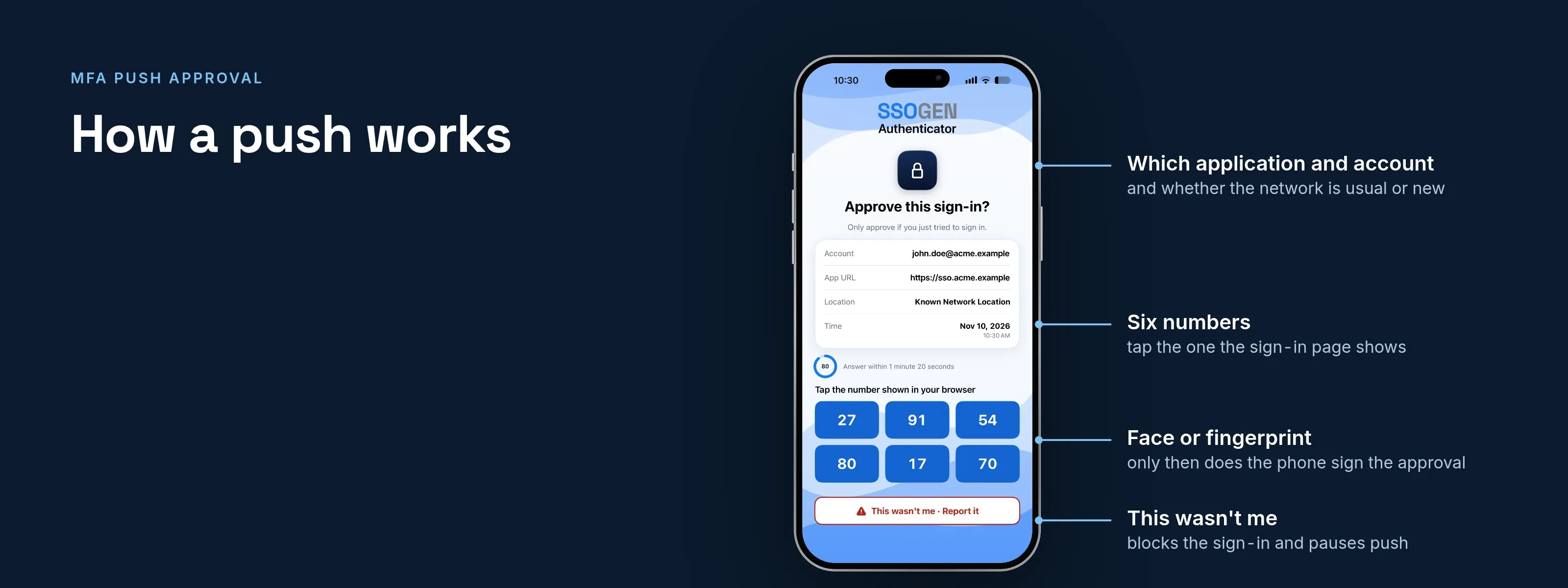
How a push works
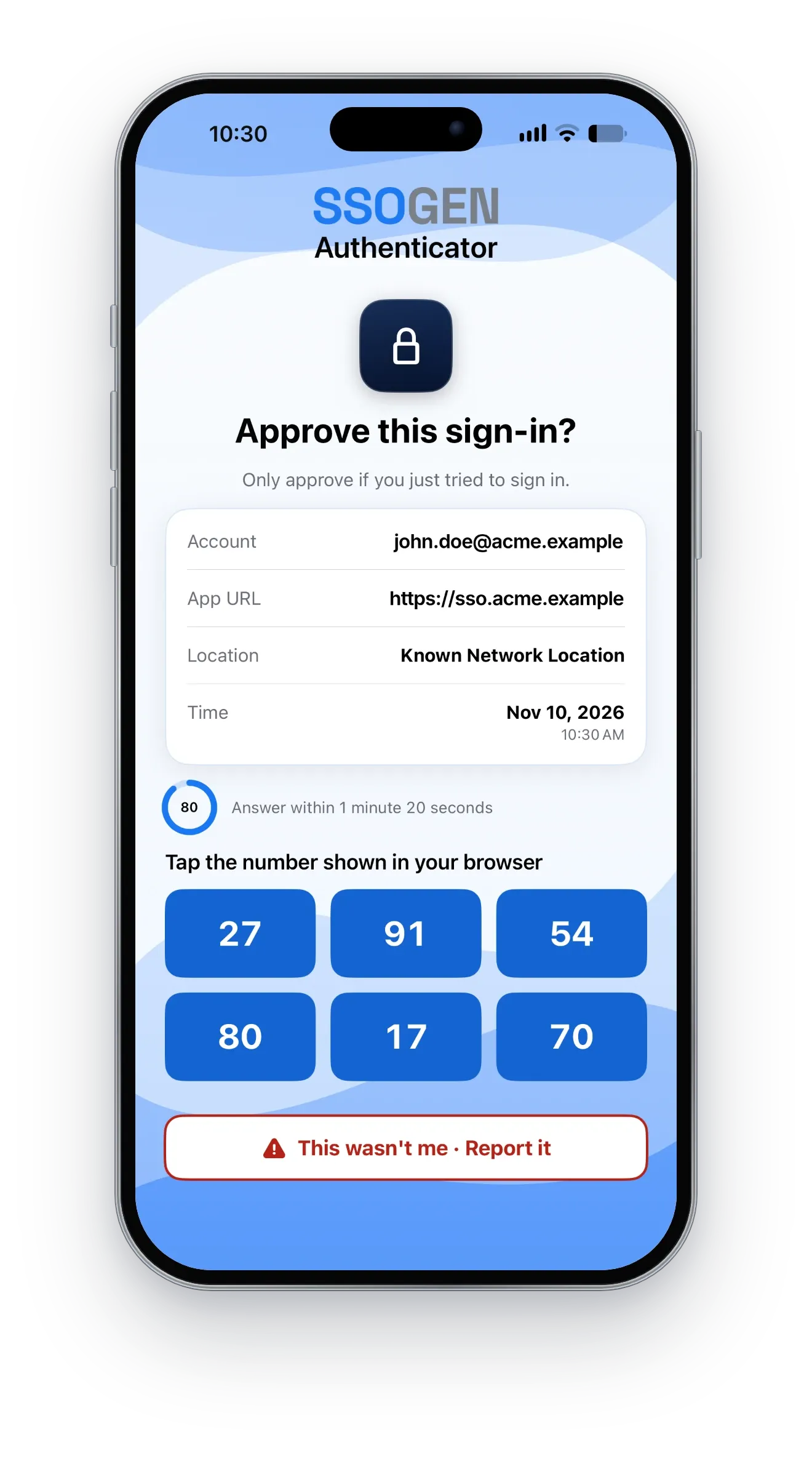
- The person signs in on a computer. The sign-in page shows a number.
- The SSOGEN Authenticator on their phone shows the request: which application, which account, and whether the sign-in comes from a usual or a new network.
- The phone shows six numbers. The person taps the one that matches the page.
- The phone asks for the person’s face or fingerprint. Only then does it sign the approval.
If the request is not theirs, one button says This wasn’t me. The sign-in is blocked, push is paused for that person, and the report is recorded and shown to your administrators.
This is not an option you have to remember to switch on. It is the only way a push approval works, and no setting turns it off.
Why it holds up
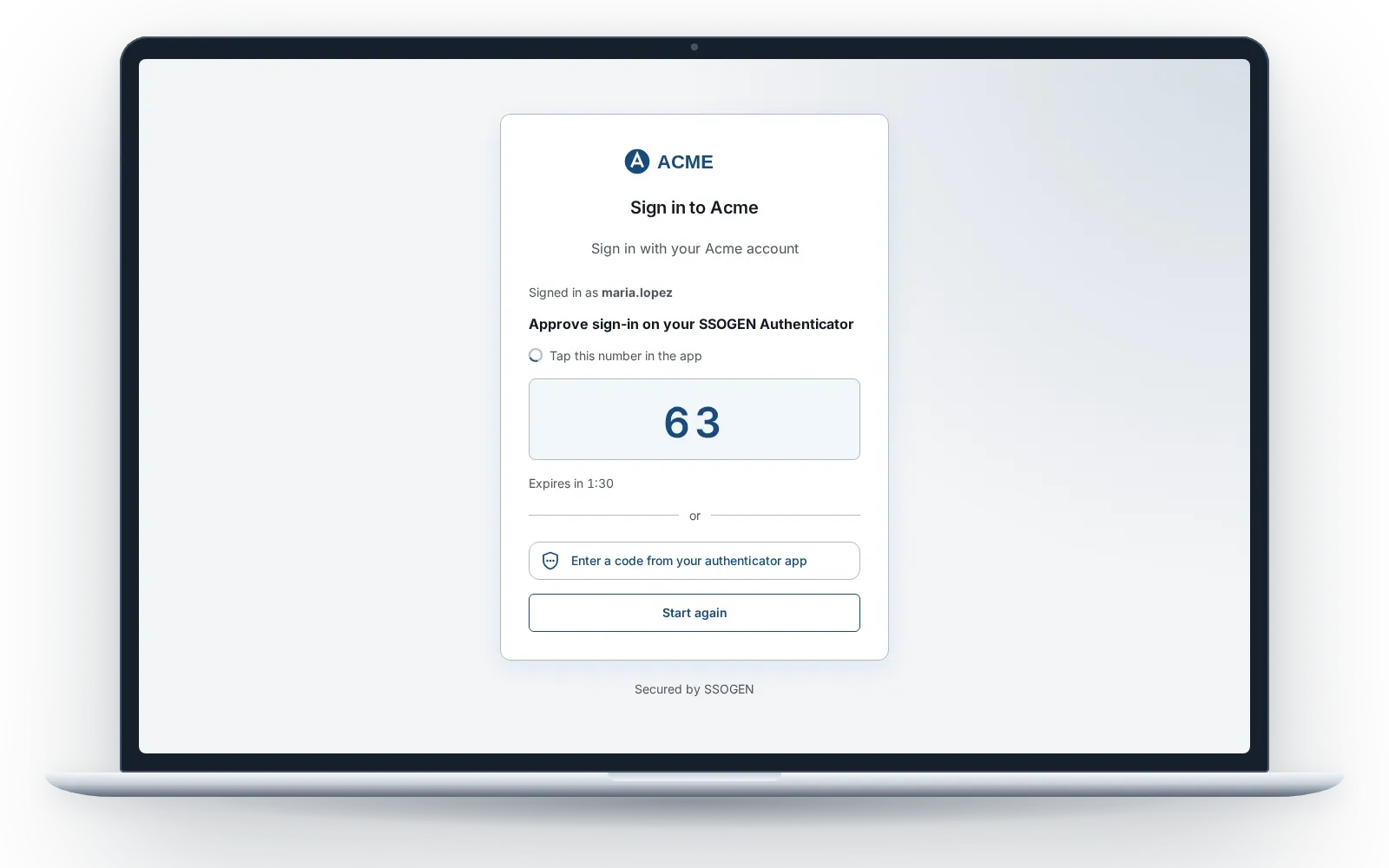
- The page and the phone must agree. An approval needs the right number, not just a finger.
- The key never leaves the phone. The key that signs the approval is created on the phone, in its secure hardware where the phone has it (always on iPhone), and stays there. It signs only after the person’s face or fingerprint; a PIN alone cannot approve.
- A notification approves nothing. The notification itself carries no application, account or number, so there is nothing in it to approve or to steal. The person opens the request and checks it.
- Push is rate limited. Too many requests in a window, or repeated denials and wrong numbers, pause push for that person.
- Requests are short-lived. An expired or already answered request says so.
- The app locks itself. It locks at launch and when it returns from the background. A phone with no screen lock is refused rather than left unprotected.
The other second steps
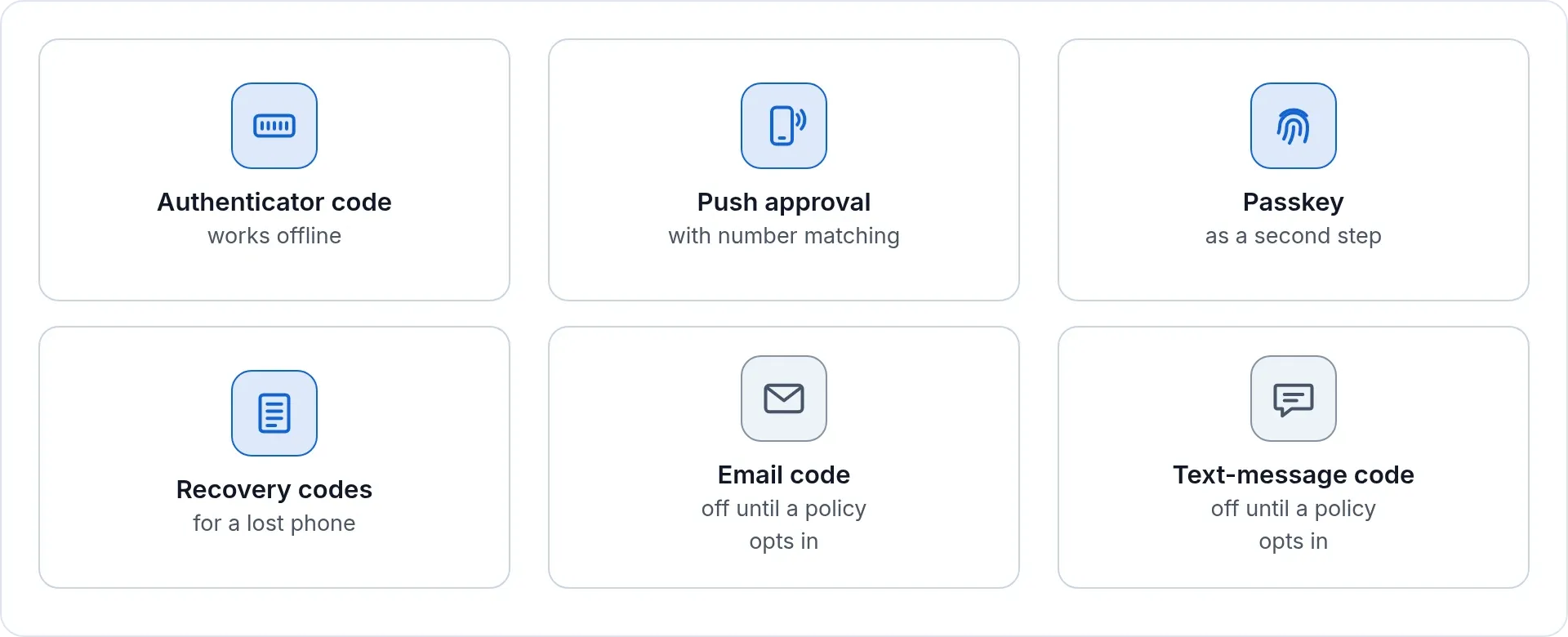
A sign-in policy accepts any mix of these:
- a code from the SSOGEN Authenticator, which works offline (an administrator can also allow other standard authenticator apps)
- push approval with number matching
- a passkey (see Passkeys and passwordless)
- recovery codes for a person who loses a phone, created in My Account (the first administrator receives them at setup)
- an email code, or a text-message code where you have set up a provider. Both are marked weaker in the console, and both stay off until a policy opts in.
Policy decides, per application
Each application points at a named sign-in policy. The policy says which providers are accepted, which second steps count, and how recently the person must have signed in: any limit from one minute to 24 hours, or none.
- Adaptive: a policy can ask again on a new network and can let a remembered browser skip the second step for 30 days. Skipping is off until a policy opts in, and a new browser, a new network or a failed attempt always asks.
- Step-up: opening an application whose policy needs stronger or fresher proof asks for it at that moment, and administrator powers need a sign-in with a second factor no more than an hour old, by default.
- Check before you ship: the What if screen shows what a given person would be asked for a given application. See Policy engine.
Losing a phone
Your help desk, with the Directory admin role, can reset a person’s second factors. The person can also recover with codes sent to the email address and phone you hold for them, where you turn that on. A reset clears passkeys too, and every reset is audited.
Administrators held to a higher bar
The admin console has its own sign-in policy. A new installation asks for a password plus an Authenticator approval with number matching, an Authenticator code or a recovery code, and allows passkeys. Email and text codes are never accepted for the console. See Admin safety.
Questions about push approval
What is push multi-factor authentication?
After the password, the sign-in service sends a request to an app on the person’s phone. The person checks the application and account, taps the number shown on the sign-in page, and confirms with a face or fingerprint. The phone then signs the approval.
Can push notifications be used for MFA?
Yes, when the notification itself approves nothing. In SSOGEN the notification carries no application, account or number. The person opens the request in the SSOGEN Authenticator and approves it there.
Why is plain push riskier than other second steps?
A push that needs only a tap can be approved by mistake or after repeated prompts. Number matching, rate limits and a biometric check on the phone close that gap. See MFA fatigue attacks.