SSOGEN / Conditional access policy you can test before your users sign in
SSOGEN
Conditional access policy you can test before your users sign in
The What if screen takes a person and an application and names every rule behind the answer, without creating a session.
Named policies, shared by applications
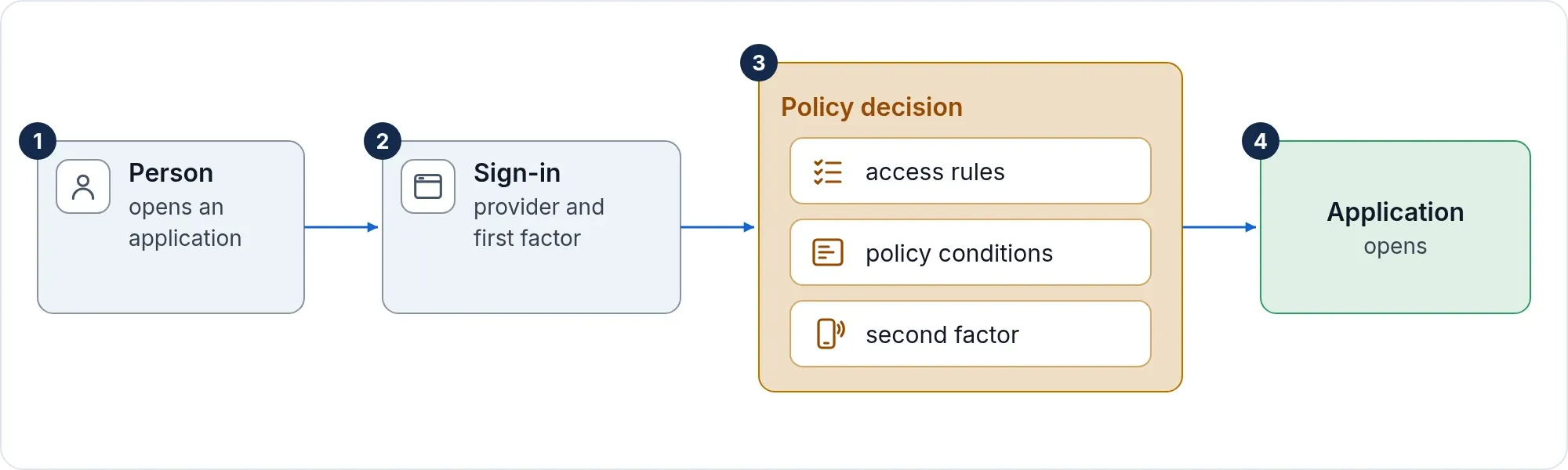
A sign-in policy says how people get in: which identity providers are allowed, which first factor, which second factor, and how recently they must have signed in. Many applications point at one policy, and the policy page lists every application it reaches. A warning tells you how many applications a change touches before you save.
- Start from a template, such as Corporate LDAP, LDAP + authenticator code, Passkey only or Corporate SSO, or from Blank.
- Read the policy back as a plain sentence, such as “People sign in with a password, then approve in the SSOGEN Authenticator or type its code.”
- Test a policy against a named person without signing anyone in. The policy guide walks through each step.
Conditions that read like English
Rules are checked in order after sign-in, and the first match decides. A rule can only ask for more than the policy requires, never less.
- When: a group, a person, a network, the identity provider used, the sign-in strength, the time since sign-in, the days and hours, a date range.
- Then: allow, require a stronger sign-in, deny, allow with a 15-minute session, or allow and alert.
- Safe by construction: you pick groups, people and networks from lists, so a rule cannot name something that does not exist. The editor warns when an earlier rule means a later one is never reached.
Network zones and familiar networks
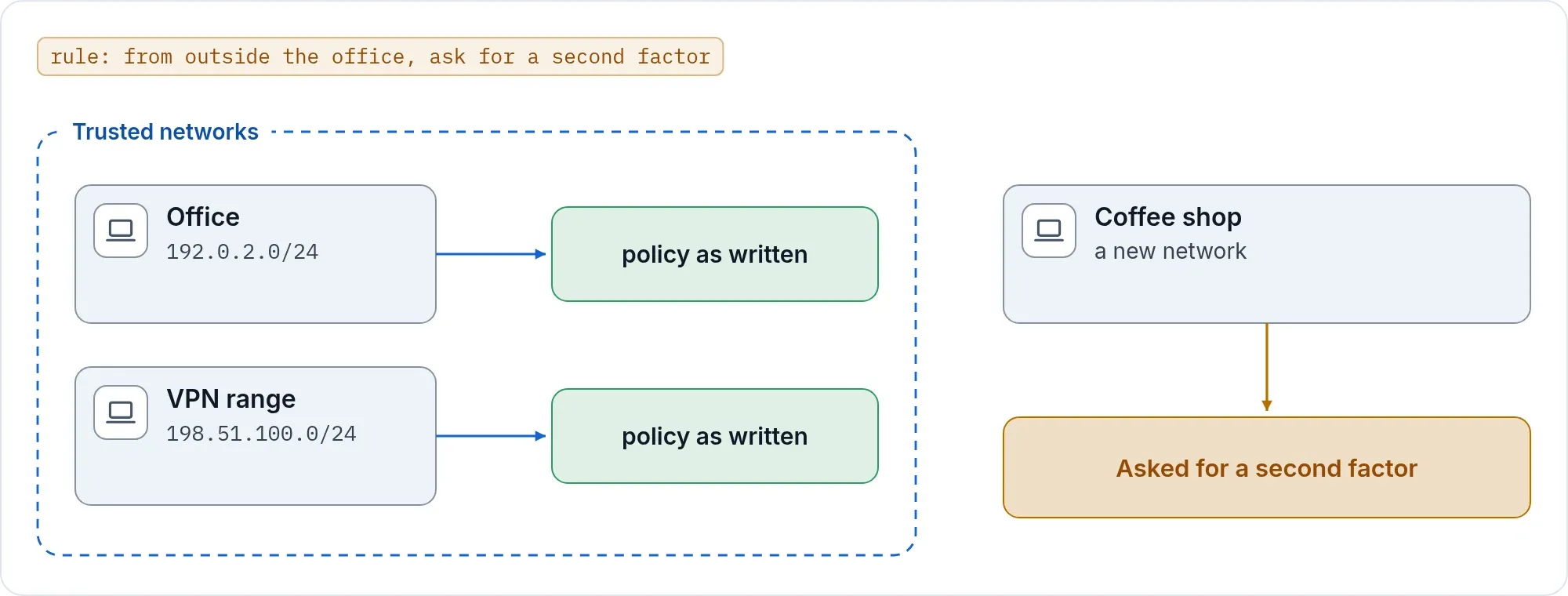
Define the network zones you trust, such as the office and the VPN range, and use them in conditions: “from outside the office, ask for a second factor”. The phone also tells the person whether a sign-in comes from a usual or a new network, based on where they have signed in before.
Remembered browsers
A policy can let a remembered browser skip the second step for 30 days. It is off until a policy opts in. A new device, a new network or a failed attempt always asks again, and password reset or Reset MFA forgets every remembered browser. People see and forget their own browsers under My Account.
What if
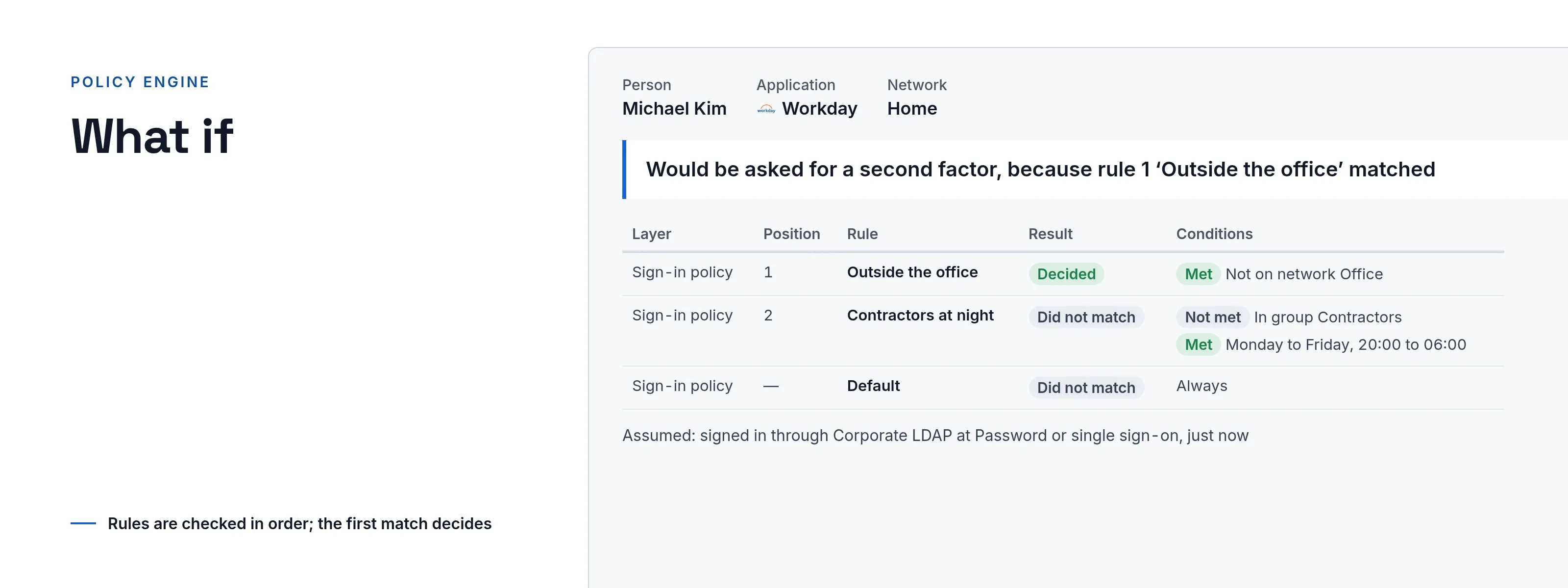
Pick a person and an application. Optionally set the network, the time, the provider and the strength. Ask.
- A one-line answer: allowed, denied, asked for a second factor, or refused because the person is not assigned.
- A table of how each rule was checked, in order, with each condition marked met or not met.
- A line that lists what you left blank and what was assumed.
- No session, code or grant is created. It runs the same decision as a real launch, and is recorded in the audit trail as a What if question.
Use What if to explain to a colleague why someone was refused, and to check a change before you save it. Open it from an application’s Authentication tab or from a policy page.
Try a rule change on real sign-ins
A new revision of the access rules can run beside the live one. It is evaluated on real launches and compared, but never applied. The console shows how many people would be refused, how many would be asked for more, and how many would newly be admitted. You promote it when the numbers look right.
Deterministic, never AI
The same inputs give the same answer, and the answer names its reason. Access decisions are made by rules you wrote. No AI model makes or changes an access decision. For risk signals such as a new network, see adaptive authentication.