Policy simulator: test with What if
Before you change a policy, or when somebody says “I cannot open Payroll”, you can simulate the decision: see what SSOGEN would decide without signing anyone in and without changing anything. The What if page works as a policy simulator, and SSOGEN gives you three tools in all, and they answer slightly different questions:
| Tool | Where | Answers |
|---|---|---|
| What if | SSO policies > What if; also a button on a policy and on an application’s Access rules tab | “If this person opened this application right now, would they get in, and which rule decided?” Shows every rule that was checked. |
| Test on a policy | SSO policies > Policies, the Test button of a policy | “What would this policy ask of this one person?” Quick check of providers and strength. |
| Test on an application | The application’s Test tab | “Would this person get in, and what would the application be told?” The whole chain, plus what is sent to the application. |
All three are safe: nobody signs in and nothing is stored or sent to an application. (A What if question is recorded in the audit log so that it is traceable.) The questions are rate limited; if you ask too many you see “Too many what-if questions; wait a minute”.
What if
Section titled “What if”Ask a question
Section titled “Ask a question”-
Open SSO policies > What if. The page is titled What if: “Ask what would happen if a person opened an application now, and which rule decided it. Nothing is changed.”
-
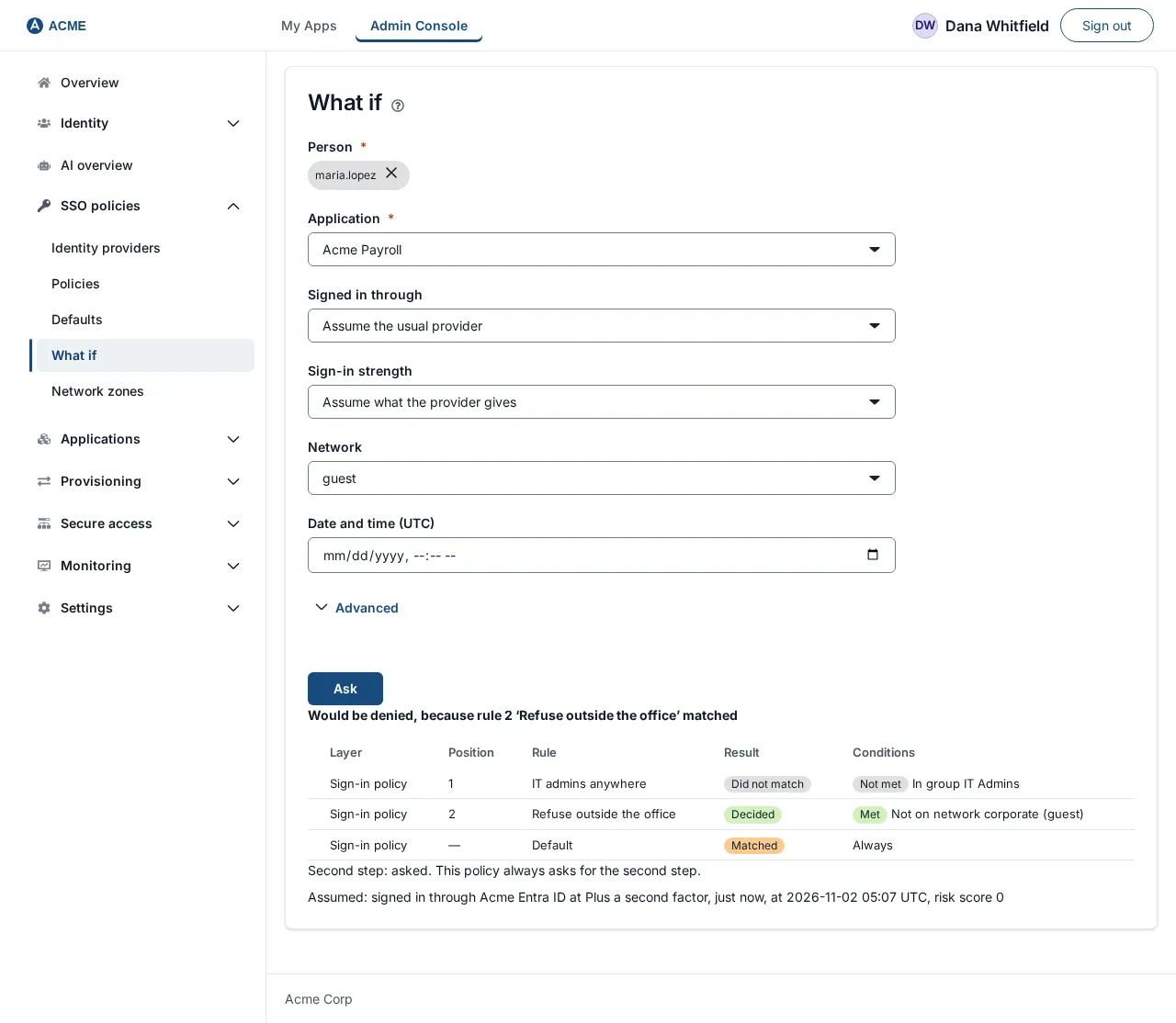
Person (required): type in the box Search users by name and choose the person from the results, for example Maria Lopez. A label shows who you chose; select its x to choose someone else.
-
Application (required): choose from Choose an application…, for example “Acme Payroll”. The list shows the first 100 applications.
-
Everything else is optional. Anything you leave blank, SSOGEN assumes, and tells you what it assumed in the answer.
Field Choices If left blank Signed in through Assume the usual provider, or any identity provider The provider the person normally signs in through. Sign-in strength Assume what the provider gives, Password or single sign-on, Plus a second factor, Passkey or security key What the provider gives. Network Not specified, each configured network zone, or An address… (then type an address such as 203.0.113.9)Not specified. See Network zones. Date and time (UTC) A date and time Now. Advanced (expand it) Sign-in methods used (Password, Authenticator, Passkey), Signed in this many minutes ago (0 to 1440), and under Sign-in risk: From a browser this person has not used in 180 days, From a network this person has not used in 30 days, On a browser this person chose to have remembered (Don’t ask again), Failed sign-in attempts in the last 15 minutes (0 to 10), or Or a risk score to use as it is (0 to 100) A risk score of 0. Under Sign-in risk, tick what would be true and SSOGEN works out the score the way a real sign-in is scored (see The sign-in risk score); the “address in no network zone” part follows the Network you chose. Ticking a signal turns off the plain score field, because the two cannot be asked together. The answer then says the score and each reason.
-
Select Ask. The button is disabled until the person and the application are chosen.
Read the answer
Section titled “Read the answer”The answer starts with one bold sentence, then a table.
| Headline | Meaning |
|---|---|
| Would be allowed (maybe “with a shorter session of 15 minutes”, “with an alert”) | The person would get in. |
| Would be asked for a second factor / a passkey or security key / a hardware security key / a fresh sign-in / stronger proof of who they are | The person would be sent to prove more first (step-up). |
| Would be denied | A rule says Deny. |
| Would be refused: this person is not assigned to the application | They are not assigned, directly or through a group. |
| Would be refused: the policy for this application could not be read, so access is refused | A list cannot be read; fix it. |
| Would be refused | Refused for another reason; the table says where. |
| No such person in this directory | The person was not found. |
When a rule decided, the headline ends with the reason: “, because access rule 2 ‘Contractors in office hours’ matched” or “, because rule 1 ‘Refuse outside the office’ matched”, or “because no rule matched and the default applies”.
The table How each rule was checked has one row per rule, in the order checked:
| Column | Shows |
|---|---|
| Layer | Access rules or Authentication policy. Access rules are checked first; see How sign-in decisions work. |
| Position | The rule’s place in its list, or a dash for the default. |
| Rule | The rule’s name, or Default. |
| Result | Decided (this rule decided), Matched (all its conditions held, but an earlier rule had already decided), or Did not match. |
| Conditions | Each condition in words with Met or Not met, and the value that was compared in brackets, where there is one. |
Below the table a line starts “Assumed:”, for example “Assumed: signed in through Corporate LDAP at Plus a second factor, just now, on network corporate.” That tells you which blanks SSOGEN filled in, so you can tell whether the answer is about the situation you meant.
A line beginning “Second step:” says whether a second factor would be asked. “Second step: asked.” comes with the reason, for example “This policy always asks for the second step.” or “The browser is not a remembered one.” “Second step: skipped on a remembered browser. The session carries no second factor.” shows the remembered-browser setting at work. “Second step: not required by this policy. A person who has a second factor set up is still asked for it after a password (not after an identity provider’s sign-in).” means the policy asks for none itself, but a person who holds a factor is still asked after a password.
Example: why was Maria refused?
Section titled “Example: why was Maria refused?”Maria Lopez says Payroll is “blocked”. On What if, choose Maria Lopez and “Acme Payroll”, set Network to guest, and select Ask. The headline reads “Would be denied, because rule 1 ‘Refuse outside the office’ matched”. In the table, the row for rule 1 is Decided with the condition “Not on network corporate” Met. Change Network to corporate and ask again: the headline becomes “Would be asked for a second factor” if her sign-in is only a password, or “Would be allowed” if she already used a second factor.
Other ways in
Section titled “Other ways in”- On a policy page, the What if button opens What if with that policy’s first application chosen.
- On an application’s Access rules tab, What if opens the page with the application chosen.
- On the Review step of the policy wizard, Try it (below).
Try unsaved rules on the Review step
Section titled “Try unsaved rules on the Review step”When you edit a policy that applications use, the Review step has a Try it section: “Pick a person and an application that uses this policy to see what these conditions would do. Nothing is saved.” Only the Person and Application are asked for. Your unsaved rules answer, not the saved ones. Two notices can appear instead:
- “Your changes were not tried: this policy does not govern Acme Payroll, so there is nothing of this draft to show for it. Choose an application that uses this policy.”
- “The decision was made before this policy’s conditions were reached, so your changes did not affect it.” (For example the person is not assigned, or the access rules refused first.)
If the policy has no applications, the section says “No application uses this policy yet, so there is nothing to try these conditions on.”
Test a policy
Section titled “Test a policy”Use this for a fast look at what one policy asks of one person.
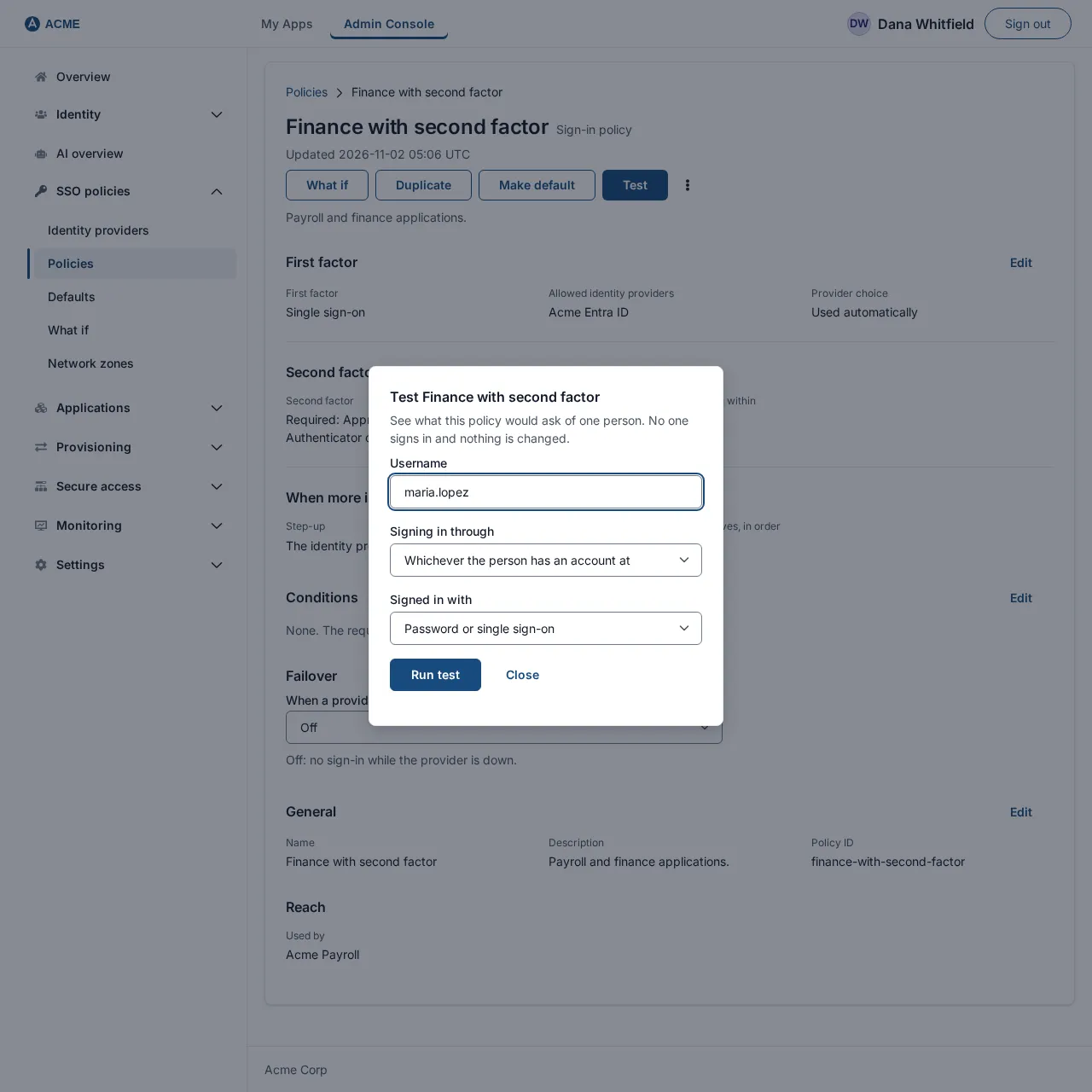
- On SSO policies > Policies, select Test on a policy’s row, or Test at the top of its page. A dialog opens: Test Finance with second factor: “See what this policy would ask of one person. Nobody signs in and nothing is changed.”
- Username: required, for example
mlopez. Without it: “Enter a username.” - Signing in through: Whichever the person has an account at, or one of the policy’s providers. A provider the policy does not offer is refused: “That provider is not one this policy offers.”
- Signed in with: Password or single sign-on, Plus a second factor or Passkey or security key.
- Select Run test (it says Testing… while it runs). Close closes the dialog.
The result is a short list of sentences:
- the server’s explanation first (for example that the person was not found: then that is the only line);
- “Offered providers: Corporate LDAP.” (or “Offered providers: none.”);
- “The strength assumed meets the policy.” or “The strength assumed does not meet the policy.”;
- “More is needed: SSOGEN asks for a second factor.”, or “More is needed: the person is sent to Corporate LDAP.”, or “Nothing more would be asked.”;
- “Used by: Acme Payroll.” or “No application uses this policy.”;
- “Second-step methods this person could use now: Authenticator app, Recovery codes.” (or “none”).
The last line is the one to read when somebody says “it asks me for a code but I have no way to give one”: “none” means the person has enrolled none of the methods the policy accepts.
Possible failures: “SSOGEN could not run the test. Try again in a moment.” and “Could not reach the server.”
Test an application
Section titled “Test an application”The application’s Test tab gives the full picture for one person: the whole decision chain and what the application would be sent.
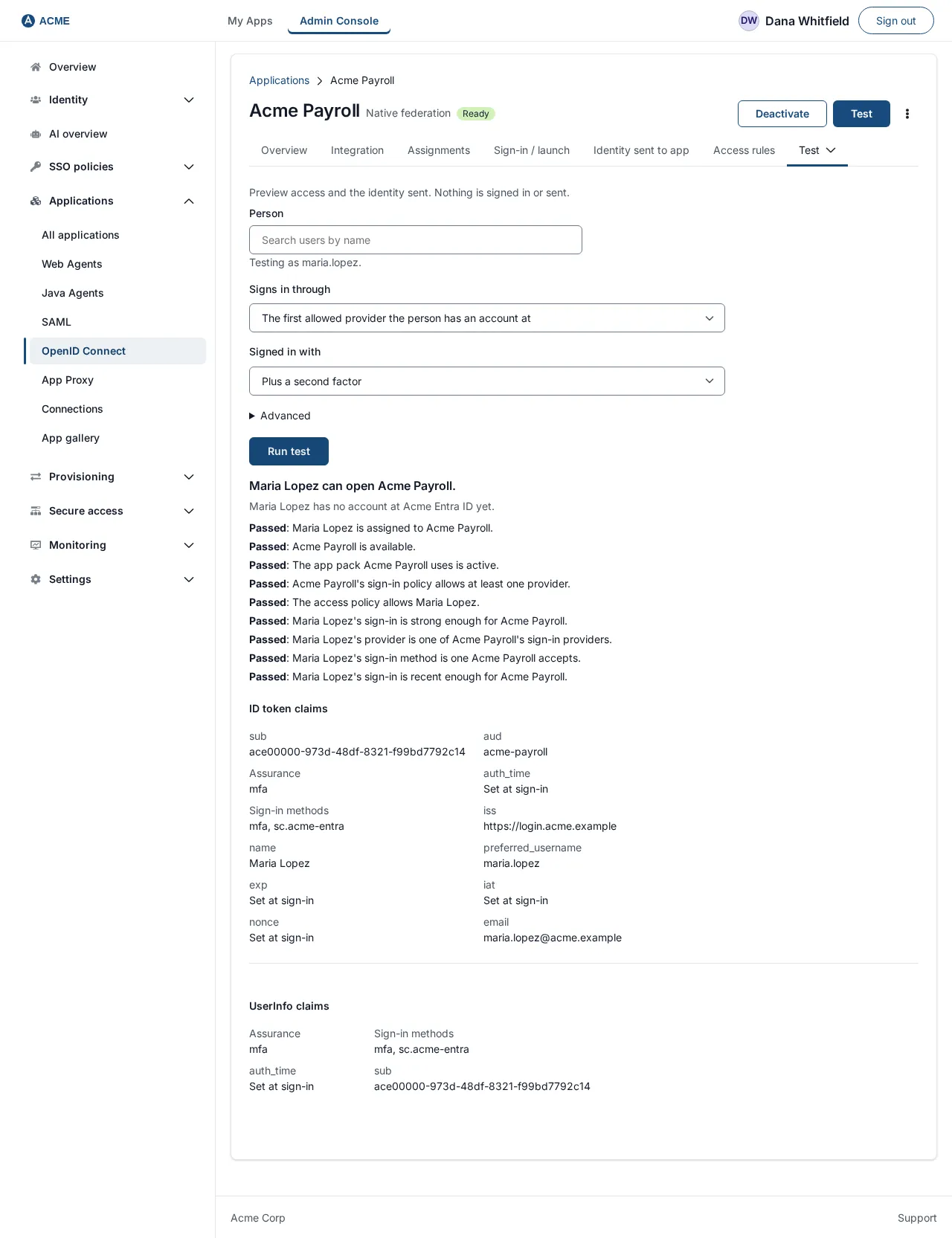
- Open Applications, select “Acme Payroll”, and open the Test tab: “Pick a person to see whether they would get in and what Acme Payroll would be told. Nobody is signed in and nothing is sent to the application.”
- Person: search and choose, for example Maria Lopez. The line below reads “Testing as Maria Lopez.”
- Signs in through: the default is “The first allowed provider the person has an account at”; or choose one provider.
- Signed in with: the strength, including Hardware-bound key.
- Under Advanced you can set Network zone and, for OpenID Connect applications, OpenID Connect scope (for example
openid profile email). - Select Run test (Running… while it runs).
The page then shows a heading with the verdict: “Maria Lopez can open Acme Payroll.”, “Maria Lopez would be asked for a second factor.” or “Maria Lopez cannot open Acme Payroll.” A checklist follows, one line per check in order, each passed, failed (with the reason and what to do) or “Not checked, because an earlier check did not pass.”:
- Maria Lopez is assigned to Acme Payroll.
- Acme Payroll is available.
- The app pack Acme Payroll uses is active.
- Acme Payroll’s sign-in policy allows at least one provider.
- The access policy allows Maria Lopez.
- Maria Lopez’s sign-in is strong enough for Acme Payroll.
- Maria Lopez’s provider is one of Acme Payroll’s sign-in providers.
- Maria Lopez’s sign-in method is one Acme Payroll accepts.
- Maria Lopez’s sign-in is recent enough for Acme Payroll.
If she is not assigned, a button Assign Maria Lopez appears to fix it on the spot. After the checklist, sections show what the application would receive (for example ID token claims, SAML assertion, Gateway values); for a refused person they say “Would not be sent, because the access decision above refuses it.”
The refusals and their fixes are written in plain words, for example “Maria Lopez is not assigned to Acme Payroll, directly or through a group.” with the next step “Assign Maria Lopez to Acme Payroll, or add Maria Lopez to a group that is assigned.”
Which test tool to use
Section titled “Which test tool to use”- Changing a rule? Edit the policy and use Try it on Review, then What if after saving.
- A person is refused and you do not know why? What if with their name and the application; read the Decided row.
- Is a policy asking for the right strength from this person? Test on the policy.
- The application receives the wrong value? The application’s Test tab shows it.
- Will a new set of access rules hurt anyone? Use monitoring, not What if: it compares against real sign-ins. See Defaults and monitoring a new rules version.