Outbound provisioning to an application
Outbound provisioning means SSOGEN creates, updates and switches off accounts in an application for you. Instead of an administrator adding each new person to your helpdesk tool by hand, SSOGEN looks at who has been given that application and makes the application’s accounts match. It does this by calling the application’s own SCIM 2.0 interface (the same standard described in Inbound provisioning with SCIM, seen from the other side).
This guide covers connecting an application, its settings (which attributes are sent, whether groups are sent, and whether leavers are switched off), what a run does, how to read the result, the automatic schedule, and what to do when something fails.
What you need
Section titled “What you need”- The application must already be registered in SSOGEN (see the Applications menu), and people must be assigned to it, directly or through groups. Who gets an account is exactly who is assigned the application; there is no separate list.
- The application must offer SCIM 2.0 over
https://. You need its SCIM base URL and a bearer token it accepted for provisioning. Where to create that token is in the application’s own administration screens (outside SSOGEN). - SSOGEN must be able to reach the application’s address. The address must be a public
https://address. SSOGEN refuses a name that islocalhostor ends in.local, a name that resolves to an address inside your own network (private ranges, loopback, link-local and cloud metadata addresses, and other special-purpose ranges), and any address with a user name, password or#part. An operator can allow private networks for webhooks and outbound provisioning with a server setting; even then plainhttp://reaches only the SSOGEN machine itself, and link-local, cloud metadata and shared-range addresses stay refused. Keep that setting off in production.
1. Open the Outbound provisioning page
Section titled “1. Open the Outbound provisioning page”- Sign in to the Admin Console.
- In the left menu open Provisioning and choose Outbound. The page title is Outbound provisioning: “Create accounts in an application for the people who have been given it, and turn them off when they lose it.” (The page needs a role that can read applications.)
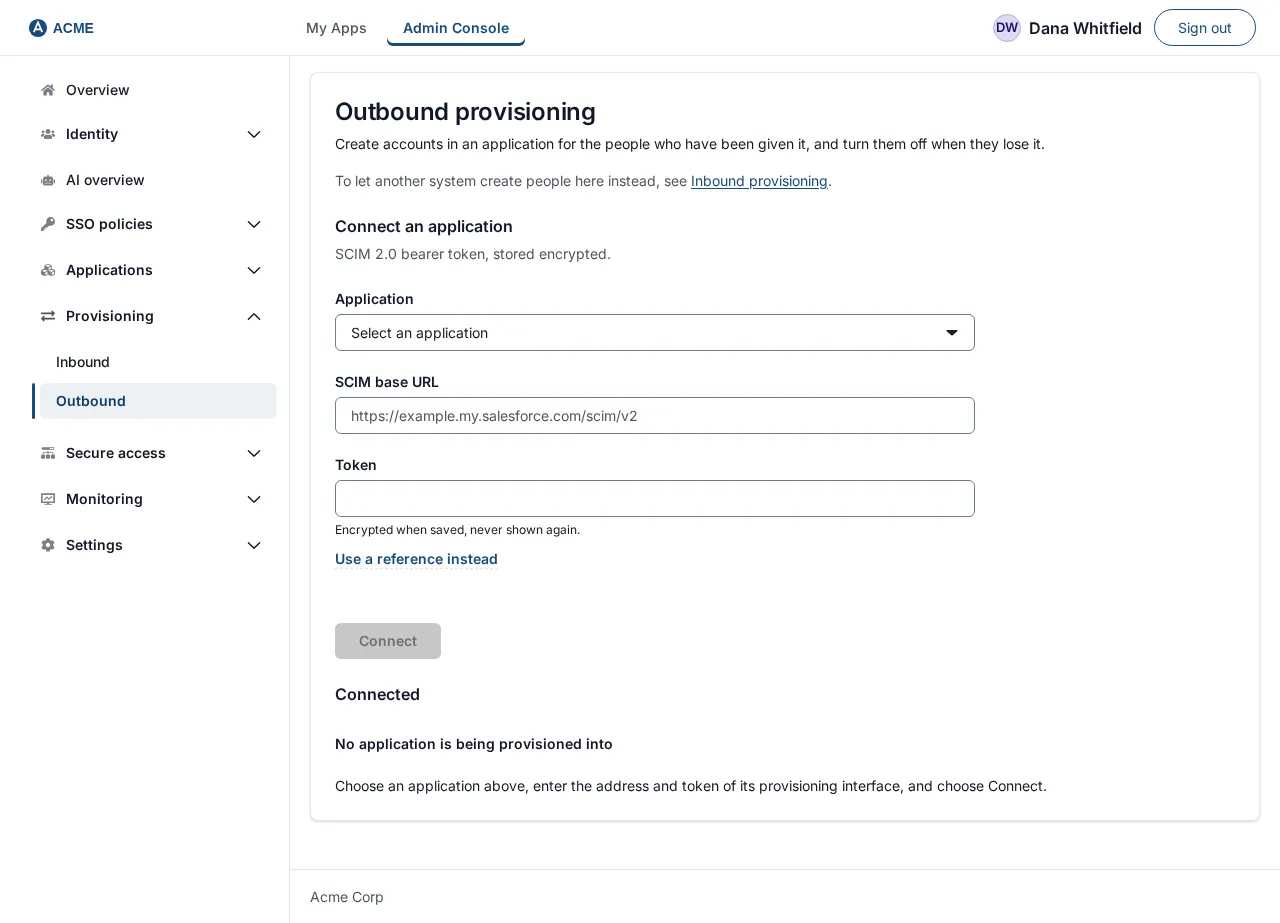
The page has two sections: Connect an application and Connected. Connect an application says “SCIM 2.0 bearer token, stored encrypted.” Until you connect one, Connected shows No application is being provisioned into (“Choose an application above, enter the address and token of its provisioning interface, and choose Connect.”).
2. Connect an application
Section titled “2. Connect an application”Under Connect an application:
- Application: open the list (it starts at Select an application) and choose the application by name, for example
Acme Helpdesk. Applications that are already connected are not offered again. - SCIM base URL: type the application’s SCIM address, for example
https://helpdesk.acme.example/scim/v2. It must begin withhttps://. - Token: type the bearer token the application gave you. The helper text says Encrypted when saved, never shown again. (If you would rather keep the token outside SSOGEN, choose Use a reference instead and enter a reference such as
secret://env/HELPDESK_SCIM_TOKEN; the choices are an environment variable your operator has allowed, or a shared stored secret.) - Choose Connect. The button stays unavailable until all three are filled in.
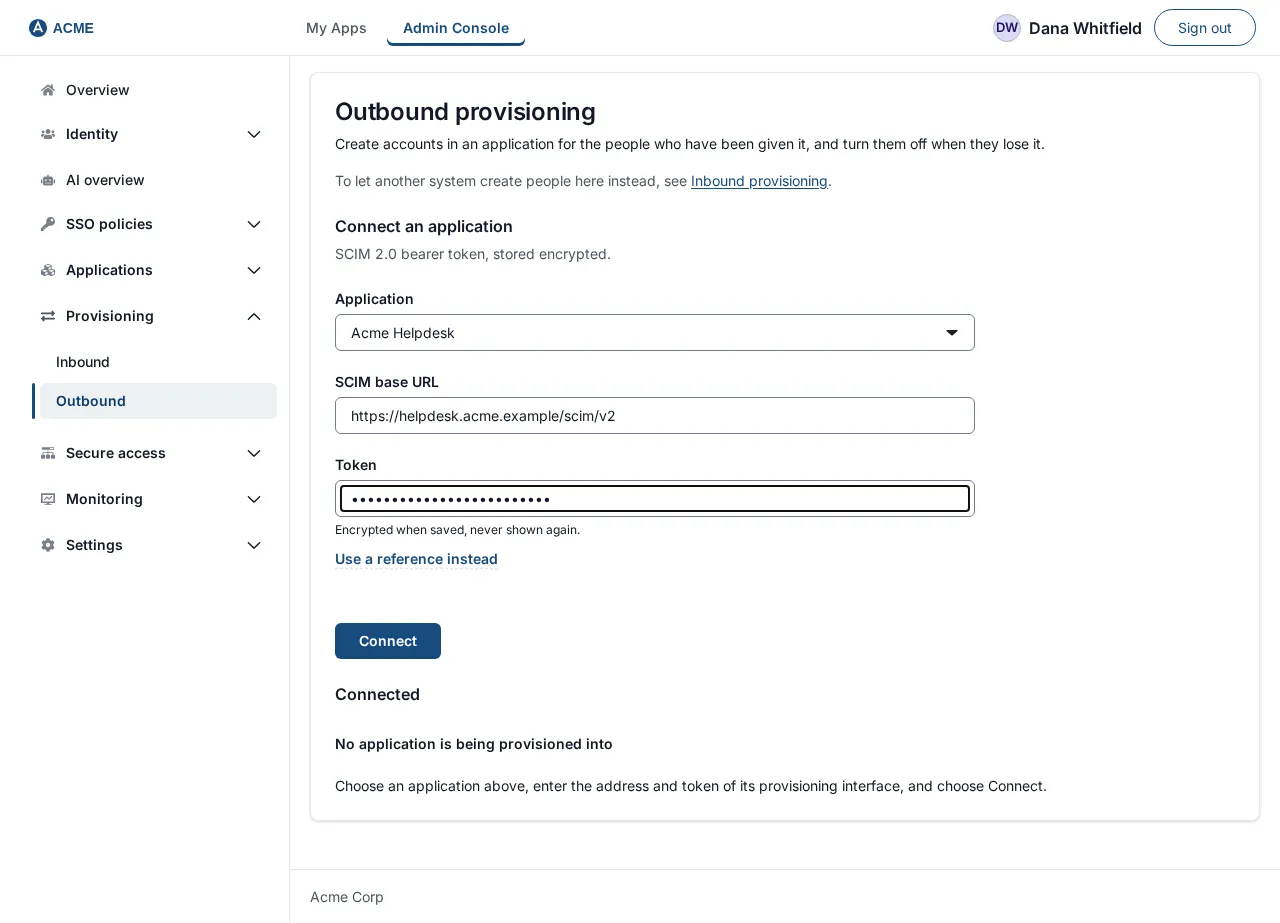
When it works, the form clears, a line says “application id is connected. People are sent to it from the next run.” and the application appears under Connected, shown by its identifier. A new connection starts with Deactivate leavers off, groups not sent and the default attributes, so the first runs only create and update accounts.
Errors when connecting or saving
Section titled “Errors when connecting or saving”When something is refused, the console shows the reason in its message area.
| Message | What to do |
|---|---|
| A base URL and a token are required. | Fill in both fields. |
| That is not a URL. | Check the address for typos. |
| Use an address that starts with https://, so what is sent, and the credential with it, is encrypted. | Use the https:// address. |
| A URL is required. or The URL has no host. | Type the full address. |
| The URL must not carry credentials or a fragment. | Remove any user:password@ or #… part. |
| That host is not reachable from here. | The host is localhost, a .local name or similar. Use the application’s public address. |
| That host could not be resolved. | The name does not exist in DNS from SSOGEN’s server. |
| That host resolves to an address inside this network. | The name points at a private address, which SSOGEN refuses to call unless an operator has allowed private targets (see “What you need”). Prefer the application’s public address. |
| The application needs a token; type one. | The Token field was empty. |
| That token is too long. | Re-check what you pasted. |
| That is not a secret reference this server can resolve. or That secret reference resolves to nothing on this server. Set the environment variable it names, then save again. | The reference is not allowed or is not set. Type the token instead, or ask your operator. |
| This deployment has no secret encryption key, so a typed token cannot be stored. Use a secret://env/ reference instead, or ask an operator to configure the key. | Ask your operator, or use a reference. |
| Send the token or a token reference, not both. or That secret belongs to another object, and only it can use it. Type the token here, or use a shared secret’s reference. | Use one or the other, and a reference that is yours to use. |
| That application could not be connected. | Shown when the server gives no reason. |
| There is no such application. | The application was deleted. Reload the page. |
| A mapping message, for example That SCIM attribute cannot be mapped (active, id, meta, schemas, groups and password are managed by SSOGEN or never sent). followed by (row 3) | Fix that row of Attributes sent (see below) and save again. Other mapping messages: The mapping must send userName., Each SCIM attribute can be mapped once., A fixed value must be 1 to 256 printable characters., A mapping has at most 32 entries. |
3. Read the Connected table
Section titled “3. Read the Connected table”| Column | Meaning |
|---|---|
| Application | The application’s identifier. |
| SCIM endpoint | The address you entered. |
| Token | Where the token is held and when it last changed. Choose Replace token to type a new one (see below). |
| Deactivates leavers | Yes or No: the Deactivate leavers setting. |
| Groups | Assigned groups when the groups assigned to the application are sent, Not sent otherwise. |
| Last run | When the last run finished, and, under it, the first problem it had (if any). |
| (actions) | Run, Settings, Disconnect. |
Replace the token
Section titled “Replace the token”When the application’s token changes (for example after a rotation at the application):
- In the Token cell choose Replace token. A field New token appears (you can also use a reference instead).
- Type the new token. A Save token button appears; choose it.
The page says “The token for application id was replaced.” The address and every setting are kept. If you move the connection to a different address in the same save, SSOGEN asks you to type the token again: a stored token never follows its connection to a new address. Cancel closes the field without changing anything.
4. Settings
Section titled “4. Settings”Choose Settings on the application’s row. A Settings for application section opens below the table with three parts. Nothing changes until you choose Save settings; Close leaves without saving. After saving, the page says Settings for application id saved. They apply from the next run.
Deactivate leavers
Section titled “Deactivate leavers”A leaver is somebody with an account in the application who no longer has the application in SSOGEN: they were unassigned, left every group that gives it, or were disabled, archived or deleted in SSOGEN.
- Off (the default): no run switches anybody off. Each run still counts the leavers and says so.
- On: every run, the automatic one and Run alike, switches leavers’ accounts off and takes them out of the groups SSOGEN sent. An account is switched off by setting it inactive (a SCIM
PATCHofactivetofalse), never deleted, so giving the person the application again switches the same account back on.
Turning the switch on asks first: Turn on Deactivate leavers for application id? “Leavers are turned off in the app on the next run (never deleted). Run once with this off to see the count.” Choose Turn on, then Save settings. Cancel leaves it off.
SSOGEN never switches anybody off when any of these hold, and the run says which:
- Nobody is assigned the application at all. This is read as an assignment removed by mistake, not as everybody leaving.
- The run stopped early because the application refused the token or could not be reached.
- SSOGEN could not read who has the application (for example a group could not be read). The run stops before sending anything.
Somebody who still has the application in any way (directly, or through any assigned group) is never a leaver.
Groups
Section titled “Groups”- Don’t send groups (the default).
- Send the groups assigned to this application (“Groups are created with the same name; members SSOGEN added are kept in sync.”): each group assigned to the application is created in it with the same name, and its members are the group’s members who have an account there. Someone who joins the group is added at the next run. Someone who leaves it is taken out, but only when Deactivate leavers is on.
SSOGEN only ever takes out members it added itself: someone an administrator added to that group inside the application stays. If the application already has a group with the same name, SSOGEN uses it instead of creating a second one. A group that is no longer assigned keeps its name and the members SSOGEN did not add; SSOGEN never deletes a group in the application.
Attributes sent
Section titled “Attributes sent”Each row sends one SCIM attribute, either from an SSOGEN attribute or as a fixed value. The default is the person’s username as userName, first and last name, and work email. With the default, the section says Using the default attributes.
- SCIM attribute: choose from the list (for example
title,displayName,name.familyName,emails[type eq "work"].value,phoneNumbers[type eq "mobile"].value, or the enterprise attributes such asurn:ietf:params:scim:schemas:extension:enterprise:2.0:User:department). Another extension attribute (urn:…) lets you type an attribute of the application’s own extension schema. - Value from: an SSOGEN attribute (Username, Email, First name, Last name, Display name, Mobile phone, SSOGEN user ID, or one of your custom profile attributes, shown as name (profile attribute)), or A fixed value with the text to send.
userNameis always the first row and cannot be removed; it comes from the Username or the Email. It is how SSOGEN finds an existing account in the application.- Add attribute adds a row; Remove removes one; Reset to default goes back to the default rows.
active, password, groups, id, meta and schemas cannot be mapped: SSOGEN manages active (see Deactivate leavers) and groups (see Groups), and never sends a password.
A change of the attributes is sent to everybody at the next run.
5. What a run does
Section titled “5. What a run does”A run compares who should have the application with what the application has, and fixes the difference. For each person who should have it, SSOGEN does the first that applies:
- Not linked yet: asks the application whether it already has an account with the same
userName. If it does, SSOGEN adopts it (switching it back on if it was off) and sends the mapped attributes. If not, SSOGEN creates the account with every mapped attribute that has a value. - Linked but switched off (they lost the application earlier and have it again): switches them back on.
- Linked, and something mapped changed (a new name, a new email, a different department, or a changed mapping): sends just the mapped attributes, by SCIM
PATCH. An attribute that has no value any more is removed in the application. - Linked and nothing changed: nothing is sent.
Who “should have it”: people whose SSOGEN account is active and who are assigned the application directly, or are members of a group assigned to it (every assigned group is read, including group rules and nested groups).
Then, if groups are sent, the groups are brought in line; and, if Deactivate leavers is on, leavers are switched off and taken out of the groups SSOGEN sent.
One person failing does not stop the others. If the application refuses the token, the run stops at once, because every other request would be refused too. A busy application (HTTP 429, 502, 503 or 504) or a request with no answer is tried once more after a second; anything else waits for the next run, which repairs whatever this one could not do.
Only one run of an application happens at a time. Choosing Run while the automatic run is working on the same application answers This application is being provisioned already. Wait for that run to finish.
6. Run it by hand
Section titled “6. Run it by hand”-
Choose Run on the application’s row.
-
Read the message at the top, for example:
helpdesk: 38 should have it — 36 created, 2 already there, 0 switched back on, 0 turned off, 0 updated.
(The application is shown by its identifier.) When groups are sent, a second sentence follows, for example Groups: 1 created, 38 members added, 0 removed.
| Phrase | Meaning |
|---|---|
| N should have it | How many people SSOGEN thinks should have an account. Check this against what you expect. If it is far off, an assignment is wrong. |
| created | New accounts made in the application. |
| already there | Accounts the application already had, now linked. |
| switched back on | Accounts that were inactive and were reactivated. |
| turned off | Leavers switched off in this run. |
| updated | Accounts whose mapped attributes changed and were sent. |
A blue message explains leavers when there is something to say:
- N people no longer have the application. Deactivate leavers is off, so nobody was turned off. This is how many a run would switch off with the setting on.
- Nobody is assigned this application, so nobody was turned off. Assign somebody, or disconnect it if it is no longer used.
- The run stopped early, so nobody was turned off. Fix the problem below and run again.
A yellow message means the run had problems; each problem is listed under it, for example user 7c0e…: create: the application answered 409 (uniqueness). A problem names the person or group by its SSOGEN ID, what SSOGEN was doing (create, update, deactivate, push, remove_members), and what the application answered: its HTTP status and, when it gave one, the SCIM error type. SSOGEN does not show or keep the application’s own error text, because it can contain a person’s details. At most 20 problems are listed, and the first is also kept in the Last run column.
The recommended first steps: connect, choose the attributes and groups in Settings, choose Run with Deactivate leavers off, and check the counts. When the number who should have it and the leavers count are what you expect, turn Deactivate leavers on.
7. The automatic schedule
Section titled “7. The automatic schedule”SSOGEN also runs every connected application on its own, starting about two minutes after the server starts and then every 15 minutes by default (your operator can change the interval). So someone added to a group that grants the application gets an account without anyone pressing a button, a changed name reaches the application, and a run that was missed is repaired by the next one.
The automatic run is the same run as Run, under the same rule: with Deactivate leavers on, it switches leavers off; with it off, it never does.
8. Disconnect
Section titled “8. Disconnect”Choose Disconnect on the application’s row. A dialog asks Stop provisioning application id? and says: “Accounts in the app stay as they are. SSOGEN stops managing them.” Choose Stop provisioning to confirm.
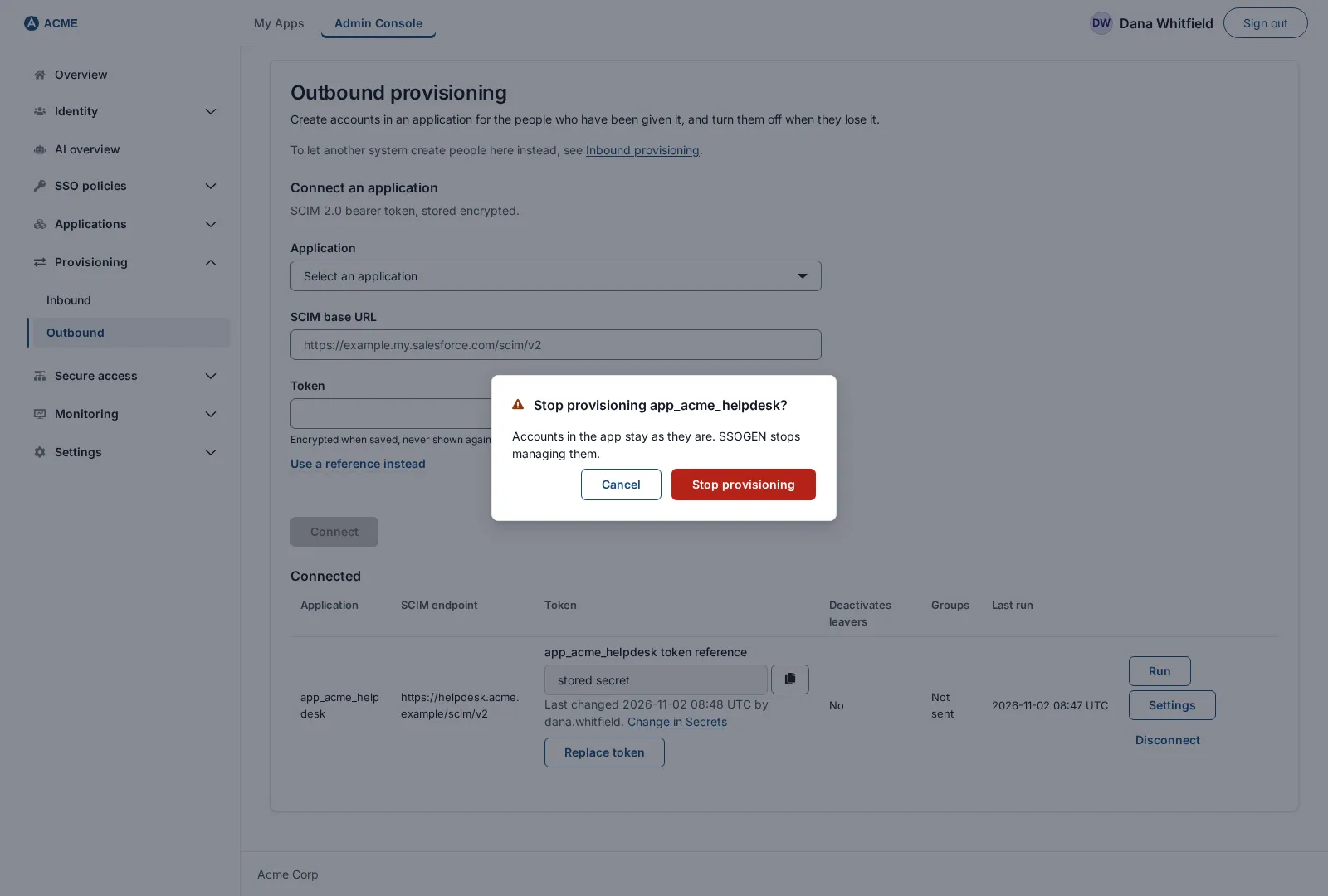
The connection is removed, with the token SSOGEN held for it. Accounts and groups in the application are left as they are.
What is recorded
Section titled “What is recorded”Every change of a connection or its settings, every manual run, every automatic run that changed or failed something, and every account switched off are recorded in the audit trail (application.provisioning_changed, application.provisioning_run, application.provisioning_account_deactivated). The records hold identifiers and counts, never a token, a mapped value or an email.
Worked example: Acme Corp
Section titled “Worked example: Acme Corp”Acme Corp assigns the Acme Helpdesk application to its Support group (38 people, including Maria Lopez), and the helpdesk offers SCIM at https://helpdesk.acme.example/scim/v2.
- The helpdesk administrator creates a provisioning token inside the helpdesk (outside SSOGEN).
- In Provisioning → Outbound an SSOGEN Application admin chooses
Acme Helpdesk, types the base URL and the token, and chooses Connect. - In Settings they add a row
urn:ietf:params:scim:schemas:extension:enterprise:2.0:User:departmentfrom theirdepartmentprofile attribute, choose Send the groups assigned to this application, and Save settings. - They choose Run. The message reads: 38 should have it — 36 created, 2 already there, 0 switched back on, 0 turned off, 0 updated. Groups: 1 created, 38 members added, 0 removed. The 2 were accounts someone had made by hand with the same usernames; SSOGEN linked them instead of duplicating them.
- They open Settings again, turn Deactivate leavers on, confirm, and save.
- Over the next weeks new support staff are added to
Support; within about 15 minutes each has a helpdesk account and is in the helpdesk’sSupportgroup. - When Maria moves to Finance and is removed from
Support, the next automatic run switches her helpdesk account off and takes her out of the helpdesk’sSupportgroup. Her account is inactive, not deleted.
Troubleshooting
Section titled “Troubleshooting”| Symptom | Likely cause and fix |
|---|---|
| Last run shows … the application refused the token (401) or (403) | The application rejected the token. Get a new token there, then choose Replace token here. The run stopped at the first refusal. |
| the application answered 400 (invalidValue) or another status | The application refused a value or the request. Check the attributes you map against what the application accepts (its SCIM documentation), and that the person’s details are valid there. |
| the application answered 409 (uniqueness) | The application already has an account with that userName, which its search did not return. Check the application’s SCIM search, or how userName is mapped. |
| the application returned a resource with no id | The application’s SCIM does not return the standard id. SSOGEN cannot manage those accounts. |
| the application holds more than one match | The application returned several accounts for one userName, which means it ignored the search filter. SSOGEN will not guess which one to use. |
| the application could not be reached | Check the address, firewall, and that it is https:// with a valid certificate. |
| there is no value for userName | The person has no value for what userName is mapped from (for example no email). Give them one, or map userName from the username. |
| should have it is 0 | Nobody is assigned the application (or all assigned people are disabled). Assign people or a group first. |
| Leavers are not turned off | Deactivate leavers is off (the run says how many leavers there are), or the run stopped early, or nobody is assigned at all. |
| Someone who left a group stays in the application’s group | Deactivate leavers is off, or the member was added at the application by someone else (SSOGEN only removes members it added). |
Not covered
Section titled “Not covered”- Setting a password in the application: never done.
- Deleting accounts or groups in the application: never done; accounts are switched off and groups are left in place.
- The
managerattribute (a reference to another account) and other reference or computed values: only an SSOGEN attribute or a fixed value can be mapped; there are no expressions. - Which specific applications work with it: this guide does not list applications. Any application with a standard SCIM 2.0
/Users(and, for groups,/Groups) interface can be tried, starting with a manual Run with Deactivate leavers off. Ask your SSOGEN contact to validate your target application with you first. - Changing the schedule interval from the console: not available; set by your operator.
Related guides
Section titled “Related guides”Create the source accounts with inbound provisioning over SCIM, organize access with groups, or read the overview of user provisioning software.