Block sign-in outside office hours: rules and conditions
A rule says “when these conditions are all true, do this”. Rules let a policy or the access rules block sign-in from outside the office, require a second factor, or shorten a session for some people, places and times, and they can read a sign-in risk score for risk-based authentication. This guide covers the rule editor that you meet in two places:
- the Conditions step of a policy (SSO policies > Policies, then Add policy or Edit), and
- Access rules on SSO policies > Defaults (see Access rules).
Both use the same editor. Read How sign-in decisions work first if you are new to policies.
What a rule contains
Section titled “What a rule contains”Each rule is a card titled Rule 1, Rule 2, and so on, with the name after a colon (for example “Rule 2: Block outside the office”). A card has:
| Part | What it is |
|---|---|
| Name | Required, up to 128 characters. A name you will recognize later, for example Block outside the office. |
| When | The conditions, shown as short sentences (“chips”). With none the card says Always (no conditions). Every condition must be true for the rule to match: they are joined by and. There is no “or”: to say “either of these”, write two rules. |
| Add condition | A link that opens the condition builder (below). Each chip has an x to remove it. |
| Then | The outcome, chosen from a list. |
| Arrow and bin icons | An up arrow, a down arrow and a bin at the top right of the card move the rule up, move it down, and remove it. They are labelled Move rule 2 up, Move rule 2 down and Remove rule 2 for screen readers. |
Under the cards: Add rule adds a new rule at the end (a name is required). A list holds at most 256 rules and a rule at most 16 conditions.
Below all the rules sits the Default card. In a policy it reads Otherwise: the requirements above: nobody is matched by a rule, so the policy’s own requirements apply. In the access rules it is the When no rule matches choice.
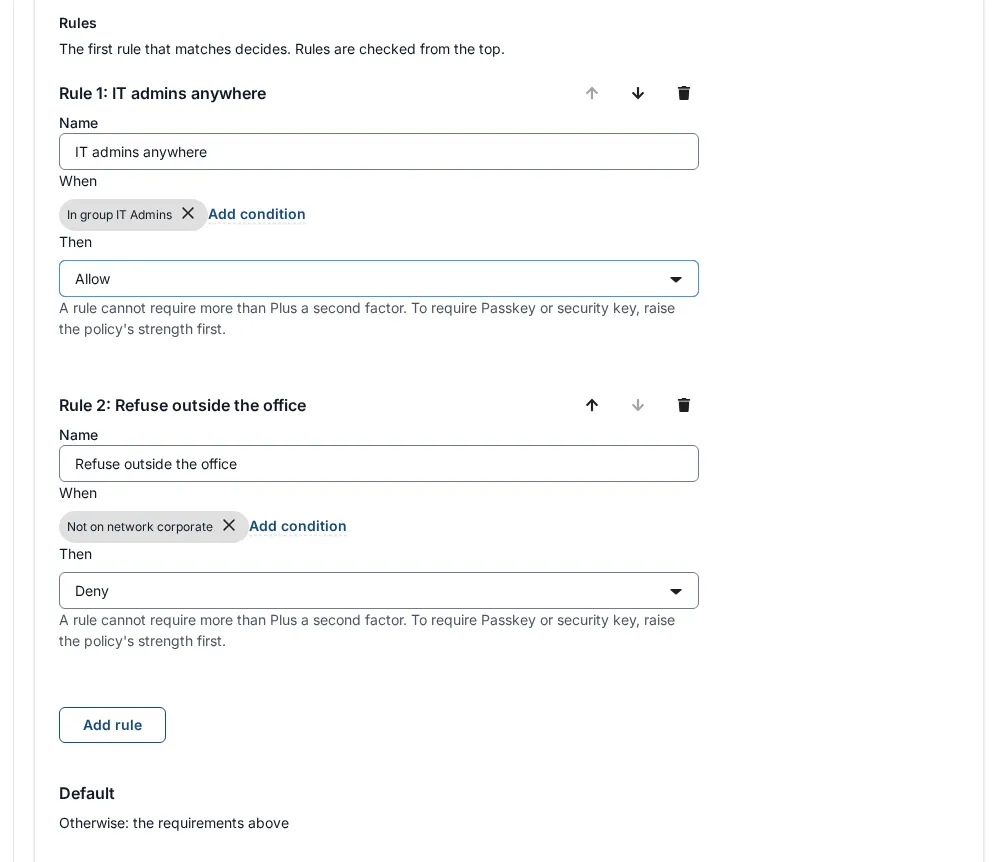
Order matters: the first match decides
Section titled “Order matters: the first match decides”“The first rule that matches decides. Rules are checked from the top.” Move the specific rules to the top and the general ones below. When two rules could both match, only the upper one counts for the decision.
If a rule can never decide because an earlier rule always matches first, the editor warns on that rule: Never reached: rule 3 is covered by rule 2. Reorder or remove one of them.
The Access rules list also has an Always first section above Rules: “These rules are checked before every other rule, for example an emergency deny.” Rules there cannot be moved below ordinary rules. Policies do not have this section.
Build a condition
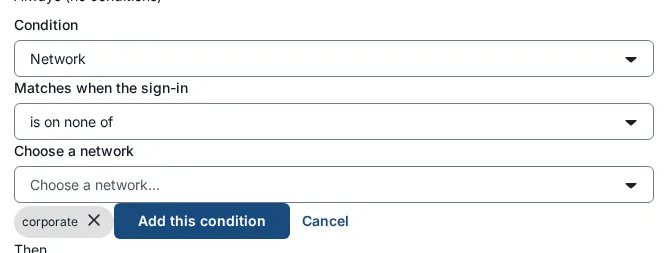
Section titled “Build a condition”Select Add condition inside a card. A small form opens.
- Condition: choose the type (list below).
- For most types a second list asks how it matches, for example Matches when the sign-in with is in any of or is in none of.
- Choose the value or values. Lists are always pick-from-a-list: you never type a group name or a network name by hand, so a rule cannot point at something that is not there. A chosen value appears as a label with an x to remove it.
- Select Add this condition. The button stays disabled until the condition is complete. Cancel closes the form.
Every condition type
Section titled “Every condition type”| Condition | How it is worded | Choose | Matches when | Limits |
|---|---|---|---|---|
| Group | is in any of / is in none of | One or more groups (Choose a group…) | The person belongs to at least one of the groups (or to none of them). Groups are managed under Identity > Groups. | Up to 64 groups |
| Person | is one of / is none of | People (Choose a person…) | The person is one of those people. The list offers the first 100 people. | Up to 256 |
| Network | is on one of / is on none of | Network zones (Choose a network…) | The person’s address belongs to one of the network zones. An address in no zone counts as the special zone unknown, which matches “is on none of”. |
Up to 32 zones |
| Signed in through | is one of / is none of | Identity providers (Choose a provider…) | The sign-in was done at one of those identity providers. | Up to 32 |
| Sign-in strength | is at least / is below | Strength: Password or single sign-on, Plus a second factor, Passkey or security key | The strength of the sign-in reaches (or falls short of) the one chosen. | |
| Sign-in methods | Tick Password, Authenticator, Passkey under Every one of these methods | The person used every one of the ticked methods in this sign-in. | ||
| Time since sign-in | was within the last / was more than | Minutes (1 to 1440) | How long ago the person last signed in. | 1 minute to 24 hours |
| Days and hours | Days (Monday to Sunday, Monday to Friday ticked at first), From (09:00), Until (17:00), Time zone (UTC at first) | The current time, read on the clock of the time zone you choose, is on one of the ticked days between From (inclusive) and Until (exclusive). If Until is not after From the window runs past midnight; a night shift belongs to the day it starts on. From and Until cannot be the same. | ||
| Date range | From (UTC), Until (UTC) | The current time is on or after From and before Until. Both are read as UTC, and From must be earlier. | ||
| Risk score | is at least / is at most | Risk score (0 to 100) | The sign-in’s risk score reaches (or stays within) the number. See “The sign-in risk score” below. | 0 to 100 |
| Asked by (person or non-human identity type) | is one of / is none of | Tick A person, AI agent, MCP client, Automation, Service | The request comes from a person, or from a non-human identity of that type. | |
| Acting non-human identity | is one of / is none of | AI agents and other non-human identities by name (Choose a non-human identity…) | The identity acting is one of those. | Up to 64 |
The last two matter when AI agents act for people; see AI agents in SSOGEN. When one agent hands work to another, the conditions on who is acting are checked for each acting identity separately and every one must pass.
The sign-in risk score
Section titled “The sign-in risk score”SSOGEN has a deterministic sign-in risk score from 0 to 100 and supports adaptive authentication: it scores every sign-in when the person signs in, the same way every time, and a rule can ask for more proof when the score is high. The score adds up fixed amounts for each of these that is true, and is capped at 100:
- The browser has not been used by this person in the last 180 days.
- The network (the first three parts of an IPv4 address, or the first three groups of an IPv6 one) has not been used by this person in the last 30 days (the default; Known network window (days) under Settings > Authenticator changes it).
- The address is in no network zone.
- There were failed sign-in attempts on the account in the last 15 minutes (a wrong password, or a wrong code at the second factor). Three or more count for more than one or two.
Without failed attempts the highest score is 70, so a threshold above 70 is reached only by sign-ins with failed attempts. So a person on their usual laptop in the office scores low, and a first sign-in from home on a new laptop scores much higher. If SSOGEN cannot read the person’s sign-in history, or a session was not scored (it was made before the score existed), the score is 100, so a risk rule fails safe.
The score is what you compare: write the rule you want, for example Risk score is at least 50 then Deny. The condition builder repeats what feeds the score under the number. Every sign-in’s score and its reasons are recorded in the audit log, and every decision a rule list makes records the score it read. Use What if to see what a combination scores before you rely on it.
What SSOGEN keeps for this: for each person, a fingerprint of each browser and network they signed in from (a keyed hash, never the address itself) and of each recent failed attempt, kept for 180 days, 30 days (the known network window) and 15 minutes respectively and then deleted. The browser is recognized by a cookie SSOGEN sets at sign-in, which only ever lowers the score and is not a credential; a person who clears cookies or uses a private window scores as a new browser. A wrong password at a directory (LDAP) sign-in is not counted: the directory keeps its own lockout. The country of an address is not part of the score.
Ask risky sign-ins for a second factor (adaptive MFA)
Section titled “Ask risky sign-ins for a second factor (adaptive MFA)”The main use of the score: people sign in with a password as usual, and only a risky sign-in is asked for a second factor.
- Open the policy the applications use (for example “Staff apps”) and check its requirements: Second factor is Required, with at least one method ticked under Accepted second factors (for example SSOGEN Authenticator code and Recovery code), and the first factor is a password or single sign-on.
- Go to Conditions and select Add rule. In Name type
Risky sign-ins need a second factor. - Select Add condition. Condition: Risk score. Matches when the sign-in: is at least.
Risk score (0 to 100):
30. Select Add this condition. - Then: Require a second factor.
- Save the policy on Review.
The card reads: When Sign-in risk score 30 or more Then Require a second factor.
What people see: on their usual browser and network the score is 0 and they open the application after their password, as before. On a new browser or from a new network outside the office, the application first asks for a second factor, offering the accepted second factors of the policy that the person has set up; once they enter it, the application opens. The score stays with the sign-in: a second factor proves who the person is, it does not make a new browser known.
Three things to know:
- Only the policy’s own second factors are used. A rule can raise a sign-in to Plus a second factor because the policy can deliver that with its accepted second factors. If the policy ticks no method, there is nothing to ask for, and saving the rule is refused (see the note under Outcomes). No second factor is a passkey, so a rule cannot raise a policy to Passkey or security key this way.
- A person with none of those methods is not let in. They are told to set up a second factor and the application stays closed until they do.
- An enrolled authenticator app is always asked. A person who has set up an authenticator app is asked for it at every sign-in whatever the score, so adaptive MFA changes things for people without one (recovery codes, or a text or email code where the policy allows it).
The same rule works in the access rules for every application at once, as long as every policy can step people up to a second factor. Deny, Allow with a shorter session and Allow and alert are the other outcomes a risk rule commonly uses.
When a name is used in a rule that no longer exists (a deleted group, a provider removed), the chip says “a group that no longer exists” or similar, and the whole list refuses every sign-in it governs until you fix it. See “When a save is refused” below.
How the chips read
Section titled “How the chips read”Once added, each condition becomes a sentence, for example:
| You chose | The chip says |
|---|---|
| Group, is in any of, Finance | In group Finance |
| Group, is in none of, Contractors | Not in group Contractors |
| Network, is on none of, corporate | Not on network corporate |
| Sign-in strength, is below, Passkey or security key | Signed in with less than Passkey or security key |
| Time since sign-in, was more than, 480 | Signed in more than 8 hours ago |
| Days and hours, Monday to Friday, 08:00 to 18:00, Europe/London | On Monday to Friday, 08:00 to 18:00 (Europe/London) |
| Risk score, is at least, 50 | Sign-in risk score 50 or more |
| Risk score, is at most, 30 | Sign-in risk score 30 or less |
Rule outcomes
Section titled “Rule outcomes”The Then list offers these outcomes, in this order: Allow, Deny, Allow with a shorter session, Allow and alert, then any Require … choices.
| Outcome | What happens |
|---|---|
| Allow | The rule list lets the person through, and the policy’s own requirements still apply (“Allow” means “the default requirements, and stop looking at lower rules”). |
| Deny | Refuse. The person cannot open the application. |
| Allow with a shorter session | Let the person in and limit their SSOGEN session. The editor sets it to 15 minutes (“Allow with a shorter session of 15 minutes” on the saved rule). |
| Allow and alert | Let the person in and mark the decision as an alert. The decision is recorded in the audit log (Monitoring > Audit) with that marker. This guide does not describe any other notification. |
| Require … (for example Require a second factor) | Ask for a stronger sign-in. Listed only for strengths above the policy’s own that the policy can deliver. See the note below. |
Two rules about outcomes:
- A rule can only ask for more, never less. A policy’s rules can refuse, shorten, alert or require more; they can never lower the strength the policy itself asks for. A rule that tried to ask for less is refused with “A rule or the default asks for less than the policy’s own requirements.” This is on purpose: it means nobody can open a hole by adding a rule.
- Across the two lists the strictest answer wins. A Deny in the access rules or in the policy refuses. The shortest session wins. Any list that alerts, alerts.
Nine worked rule examples
Section titled “Nine worked rule examples”Each example uses the Acme Corp setup: groups Employees, Contractors, Finance, IT Admins, Auditors, a network zone called corporate (the office; see Network zones) and another called guest, and the provider Corporate LDAP. “Policy” examples go in the Conditions step of a policy; “Access rules” examples go in the access rules list.
Example 1. Refuse sign-in from outside the office (policy)
Section titled “Example 1. Refuse sign-in from outside the office (policy)”Goal: people may use “Acme Payroll” only from the office network.
- Edit the policy “Finance with second factor” and go to Conditions.
- Select Add rule. In Name type
Refuse outside the office. - Select Add condition. Condition: Network. Matches when the sign-in: is on none of. Choose a network…:
corporate. Select Add this condition. - Then: Deny.
- Save the policy on Review.
The card reads: When Not on network corporate Then Deny. Anyone whose address is in no corporate range is refused; the policy’s requirements apply to everyone else.
Example 2. Administrators are exempt: why order matters (policy)
Section titled “Example 2. Administrators are exempt: why order matters (policy)”Goal: IT Admins may sign in from anywhere, everybody else only from the office.
- Rule 1 Name
IT admins anywhere. Condition Group, is in any of,IT Admins. Then: Allow. - Rule 2 Name
Refuse outside the office. Condition Network, is on none of,corporate. Then: Deny.
An IT Admin matches rule 1 first, so this policy stops there and never reaches rule 2. Everyone else fails rule 1 and meets rule 2. If you put the two the other way round, rule 2 would refuse the administrators before rule 1 was ever read. Move rules with the up and down arrows.
Example 3. A shorter session from the guest network (policy)
Section titled “Example 3. A shorter session from the guest network (policy)”Goal: people connected through the guest Wi-Fi get a short session.
- Name:
Short session on guest network. - Condition Network, is on one of,
guest. - Then: Allow with a shorter session.
The saved rule reads “Allow with a shorter session of 15 minutes”.
Example 4. Raise an alert when IT admins sign in from outside (policy)
Section titled “Example 4. Raise an alert when IT admins sign in from outside (policy)”- Name:
Alert on IT admins outside the office. - Condition Group, is in any of,
IT Admins; add a second condition Network, is on none of,corporate. - Then: Allow and alert.
Both conditions must be true. The audit log then marks every such decision as an alert.
Example 5. Contractors only in office hours (access rules)
Section titled “Example 5. Contractors only in office hours (access rules)”Goal: employees any time; contractors Monday to Friday, 08:00 to 18:00 London time; nobody else.
- Rule 1
Employees any time: Group, is in any of,Employees; Then Allow. - Rule 2
Contractors in office hours: Group, is in any of,Contractors; Days and hours: tick Monday to Friday, From08:00, Until18:00, Time zoneEurope/London; Then Allow. - When no rule matches: Deny (recommended).
There is no “outside hours” condition, so you write what is allowed and let the default refuse the rest. A contractor at 20:00 matches neither rule and is refused by the default.
Example 6. A temporary window for the auditors (access rules)
Section titled “Example 6. A temporary window for the auditors (access rules)”Goal: the external auditors may sign in only during November 2026.
- Name:
Auditors in November. - Condition Group, is in any of,
Auditors. - Condition Date range: From (UTC)
2026-11-01 00:00, Until (UTC)2026-12-01 00:00. - Then: Allow.
On 1 December the rule stops matching without anyone editing it, and the default refuses them again. Remember that both times are in UTC.
Example 7. Refuse a person at once with an always-first rule (access rules)
Section titled “Example 7. Refuse a person at once with an always-first rule (access rules)”Goal: cut off one person immediately, whatever other rules say.
- In Always first, select Add always-first rule.
- Name:
Block Drew Carter. Condition Person, is one of,Drew Carter. Then: Deny. - Select Save access rules.
Because it is above every other rule it decides first. If saving would leave you unable to open any application you can open now, SSOGEN asks you to type the organization’s name; see Access rules.
Example 8. Refuse people who did not use a passkey (policy)
Section titled “Example 8. Refuse people who did not use a passkey (policy)”Goal: finance staff must use a passkey for payroll, though most staff only need a second factor.
- Name:
Finance needs a passkey. - Condition Group, is in any of,
Finance; condition Sign-in strength, is below, Passkey or security key. - Then: Deny.
This refuses a finance person who signed in without a passkey. It does not ask them for one: no second factor is a passkey, so a rule cannot ask for more than the policy delivers (see the note under Outcomes). If you want them guided to a passkey, put the finance applications on a policy whose second factor is Passkey or security key only.
Example 9. Refuse very old sign-ins (policy)
Section titled “Example 9. Refuse very old sign-ins (policy)”- Name:
Refuse sign-ins older than 8 hours. - Condition Time since sign-in, was more than,
480minutes. - Then: Deny.
The chip reads “Signed in more than 8 hours ago”. If you would rather ask the person to sign in again than refuse them, use the policy’s own setting Ask to sign in again instead.
Try a rule before you rely on it
Section titled “Try a rule before you rely on it”On the Review step of an existing policy, Try it runs your unsaved rules against a real person and application, and What if (SSO policies > What if) does the same against what is saved. Both show every rule and whether each condition was Met or Not met. See What if and Test. To try a new set of access rules on real sign-ins before enforcing them, see Defaults and monitoring a new rules version.
When a save is refused
Section titled “When a save is refused”| Message | What it means |
|---|---|
| Someone else saved these rules. They were reloaded; review and repeat your change. | Another administrator saved first. |
| The rules were not saved. A rule or the default asks for less than the policy’s own requirements. | A rule would lower the policy’s strength. Remove it or use Deny, Allow, a shorter session or an alert. |
| The rules were not saved. A rule asks for more than a step-up can deliver: the policy’s own strength, or a second factor when the policy allows one. | See the note under Outcomes. To require a second factor, set the policy’s Second factor to Required and tick a method. |
| The rules were not saved. A rule names a network that is not configured. | The zone was removed from SSOGEN’s settings. See Network zones. |
| The rules were not saved. A rule names a group that no longer exists. | Delete the condition and add the group again. |
| The rules were not saved. A rule has a condition with a missing or invalid value. | Check the times, minutes and lists on the rule. |
| The rules were not saved. A condition carried over from an older policy cannot be saved; remove or replace it. | Rebuild that condition with the builder. |
| The console policy does not support conditions. Nothing was saved. | The policy governs the Admin Console. See Defaults. |
| This change would lock you out of the console. Nothing was saved. | See Access rules. |
| The stored rules cannot be read; every sign-in they govern is denied until a list is saved. | Save a fresh list. |
A policy shown with “This list was translated from an older policy” lists what changed when its older rules were converted (for example “The rule ‘X’ was moved above the allow rules, because denies were always decided first”). Review and save it to make the new form permanent.