Form fill SSO with each person's own password
Some internal applications can only be signed in to with a username and password typed into their own login page. Form fill SSO is the way the App Proxy handles those: the person signs in to SSOGEN once, and the App Proxy types the application password for them, so the application opens already signed in. The person never types the application password again, and the browser never receives it from SSOGEN.
A shared account is one choice: the App Proxy can use one account for everybody. Many enterprise applications reject or flag one account used by many people. With per-person form fill, each person’s own username and password is used, so the application sees each person as themselves and its own audit trail stays meaningful.
This guide is for administrators. Employees should read My Account: App passwords. It continues Sign people in to the back-end application, which sets up the form-login route itself, and uses the fictional company Acme Corp with the application Acme Invoices (https://invoices.internal.acme.example).
Terms used here
- Form login: the sign-in method of an App Proxy route where the App Proxy fills the application’s login form. It is chosen on the route (see the guide above).
- Credential: the username and password a person has in the application.
- Capture (in the console, “Offer to save a person’s password when they sign in to the application”): the App Proxy learns a person’s password from their own first sign-in on the application’s login page, and saves it only after the person agrees.
- SSOGEN Gateway: the program that runs the App Proxy. Capture needs an up-to-date Gateway.
1. What you need
Section titled “1. What you need”- An application published through the App Proxy with a route whose sign-in method is Form login. If the application has no such route, its Sign-in to the application tab shows only the routes table.
- Permission to change applications, and a recent sign-in. Without them the console says “You need to confirm your sign-in again, and have permission to change applications, to do this.”
- For capture: every SSOGEN Gateway in the application’s App Proxy group is up to date. Check the group on the Gateways screen.
- For people to save passwords: each person needs a second factor on their account (an authenticator app, a passkey, or email or text codes), because saving a password asks for a second step. See Multi-factor authentication.
2. Open the settings
Section titled “2. Open the settings”- In the Admin Console open Applications, then App Proxy, and select the application, for example Acme Invoices.
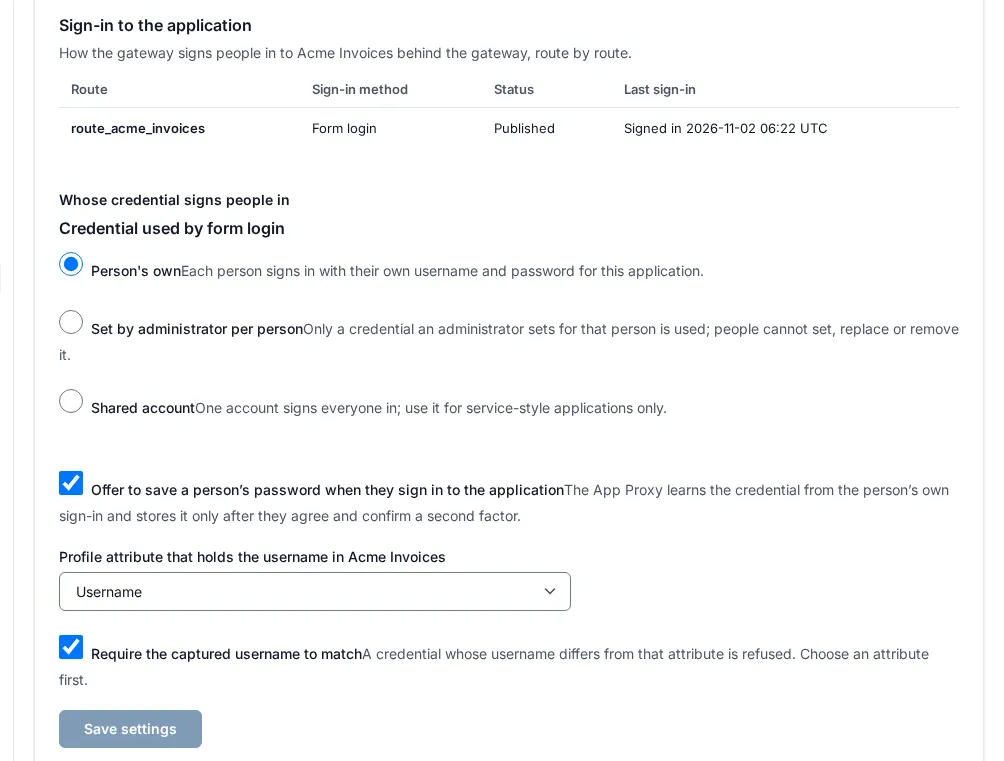
- Open the tab Sign-in to the application. It says “How the gateway signs people in to Acme Invoices behind the gateway, route by route.” and lists the routes with Route, Sign-in method, Status and Last sign-in.
- Under the routes table are three cards: Whose credential signs people in, People’s credentials and Shared account.
3. Choose whose credential is used
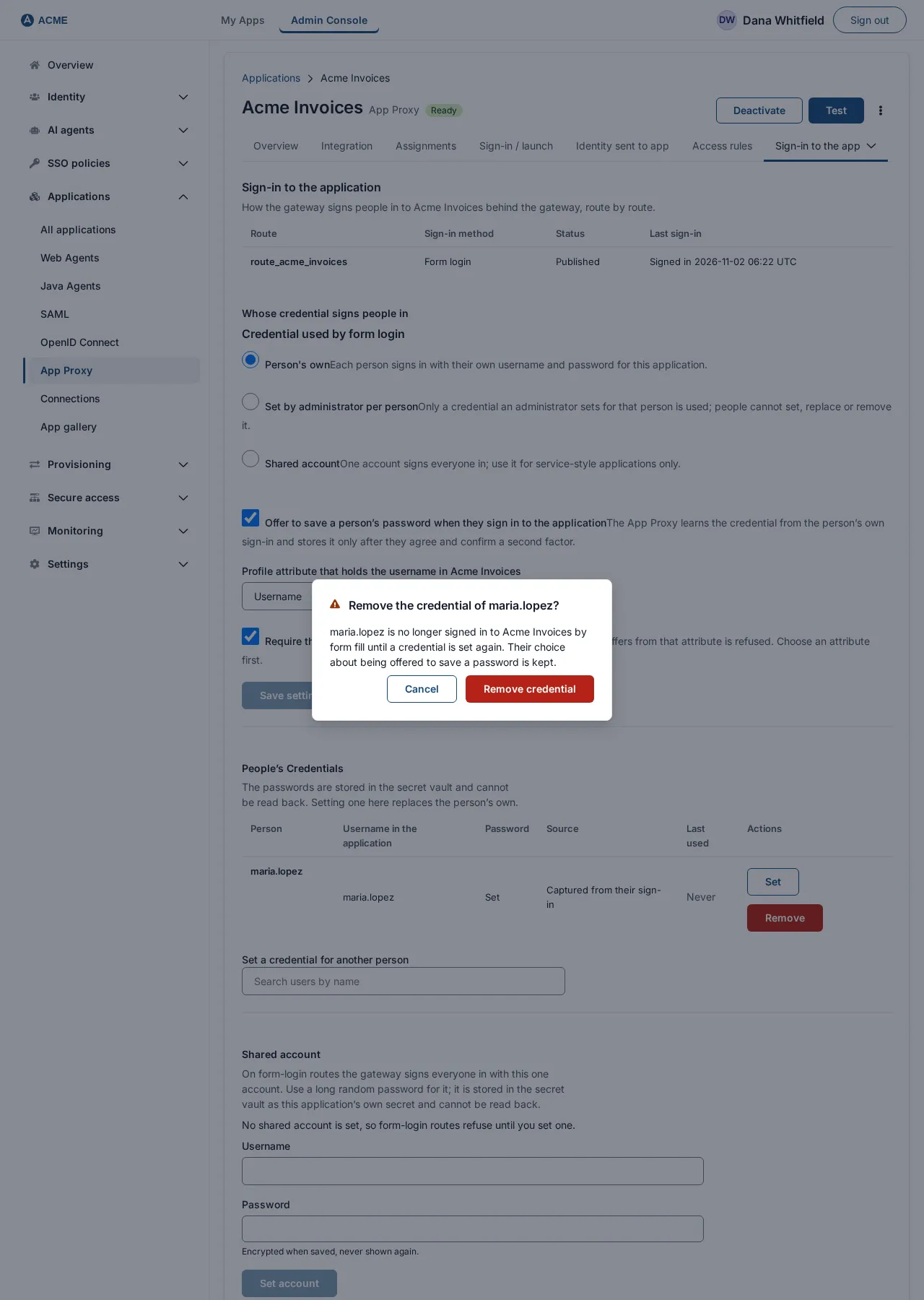
Section titled “3. Choose whose credential is used”Under Whose credential signs people in, Credential used by form login, choose one of three modes:
| Mode | What it means | Use it for |
|---|---|---|
| Person’s own | “Each person signs in with their own username and password for this application.” | Almost every enterprise application. |
| Set by administrator per person | “Only a credential an administrator sets for that person is used; people cannot set, replace or remove it.” | Applications where you must control every credential. |
| Shared account | “One account signs everyone in; use it for service-style applications only.” The console warns: “Every sign-in appears as one account in Acme Invoices’s own audit.” | Service-style applications only. |
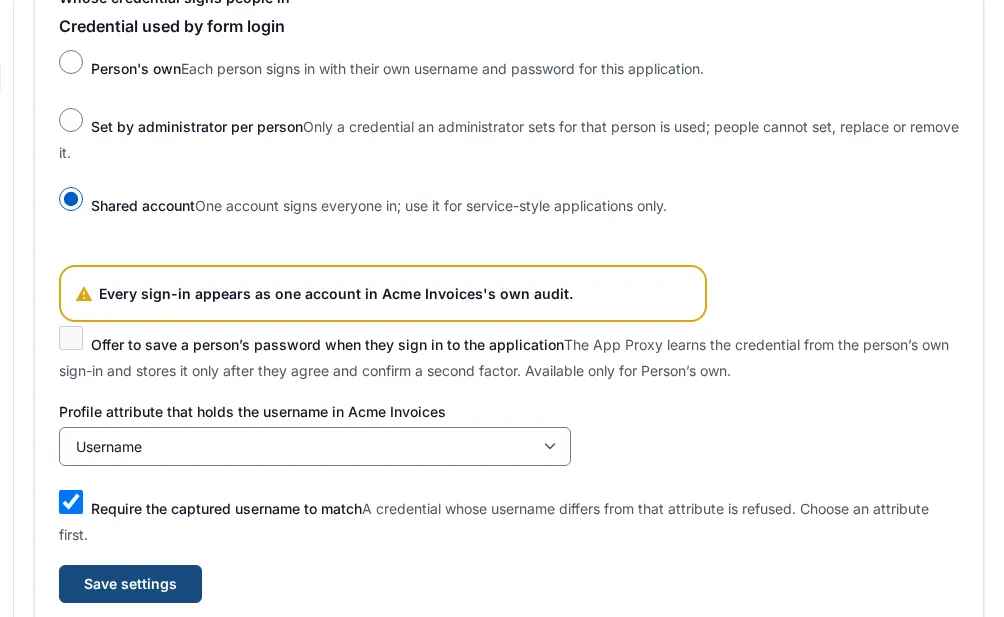
Select Save settings (it stays gray until something changes).
Which mode an application starts with:
- An application that already used a shared account before this feature stays on Shared account, so nothing changes for it. Setting the shared account on an application that has no settings yet also fixes its mode as Shared account, so adding or removing the account later does not flip the mode.
- An application that existed before this feature and had no shared account starts as Person’s own with the offer to save turned off. You turn it on (section 4).
- An application you add from now on, with no shared account, starts as Person’s own with the offer to save turned on.
Changing the mode takes effect on the next sign-in. The Shared account card keeps its account when you switch away, but it is not used in the other two modes.
4. Offer to save a person’s password
Section titled “4. Offer to save a person’s password”In Person’s own mode you can let the App Proxy learn passwords from people’s own sign-ins. Tick Offer to save a person’s password when they sign in to the application. Under it the console explains: “The App Proxy learns the credential from the person’s own sign-in and stores it only after they agree and confirm a second factor.” In the other two modes the box is gray and says “Available only for Person’s own.”
How it works for the person (see My Account: App passwords for every screen):
- The person opens the application. SSOGEN has no password for them, so the application’s own login page appears.
- They sign in on it as usual. While it is waiting for a saved password, the App Proxy reads the username and password from that sign-in, and keeps them in memory only if the application accepts the sign-in.
- SSOGEN shows a page offering to save the sign-in. The person chooses Yes, save it, Not now or Continue.
- If they agree, they confirm on their SSOGEN account page with a second step. Only then is the password stored.
- From the next time on, the App Proxy signs them in without showing the login page.
Nothing is read unless the App Proxy is waiting for a saved password, and an offer expires after 5 minutes.
Keep the Gateway up to date
Section titled “Keep the Gateway up to date”If a Gateway in the group is out of date, the console shows a notice under the box. It explains that capture is left out for a gateway group that is out of date, while saved credentials still fill. Upgrade the Gateways (see Install and enroll an SSOGEN Gateway).
5. Match the username
Section titled “5. Match the username”A person who signs in to Acme Invoices as m.lopez should not be able to save the password of j.chen under their own SSOGEN identity. Two settings prevent that:
- Profile attribute that holds the username in the application: the person’s profile field that holds the name the application expects. Choose None, or one of Username, Email, Display name, Given name, Family name, Phone number, Source subject, Source username, Source name, or any custom profile attribute your organization defined (see Profile attributes). It is also a hint for the person.
- Require the captured username to match: “A credential whose username differs from that attribute is refused. Choose an attribute first.” The box is gray until you choose an attribute.
When matching is required, a username a person types on App passwords, or that the App Proxy captures, is saved only if it equals the value of the chosen attribute for that person. The comparison is exact, with no trimming and no capital-letter folding, and fails closed: a person with no value, or several values, for the attribute cannot save. The value used is the one SSOGEN holds for the person, never what a sign-in provider claimed on that sign-in. A credential an administrator sets is not subject to the rule.
Example: attribute Username, Require the captured username to match ticked. Maria Lopez (username maria.lopez) can save maria.lopez and nothing else.
A person who tries sees: “That username is not the one your organization expects for you in this application. Nothing was saved.”
6. The people’s credentials
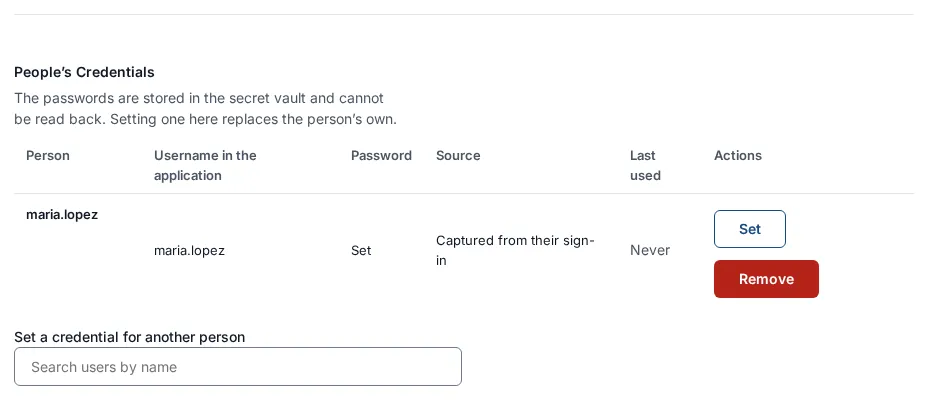
Section titled “6. The people’s credentials”Under People’s credentials the console lists the people who have a credential for this application. The passwords are stored encrypted in the secret vault and cannot be read back.
| Column | Meaning |
|---|---|
| Person | The person’s name. |
| Username in the application | The username used, or None. |
| Password | Set, Needs a new password (the application rejected the saved one) or Not set. |
| Source | Captured from their sign-in, Entered by the person or Set by an administrator. |
| Last used | When the App Proxy last used it, or Never. |
| Actions | Set and Remove. |
With no one yet the card says “No person has a credential for this application yet.” More than 50 people: select Show more people.
Set a person’s credential
Section titled “Set a person’s credential”- In the row select Set, or use Set a credential for another person and pick the person from the search box.
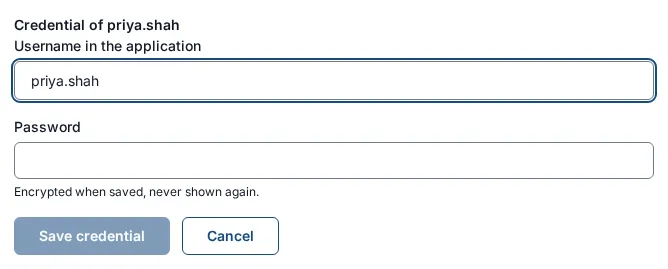
- A form Credential of Maria Lopez opens. Enter Username in the application (for example
maria.lopez) and Password. If a password is already stored, “A password is already stored. Leave this empty to keep it.” - Select Save credential.
Rules and messages:
- A new username needs a new password too: “Enter a password; a new username needs a new password too.”
- Setting a credential replaces what the person had. In Set by administrator per person mode this is the only way a credential exists, and people cannot change it. In Person’s own mode the person can still change it themselves afterward.
- In Shared account mode credentials cannot be set: “This application uses the shared account, so a person’s credential cannot be set. Change the mode first.” The list says the credentials shown are kept but not used.
- “Enter the person’s username in the application.”
Remove a person’s credential
Section titled “Remove a person’s credential”Select Remove on the row. The dialog Remove the credential of Maria Lopez? says “Maria Lopez is no longer signed in to Acme Invoices by form fill until a credential is set again. Their choice about being offered to save a password is kept.” Select Remove credential.
7. Check it works
Section titled “7. Check it works”- Open the application’s Test tab, pick a test person and run the test. The card Sign-in to the application lists each route with checks such as “The person has a credential of their own for this application.” (Passed), “The person has no usable credential of their own for this application.” (Failed), or “The person’s saved password was rejected by the application, so it needs a new one.”
- Open the application from My Apps as that person. It opens already signed in.
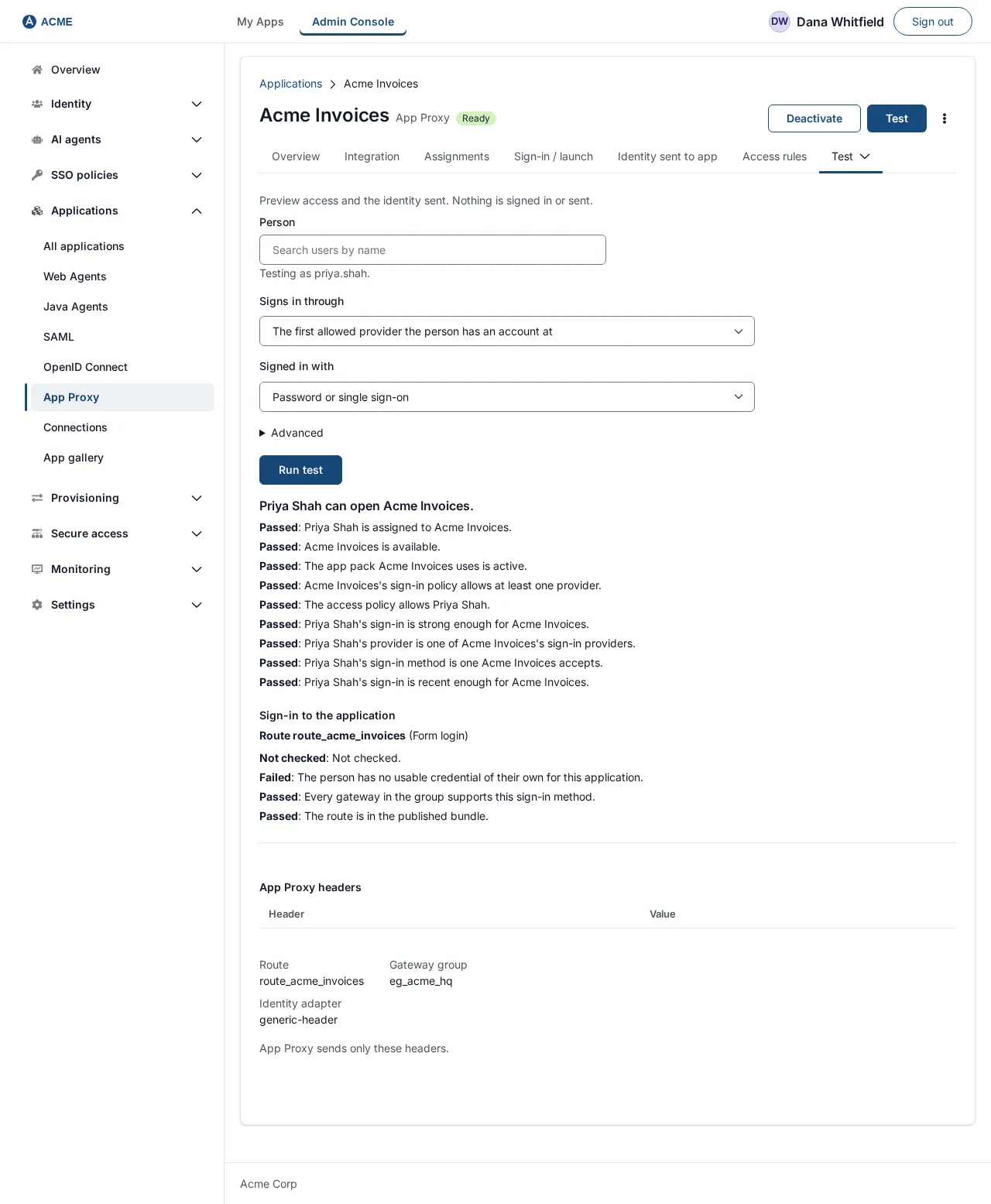
- Back on Sign-in to the application, Last sign-in shows Signed in and the time.
If the person has no credential and offers are on, the person sees the application’s login page. That is expected the first time.
8. What the person sees when something is missing
Section titled “8. What the person sees when something is missing”| The person sees | Meaning | What to do |
|---|---|---|
| The application’s own login page, then the offer to save | No credential yet, and capture is on. | Nothing; it is the first-time path. |
“SSOGEN does not have your sign-in for this application yet. Add it under App passwords in your account.” (SSO-FORM-403-NOPERSONCREDENTIAL) with a link |
No credential, and capture is off or the Gateway is out of date. | Turn the offer on (section 4), set the credential for them (section 6), or tell them to add it under App passwords. |
“Your saved password for this application needs updating. Update it under App passwords in your account.” (SSO-FORM-403-PERSON-UPDATE) |
The application rejected the saved password. | The person updates it, or you set a new one. |
“Sign-in to this application is not configured.” (SSO-FORM-403-NOACCOUNT) |
The mode is Shared account but no shared account is set. | Set it (see the shared account section of the previous guide). |
“Sign-in to this application is paused. Try again in a few minutes.” (SSO-FORM-503-PAUSED) |
Several automatic sign-ins failed in a few minutes. The App Proxy pauses to protect an account from locking. | Fix the cause, then wait for the pause to end. |
9. Things to know
Section titled “9. Things to know”- Out-of-date Gateways can use a saved password but cannot capture or tell that it was rejected. See section 4.
- Changes reach the App Proxy with its next configuration check. After you change the mode or the offer setting, give the SSOGEN Gateways a moment to collect it before you test.
- Audit. Saving, replacing or removing a credential, and changes to these settings, are recorded in the audit log. The password and username are never written to it.
- Removal. A person’s credentials are deleted when the person is purged after leaving, and an application’s when the application is permanently deleted.
Related guides
Section titled “Related guides”- Sign people in to the back-end application
- My Account: App passwords
- Profile attributes