Webhook signature verification and receivers
A webhook is a web address that SSOGEN calls whenever something happens in your organization, so another system does not have to keep asking “has anything changed?”. For example, a ticketing system can open a ticket when a new person is provisioned, or your security tooling can collect every refused sign-in.
SSOGEN sends the same events that appear in the audit log. Each delivery is a signed web request, so the receiving system can be sure it came from SSOGEN.
Open it: Admin Console, Monitoring, then Webhooks. The Super admin, Authentication admin, Security audit reader and Read-only admin roles can see the list; the Directory admin and Application admin roles cannot. Only a Super admin can register, edit, test, resume or stop a receiver, or replace its signing secret; other roles do not see the form or the buttons.
1. Register a receiver
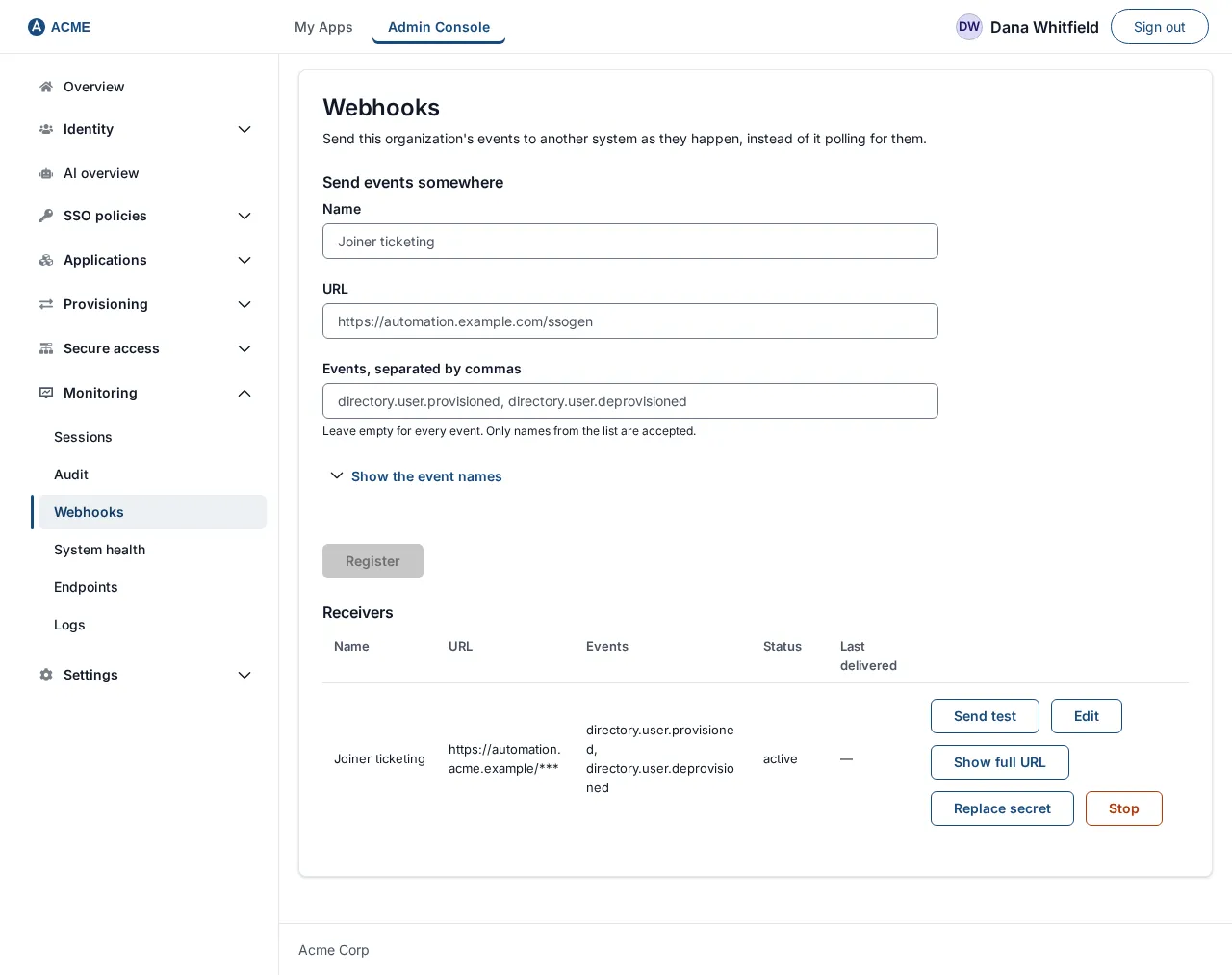
Section titled “1. Register a receiver”Do this once the receiving system has a web address ready to accept requests. Example: Acme Corp’s automation platform listens at https://automation.acme.example/ssogen.
- Open Monitoring, then Webhooks.
- Under Send events somewhere, fill in:
| Field | What to enter | Example |
|---|---|---|
| Name | A label for you. | Joiner ticketing |
| URL | Where SSOGEN sends the events. It must start with https:// and name a public address. |
https://automation.acme.example/ssogen |
| Events, separated by commas | Which events to send, by their technical name. Leave it empty to send every event. Only names from the list are accepted: open Show the event names under the box and select a name to add it. You can choose up to 64. A receiver that only wants new accounts should not have to receive, and throw away, every sign-in in the company. | directory.user.provisioned, directory.user.deprovisioned |
- Select Register. (The button stays gray until Name and URL both have text.)
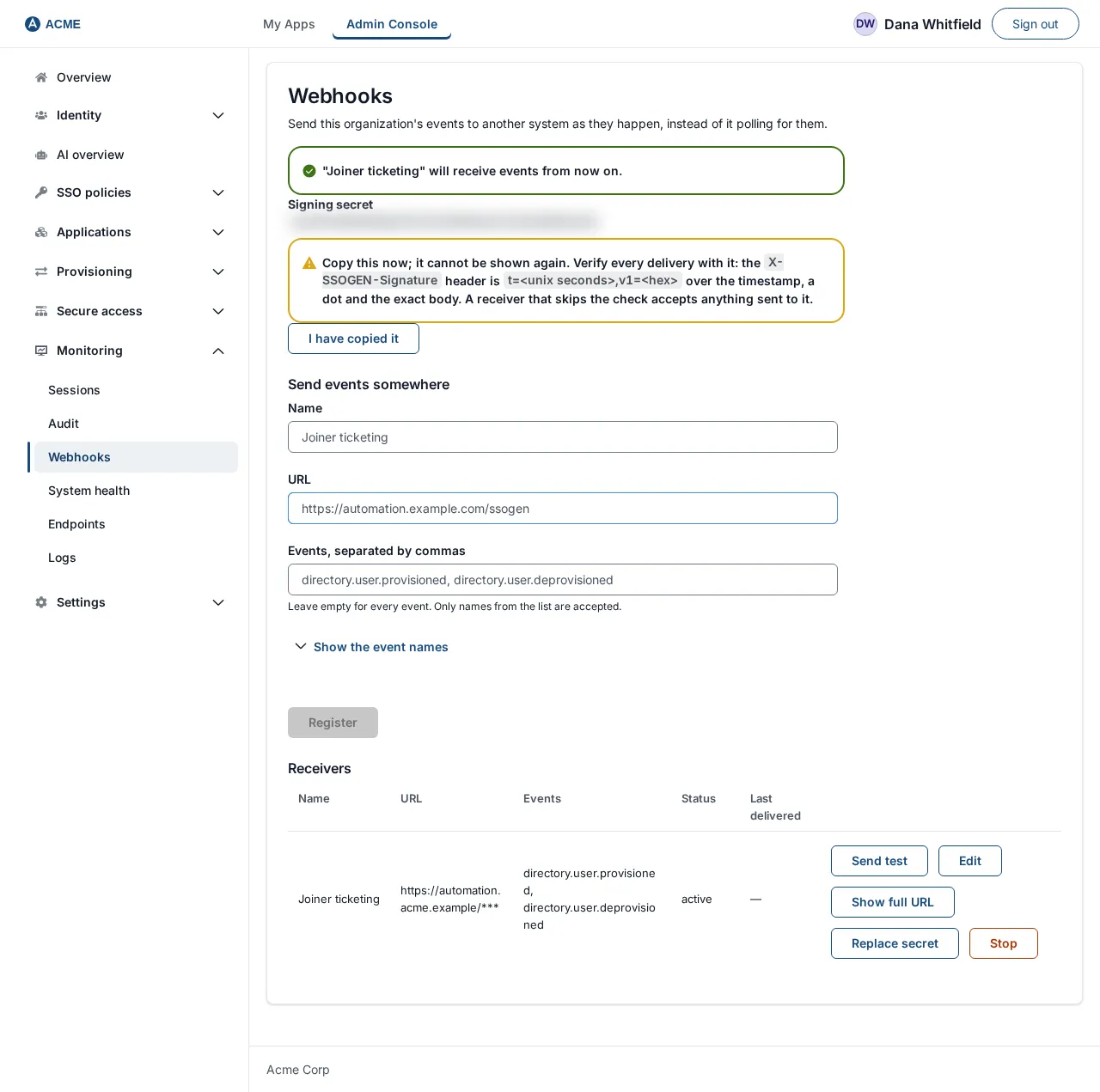
- A green message appears:
"Joiner ticketing" will receive events from now on.Below it is the Signing secret, and a warning that begins Copy this now; it cannot be shown again. - Copy the secret into the receiving system’s configuration. Then select I have copied it. The warning also reminds you of the signature header and its shape, described in section 3.
The receiver starts from now: it is sent events that happen after you register it, not the history.
Event names
Section titled “Event names”Event names are the technical names used in the audit log, written with dots, such as login.failed, directory.user.provisioned, directory.user.deprovisioned, application.created or admin.login. Spelling must match exactly; a name that is not in the list is refused with “"x" is not an event name. Choose events from the list, or leave it empty for every event.” In Audit, the What column shows the same names written as words (“Login failed”). The list under Show the event names is the quickest way to find the exact names; the event_type values in an audit log export are the same names.
If SSOGEN refuses the address
Section titled “If SSOGEN refuses the address”SSOGEN shows its reason in a red error message. The same reasons apply when you change the address under Edit, where the reason appears inside the dialog:
| Message | What to do |
|---|---|
| Use an address that starts with https://, so what is sent, and the credential with it, is encrypted. | Use an https:// address. SSOGEN will not send signed events over plain HTTP. |
| That is not a URL. | Check the address for typing mistakes. |
| A URL is required. | The URL field was empty. |
| The URL has no host. | The address needs a host name, such as automation.acme.example. |
| The URL must not carry credentials or a fragment. | Remove any user:password@ or #... from the address. |
| That host is not reachable from here. | The names localhost, metadata.google.internal and anything ending in .local are refused. |
| That host resolves to an address inside this network. | The name points at a private or internal address. A receiver must be a public https address, so that SSOGEN cannot be used to probe your network. Put the receiver at a public address. |
| That host could not be resolved. | DNS does not know the name from SSOGEN’s server. Check the spelling and DNS. |
| This deployment has no secret encryption key, so a signing secret cannot be stored. | The person who runs SSOGEN must configure the secret encryption key first; see Backups and upgrades. |
| That webhook could not be registered. | A general failure. Try again, then check the audit log. |
2. The list of receivers
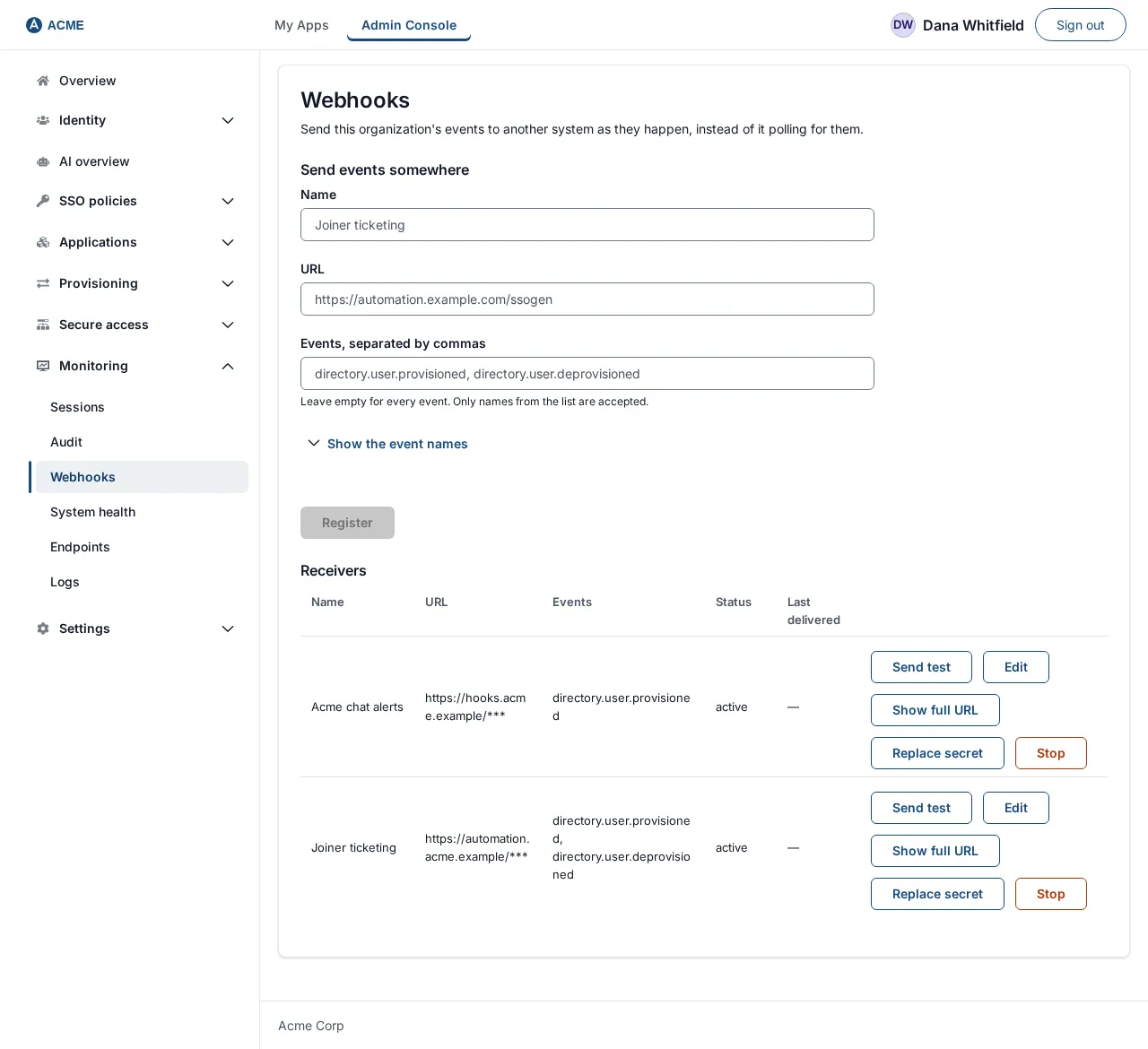
Section titled “2. The list of receivers”Under Receivers each registered receiver has a row.
| Column | Meaning |
|---|---|
| Name | As you registered it. |
| URL | Only the receiver’s scheme, host and port, for every administrator. Anything after the host is replaced by /***: a receiver registered at https://hooks.acme.example/services/T0123/B0456/secret-token is listed as https://hooks.acme.example/***. Chat tools carry their secret token in the address, so the list never shows it. See Show the full address. |
| Events | The events you chose, or Everything. |
| Status | active, suspended (stopped by SSOGEN after repeated failures) or disabled (turned off by an administrator under Edit). If the last delivery failed, the reason is shown under the status in gray, for example “the receiver answered 503”. |
| Last delivered | When a delivery last succeeded. |
| (actions) | Send test, Edit, Show full URL (only when the address is shortened), Replace secret, Resume (only on a suspended receiver) and Stop. |
With no receivers the page says No webhooks yet (“Send sign-in and admin events to another system.”) and offers Register webhook, which puts the cursor in the Name field.
Show the full address
Section titled “Show the full address”Only a Super admin can see a receiver’s full address. Select Show full URL on its row. The full address replaces the shortened one in the URL column until you leave the page. Anyone else is refused, with an error message.
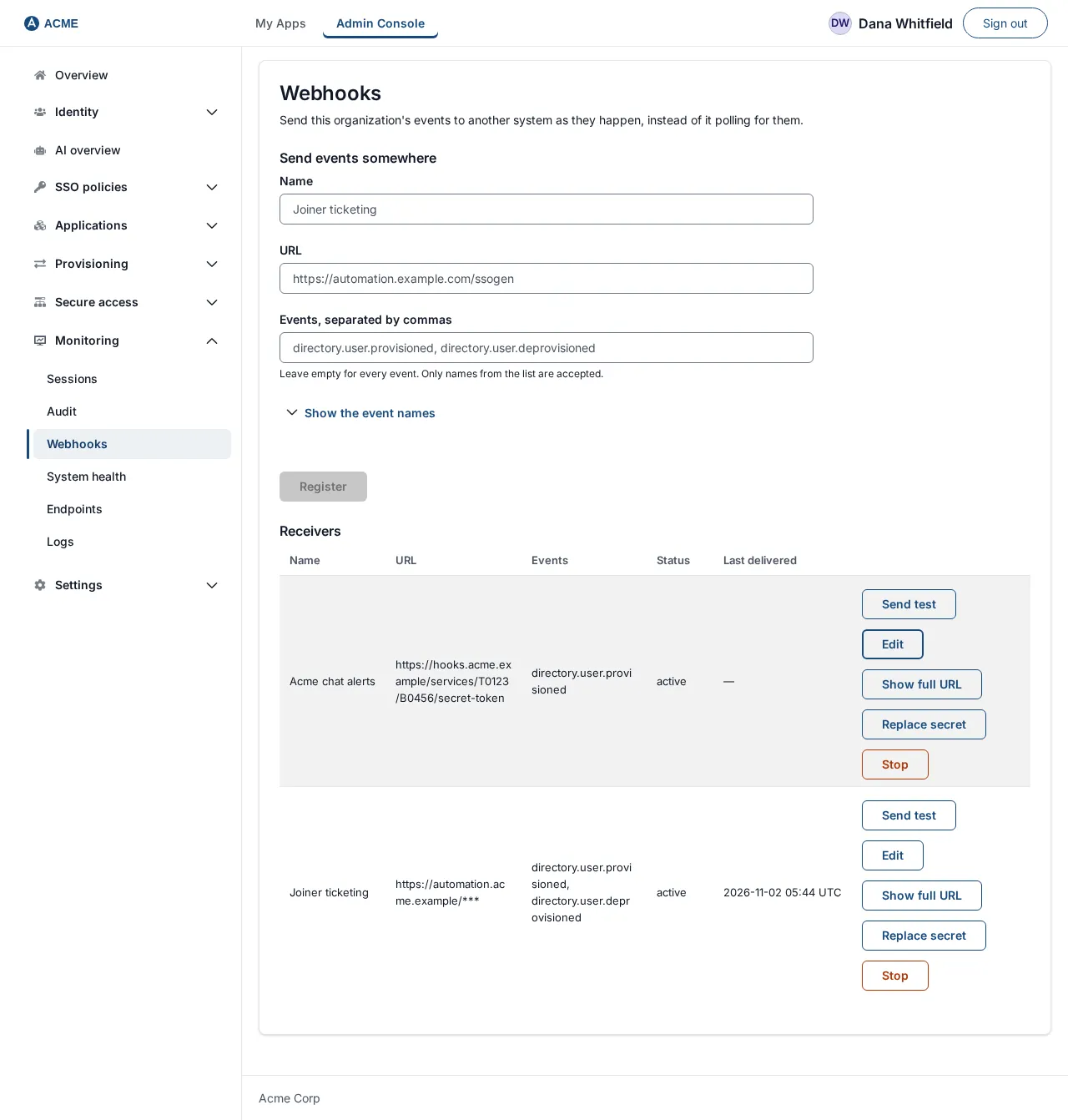
Every time the full address is shown, SSOGEN records it in the audit log with who asked and for which receiver. The address itself is never written to the audit log. Showing it is also rate limited per administrator.
How delivery works
Section titled “How delivery works”- SSOGEN checks for new events about every 30 seconds and sends up to 50 at a time, in order, in one
POSTrequest with a JSON body. A receiver that is slow to answer is given 10 seconds. - A delivery succeeds when the receiver answers with any
2xxcode. SSOGEN does not follow redirects; a redirect counts as a failure. - Delivery is at least once. If SSOGEN cannot tell whether a delivery arrived (for example, the answer was lost), it sends the same batch again. Every event has an
event_id, so a receiver should ignore an id it has already handled. - After 10 failures in a row the receiver is suspended and SSOGEN stops trying. Ten attempts, about half a minute apart, ride out a short outage (roughly five minutes); anything longer needs a person to look.
- The address is checked again on every delivery, not just at registration, so a name that is later pointed at an internal address stops being delivered to.
- If events were removed by archiving before a receiver caught up, SSOGEN skips forward past them. Those events are not delivered.
What a delivery looks like
Section titled “What a delivery looks like”The request is an HTTPS POST with these headers:
| Header | Value |
|---|---|
Content-Type |
application/json |
User-Agent |
SSOGEN-Webhooks/1 |
X-SSOGEN-Signature |
t=<unix seconds>,v1=<hex> (see below) |
The body is a JSON object with an events list. Example (one event):
{ "events": [ { "sequence": 9311, "event_id": "3f6c1e0e-52a4-4a49-9c3b-0d1d2f1f8a11", "event_type": "directory.user.provisioned", "result": "success", "occurred_at": "2026-10-06T09:14:22Z", "subject_id": "usr-1f0c", "correlation_id": "c-77d2", "actor": "maria.lopez", "client_ip": "203.0.113.25" } ]}subject_id, correlation_id, actor and client_ip are left out when the event has none. The fields are the same ones the audit log shows; a webhook never carries more than the audit page does.
3. Check the signature on every delivery
Section titled “3. Check the signature on every delivery”Anyone who learns your receiving address could send it a forged message. The signature proves a message came from SSOGEN. Your receiver should check it on every request and ignore any that fail. This step happens in the receiving system, not in SSOGEN.
How the signature is made:
- SSOGEN notes the current time in whole seconds since 1970 (
t). - It joins
t, a dot and the exact body bytes:<t>.<body>. - It computes an HMAC with SHA-256 over that text, using your signing secret as the key (as plain text), and writes the result in lower-case hexadecimal (
v1).
To check it, do the same computation yourself, compare with v1 in a constant-time comparison, and reject the request if t is more than five minutes away from your clock.
A sample receiver in Python (outside SSOGEN; adapt to your platform):
import hmac, hashlib, time
SECRET = "paste-the-signing-secret-here"   # keep it in your secret storeMAX_SKEW = 300                              # five minutes
def is_from_ssogen(header: str, raw_body: bytes) -> bool:    parts = dict(p.strip().split("=", 1) for p in header.split(",") if "=" in p)    t, v1 = parts.get("t"), parts.get("v1")    if not t or not v1 or abs(time.time() - int(t)) > MAX_SKEW:        return False    signed = t.encode() + b"." + raw_body    expected = hmac.new(SECRET.encode(), signed, hashlib.sha256).hexdigest()    return hmac.compare_digest(expected, v1)
Use the raw request body exactly as received, not a re-formatted copy: changing a space changes the signature.
To test it, select Send test on the receiver’s row (see Send a test event) and confirm the receiver logs a delivery that passes the check. To see a real event arrive, make something happen (for example sign in once, if you chose Everything); the row’s Last delivered time should update within about a minute.
4. A suspended receiver
Section titled “4. A suspended receiver”If a receiver is suspended, SSOGEN shows an amber note: A suspended receiver stopped being retried after repeated failures. Resuming continues where it stopped.
- Read the gray reason under Status (for example “the receiver answered 500”, “That host could not be resolved.” or a connection error) and fix the cause at the receiver.
- Select Resume on its row. The receiver returns to active and SSOGEN delivers everything it missed, in order.
If Resume says That change could not be made., reload the page and try again; the receiver may have been stopped by someone else.
5. Edit a receiver
Section titled “5. Edit a receiver”Change a receiver’s name, address or events, or turn its delivery off and on, without losing its place.
- Select Edit on its row. A dialog titled Edit webhook opens with the receiver’s Name, URL, Events, separated by commas and a Deliver events box. If the list shows the receiver’s address shortened, the URL box starts empty and says: “Leave empty to keep the current URL (the shortened address). Its path, query and sign-in details are not shown because they often hold the receiver’s key.” Type an address only to replace it, so saving never overwrites the real address with the shortened one.
- Change what you need and select Save. (Save stays gray while Name is empty, and while URL is empty on a receiver whose address is shown in full.) Only the fields you changed are saved.
What happens:
- A new URL is checked exactly as at registration (see If SSOGEN refuses the address). If it is refused, the reason appears in the dialog and nothing is saved; correct the address and select Save again. An accepted new URL clears the old receiver’s failure count and last error.
- Deliveries continue from where they are. Changing the address or the events never skips an event and never sends one twice.
- Deliver events off sets the receiver to disabled: SSOGEN sends it nothing. Turned on again, it becomes active and receives everything that happened while it was off, in order. Turning it on also resumes a suspended receiver.
- If someone else changed the receiver after you opened the dialog, SSOGEN refuses the save with This webhook changed since you opened it. Reload it and make the change again. Nothing of yours was saved; reload the page and edit again.
Every saved edit is recorded in the audit log, naming which fields changed. The address itself is never written to the audit log, because some services put a credential in the address.
6. Replace the signing secret
Section titled “6. Replace the signing secret”Replace the secret if it may have leaked, if you lost it, or on your normal rotation schedule.
- Select Replace secret on the row.
- A dialog asks Replace the signing secret of Joiner ticketing? and explains: A new secret is shown once. The current one stops signing at once; the receiver rejects deliveries until updated, then they are resent.
- Select Replace secret to confirm, or Cancel (nothing changes).
- A green message says “Joiner ticketing” now signs with a new secret. The old one no longer signs anything., and the new Signing secret is shown, once, with the same Copy this now warning as at registration. Put it in the receiving system, then select I have copied it.
There is no overlap period: from the moment you confirm, every delivery is signed with the new secret only. Until the receiving system has the new secret, it should refuse deliveries (they fail the signature check); SSOGEN keeps them and sends them again, so no event is lost. If the receiver refuses ten times in a row it is suspended; select Resume once it has the new secret. To keep the gap short, have the receiving system ready to accept the new secret, replace, and paste it in straight away. Then use Send test to confirm.
The replacement is recorded in the audit log. The secret itself is never recorded or logged. You can also replace it from the Secrets page, with a value you choose (at least 32 characters).
7. Send a test event
Section titled “7. Send a test event”Select Send test on the row to check a receiver without waiting for a real event. SSOGEN sends one test event straight away, through the same path as a real delivery: the address is checked, the request is signed with the receiver’s current signing secret, and redirects are not followed.
The body is the usual delivery envelope with one event:
{ "events": [ { "sequence": 0, "event_id": "a new id for each test", "event_type": "webhook.test", "result": "success", "occurred_at": "2026-10-06T09:14:22Z" } ]}sequence 0 is never a real event. The event_id is new for every test, so a receiver that ignores repeated ids still sees each one.
Above the list, SSOGEN says what happened, for example:
| Message | Meaning |
|---|---|
| “Joiner ticketing” accepted the test event: it answered 204 in 41 ms. | The receiver answered with a 2xx code. |
| “Joiner ticketing” did not accept the test event: it answered 401 in 38 ms. A receiver that checks the signature answers this way when it holds a different signing secret. | The receiver answered something else. For 401 or 403, check the secret the receiving system holds. |
| The test event was not sent to “Joiner ticketing”: That host resolves to an address inside this network. | The address check refused the address; nothing was sent. |
| The test event was not sent to “Joiner ticketing”: the signing secret could not be read from the secret vault. Nothing is ever sent unsigned. | Ask your operator to check the secret encryption key. |
| The test event did not reach “Joiner ticketing”: the receiver did not answer within 10 seconds. | No answer: the connection was refused, the TLS handshake failed, or it timed out. |
A test changes nothing on the receiver: not its status, its failure count or its place in the event stream. It works on an active, suspended or disabled receiver. SSOGEN never reads or shows what the receiver sent back. Each test is recorded in the audit log. An administrator can send up to ten tests a minute; after that SSOGEN says Too many test events in a minute. Wait a minute and send another.
8. Stop sending to a receiver
Section titled “8. Stop sending to a receiver”- Select Stop on the row.
- A dialog titled Stop sending to Joiner ticketing? says: Deliveries stop now and this receiver is deleted. Its signing secret cannot be recovered; to send again, register the receiver again. Receivers get no notice that it stopped.
- Select Stop sending to confirm, or cancel.
The receiver disappears from the list and its signing secret is deleted. To send again, register it afresh and give the receiving system the new secret. To pause a receiver without losing its place, turn off Deliver events under Edit instead.
Related pages: The audit log, Secrets.