Admin console tour: every menu group and page
Use this admin console tour to find your way around the SSOGEN Admin Console, where administrators set up and watch SSOGEN. It walks down the left-hand menu exactly as it appears, says what each page is for and points to the guide for the details. Read it once so you know where to look; you do not need to memorize it.
Open the console at https://sso.acme.example/admin/ (use your own address). The first time, follow Install SSOGEN and complete first-run setup.
How the console is laid out
Section titled “How the console is laid out”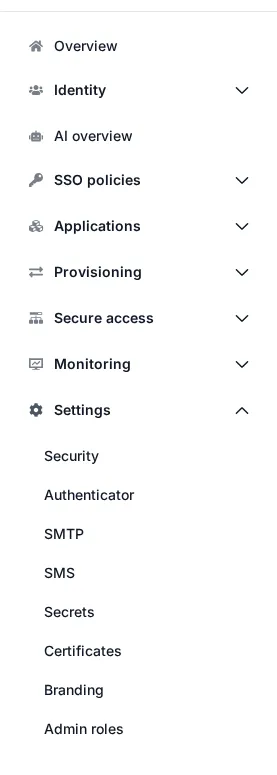
- The top bar has the links My Apps and Admin Console (the current page), and at the right the name of the person signed in followed by Sign out. On My Apps the bar holds the search box instead of these links. The Admin Console is not linked from My Apps: administrators go to
/admin/directly. - The left-hand menu has nine groups: Home, Identity, AI agents, SSO policies, Applications, Provisioning, Secure access, Monitoring and Settings. Select a group to open it and see its pages. The page you are on is highlighted.
- The page has a heading that is the same as the menu item, a one-line description, and the working area. Messages about what you just did appear as short notices at the top.
- Addresses carry the page name, for example
https://sso.acme.example/admin/#/users. You can bookmark a page or send the link to a colleague. The people who open it must hold a role that may see that page. - Admin mode. Administrator powers come with admin mode, which the console enters by itself when your sign-in meets the console’s sign-in policy; there is no separate code. Admin mode ends after 15 minutes without use, or 60 minutes in total, by default, and comes back without a prompt while your sign-in still meets the policy. When it does not (no second factor yet, or a sign-in older than an hour), you are asked for the second factor or to sign in again, and returned to the console.
The menu, group by group
Section titled “The menu, group by group”| Item | What it is for |
|---|---|
| Overview | A security dashboard. Four key figures (sign-ins in the last 24 hours, MFA coverage, active sessions and Audit integrity) sit above two cards: Needs attention, which lists what needs you (for example failing health checks, audit integrity, certificates close to their end and the items of Setup health), and Refused sign-ins, with the reasons and the addresses that were refused. Below are your top applications, top people and recent changes; a recent change links to the screen it concerns. On a new installation a Getting started card lists five first steps (connect a directory or identity provider, add people, register an application, choose how people sign in, test a sign-in); you can dismiss it. |
Identity
Section titled “Identity”Who your people are.
| Item | What it is for |
|---|---|
| Users | Create a user with Create user, open one to see their sign-in methods, groups, application access and sessions. |
| Groups | Groups, their membership and their application access. Groups are how you give many people the same applications. SSOGEN creates one group, Everyone, itself. |
| Directories | Connections to your LDAP or Active Directory, so people sign in with the account they already have. The wizard is titled Connect a directory. A new directory is a draft: you validate it, test it and then activate it; nothing changes for people until you do. |
| Attributes | The mobile phone and the custom attributes you define, kept about each person beyond name and email. |
| Password policy | The rules for the passwords SSOGEN itself keeps: a preset sets the minimum length, mixed characters, expiry and lockout. Accounts from a directory or another provider follow their own system’s rules. |
AI agents
Section titled “AI agents”For registering AI agents and similar automated callers (SSOGEN calls them non-human identities).
| Item | What it is for |
|---|---|
| AI overview | Register AI agents, see what they can reach, and stop them when you need to. This is where a Super admin turns the feature on or off with a switch. While it is off, only this page is listed and every request from a non-human identity is refused. |
| Identities | AI agents, MCP clients, automations and services that call your applications, each with an owner and an expiry. |
| Delegations | What people have allowed AI agents to do on their behalf. |
| Approvals | Human approvals of sensitive scopes an AI agent asks to use for a person. |
| Kill switches | Stop every non-human identity of one type at once. Needs a recent sign-in and the type typed to confirm. |
| MCP servers | Applications that AI agents reach over MCP, and who may call them. |
Everything in this group is visible to Super admins only, and all but Overview appears only after the feature is turned on.
SSO policies
Section titled “SSO policies”How people prove who they are, and what is required.
| Item | What it is for |
|---|---|
| Identity providers | Other systems people can sign in with. Connections to SSOGEN’s own users, SAML providers and OpenID Connect providers. New connections start as drafts and do not appear on the sign-in page until you activate them. |
| Policies | Named rules that many applications share: which identity providers may be used, how much strength is required, and what happens when a session does not have enough. Editing one reaches every application using it. |
| Defaults | The policy and rules that apply where nothing more specific is assigned: the Default policy (for every application with no policy of its own, and for signing in at My Apps) and the policy for the Admin Console (which providers may hold a session in this console). The page also holds monitoring of a new policy version before it takes effect, and the Access rules, which decide what a person may reach once signed in: the first rule that matches decides, and anything no rule allows is denied. |
| Network zones | Named address ranges that policy rules can refer to. Changing one asks you to type the organization name. |
| What if | Asks what would happen if a person opened an application now, and which rule decided it. Nothing is changed. Use it before you change a policy and when someone says “it won’t let me in”. |
Applications
Section titled “Applications”The applications your people open. All applications shows every application on one page. Under it there is one list for each way an application is reached, each with its own register button:
| Item | Register button | What it holds |
|---|---|---|
| Web Agents | Register Web Agent app | Applications protected by the SSOGEN Web Agent in Apache. |
| Java Agents | Java applications protected by the SSOGEN Java agent (Tomcat or Spring Boot). It sits under Web Agents and shares its agent key and settings file. | |
| SAML | Register SAML app | Applications that sign in using SAML. |
| OpenID Connect | Register OpenID Connect app | Applications that sign in using OpenID Connect. |
| App Proxy | Register App Proxy app | Internal applications reached through an App Proxy route. |
| Connections | Requests from other sites that ask to connect to SSOGEN, and the one-time tokens that let a site connect. Only an administrator can approve a request. | |
| App gallery | The first step of adding an application: ready-made definitions with their icons and names. A bookmark (a tile that only opens a link after sign-in) is made from here and listed in All applications. |
An App Pack is a signed, ready-made definition for a well-known application; the App Packs page lists the ones installed on this server.
Provisioning
Section titled “Provisioning”Accounts arriving and accounts being pushed out.
| Item | What it is for |
|---|---|
| Inbound | Lets another system manage people in SSOGEN over SCIM. |
| Outbound | Creates accounts in an application for the people who have been given it, and turns them off when they lose it. |
Secure access
Section titled “Secure access”For the SSOGEN Gateway. These pages are most useful once an SSOGEN Gateway is running.
| Item | What it is for |
|---|---|
| App Proxy routes | Gives people secure access to internal apps that are not exposed to the internet. Saving publishes the routes to the SSOGEN Gateway, which fetches them on its next check, by default within five minutes. Below a route are the group’s Hostnames, Connector addresses and Uplink relay. |
| App Proxy certificates | The TLS certificates the App Proxy serves hostnames with. |
| Remote Access | Hosts people may reach through the browser, over SSH, RDP or VNC, with an optional stored account and the Pair and Trust check of each host. Also shows requests for just-in-time access, live sessions and approvals. |
| Outbound Connector | The connector groups that reach applications and hosts in private networks, the Gateway groups that admit them, and whether each connector’s tunnel is up. Read-only: connectors are admitted under a Gateway group’s Connector addresses on App Proxy routes. |
| Directory Connector | Directories a Gateway reaches on SSOGEN’s behalf, for networks SSOGEN cannot reach itself. |
| Gateways | The Gateway groups SSOGEN knows about, and the instances reporting in. Also where each group’s listeners are set and where you issue an enrollment token, with the enrollment string shown beside it. |
Monitoring
Section titled “Monitoring”What happened, and whether things are healthy.
| Item | What it is for |
|---|---|
| Sessions | Signed-in people, session holders and sign-in sources. |
| Audit | The audit trail: who did what and when, an integrity check that shows whether the trail has been tampered with, an export, and (Super admin only) archiving of old segments. |
| Webhooks | Send this organization’s events to another system as they happen, instead of it polling for them. |
| System health | Sign-ins, configuration and storage. Under it, Setup health lists what the server still needs, each with a reason and a link to the fix. |
| Endpoints | The addresses to hand to another system. |
| Logs | The newest lines of the server’s own log. |
Settings
Section titled “Settings”| Item | What it is for |
|---|---|
| Security | Realm-wide limits, grouped as Admin access, Sign-in protection, Sessions, Accounts and recovery, Directories, SMTP and SMS, and Data retention and deletion. Safe defaults are set; each setting shows whether you have changed it. |
| Authenticator | The SSOGEN Authenticator for your people. Sign-in approval (number matching: the phone shows six numbers and the person taps the one the sign-in page shows, with the push lifetime, devices per person, pauses after denials or “This wasn’t me”, and the known network window), Code setup (SSOGEN Authenticator only, which is the default, or any authenticator app), Lost phone (Strict, or a code sent to the email address and a code sent to the phone number), App downloads (the links people see in My Account) and Push notifications. |
| SMTP | The mail server SSOGEN sends reset links and emailed codes through. |
| SMS | The provider SSOGEN sends texted codes through. |
| Secrets | The credentials SSOGEN uses to reach other systems, such as directory bind passwords. They are encrypted and take effect immediately. Values are never shown again after you save them. |
| Certificates | The signing keys SSOGEN signs with and the certificates it trusts. |
| Branding | Company name, sign-in heading, logo, colors, footer and support links on the sign-in pages. |
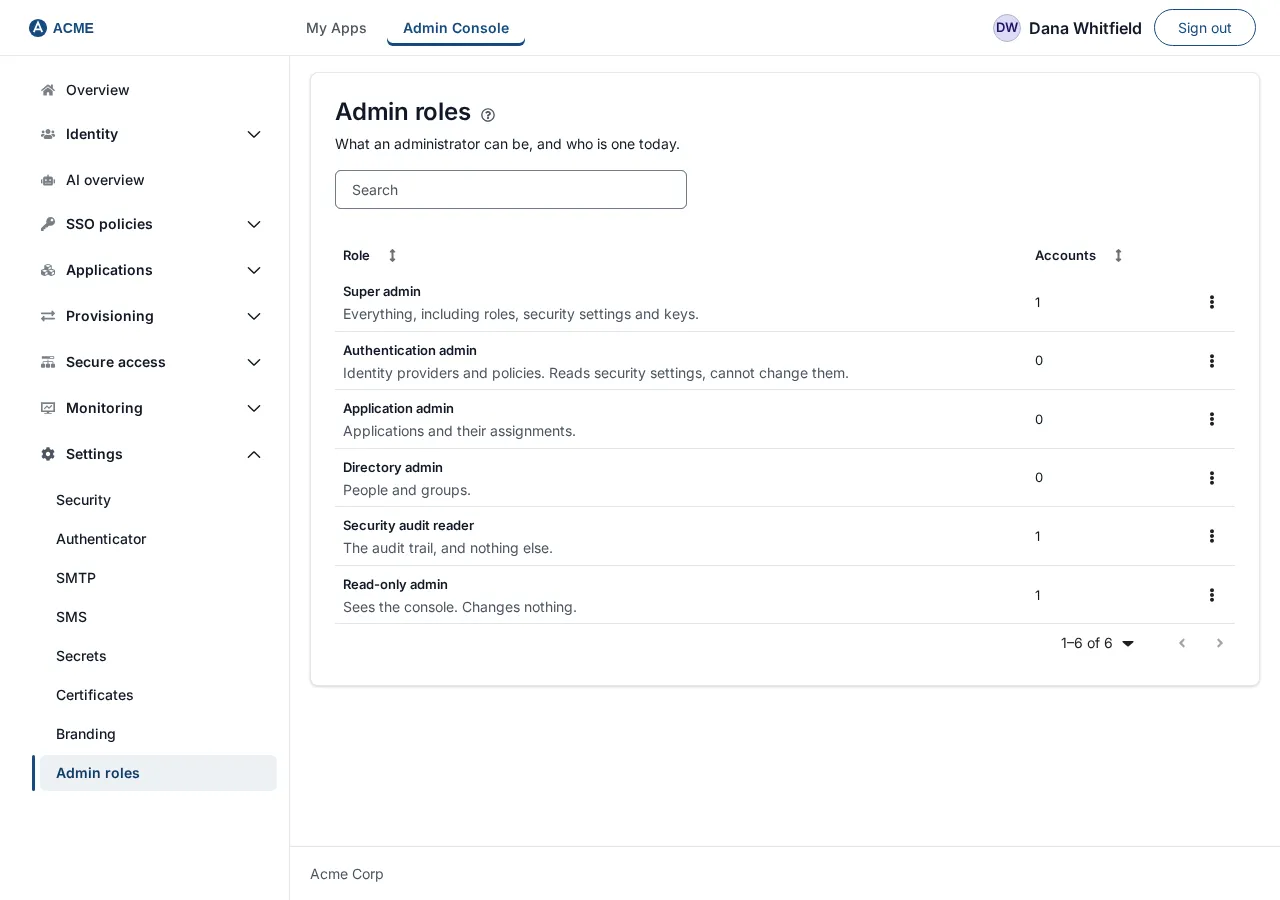
| Admin roles | What an administrator can be, and who is one today. Open a role to see and change who holds it. |
Administrator roles
Section titled “Administrator roles”Everyone who signs in can use My Apps and My Account. Only people who hold an administrator role can open the Admin Console at /admin/; it is not linked from My Apps or My Account. SSOGEN has six built-in roles. A person may hold more than one.
| Role | Intended for | What it can do |
|---|---|---|
| Super admin | The owners of SSOGEN | Everything: all pages, every change, roles, security settings, keys, AI agents, archiving the audit trail. |
| Authentication admin | Whoever runs sign-in | Reads and changes Identity providers, Directories, policies, network zones and Secrets. Can read security settings but not change them. Can also read the audit pages. |
| Application admin | Whoever runs applications | Reads and changes Applications and their assignments, Outbound provisioning, and Remote Access. Can also read the audit and Secure access pages. |
| Directory admin | Whoever runs people and groups, the help desk | Reads and changes Users, Groups, Attributes and Inbound provisioning. Can also read the audit pages. |
| Security audit reader | Auditors | Reads the audit trail and Remote Access, and the read-only pages that go with them. Changes nothing. |
| Read-only admin | Reviewers, trainees | Sees almost the whole console and changes nothing. Does not see Admin roles or AI agents. |
There is no separate “help desk” role in this version. Choose the closest role for the job: a person who only needs to look things up gets Read-only admin; a person who also manages users gets Directory admin.
Some jobs need two roles, because they touch both areas. Running a directory’s sync (Run now and its schedule, on the directory’s page) changes people’s accounts, so it needs Authentication admin and Directory admin together, or Super admin. What if and an application’s Try it show a person’s groups and assignments, so they need a role that reads both applications and the directory: Read-only admin or Super admin, or Application admin together with Directory admin.
Which menu items each role sees
Section titled “Which menu items each role sees”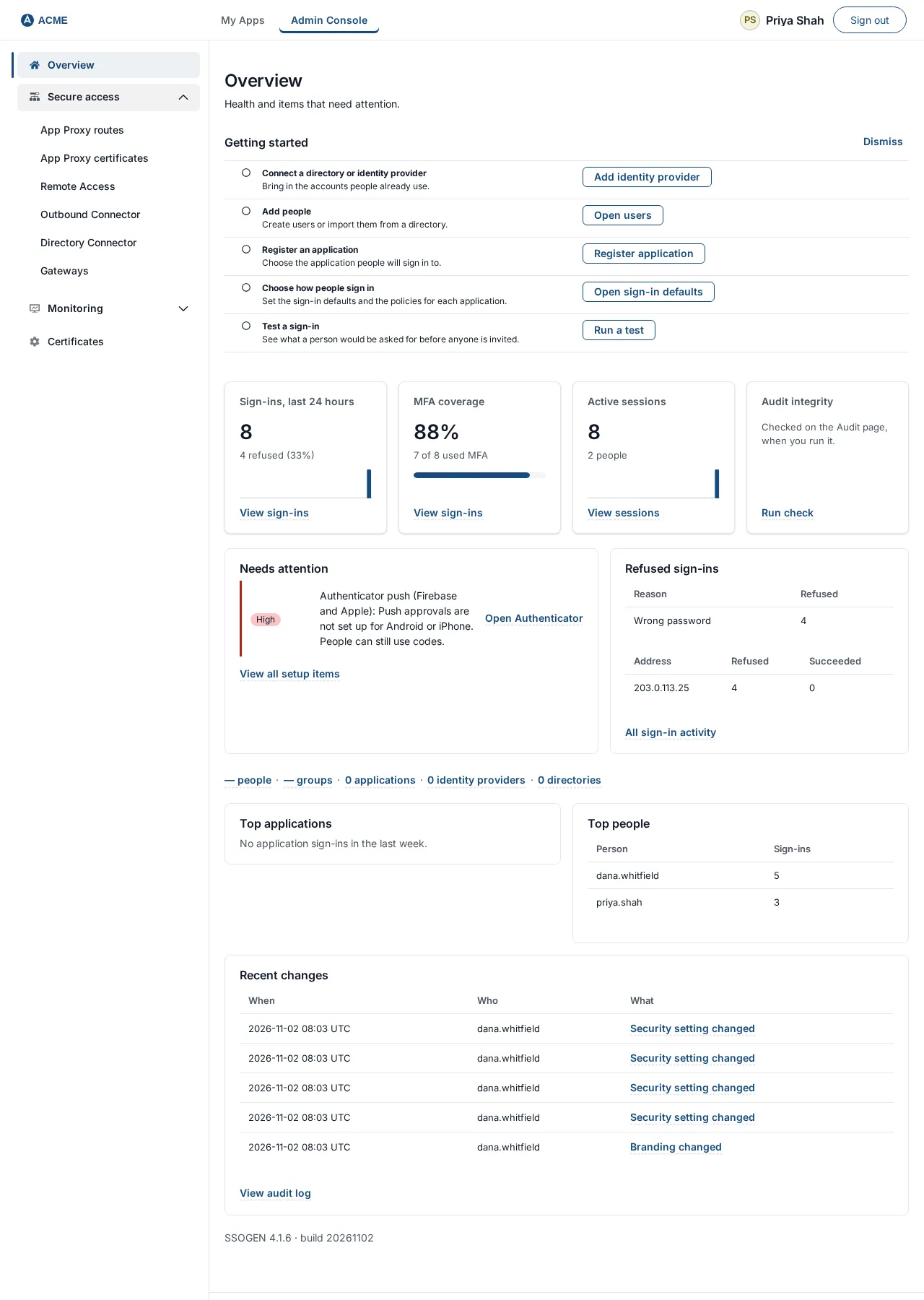
A tick means the page is listed in that role’s menu. The console hides pages a role would only be refused. Opening a hidden page by its address shows “Your role doesn’t allow this.” and changes nothing.
| Menu item | Super admin | Authentication admin | Application admin | Directory admin | Security audit reader | Read-only admin |
|---|---|---|---|---|---|---|
| Overview | yes | yes | yes | yes | yes | yes |
| Users, Groups, Attributes | yes | no | no | yes | no | yes |
| Directories | yes | yes | no | no | no | yes |
| AI agents (all items) | yes | no | no | no | no | no |
| Identity providers, Policies, Defaults, Network zones | yes | yes | no | no | no | yes |
| What if | yes | no | no | no | no | yes |
| Applications (All applications, the lists, Java Agents, Connections, App gallery) | yes | no | yes | no | no | yes |
| Provisioning, Inbound | yes | no | no | yes | no | yes |
| Provisioning, Outbound | yes | no | yes | no | no | yes |
| Secure access, Remote Access | yes | no | yes | no | yes | yes |
| Secure access, the other five items | yes | no | yes | no | yes | yes |
| Monitoring: Sessions, Audit, System health, Endpoints | yes | yes | yes | yes | yes | yes |
| Monitoring, Webhooks | yes | yes | no | no | yes | yes |
| Monitoring, Logs | yes | no | no | no | no | no |
| Settings, Security and Authenticator; Identity, Password policy | yes | yes | no | no | no | yes |
| Settings, SMTP and SMS | yes | yes | no | no | no | yes |
| Settings, Secrets | yes | yes | no | no | no | no |
| Settings, Certificates | yes | yes | yes | yes | yes | yes |
| Settings, Branding | yes | no | no | no | no | yes |
| Settings, Admin roles | yes | no | no | no | no | no |
Give someone a role
Section titled “Give someone a role”- Sign in as a Super admin and open Settings, then Admin roles.
- Find the role in the list (the list is labeled Admin Console roles) and select Open. The page lists the accounts that hold it today.
- Under Grant the role, type the person’s name or username into Search people. Select Grant on their row in Directory matches. An account from your identity provider appears here after its first sign-in.
- To remove a role, open it and select Revoke on the person’s row.
- Ask the person to sign in again, then to open
/admin/.
If you see “Only a super admin can see or change Admin Console roles.”, you are not signed in as a Super admin.
Where to go next
Section titled “Where to go next”- Add people or connect a directory: Identity.
- Let people sign in with an existing account: SSO policies, Identity providers.
- Give people applications: Applications, then assign them.
- Check the result as an employee: Signing in for the first time.
Related guides
Section titled “Related guides”Read what SSOGEN is, follow the first sign-in, learn how sign-in decisions work and check the audit log.