Manage groups and nested groups
A group is a named set of people. Groups are how you give many people the same applications: assign an application to the group once and every member can open it. You can also nest one group inside another, so that everyone in the inner group counts as a member of the outer one. Groups also drive authentication policy rules that match on a group name. People can be put in a group by hand, as described here, or by a connected directory or HR system (Directory sync, Inbound provisioning with SCIM).
1. The Groups list
Section titled “1. The Groups list”Open Identity → Groups. The page is titled Groups: “Groups, membership and application access.”
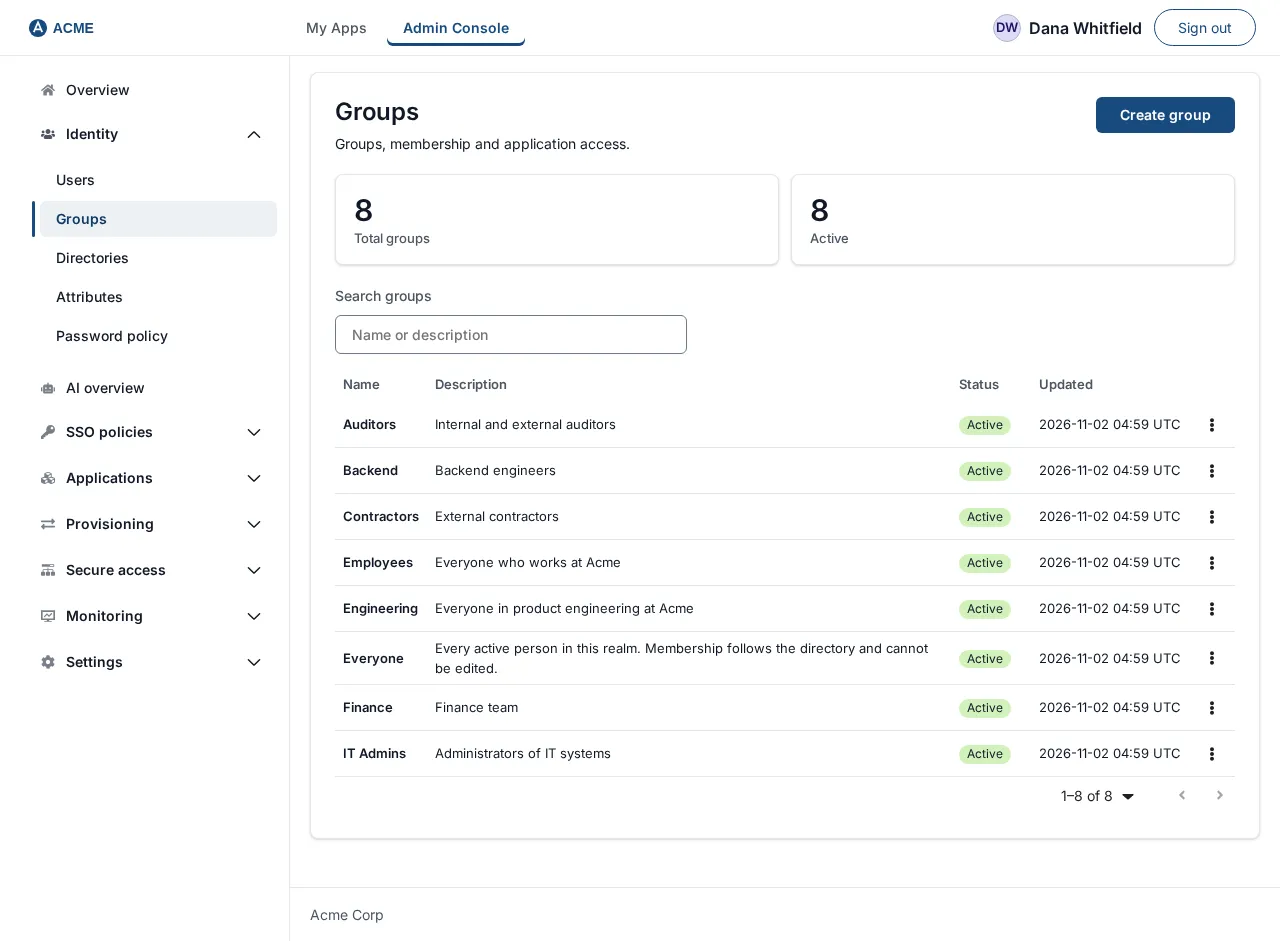
- Two tiles show Total groups and Active.
- Search groups filters by name or description (the box says Name or description).
- The table Group list has Name, Description, Status and Updated. Click a row, or use the row menu and choose View details.
- Empty states: No groups yet and No matching groups.
SSOGEN creates one group itself, Everyone. Its membership follows a rule (everybody), so it cannot be edited, its members cannot be changed by hand, and it cannot be deleted.
Groups that matter to administrators are guarded. A change that would add an administrator to a group, or take one out of it, is refused unless the person making it is a Super admin: “Only a Super Admin can change administrator membership.” This covers a membership rule, nesting a group, deleting a group and a SCIM client’s group changes. The change is rolled back, nothing is moved, and the refusal is recorded in the audit log.
2. Create a group
Section titled “2. Create a group”-
On Identity → Groups choose Create group. The page says “Create a local group, then add members and applications.”
-
Fill in:
Field What to enter Example Group name (required) Letters, digits, spaces, dots, dashes and underscores, starting with a letter or digit, up to 128 characters. Policy rules match on this name. EngineeringDescription (up to 512 characters) What the group is for. Everyone in product engineering at Acme -
Choose Create group. Cancel returns to the list.
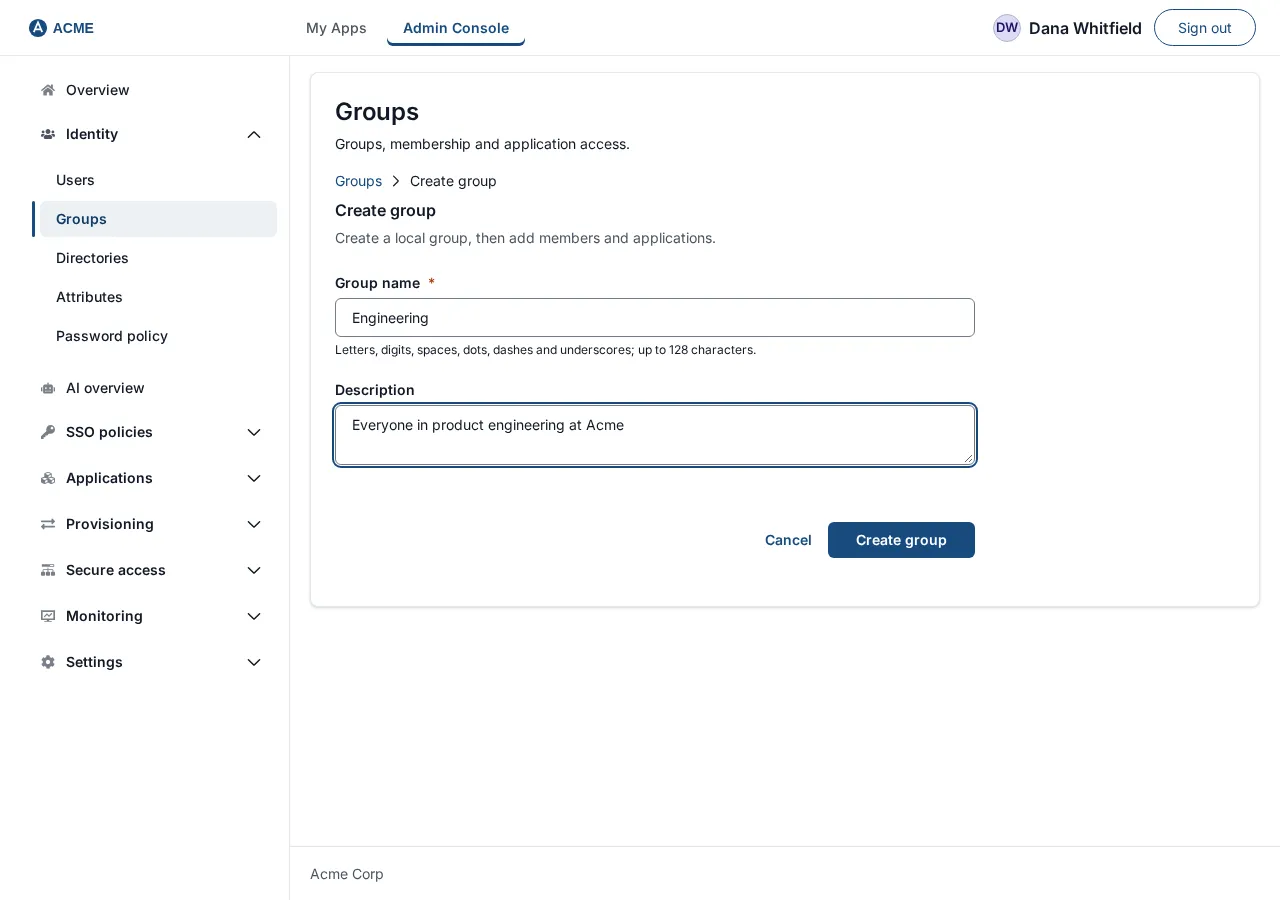
You land on the list filtered to the new name. A success message says Group Engineering created. An empty name shows Enter a group name. A name that is not allowed, is already used, or looks like a UUID is refused beside the field with a sentence that says which. Any other refusal reads The group was not created. Check the details and try again.
3. The group record
Section titled “3. The group record”Click Engineering. The header shows the group’s name and status and an Actions for Engineering menu holding Delete permanently. There are four tabs.
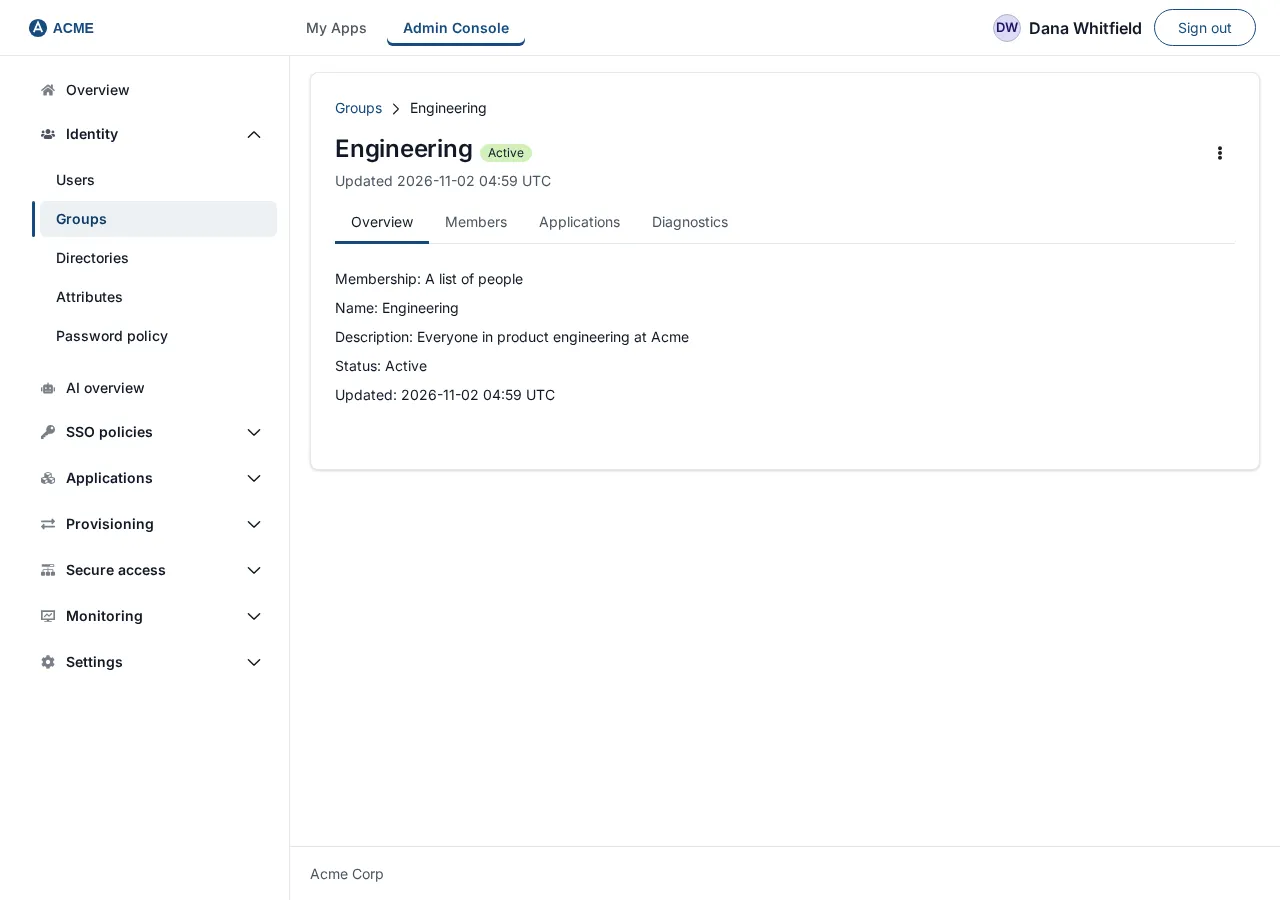
Overview. Membership (A list of people, or for a rule group the rule followed by “Follows a rule and cannot be edited.”), Name, Description (Not set when empty), Status and Updated.
Diagnostics. The Group ID, for support requests.
4. Members
Section titled “4. Members”Open the Members tab.
- The table Current members of this group lists Username, Display name, Status and a Remove button per person. With nobody in the group it says “No members in this group yet. Add a member by selecting a user below.”
- To add someone, use the Add a member box and start typing a name or username. Choose the person from the results; they are added at once. People already in the group are not offered. There is also an Add member button under the picker, which adds the person you last selected.
- To remove someone choose Remove on their row. There is no confirmation. The person keeps their account and loses only this membership, and with it the applications it gave them.
Failures read The membership was not changed. Try again., The member was not removed. Try again. or Unable to load group members. When the group is managed by SSOGEN or by a rule, the message says so. The same actions are on a person’s Groups tab (Manage users).
Rule groups. A group whose membership follows a rule, such as Everyone, shows the note “Membership is rule-based: the rule.” and has no Remove buttons, picker, Add member button or Groups inside this one section.
Groups from a directory. A group that a connected directory created has members that the directory import maintains; see Directory sync for what happens when people join or leave it.
Put one group inside another
Section titled “Put one group inside another”On the Members tab, Groups inside this one reads: “Everybody in these groups is a member of Engineering, and stays one as those groups change.” Nesting lets you build an access model such as Engineering containing Backend and Frontend.
- Under Put a group inside, type a group’s name and choose it. It is nested at once and appears in the table (Group, Membership). With none nested it says “No groups are inside this one.”
- To undo it choose Take out on that row. The groups’ own members are not touched.
Nothing is copied: people in Backend count as members of Engineering because of the nesting, and stop counting if Backend loses them. Messages: That would put Engineering inside itself, by one path or another. (you tried to create a loop), That change could not be made., The groups inside this one could not be loaded. A group whose own membership follows a rule does not show this section, because nothing can be put inside it.
5. Give a group access to applications
Section titled “5. Give a group access to applications”- Open the group’s Applications tab. It says “Every member of this group can open these applications.”
- The list shows the applications already assigned, by their ID, each with a Revoke button. With none it says No group application assignments.
- Under the list, pick an application in the Application drop-down (it starts at Select application and lists applications by name; applications already assigned are left out) and choose Assign application.
- A message confirms: Acme Wiki assigned. Every member of the group can open it. Without a choice the console says Choose an application to assign. Members see the application in My Apps. Whether a given sign-in is allowed is still decided by the application’s sign-in policy.
- Revoke asks first: Remove application from this group? with “Members of this group lose access to the application unless they have it another way.” Choose Remove to confirm. Members lose the application unless they have it another way (directly or through another group).
Failures: The application was not assigned to the group. Try again., The application was not removed from the group. Try again., Unable to load group application assignments.
To see what a person can open and why, use their Applications tab: Direct assignments and Group-derived assignments (“via group membership”).
6. Delete a group
Section titled “6. Delete a group”- Open the group, choose Actions for name → Delete permanently.
- The dialog Delete name? says: “Members keep their accounts. Policy rules that name this group stop matching; check policies that mention it.”
- Type the group’s name and choose Delete group.
- The group disappears from the list.
If applications are still assigned to the group the console refuses: Still assigned to application ids. Remove the group from those applications first. Revoke those assignments (section 5), then delete. Other failure: Could not delete the group. (this is also what you see for Everyone, which the product maintains).
Before deleting, look at your authentication policies under SSO policies for rules that mention the group by name; a rule that matched the deleted group silently stops matching.
End-to-end example: Acme Wiki for Engineering
Section titled “End-to-end example: Acme Wiki for Engineering”- Identity → Groups → Create group. Group name
Engineering, DescriptionEveryone in product engineering at Acme. Create group. - Open Engineering → Members, use Add a member, type
maria, choose Maria Lopez. Repeat forjames.chen. - Create Backend the same way. In Engineering, under Put a group inside choose Backend. Everyone in Backend now counts as Engineering.
- Engineering → Applications, choose Acme Wiki in the Application list, Assign application.
- Maria opens My Apps and sees Acme Wiki.
- James moves to Sales: Engineering → Members → Remove on his row. He loses the group’s applications.
- To retire the group: Applications → Revoke on Acme Wiki and confirm with Remove, then Actions → Delete permanently, type
Engineering, Delete group.
Troubleshooting
Section titled “Troubleshooting”| Symptom | Cause and fix |
|---|---|
| A member cannot see the application | Check the group’s Applications tab and the person’s Applications → Group-derived assignments; then the application’s sign-in policy. |
| Add member finds nobody | Search by username or display name; people already in the group are hidden. |
| Cannot add or remove members | The group follows a rule (such as Everyone), or your role is read-only. |
| Still assigned to … on delete | Revoke the group from those applications first. |
| Directory people keep reappearing in a group | The directory is the source; change the group there. |