SSOGEN / Oracle EBS Azure AD SSO with Microsoft Entra ID
Integration
Oracle EBS Azure AD SSO with Microsoft Entra ID
Add one app in Entra ID and run the SSOGEN tool on the EBS web tier. People then sign in under your password, MFA and Conditional Access rules.
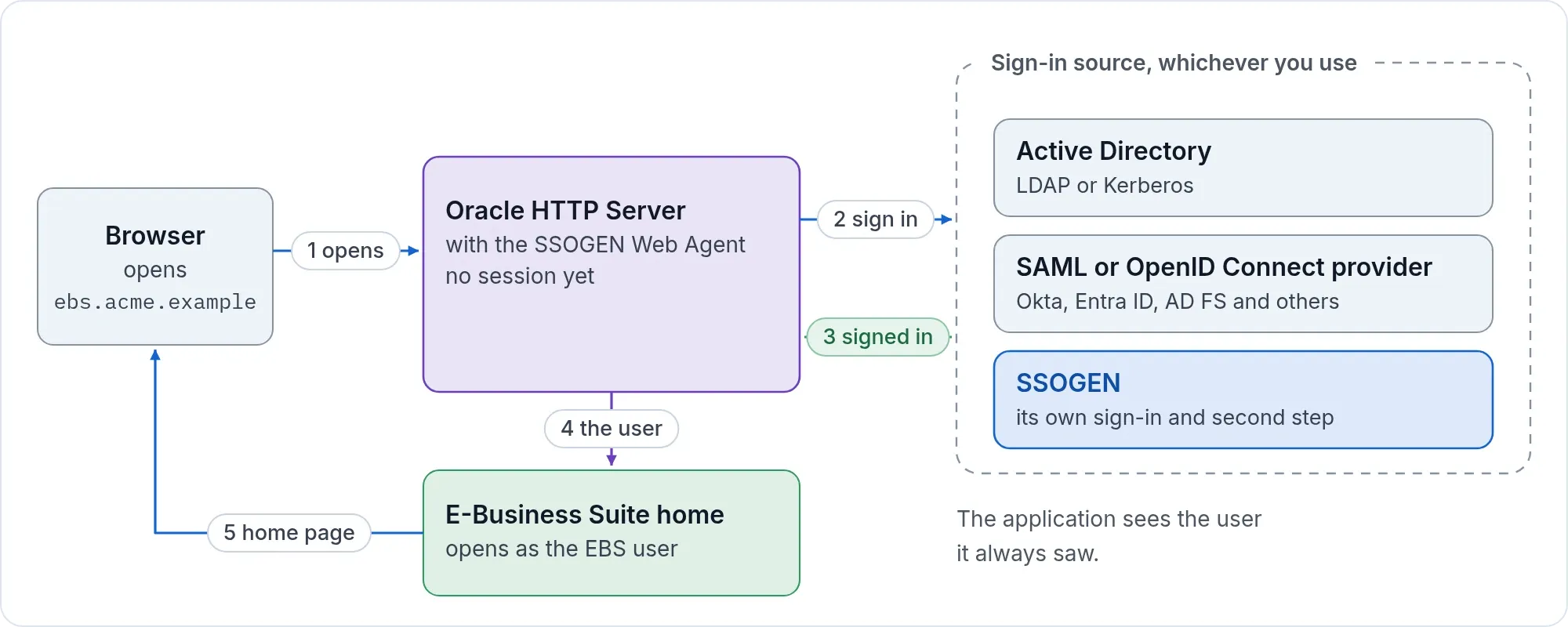
EBS does not speak SAML or OpenID Connect by itself. SSOGEN sits between the two. It signs people in at Entra and gives EBS the user name through Oracle’s own single sign-on settings. You add one app in your Entra tenant, run the SSOGEN tool on the EBS web tier, and finish one setting in EBS.
What you keep and what you skip
- Entra stays the place for sign-in. Entra MFA works as it does for any Entra app: Microsoft Authenticator, a phone call or a text message. EBS is protected by it. A policy in SSOGEN can also add its own second factor; see multi-factor.
- No EBS or JSP code changes. The tool deploys Oracle’s AccessGate app and sets the EBS single sign-on profile options. This is the standard way Oracle documents for EBS SSO. Nothing in EBS is customized.
- No Oracle Access Manager, Oracle Internet Directory or Oracle Unified Directory. You do not need to set up or run any of them.
- Same login for everything else. The same Entra setup serves PeopleSoft and JD Edwards. It also serves web apps behind Oracle HTTP Server and Apache, and cloud apps in SSOGEN such as Salesforce and ServiceNow.
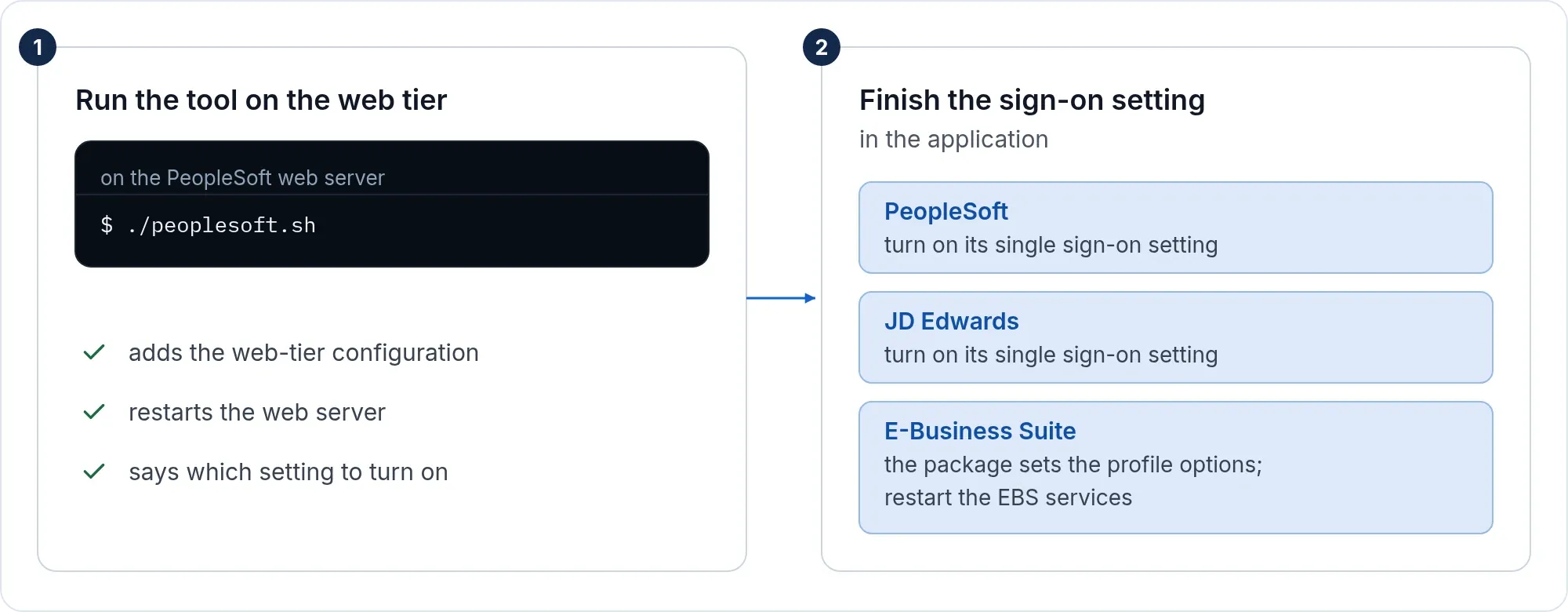
Two commands do the EBS part: ssogen deployag, then ssogen reg. The Oracle EBS single sign-on page describes them.
Path A: through SSOGEN
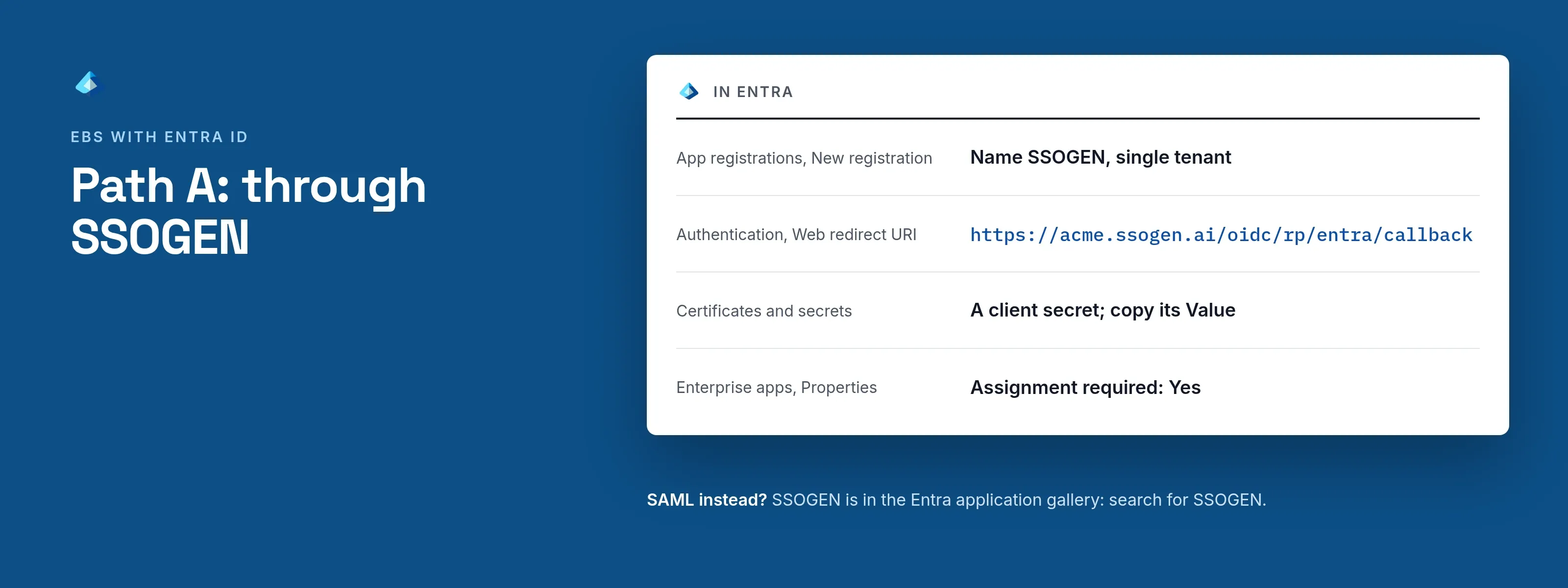
In Entra
OpenID Connect with the SSOGEN template for Microsoft Entra ID is the shortest way. SAML works too.
| Where | Value |
|---|---|
| Entra, App registrations, New registration | Name SSOGEN, single tenant |
| Authentication, Web redirect URI | https://acme.ssogen.ai/oidc/rp/entra/callback |
| Certificates and secrets | A client secret; copy its Value |
| SAML instead: Identifier (Entity ID) | https://acme.ssogen.ai/saml/sp/entra |
| SAML instead: Reply URL | https://acme.ssogen.ai/saml/sp/entra/acs |
| Enterprise apps, Properties | Assignment required Yes, then add the people or groups who may use EBS |
SSOGEN is in the Entra app gallery. For SAML you can search for SSOGEN and create it there. Microsoft Entra ID as the sign-in source has the steps screen by screen. It also covers the sign-in restriction on the tenant ID and the Microsoft errors (AADSTS50011, AADSTS50105).
In SSOGEN
Type your tenant ID, the client ID and the client secret. Then validate, test, try signing in and activate. Allow the provider in the policy that covers EBS.
On the EBS side
- Register EBS in SSOGEN as a Web Agent application with the Client URL
https://ebs.acme.example. Set Identify the person by to the value that equals the EBS user name. - For Entra the OpenID Connect name is the user principal name,
john.doe@acme.example. EBS userJDOEneeds a value that readsjdoe. Choose the attribute in SSOGEN that carries the short name. The agent sends it in capitals and never cuts off a domain part. - Run the tool on every web node. Then finish the setting in EBS as on the EBS page: Applications SSO Type
SSWA w/SSO,APPS_AUTH_AGENThttps://ebs.acme.example/accessgate, Login TypesBoth, Auto Link UserYes. - Keep
https://ebs.acme.example/OA_HTML/AppsLocalLogin.jspforSYSADMIN.
Hybrid: Entra with on-premises AD FS
If your users sign in to Entra through a federated domain, nothing changes for EBS. Entra sends them to AD FS and back. If you use AD FS without Entra for EBS, see AD FS.
Active Directory behind Entra: password or Windows sign-in
SSOGEN can also check passwords against Active Directory over LDAP (Active Directory and LDAP). It can sign in domain-joined computers with no password (Kerberos). Use them next to Entra. People off the office network sign in with the form.
Path B: straight to Entra ID, no SSOGEN in between
The tool connects the EBS web tier to Entra directly, with a license key from SSOGEN.
SAML (-mode=saml). In Entra, create an enterprise application, Single sign-on, SAML:
| Entra field | Value |
|---|---|
| Identifier (Entity ID) | https://ebs.acme.example |
| Reply URL | https://ebs.acme.example/ssogen/acs |
| Logout Url | https://ebs.acme.example/ssogen/saml/slo |
| Unique User Identifier (Name ID) | The attribute that equals the EBS user name, such as user.onpremisessamaccountname, or the user principal name if EBS user names are UPNs |
| Users and groups | The people who may sign in |
Copy the App Federation Metadata Url into the configuration as SSOGENSamlIdpMetadataURL, or save the metadata file as ebs-internal-idp.xml. Then restart. When the agent reads the URL, it follows Entra’s certificate rollovers itself.
OpenID Connect (-mode=oidc). Register a web app with the redirect URI https://ebs.acme.example/ssogen/oidc/callback. Give the tool the client ID and SSOGEN_OIDC_SECRET, and set SSOGENOidcProviderMetadataURL to https://login.microsoftonline.com/<tenant ID>/v2.0/.well-known/openid-configuration. Entra’s preferred_username is the UPN. To use the email address instead, set SSOGENOidcUserClaim email.
If it does not work
| Symptom | What to do |
|---|---|
| AADSTS50011 | The redirect or reply URL in Entra differs from the one the sign-in sends, including case. Copy it again and wait a few minutes. |
| AADSTS50105 | Assignment required is on and the person is not assigned. |
| Try connection says the client credentials were rejected | The secret was copied as the Secret ID, or it expired. Create a new one. |
| Sign-in works, EBS does not know the user | The name sent is not an EBS user name. Change Identify the person by, or the Name ID attribute in Entra. |
| Sign-ins stop after a certificate renewal | Fetch the metadata again before you make the new certificate active in Entra. |