SSOGEN / Oracle EBS Kerberos SSO (Windows integrated sign-in)
Integration
Oracle EBS Kerberos SSO (Windows integrated sign-in)
People signed in to a domain-joined Windows computer land on the EBS home page with no login challenge, and everyone else sees the normal form.
Anyone who cannot use it, such as a person off the office network, on a computer outside the domain or in a browser without the setting, sees the normal sign-in page and signs in with the directory password or another method your policy allows. So internal people get zero sign-on while external people get a company-branded form with their Active Directory credentials. If your security team does not want zero sign-in for EBS, leave Windows sign-in out of the policy and keep the form.
No Oracle Access Manager, Oracle Internet Directory or Oracle Unified Directory is needed. The same Kerberos setup serves PeopleSoft and JD Edwards.
How a sign-in goes
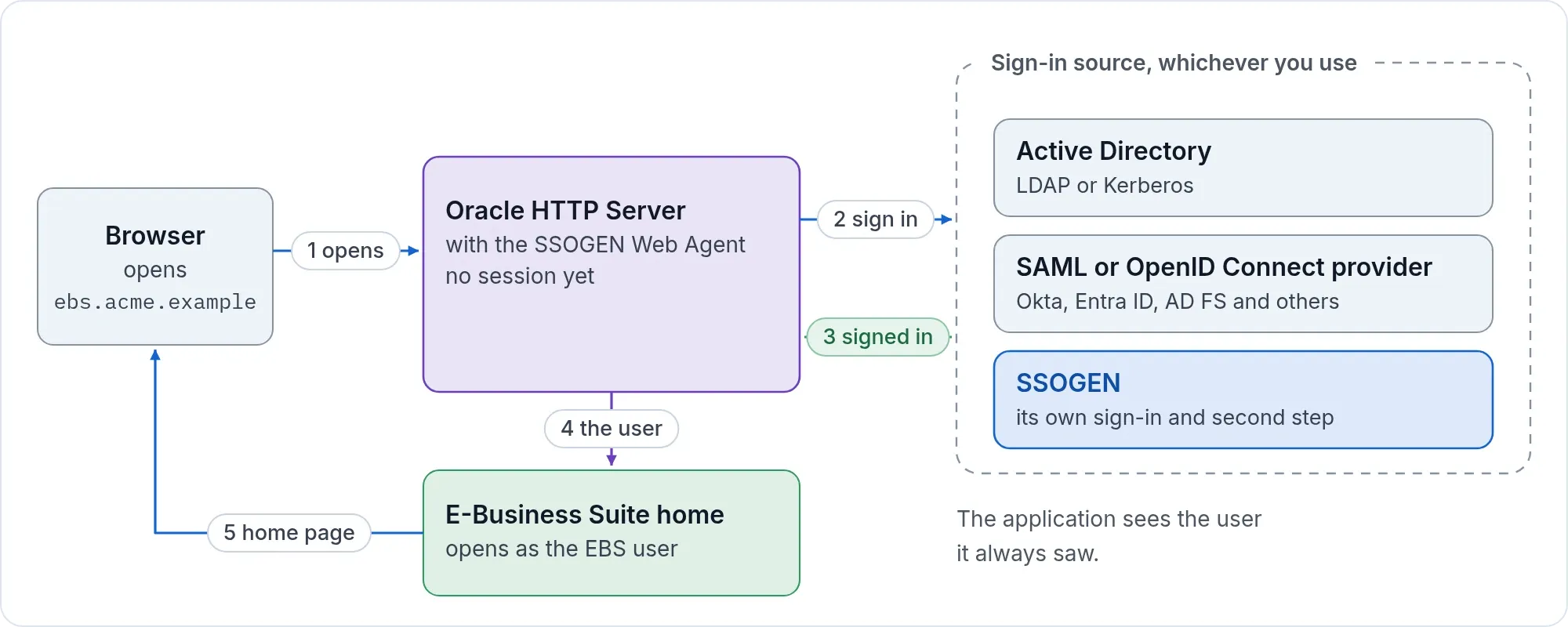
- A person on the office network opens
https://ebs.acme.example/OA_HTML/AppsLogin. - The SSOGEN Web Agent sends the browser to SSOGEN.
- SSOGEN asks the browser for a Kerberos ticket. The browser sends the one Windows holds.
- SSOGEN checks it with the keytab, finds the person in Active Directory, and sends the browser back to EBS, which opens with that person’s responsibilities.
A Windows sign-in counts as one factor, the strength of a password. If the policy requires a second factor, SSOGEN still asks for it.
What you need
- An Active Directory connection working in SSOGEN (Active Directory and LDAP).
- A network zone for your office networks under SSO policies > Network zones. Windows sign-in is offered only there.
- A domain administrator, and control of browser settings on the managed computers.
- Oracle E-Business Suite 12.2 or 12.1, and the SSOGEN integration tool for it.
The example values: domain acme.example, Kerberos realm ACME.EXAMPLE, SSOGEN at sso.acme.example, service account svc-ssogen.
In Active Directory and the browsers
-
Create a user account used only for SSOGEN, with a long random password. It must support AES encryption (RC4 and DES keys are not accepted), must not be trusted for delegation and must hold no other service principal names.
-
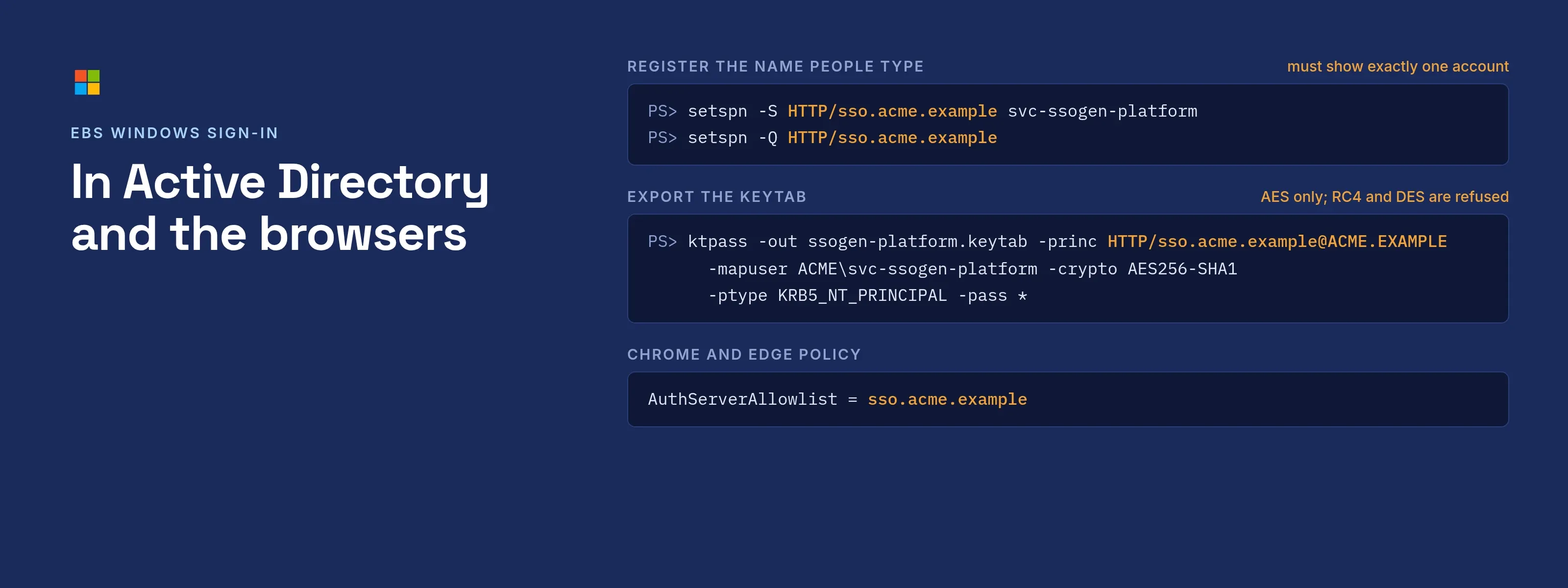
Register the name people type for SSOGEN, without a port:
setspn -S HTTP/sso.acme.example svc-ssogensetspn -Q HTTP/sso.acme.exampleThe second command must show exactly one account.
-
Export the keytab, and delete your copy after uploading it:
ktpass -out ssogen.keytab -princ HTTP/sso.acme.example@ACME.EXAMPLE -mapuser ACME\svc-ssogen -crypto AES256-SHA1 -ptype KRB5_NT_PRINCIPAL -pass * -
Keep clocks within five minutes of each other: the computers and the SSOGEN server.
-
Tell the browsers to send tickets to SSOGEN. For Google Chrome and Microsoft Edge set the policy
AuthServerAllowlisttosso.acme.example. For Firefox addsso.acme.exampletonetwork.negotiate-auth.trusted-uris. Do not set a delegation allowlist. -
Behind a load balancer or reverse proxy, allow large request headers and do not log the authorization header.
In SSOGEN
Open SSO policies > Identity providers, Add identity provider, choose Windows sign-in (Kerberos), and fill in the six steps: the name, the host name sso.acme.example and realm ACME.EXAMPLE, the keytab upload, the realm row with its directory, and the network zones.
Validate, then try the connection on a domain-joined computer, and activate.
Add Windows sign-in to the first factors of the policy that covers EBS, together with the directory so people out of the office can use their password. Every field and the error messages are on Kerberos: integrated Windows sign-in.
On the EBS side
- Register EBS in SSOGEN as a Web Agent application with the Client URL
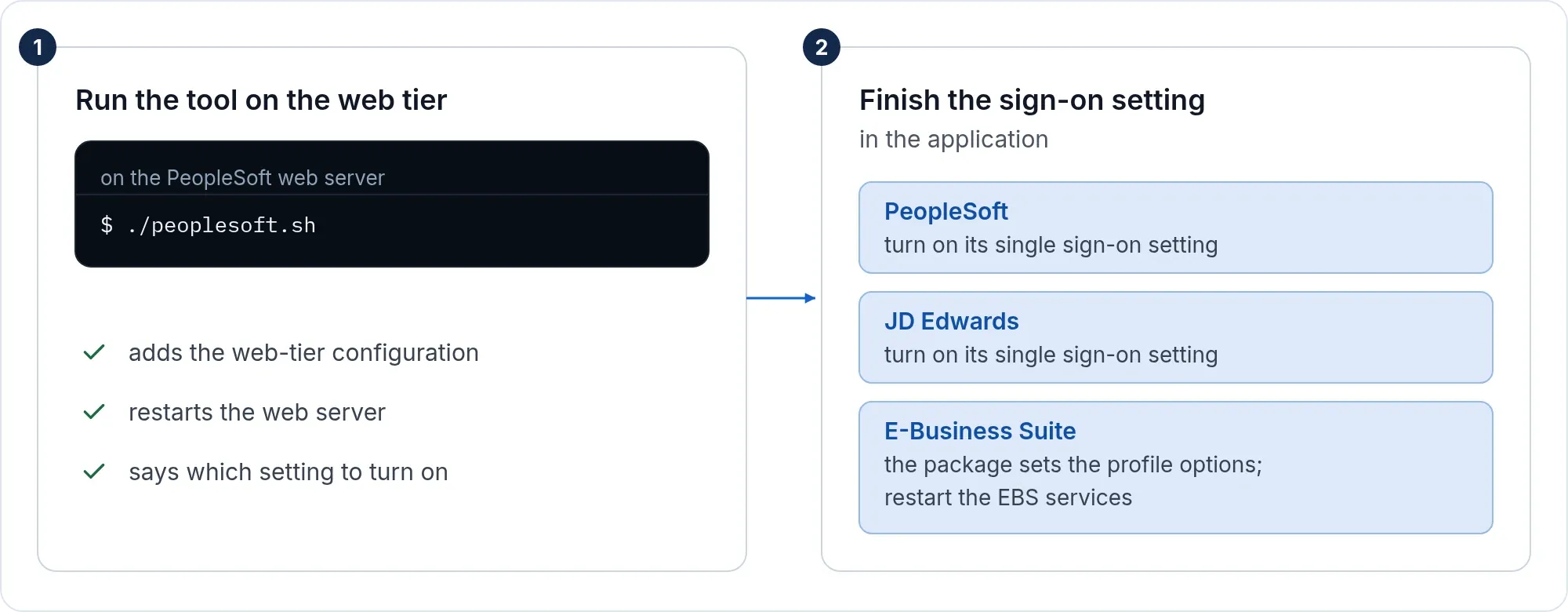
https://ebs.acme.example. Set Identify the person by to the value that equals the EBS user name. For John Doe the Windows logon namejdoegivesJDOE; the agent sends it in capitals and never cuts off a domain part, so a user principal name would not match an EBS user namedJDOE. - Run the tool and finish the setting in EBS as on the Oracle EBS single sign-on page.
- Create the EBS users, and keep
https://ebs.acme.example/OA_HTML/AppsLocalLogin.jspforSYSADMIN.
If it does not work
| Symptom | What to do |
|---|---|
| The normal sign-in page appears, with no message | No ticket was offered, the computer is not on a listed network zone, the connection is not active, or the policy does not list it. |
| “Your browser didn’t offer a Windows sign-in” | The browser is not set up to send tickets to SSOGEN, or the computer is not in the domain. |
| “Your Windows account isn’t set up for SSOGEN” | No account, or more than one, matches in the realm’s directory. Check the user principal name and the realm row. |
| “Windows sign-in isn’t working on this site right now” | The name is registered on two accounts, the keytab is out of date after a password change, or a clock is more than five minutes off. Export a new keytab and upload it. |
| Only some people fail | Their tickets are large and a proxy cut the header, or the account is a service or machine account. |
| Sign-in works, EBS does not know the user | The name sent is not an EBS user name. Change Identify the person by. |
After a failed attempt, and after signing out, SSOGEN does not try Windows sign-in again in that browser for twelve hours; the person can still choose Windows sign-in from the list.
Related
Active Directory and LDAP, AD FS (which can also do integrated sign-in), multi-factor.