SSOGEN / Oracle EBS MFA (multi-factor authentication) with SSOGEN
Integration
Oracle EBS MFA (multi-factor authentication) with SSOGEN
SSOGEN asks for Authenticator approval, a code, a passkey or a recovery code at sign-in, and EBS is set up once and never changes.
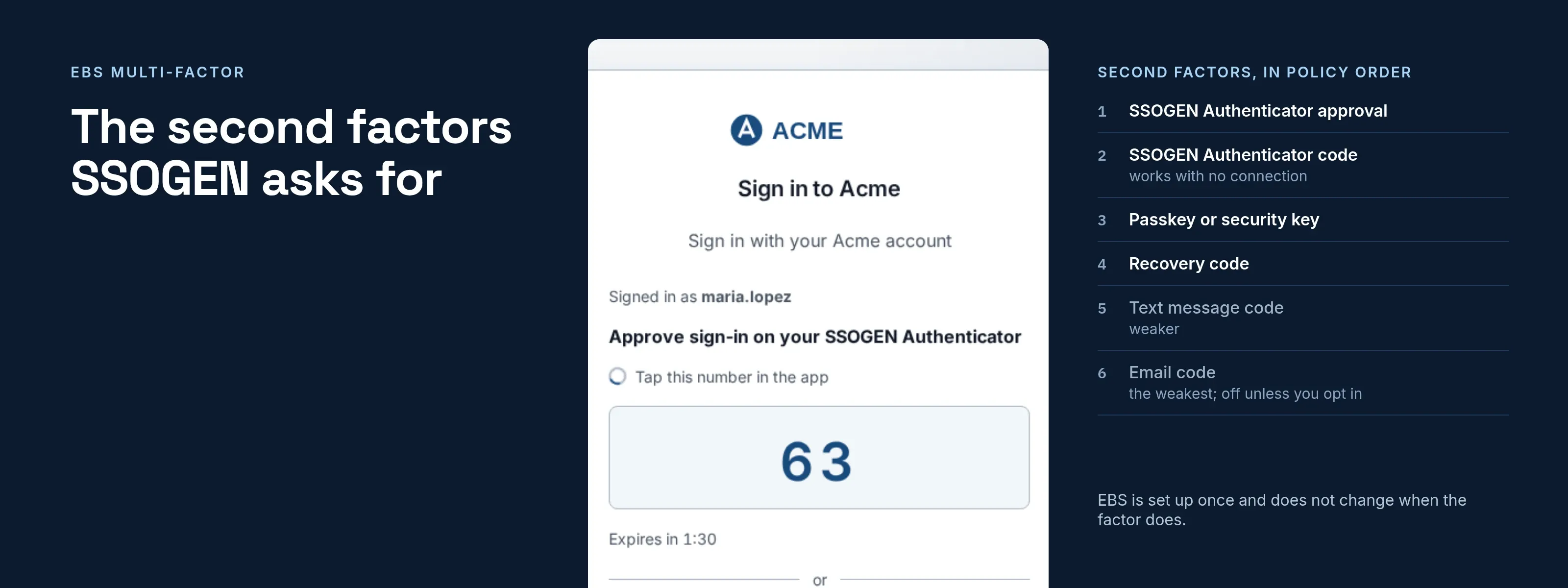
The second factors SSOGEN asks for
| Factor | What the person does |
|---|---|
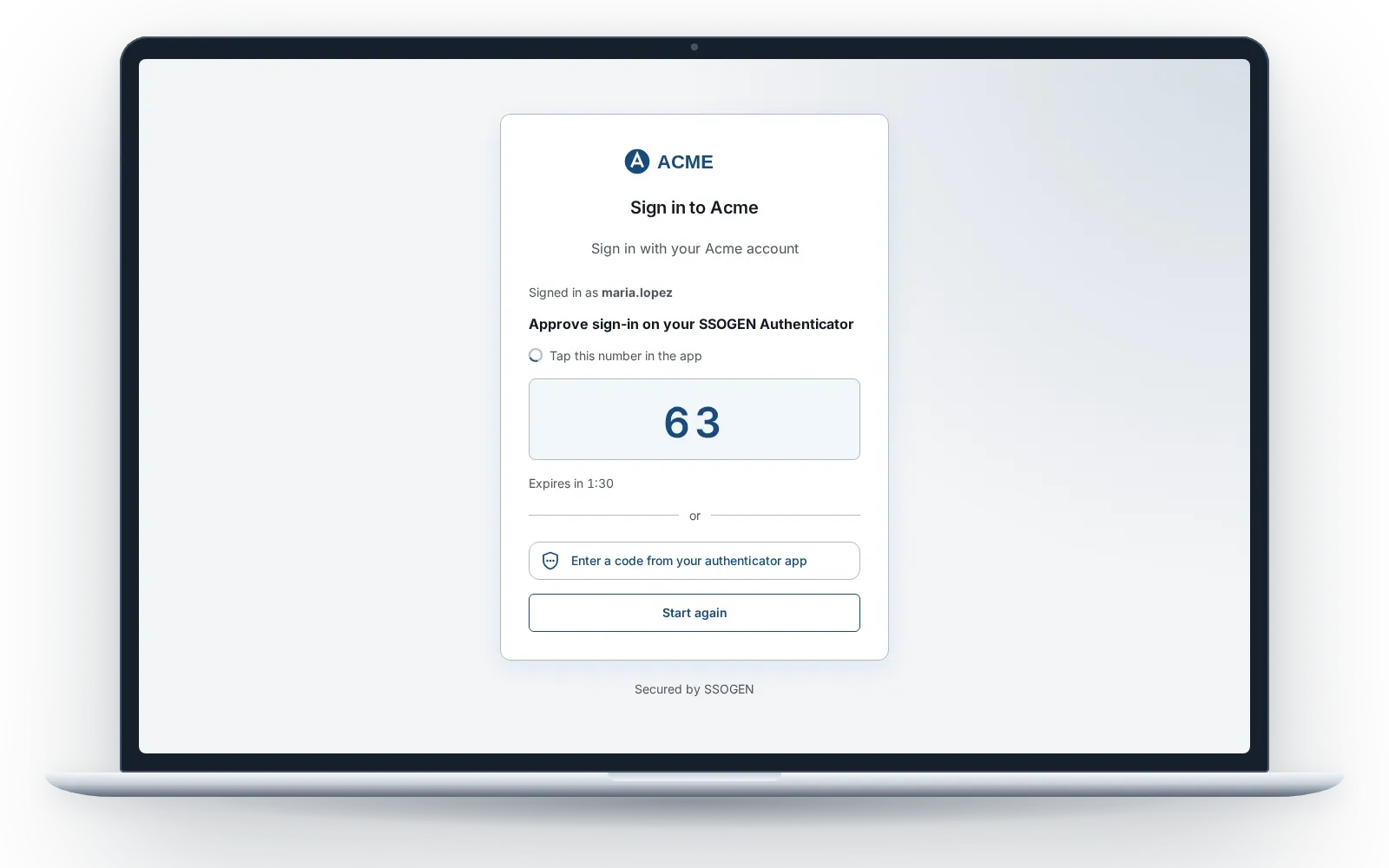
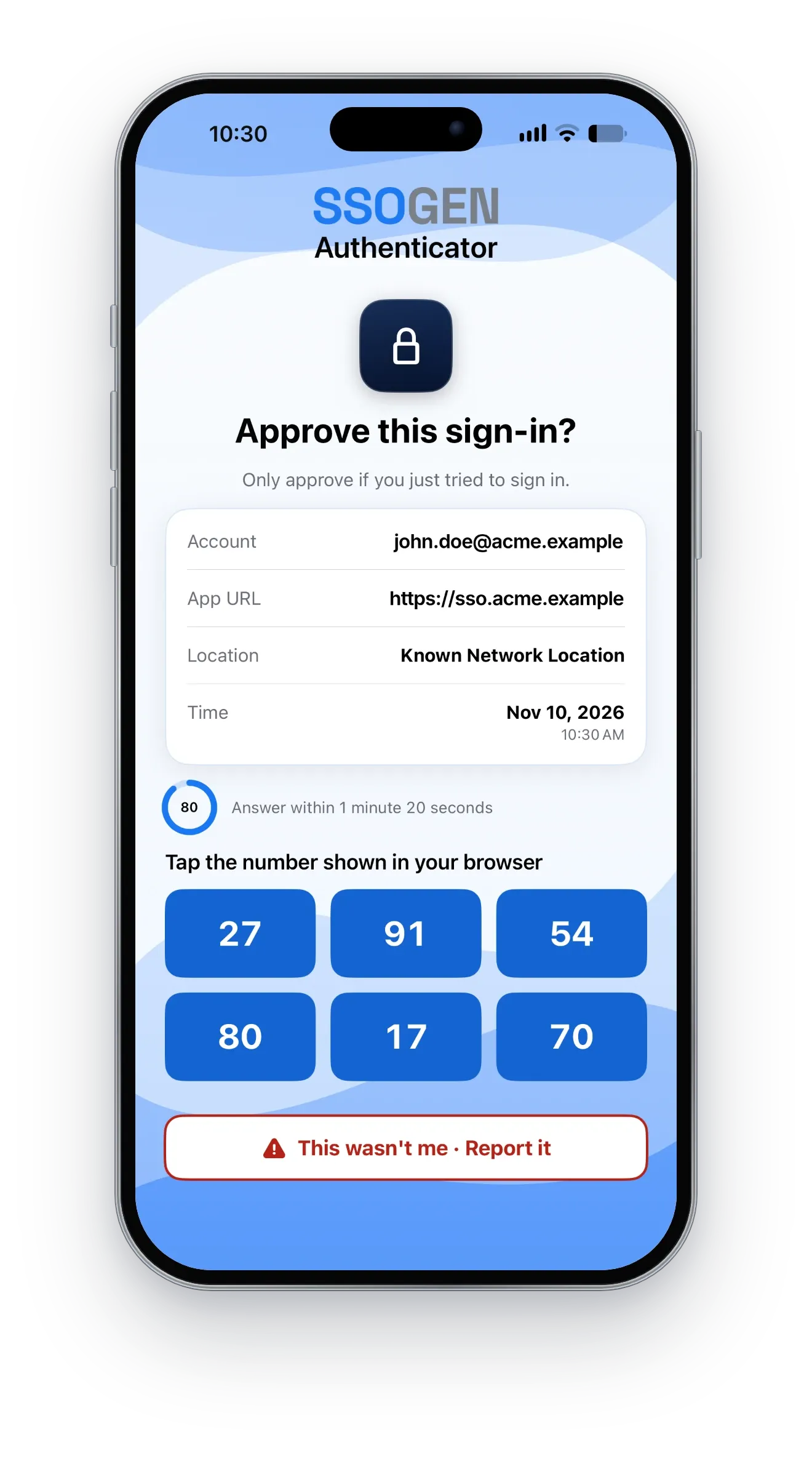
| SSOGEN Authenticator approval | The sign-in page shows a number; the phone app (iOS and Android) shows six, and the person taps the matching one. |
| SSOGEN Authenticator code | The person types the one-time code the app shows. It works with no connection to the phone. |
| Passkey or security key | The device confirms it is the person. A passkey sign-in meets the requirement on its own. |
| Recovery code | A one-time recovery code. |
| Text message code | A code by SMS. Weaker; keep it last in the list. |
| Email code | The weakest. Off unless you opt in, for people with no phone. |
The Authenticator is part of SSOGEN with no separate charge. A policy can accept several factors and sets the order in which people are offered them.
Where the second factor comes from
- SSOGEN asks. After the first factor (a directory password, Kerberos, or a sign-in at Okta, Entra or AD FS), SSOGEN asks its own second factor.
- Your identity provider asked. If Okta, Entra ID, AD FS or Ping already did MFA, the policy can accept that: it shows each provider as “Accepts the provider’s multi-factor sign-in when it reports one”, “SSOGEN asks its own second factor”, or “the provider is the only factor”.
Either way the sign-in through SSOGEN carries the second factor. The local EBS login page stays open for the accounts you keep (such as SYSADMIN) and is not covered by SSOGEN’s second factor, so narrow Login Types to the accounts that need it.
Set it up
In SSOGEN
- Register EBS as a Web Agent application with the Client URL
https://ebs.acme.example, and set Identify the person by to the value that equals the EBS user name. - Open SSO policies > Policies and create or edit the policy that covers EBS. Under Requirements set the First factor (Password for a directory, Single sign-on with an external provider for Okta or Entra) and set Second factor to Required. Order the accepted factors with Move up and Move down.
- Choose what happens to a person who has no second factor yet: Offer to set one up during sign-in, set up only after a reset, or send them to the help desk. The person proves a code to their email address before pairing a phone, by default.
- Assign the policy to the EBS application (Create an authentication policy and assign it).
The editor writes the policy in plain words under the factors (“People sign in with a password, then approve in SSOGEN Authenticator or type its code”) and warns you when a setting leaves a gap.
On the EBS side
Run the tool and finish the setting as on the Oracle EBS single sign-on page. The profile options are the same with or without a second factor: Applications SSO Type SSWA w/SSO, APPS_AUTH_AGENT https://ebs.acme.example/accessgate, Login Types Both. EBS users still need names equal to what the agent sends, in capitals.
Straight to a SAML or OpenID Connect provider with no SSOGEN in between (the direct path on the EBS page), the second factor is whatever that provider asks.
Token servers and RADIUS
SSOGEN does not call a RADIUS server or a token validation server; its second factors are the ones above, and it accepts your identity provider’s MFA. If a RADIUS or hardware-token service has to stay in the path, bring it to SSOGEN as a conversation about the application.
If it does not work
| Symptom | What to do |
|---|---|
| A person is not asked for a second factor | The policy has Second factor set to None, the application is covered by another policy, or the provider is set to be the only factor. |
| A person has no phone paired | Offer to set one up at sign-in, or reset the person’s factors in the console. |
| Sign-in works, EBS does not know the user | The name sent is not an EBS user name. Change Identify the person by. |
Related
Active Directory and LDAP, Kerberos, Okta, Microsoft Entra ID. MFA on its own: multi-factor sign-in.