SSOGEN / Microsoft Entra ID as identity provider for SSOGEN
SSOGEN
Microsoft Entra ID as identity provider for SSOGEN
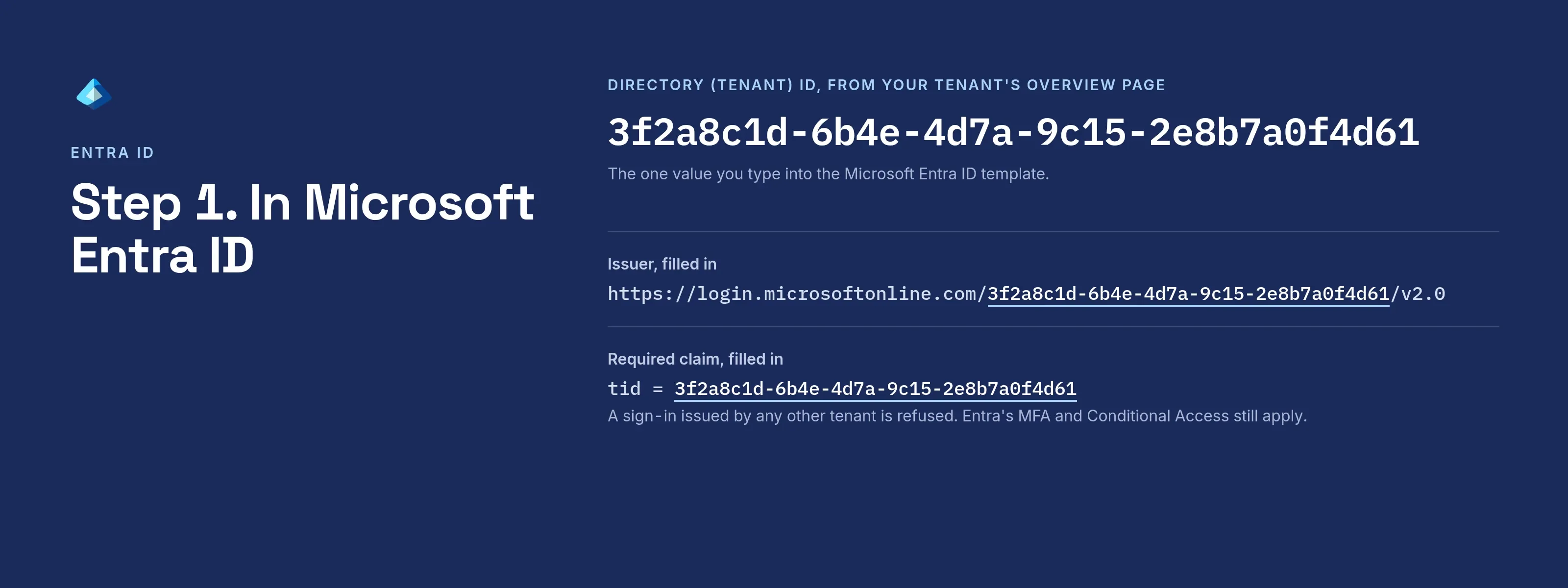
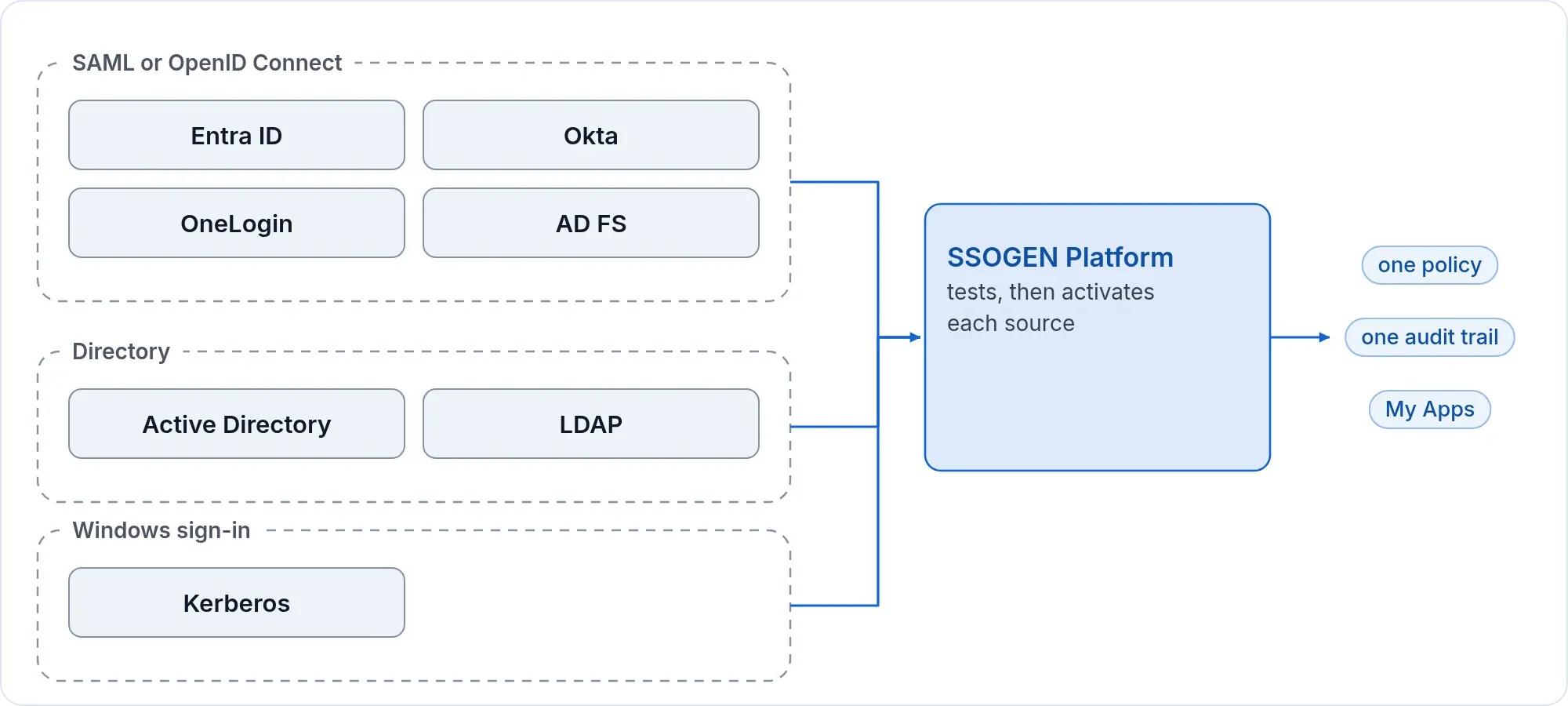
Type your tenant ID into the Microsoft Entra ID template and SSOGEN fills in the issuer, the claims and a rule that admits only your tenant.
What you need
- In Entra, the Application Administrator or Cloud Application Administrator role.
- Your Directory (tenant) ID, shown on the Overview page of your tenant.
- An SSOGEN Super admin or Authentication admin.
Step 1. In Microsoft Entra ID
OpenID Connect (app registration)
- In SSOGEN, open SSO policies > Identity providers, Add identity provider, the Microsoft Entra ID card, choose OpenID Connect, type your Directory (tenant) ID and Continue. On Client credentials, copy the Redirect URI, for example
https://acme.ssogen.ai/oidc/rp/entra/callback. - In the Microsoft Entra admin center, open Entra ID > App registrations > New registration. Name it
SSOGEN, choose the single-tenant account type (accounts in this organizational directory only) and select Register. - On Overview, copy the Application (client) ID.
- Open Authentication, Add Redirect URI, choose Web, paste the redirect URI and select Configure. Do not tick the implicit grant boxes.
- Open Certificates & secrets > Client secrets > New client secret, choose an expiry and select Add. Copy the Value at once; it is not shown again.
- To limit who may sign in, open the matching entry under Entra ID > Enterprise apps, set Assignment required to Yes under Properties, and add people or groups under Users and groups.
SAML (enterprise application)
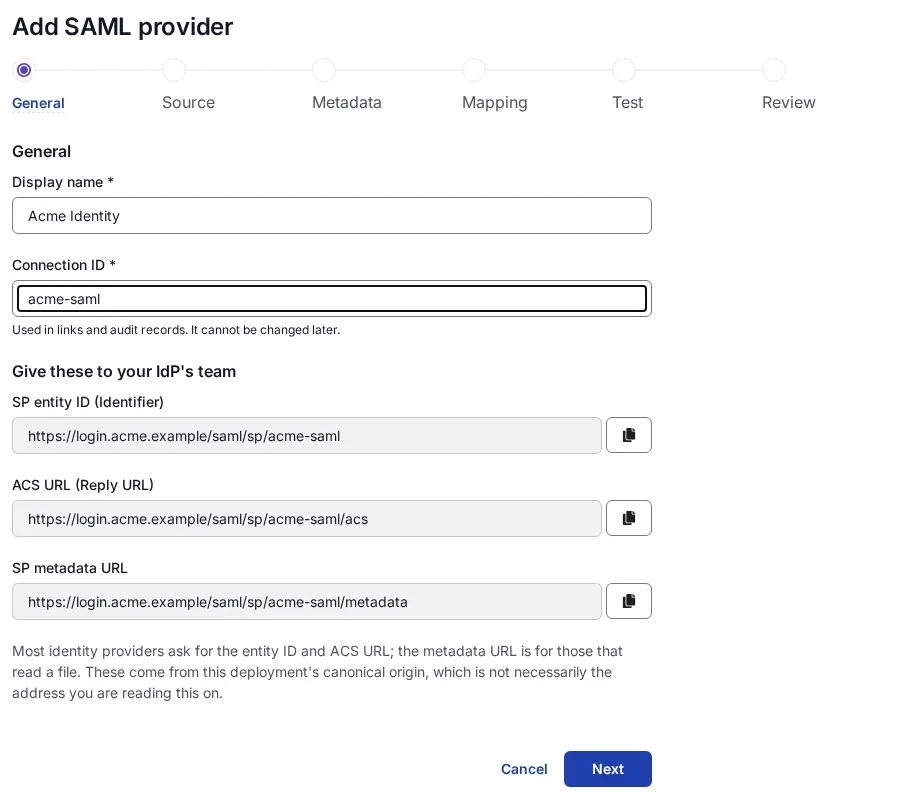
- In SSOGEN, choose the Microsoft Entra ID card, then SAML, and copy the SP entity ID and ACS URL (Add a SAML identity provider in SSOGEN, section 1).
- In the Entra admin center, open Entra ID > Enterprise apps > New application. SSOGEN is in the gallery: search for SSOGEN, select it and Create. To set it up by hand instead, choose Create your own application, name it, choose Integrate any other application you don’t find in the gallery (Non-gallery) and Create.
- Open Single sign-on and choose SAML. In Basic SAML Configuration select Edit:
| Entra field | Value |
|---|---|
| Identifier (Entity ID) | https://acme.ssogen.ai/saml/sp/entra (SSOGEN’s SP entity ID) |
| Reply URL (Assertion Consumer Service URL) | https://acme.ssogen.ai/saml/sp/entra/acs (SSOGEN’s ACS URL) |
| Sign on URL, Relay State, Logout Url | empty |
- In Attributes & Claims, keep the defaults: Entra sends
emailaddressandnameunder the names SSOGEN expects. The Unique User Identifier (Name ID) defaults to the user principal name, a good stable choice. - In SAML Certificates, keep Signing Option at Sign SAML assertion (or Sign SAML response and assertion) and copy the App Federation Metadata Url.
- Under Users and groups, assign the people or groups who may use SSOGEN.
Step 2. In SSOGEN
- OpenID Connect: the template has filled in the issuer
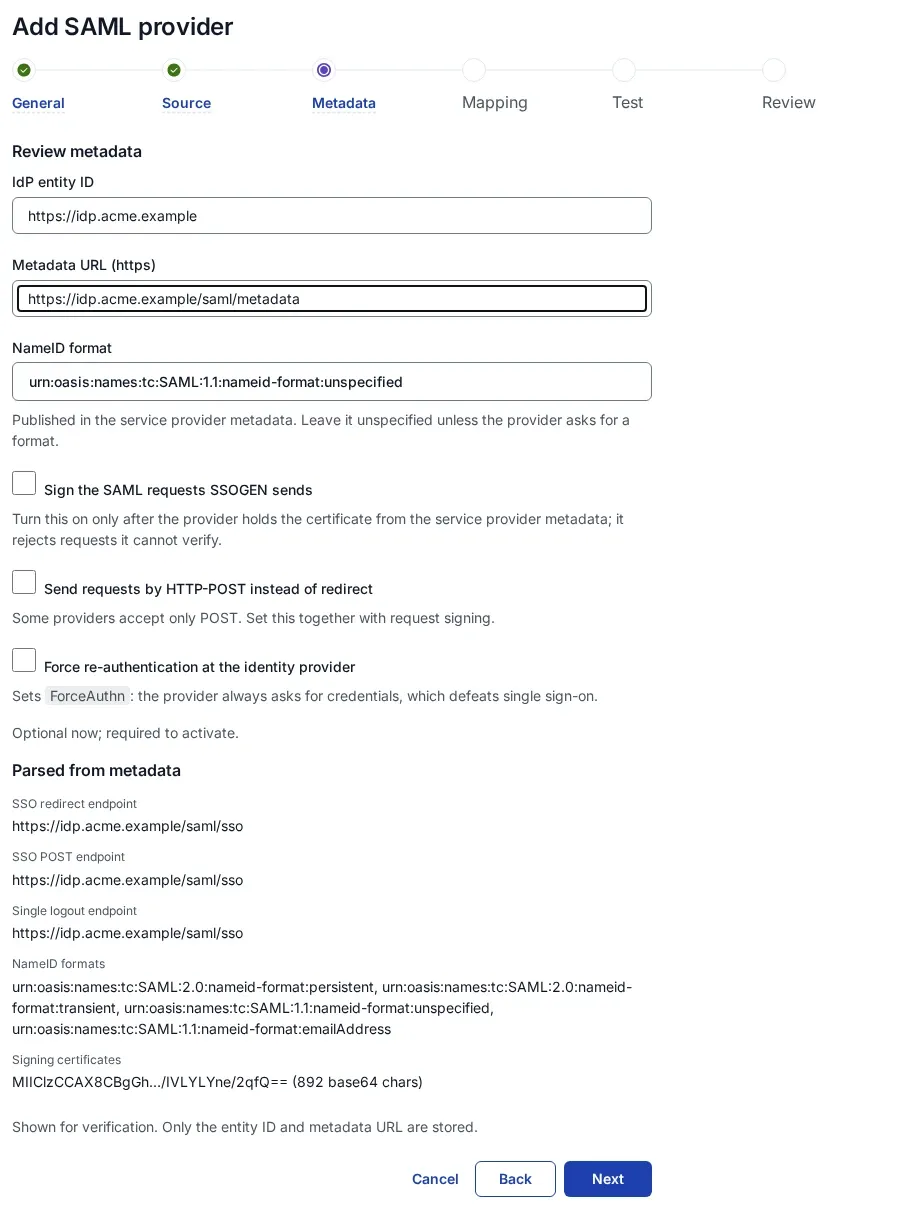
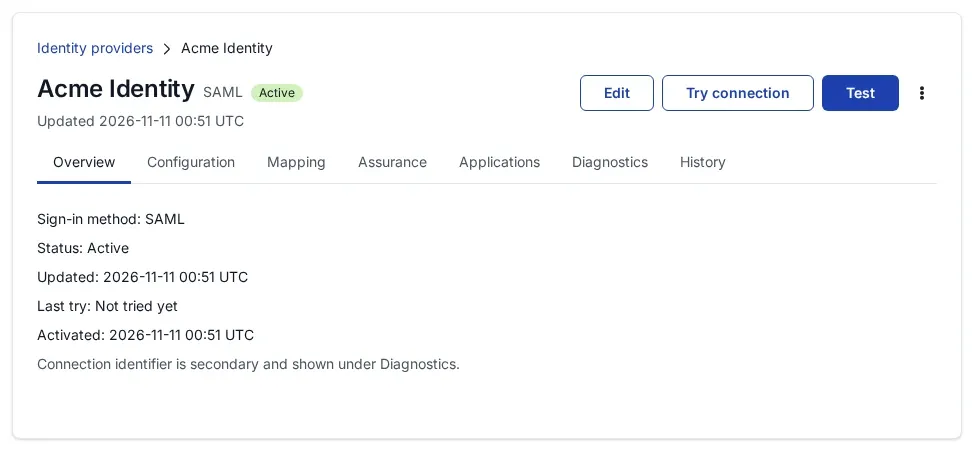
https://login.microsoftonline.com/<tenant ID>/v2.0, the scopes and the claims. Type the Client ID and Client secret, then Create provider, Validate, Test, Try signing in, Activate. Test passes in amber for Entra, because Entra cannot confirm the client ID and secret until a real sign-in: use Try signing in before you activate. See Add an OpenID Connect identity provider in SSOGEN. - SAML: on Metadata source, choose Metadata URL, paste the App Federation Metadata Url and Fetch metadata. The IdP entity ID reads
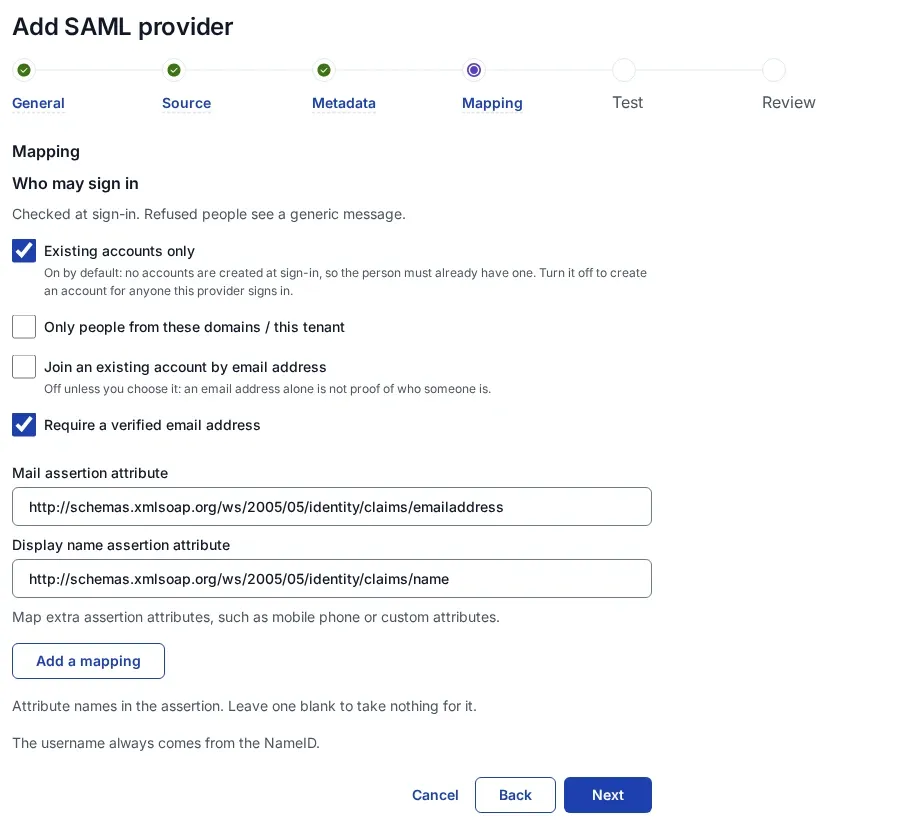
https://sts.windows.net/<tenant ID>/. Keep the default mapping. Then save, validate, test, try and activate. See Add a SAML identity provider in SSOGEN.
Allow the provider in the policy that applies (SSO policies > Policies, First factor, Single sign-on with an external provider).
Step 3. Who may sign in, and the first sign-in
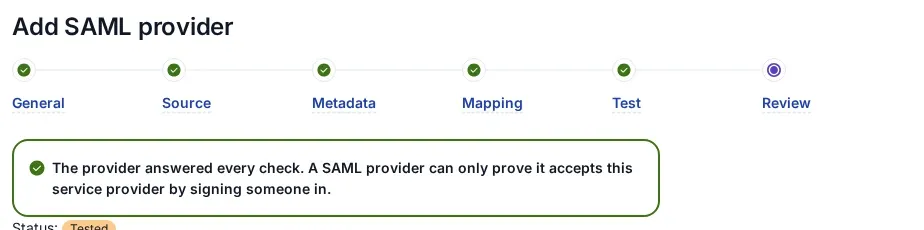
- OpenID Connect from the template: the provider admits Anyone this provider vouches for, with the required claim
tidequal to your tenant ID. A sign-in issued by any other tenant is refused. Guests invited into your tenant sign in through your tenant, so control them with Assignment required in Entra. Each person gets an SSOGEN account at first sign-in, named afterpreferred_username, which for Entra is the user principal name, for examplejohn.doe@acme.example. - SAML: a new SAML provider admits nobody until you choose. On Configuration > Sign-in restriction, choose Anyone this provider vouches for and add the required claim
http://schemas.microsoft.com/identity/claims/tenantidwith your tenant ID. The SSOGEN username comes from the NameID, for exampleentra_john.doe_acme.example. - People who already have an SSOGEN account: a Super admin turns on account matching by email address. Entra sends a verified-email claim only for some account types, so read section 6 of the OpenID Connect or SAML page before you rely on it.
What the user sees
John Doe opens https://acme.ssogen.ai or an application link. He is sent to the Microsoft sign-in page, or straight through if he is already signed in to Microsoft 365 in that browser. Entra applies its own MFA and Conditional Access. He lands on his applications in SSOGEN. A person the sign-in restriction refuses sees “You cannot sign in with this provider” and “Your account cannot sign in through this provider. Contact your administrator.”
Troubleshooting
| Symptom | Cause |
|---|---|
| Microsoft shows AADSTS50011 (the redirect URI or reply URL does not match). | The redirect URI (OpenID Connect) or reply URL (SAML) in Entra differs from the one SSOGEN shows. Copy it again; Entra compares it exactly, including case. Allow a few minutes after a change. |
| Microsoft shows AADSTS50105 (the user is not assigned). | Assignment required is on and John is not assigned. Add him, or a group he is a direct member of, under Users and groups. |
| Try connection says “The provider rejected the client credentials. Check the client ID and secret.” | The secret was copied wrongly (the Secret ID is not the secret) or has expired. Create a new one and type it in SSOGEN under Edit. |
| SAML: Try connection says “The assertion was addressed to a different service provider.” | Identifier (Entity ID) in Entra differs from SSOGEN’s SP entity ID. |
| SAML: sign-ins fail after the Entra certificate is renewed. | Entra signs with the new certificate once you make it active. Fetch the App Federation Metadata Url again in SSOGEN and activate the revision first, then make the new certificate active in Entra. |