SSOGEN / Sign-in methods / TOTP Authenticator App: The SSOGEN Authenticator for iPhone and Android
Integration
TOTP Authenticator App: The SSOGEN Authenticator for iPhone and Android
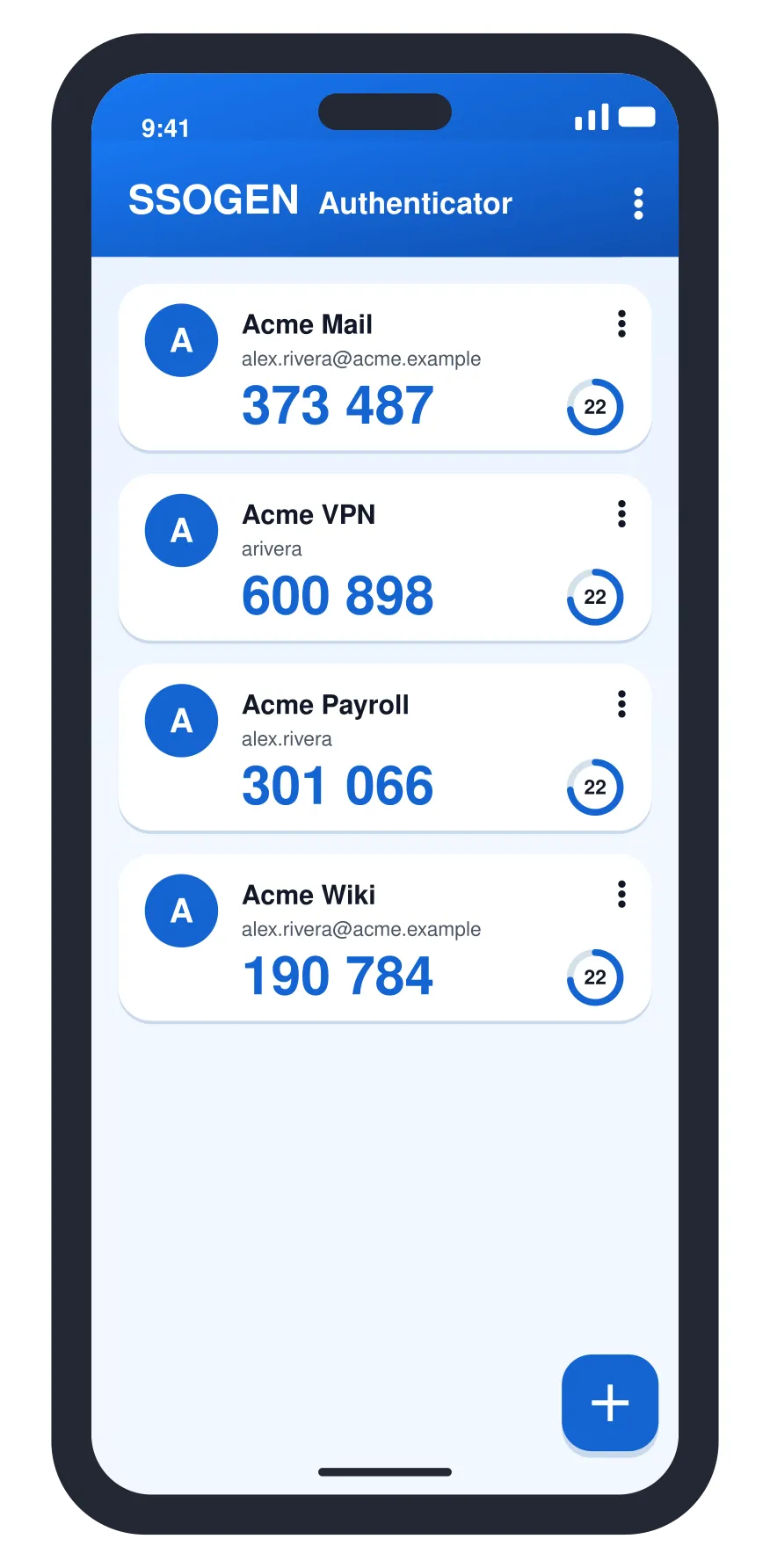
The SSOGEN Authenticator is a TOTP authenticator app for iPhone and Android. It approves a sign-in when you tap the matching number, and it shows the six-digit code SSOGEN asks for as your second step, changes it every 30 seconds, and needs no network connection to do it.
A TOTP authenticator app generates time-based one-time passwords. The SSOGEN Authenticator gives every user a second sign-in step that works anywhere, with no network connection.
The app and SSOGEN share a secret when you add the account. Both compute the same six digits from that secret and the clock.
The code therefore works with the phone in airplane mode. A wrong phone clock is the usual reason a code is rejected.
This page explains what the app does, how an account gets into it and how it differs from other authenticator apps.
Your staff can follow the end-user walk-through in the authenticator app guide. The app itself is described on the SSOGEN Authenticator page.
What the SSOGEN Authenticator does
- Phone approval. Your phone shows a sign-in request and you tap the number that matches the one on the sign-in page. See approve a sign-in on your phone.
- Sign-in codes. Six digits that change every 30 seconds and work without a network connection.
- Several accounts. You can keep one account for each organization in the same app.
- Passkeys stay separate. A passkey is added from My Account and kept by the phone’s own passkey storage. The app is for codes.
Any standard authenticator app that produces time-based codes, such as Microsoft Authenticator, Google Authenticator or 1Password, works with SSOGEN for codes if your organization allows it. Phone approval needs the SSOGEN Authenticator.
How an account gets into the app
The account starts in SSOGEN, not in the app.
- In My Account, open Authenticator and select Pair a phone. If asked, confirm your identity first. The page shows a QR code and a countdown.
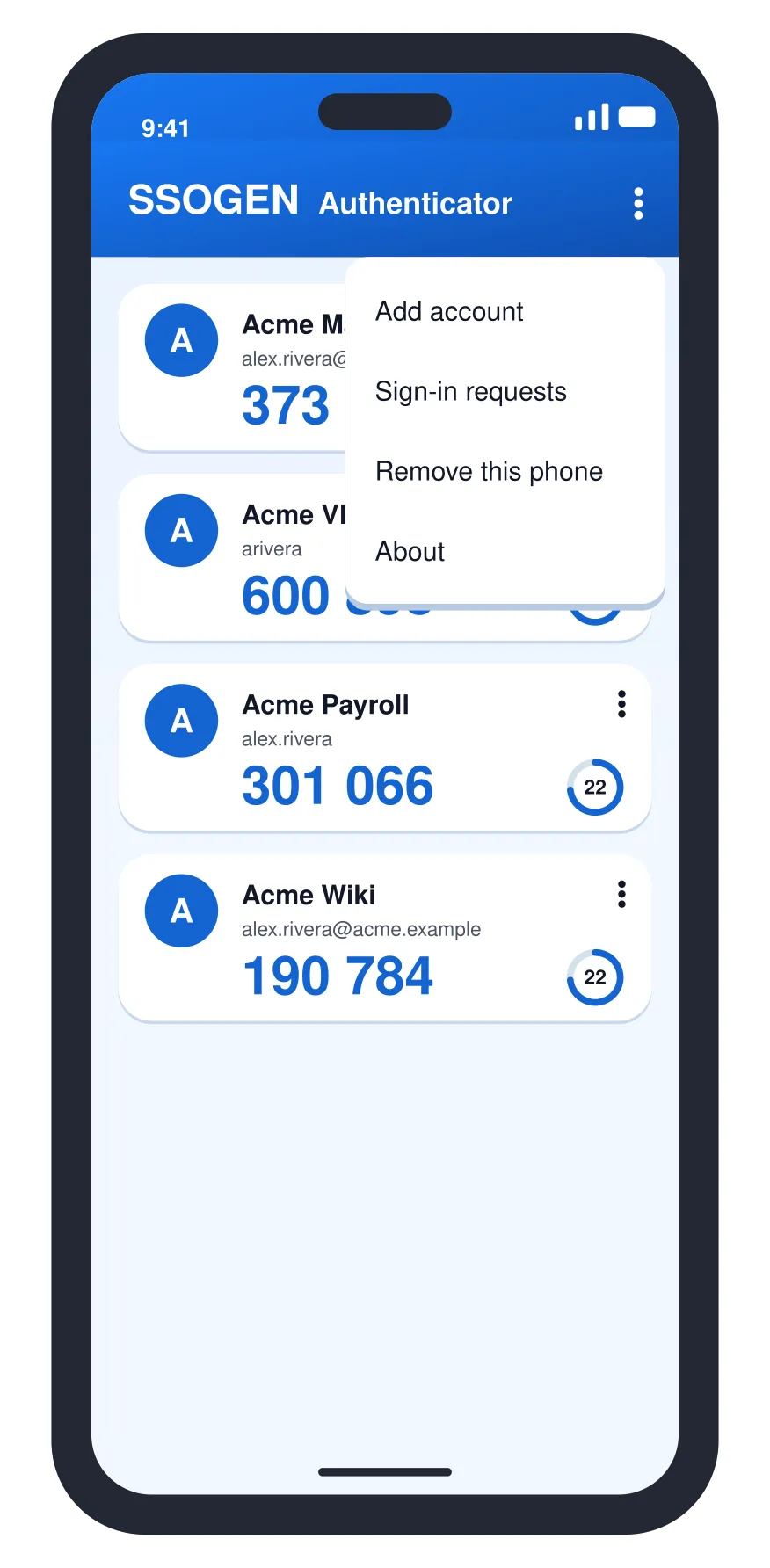
- In the app, open the menu, choose Add account, then Scan QR code, and scan the code on your computer.
- The app shows a six-digit code. Type it into Enter the code shown on your phone on the page and select Pair.
- The page says Phone paired. It now shows your sign-in codes and approves sign-ins.
Your administrator can allow other authenticator apps; the page then has a collapsed Use another authenticator app section with a QR code and a setup key.
What people do at sign-in
After the correct password, SSOGEN shows a Multi-factor authentication screen with a field labelled SSOGEN MFA code.
- The person opens the app and finds the SSOGEN account.
- They type the six digits and select Verify.
If phone approval is on, the phone instead shows a request and the person taps the matching number.
Administrators use the same code. Entering admin mode asks for an authenticator code by default, so every administrator needs an authenticator app set up. For how policy decides when this prompt appears, see SSO multi-factor authentication.
Moving to a new phone
Codes cannot be copied from one phone to another, so you set up the account again.
- Install the app on the new phone.
- On the old phone, or with a recovery code, sign in and open Authenticator App in My Account.
- Select Remove on the old authenticator and confirm Remove authenticator. Its codes stop working.
- Set up the new phone as above.
- Generate a new set of recovery codes and store them somewhere safe. A new set replaces any codes not yet used.
Delete the account from the old phone afterwards.
If a code is rejected
| What you see | What to do |
|---|---|
| That code didn’t work | Check the phone sets its date and time automatically, wait for the next code and type that one |
| TOTP confirmation failed | The code was wrong or expired; read a new one. Enrollment is not active until it succeeds |
| SSOGEN never asks for a code | The authenticator is active only after confirmation. Check Authenticator App in My Account shows active |
| Lost or replaced phone | Use a recovery code on the second-step screen, or ask your help desk to reset the second step |
Ten wrong codes in a row lock the second step for 15 minutes by default, so do not keep guessing. The lock ends on its own.
Questions people ask
What is a TOTP authenticator app?
An app that generates a new six-digit code from a shared secret and the time, used as a second step after a password.
Can I use Google Authenticator or Microsoft Authenticator with SSOGEN?
Yes. Any standard app that produces time-based codes works, and those apps scan the QR code.
Does the app work without internet?
Yes. The codes are calculated on the phone from the secret and the clock.
Where to go next
- Set up. Set up the account with the authenticator app guide.
- Turn it on. Use the multi-factor authentication guide for your organization.
- All methods. They are listed under sign-in methods.