SSOGEN / Oracle APEX SSO: Sign-In Options With SSOGEN
Integration
Oracle APEX SSO: Sign-In Options With SSOGEN
APEX applications trust a sign-in SSOGEN performs, through the Web Agent, the App Proxy or SAML, so each one stops keeping its own accounts.
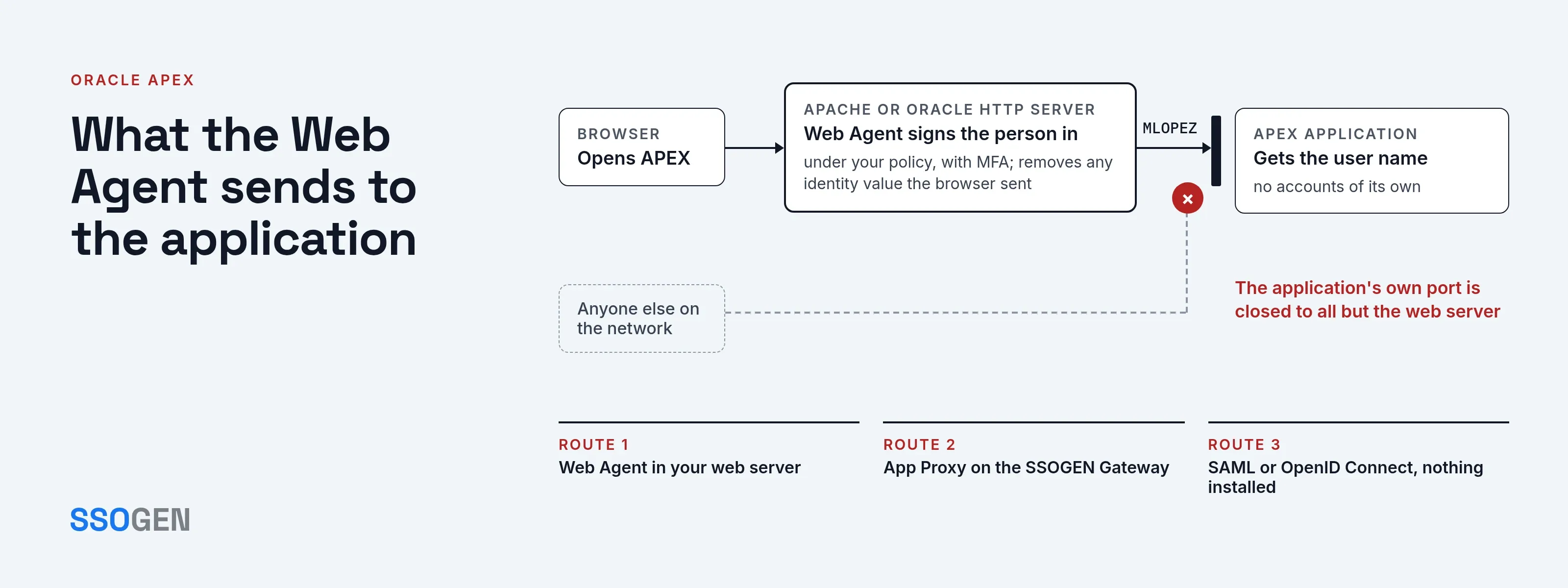
Oracle APEX SSO with SSOGEN replaces per-application accounts with one sign-in, your MFA policy and one place to manage access. APEX applications are web applications, so SSOGEN performs the sign-in in whichever of three places fits your setup:
- The web server in front of them, through the SSOGEN Web Agent.
- A gateway in your network, through the App Proxy.
- The application itself, when it acts as a SAML or OpenID Connect client.
With each of them, SSOGEN applies your sign-in policy, including multi-factor authentication, and your users sign in once.
Choosing where the sign-in happens for APEX
| Your APEX setup | Route | What runs where |
|---|---|---|
| APEX is served through Apache or Oracle HTTP Server that you control | SSOGEN Web Agent | The agent module runs in that web server and passes the signed-in user to the application |
| APEX is on a private network and you want nothing installed beside it | App Proxy on the SSOGEN Gateway | The gateway checks the sign-in, then forwards requests with the identity added |
| The APEX application is set up as a SAML or OpenID Connect client | SAML or OpenID Connect application | SSOGEN is the identity provider; nothing is installed |
The guide to connecting an application gives the order to try: SAML first, OpenID Connect second, the Web Agent third, the App Proxy fourth.
What the Web Agent sends to the application
- User name. After sign-in, the Web Agent passes the user name to the application.
- Browser values removed. The agent removes any identity value a browser tries to send.
- Default names. By default it sends the user name in upper case under several standard names, which the application’s Test tab lists.
- Identify the person by. You choose which attribute becomes that name, so it matches the account name the application already uses.
- Extra attributes. The agent can send extra attributes too, such as an employee number.
The on-premise application guide lists the settings.
Keep the application behind the web server
The web server hands the application the user name, so the application must accept it only from the web server.
- Close the port. Close the application’s own port to everything except that server.
- Trusted link. Keep the link between them on a trusted network or use TLS.
- The reason. Otherwise, anyone who can reach the application directly could send any name.
Multi-factor authentication and sign-out
- Policy per application. The sign-in policy attached to the application in SSOGEN decides how strongly people must sign in.
- Separate applications. Adding MFA to one APEX application does not affect another.
- Sign-out. Depending on the agent’s logout scope, sign-out ends either the application’s session only or the SSOGEN session too.
Related integrations
The same approach protects other Oracle applications.
- Oracle EBS SSO. See the E-Business Suite page.
- PeopleSoft SSO. See the PeopleSoft page.
- JD Edwards SSO. See the JD Edwards page.
Questions people ask
Does the application need code changes?
No. The Web Agent adds sign-in in the web server, so the application itself does not change. You set it up once to accept the user name the agent passes.
Does SSOGEN need another identity provider?
No. SSOGEN is a complete identity provider. It also works with Entra ID, Okta, Ping Identity, Keycloak or any SAML provider, if you use one.
Where to go next
SSOGEN has delivered single sign-on for Oracle applications since 2016.
- Start. The SSOGEN Web Agent.
- Then read. The on-premise application guide.