SSOGEN / Kerberos Windows sign-in for SSOGEN
SSOGEN
Kerberos Windows sign-in for SSOGEN
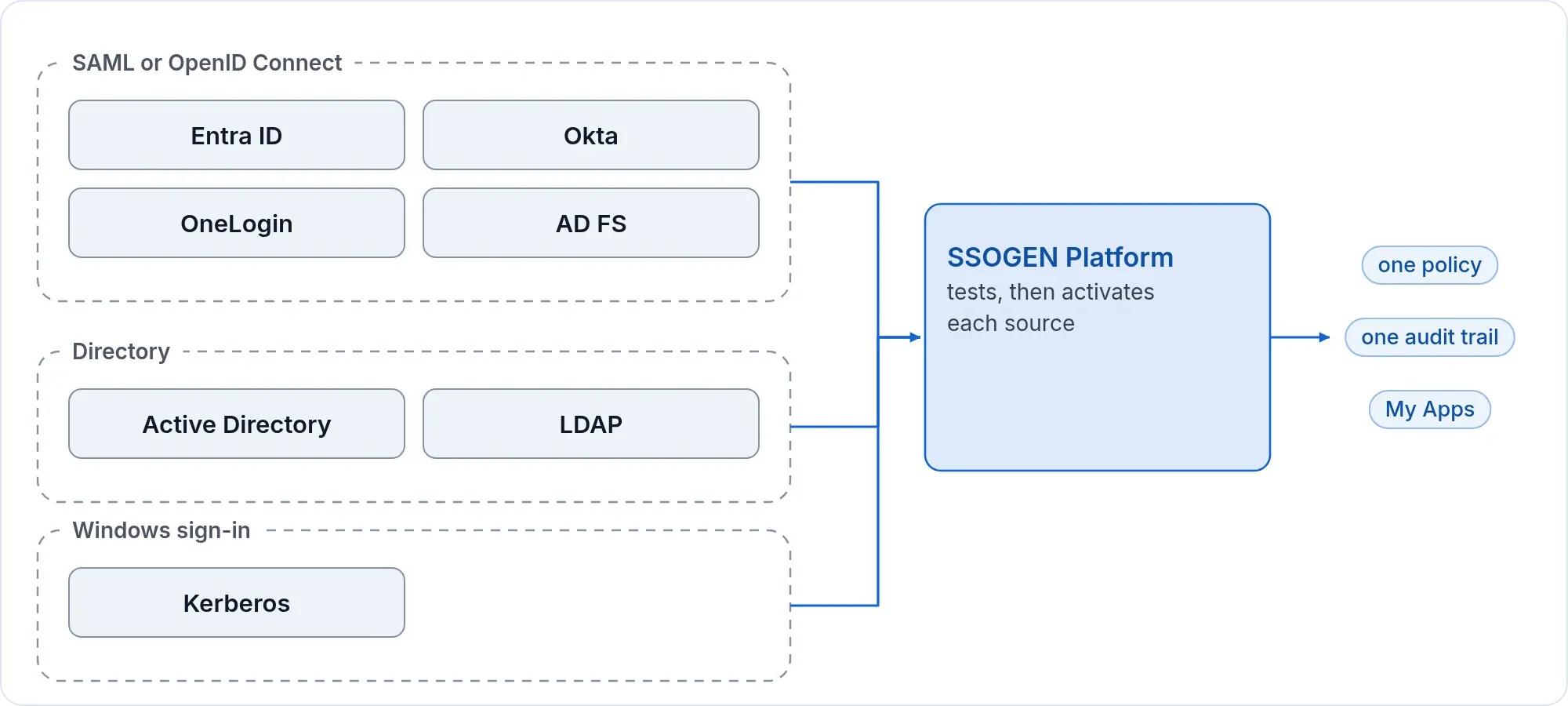
A domain-joined computer hands its Kerberos ticket to SSOGEN, which checks it with a keytab and offers the normal page to everyone else.
What you need
- An Active Directory connection already working in SSOGEN under Identity > Directories (Active Directory and LDAP). Windows sign-in finds the person there.
- A network zone for your office networks under SSO policies > Network zones. Windows sign-in is offered only there.
- A domain administrator for the steps in Active Directory, and control of browser settings on the managed computers.
- An SSOGEN Super admin or Authentication admin.
The examples use the domain acme.example, the Kerberos realm ACME.EXAMPLE, SSOGEN at sso.acme.example, and the service account svc-ssogen-kerberos.
Step 1. In Active Directory and the browsers
-
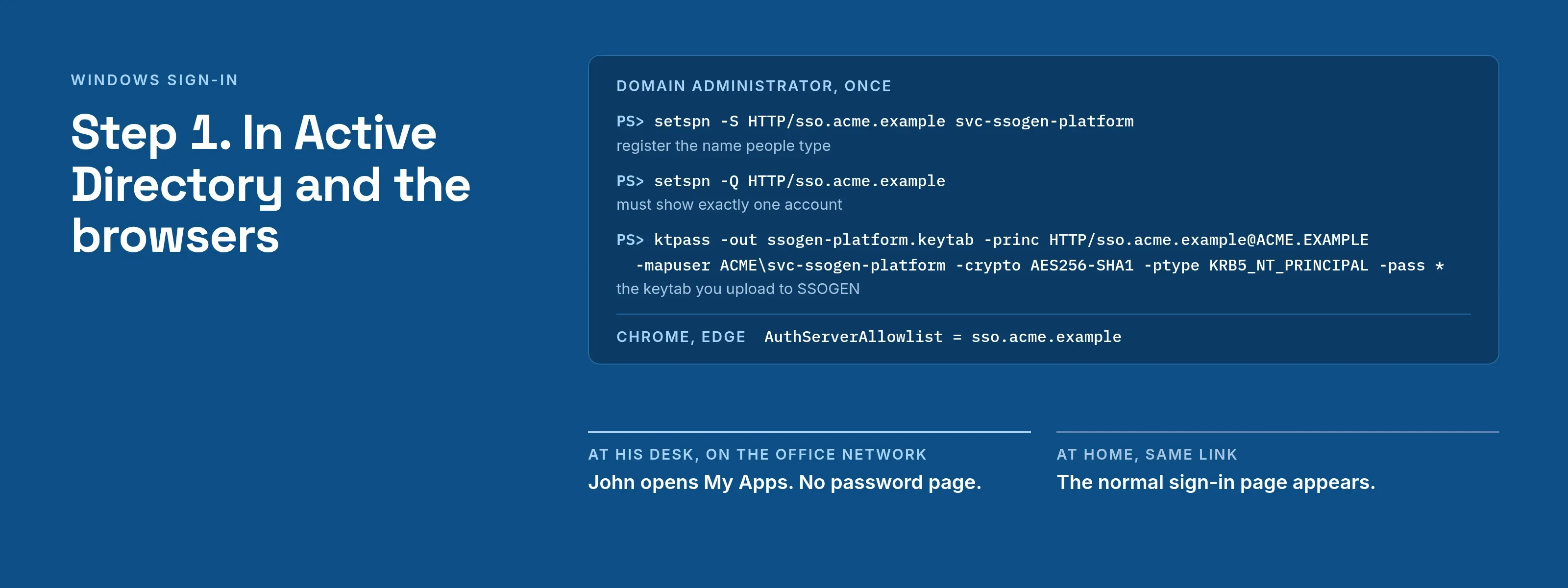
Create a user account used only for SSOGEN, for example
svc-ssogen-kerberos, with a long random password. It must support AES encryption (SSOGEN does not accept RC4 or DES keys), must not be trusted for delegation, and must hold no other service principal names. Do not reuse another product’s account: exporting the keytab changes the account’s key. -
Register SSOGEN’s name, the exact host name people type, without a port:
setspn -S HTTP/sso.acme.example svc-ssogen-kerberossetspn -Q HTTP/sso.acme.exampleThe second command must show exactly one account.
-
Export the keytab:
ktpass -out ssogen-kerberos.keytab -princ HTTP/sso.acme.example@ACME.EXAMPLE -mapuser ACME\svc-ssogen-kerberos -crypto AES256-SHA1 -ptype KRB5_NT_PRINCIPAL -pass *Treat the file like a password and delete your copy after uploading it.
-
Make sure no account is trusted to delegate to
HTTP/sso.acme.example. -
Keep clocks in step: Kerberos allows five minutes of difference between computers and the SSOGEN server.
-
Tell the browsers to send tickets to SSOGEN: for Google Chrome and Microsoft Edge, set the policy
AuthServerAllowlisttosso.acme.example; for Firefox, addsso.acme.exampletonetwork.negotiate-auth.trusted-uris. Do not set a delegation allowlist; SSOGEN does not need forwarded credentials. -
Behind a load balancer or reverse proxy, allow large request headers (people in many groups send large tickets), and do not log the authorization header.
Step 2. In SSOGEN
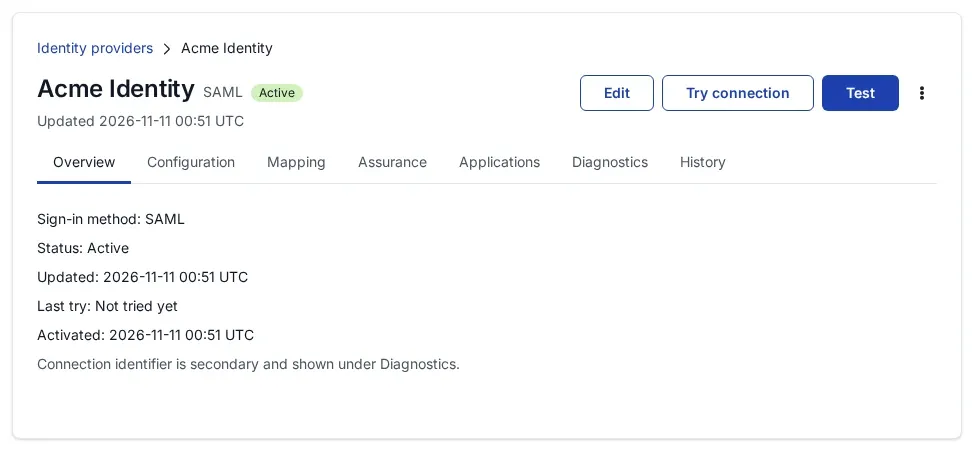
- Open SSO policies > Identity providers, Add identity provider, and under Generic SAML / OpenID Connect / Directory (LDAP) choose Windows sign-in (Kerberos). The page Add Windows sign-in has six steps.
- General: Display name, for example
Windows sign-in, and a Connection ID, for exampleacme-windows. - Service principal: Host name
sso.acme.exampleand Kerberos realmACME.EXAMPLE. The step also writes out thesetspn,ktpassand browser commands for your domain administrator. - Keytab: upload the keytab file (at most 8 KiB). It is stored encrypted. SSOGEN refuses a file that is not a keytab, has no entry for the service principal, or holds only RC4 or DES keys.
- Realms: one row per Kerberos realm whose people may sign in this way, with the Directory that holds them.
- Network zones: tick your office zones. Try Windows sign-in automatically when the page opens makes the sign-in page try it before showing the form; off, it is offered only under Sign in with. Select Create connection.
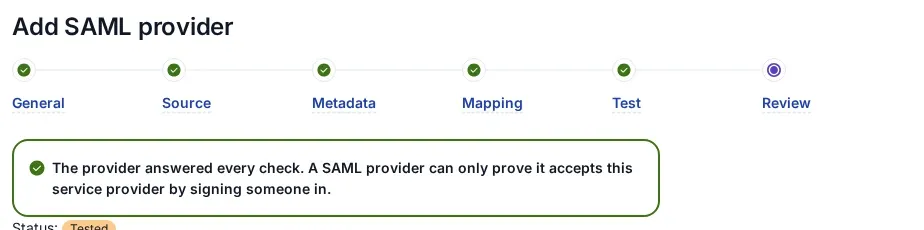
- Review and activate: select Validate. Then, on a domain-joined computer with a browser set up as in Step 1, select Try connection. The result shows the Windows account received, the directory entry it maps to, the SSOGEN person it would sign in, and warnings such as an account trusted to delegate to SSOGEN’s name. Nothing is created. A passed try allows Activate.
- Add Windows sign-in to the first factors of each policy that should accept it, together with the directory so people out of the office can sign in with their password. See Create an authentication policy and assign it.
Step 3. Who may sign in, and the first sign-in
Windows sign-in finds the person in the realm’s directory at each sign-in, by user principal name (john.doe@acme.example) or, for a name without a domain, by the Windows logon name. The person must match exactly one enabled account. They are the same SSOGEN person as when they sign in with their directory password.
A Windows sign-in counts as one factor, the same strength as a password: a policy that requires a second factor still asks for it, and a policy that requires a passkey is never met by it. After a failed attempt, and after signing out, SSOGEN does not try Windows sign-in again in that browser for twelve hours; the person can still choose Windows sign-in from the list.
What the user sees
John Doe is at his desk on the office network and opens My Apps. There is no password page: he lands on his applications, after a second factor if the policy asks for one. At home, the same link shows the normal sign-in page.
Troubleshooting
| Symptom | Cause |
|---|---|
| The normal sign-in page appears, with no message. | No ticket was offered, the computer is not on a listed network zone, the connection is not active, or the policy does not list it. |
| “Your browser didn’t offer a Windows sign-in. Sign in another way below, or contact your IT help desk.” | The browser is not set up to send tickets to SSOGEN (Step 1, item 6), or the computer is not in the domain. |
| “Your Windows account isn’t set up for SSOGEN. Sign in another way below, or contact your IT help desk.” | No account, or more than one, matches the person in the realm’s directory. Check the user principal name and the realm row. |
| “Windows sign-in isn’t working on this site right now. Sign in another way.” | The ticket was refused: the name is not registered or is on two accounts (the browser then sends NTLM), the keytab is out of date after a password change, or a clock is more than five minutes off. Export a new keytab and upload it with Edit, Keytab. |
| Only some people fail. | Their tickets are large and a proxy cut the header, or the account is a service or machine account rather than a person. |