SSOGEN / Single sign-on for Salesforce with SSOGEN
SSOGEN
Single sign-on for Salesforce with SSOGEN
Salesforce builds its SAML setting from SSOGEN's metadata, then matches each person on the Federation ID of their user, from My Apps or My Domain.
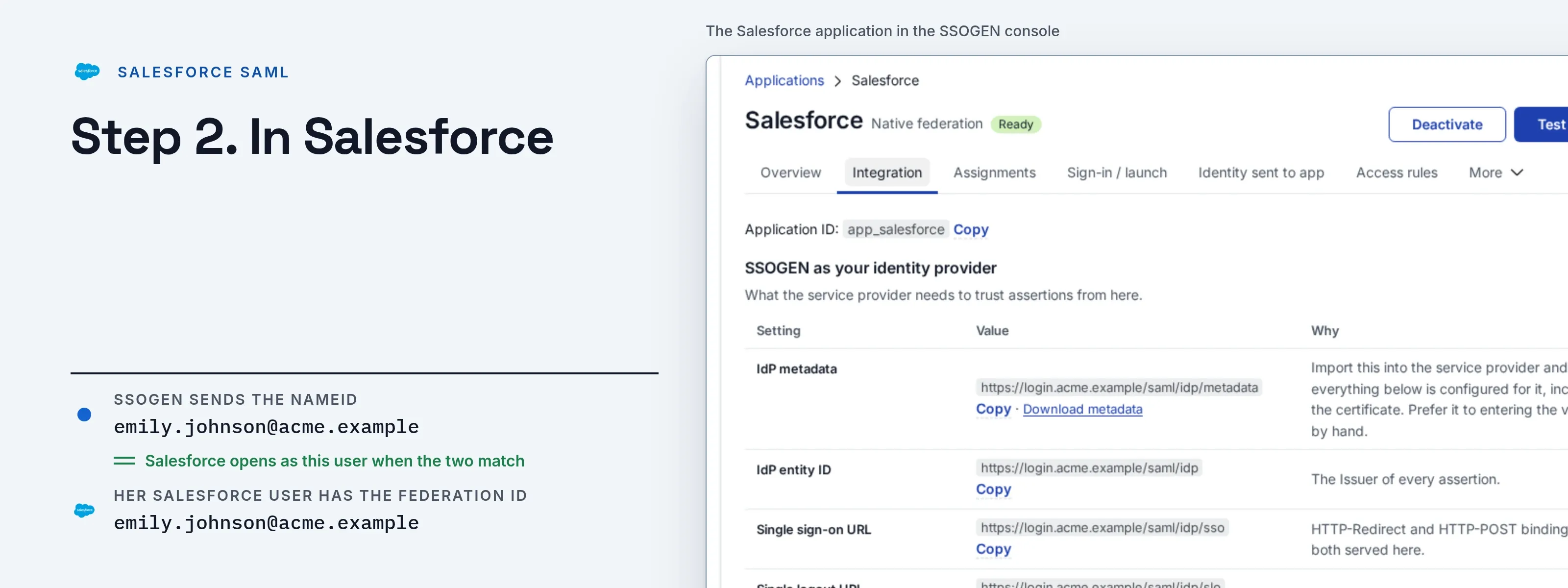
The example org has the My Domain https://acme.my.salesforce.com; SSOGEN runs at https://acme.ssogen.ai.
What you need
- A Salesforce administrator with Customize Application and Modify All Data (a System Administrator has both).
- A Federation ID on every Salesforce user who will use SSOGEN: their email address as SSOGEN holds it.
- An SSOGEN administrator who can save SAML applications (see Add a SAML application in SSOGEN).
Salesforce generates its Login URL only after its SAML setting is saved, so start in Salesforce with points 1 to 4 of step 2, then register in SSOGEN, then finish step 2.
Step 1. In SSOGEN: add Salesforce
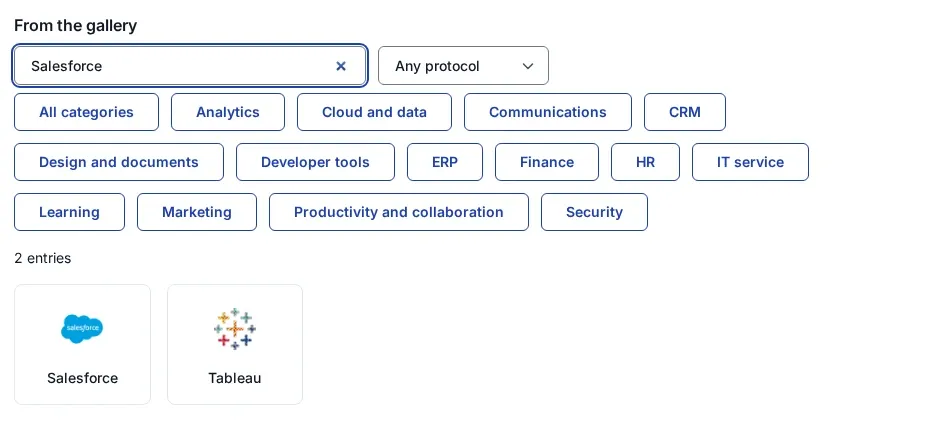
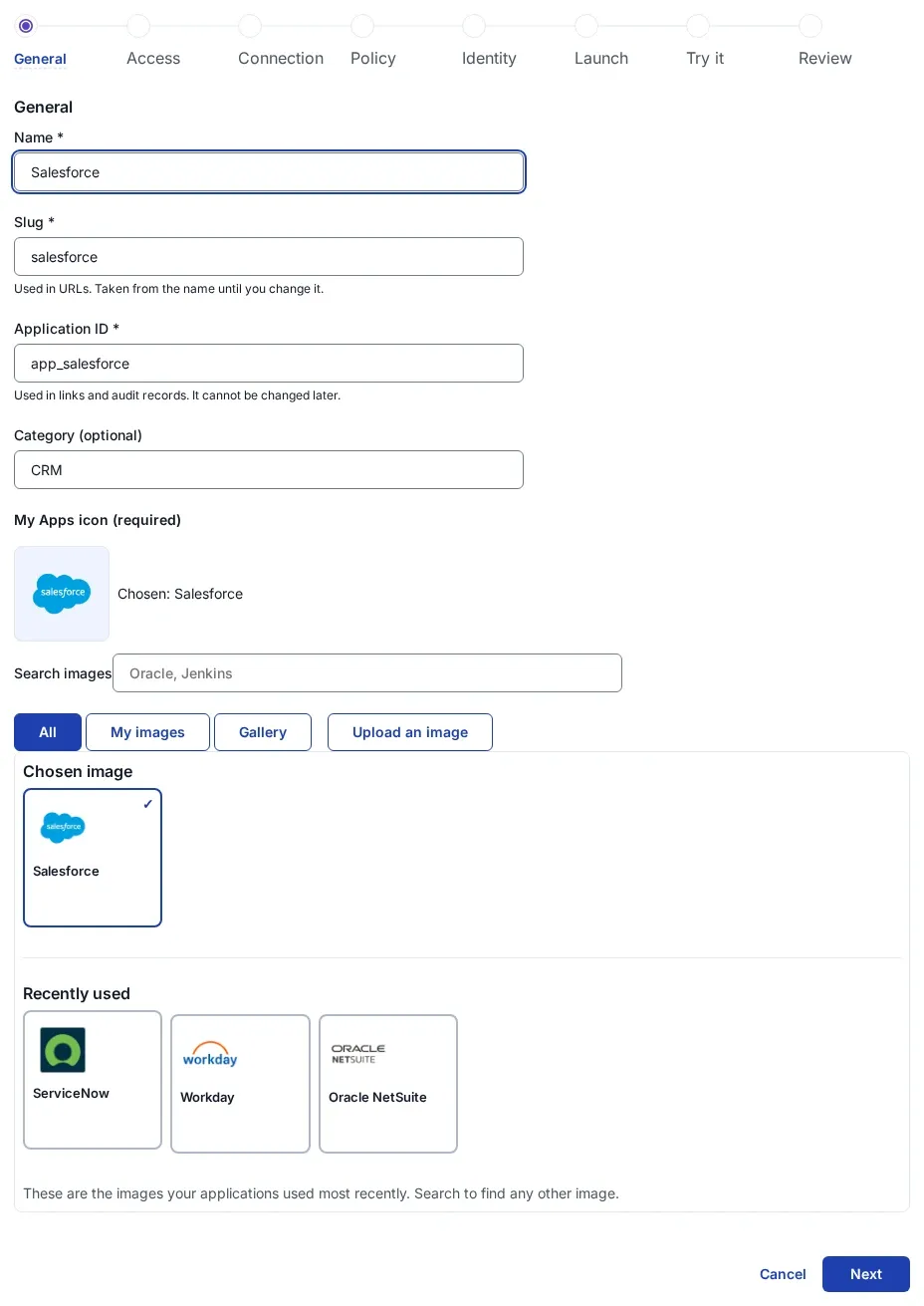
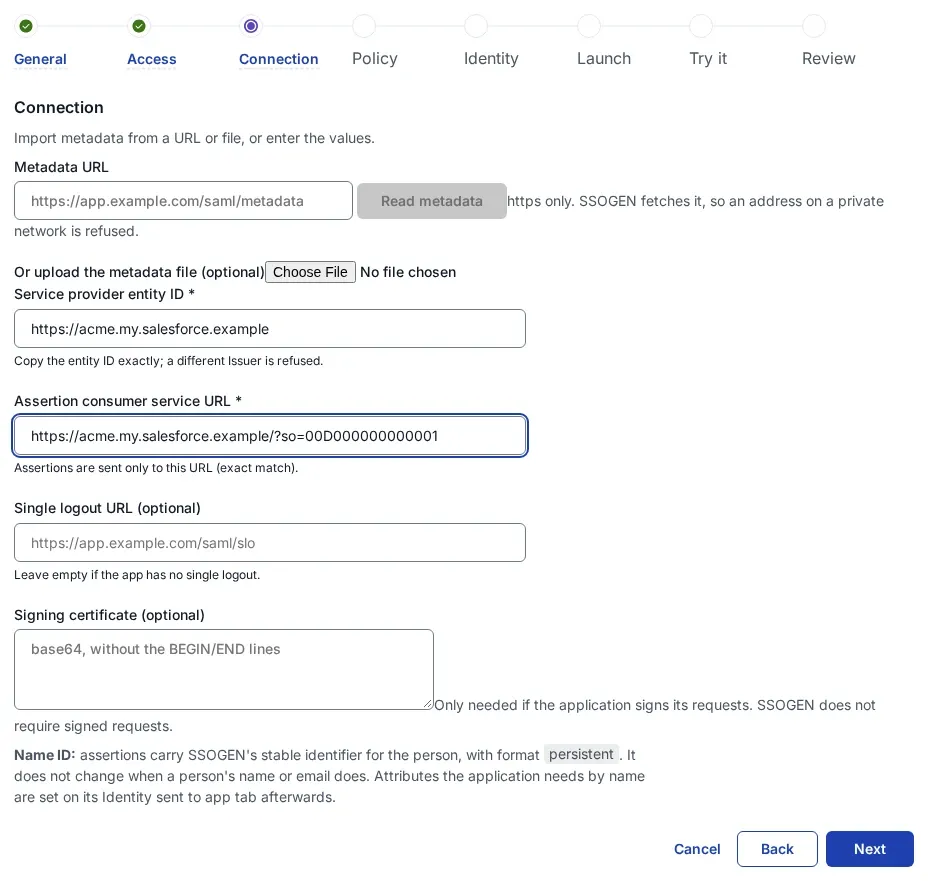
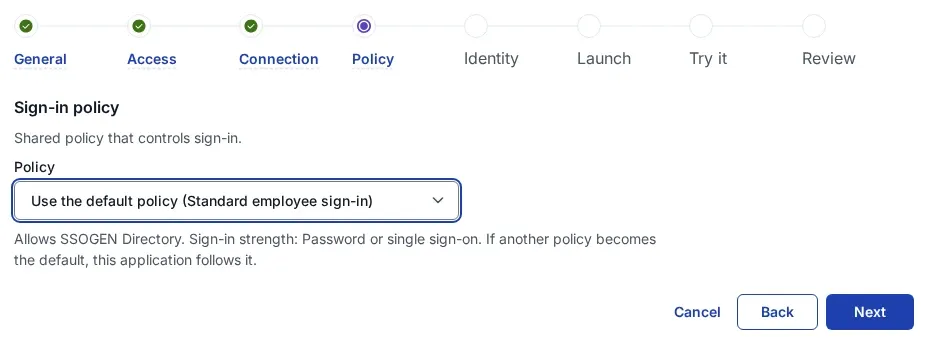
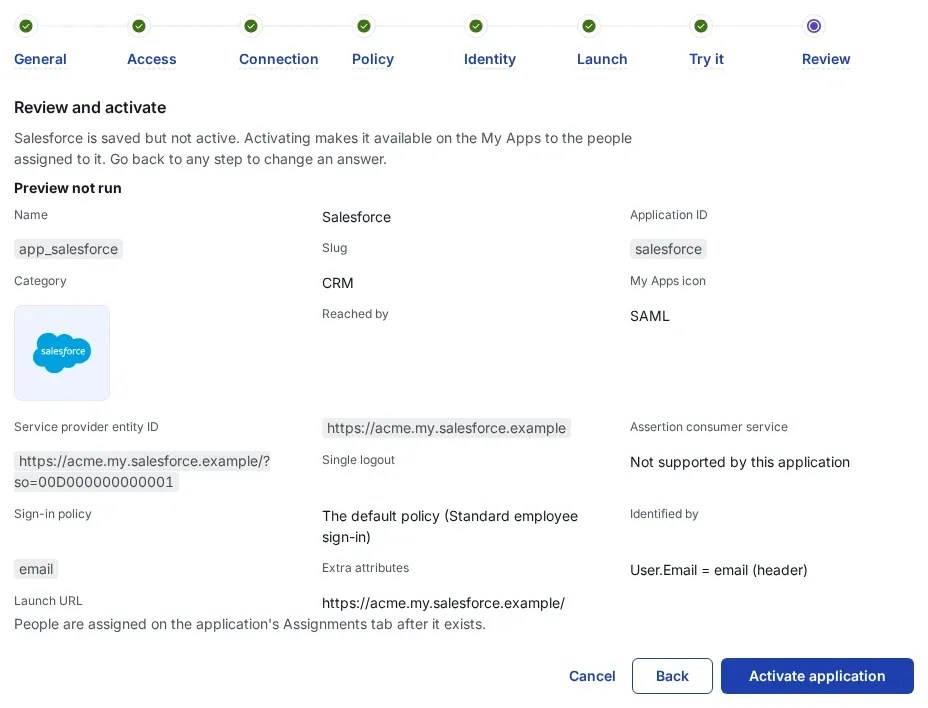
Follow Add a SAML application in SSOGEN with the gallery card Salesforce and these values:
| SSOGEN field | Value for Salesforce |
|---|---|
| Metadata | The file from Download Metadata on the Salesforce setting (step 2, point 4), or type the two values below |
| Service provider entity ID | https://acme.my.salesforce.com (the setting’s Entity ID) |
| Assertion consumer service URL | The setting’s Login URL under Endpoints > Your Organization, copied exactly, including a ?so= part if Salesforce shows one |
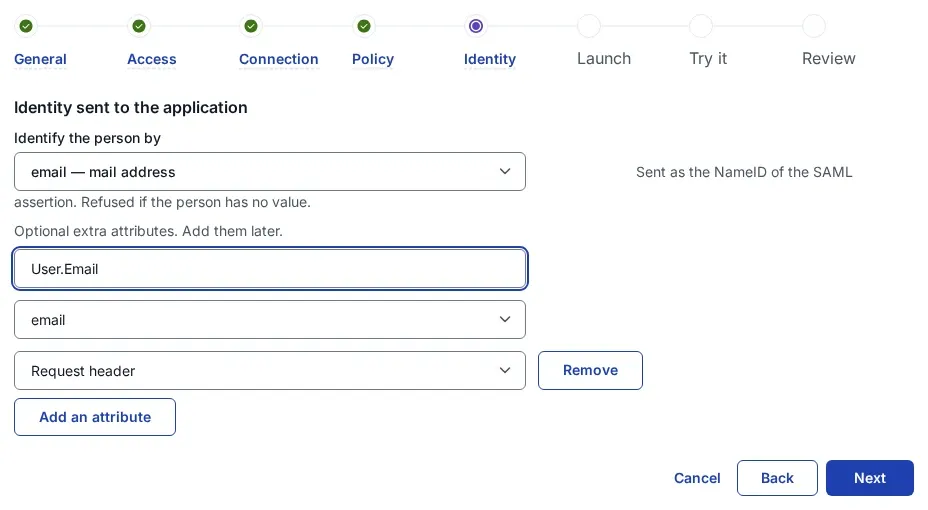
| Identify the person by | email — mail address |
| Launch URL (https) | https://acme.my.salesforce.com |
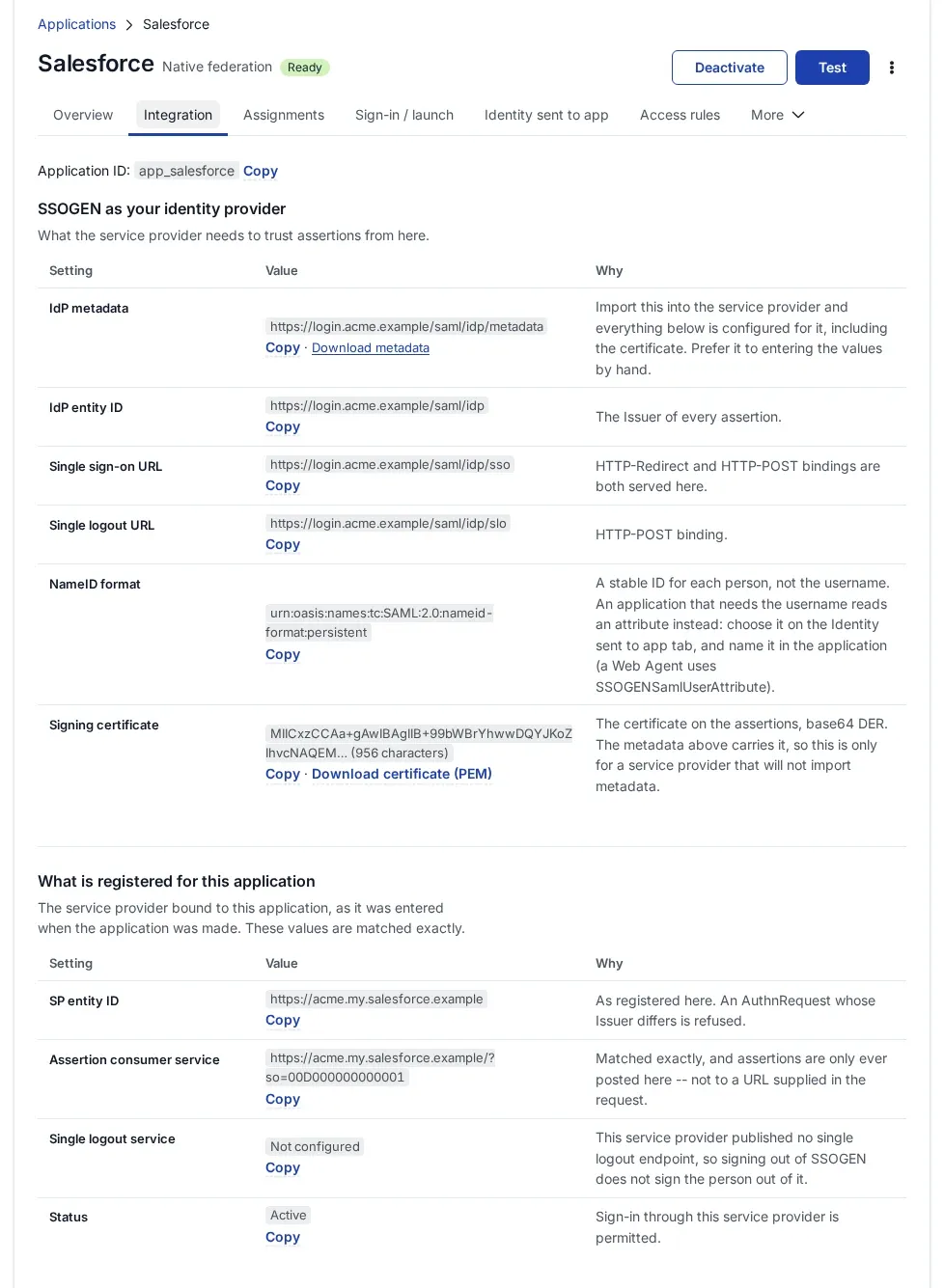
Assign the person who will run the first sign-in. SSOGEN’s metadata address, for Salesforce’s import, is https://acme.ssogen.ai/saml/idp/metadata.
Step 2. In Salesforce
-
Give users their Federation ID. From Setup, Quick Find
Users, select Edit next to a user, and under Single Sign On Information enter the Federation ID: the user’s email address, for exampleemily.johnson@acme.example. Save. Start with one user who is not your only administrator. -
Enable SAML. From Setup, Quick Find
Single Sign-On Settings, select Edit, select SAML Enabled and Save. Leave “Make Federation ID case-insensitive” on. -
Create the setting from SSOGEN’s metadata. In SAML Single Sign-On Settings select New from Metadata URL and paste
https://acme.ssogen.ai/saml/idp/metadata, or select New from Metadata File and choose the downloadedssogen-idp-metadata.xml. Complete the form:Salesforce field Value Name SSOGEN. People see this name on the login page.Issuer https://acme.ssogen.ai/saml/idpEntity ID https://acme.my.salesforce.com. If the import put SSOGEN’s own entity ID here, replace it.Identity Provider Certificate SSOGEN’s signing certificate (filled by the import; otherwise upload ssogen-idp-signing-certificate.pem)Assertion Decryption Certificate Assertion not encrypted SAML Identity Type Assertion contains the Federation ID from the User object SAML Identity Location Identity is in the NameIdentifier element of the Subject statement Service Provider Initiated Request Binding HTTP Redirect or HTTP POST; SSOGEN accepts both Identity Provider Login URL https://acme.ssogen.ai/saml/idp/ssoLeave User Provisioning Enabled and Single Logout Enabled clear. Select Save.
-
Read Salesforce’s values. On the saved setting, section Endpoints > Your Organization, copy the Login URL, or select Download Metadata. Register them in SSOGEN (step 1).
-
Put SSOGEN on the login page. From Setup, Quick Find
My Domain, under Authentication Configuration select Edit, tick the SSOGEN setting under Authentication Service and keep Login Form ticked. Save.
Later, when SSOGEN works for everyone, Salesforce can require it: Disable login with Salesforce credentials under Single Sign-On Settings, for users who hold the permission Is Single Sign-On Enabled. Do not give that permission to administrators.
Step 3. People and a sign-in test
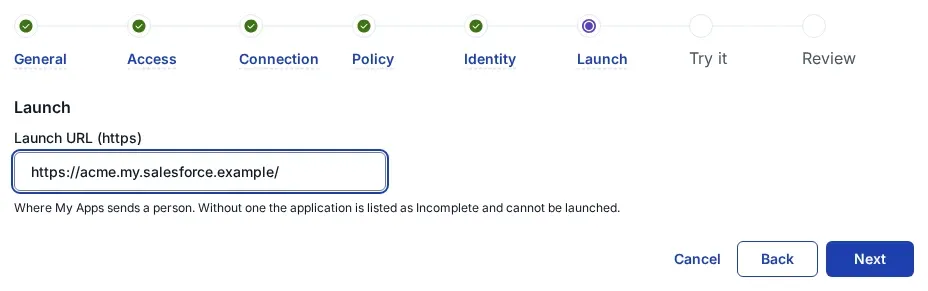
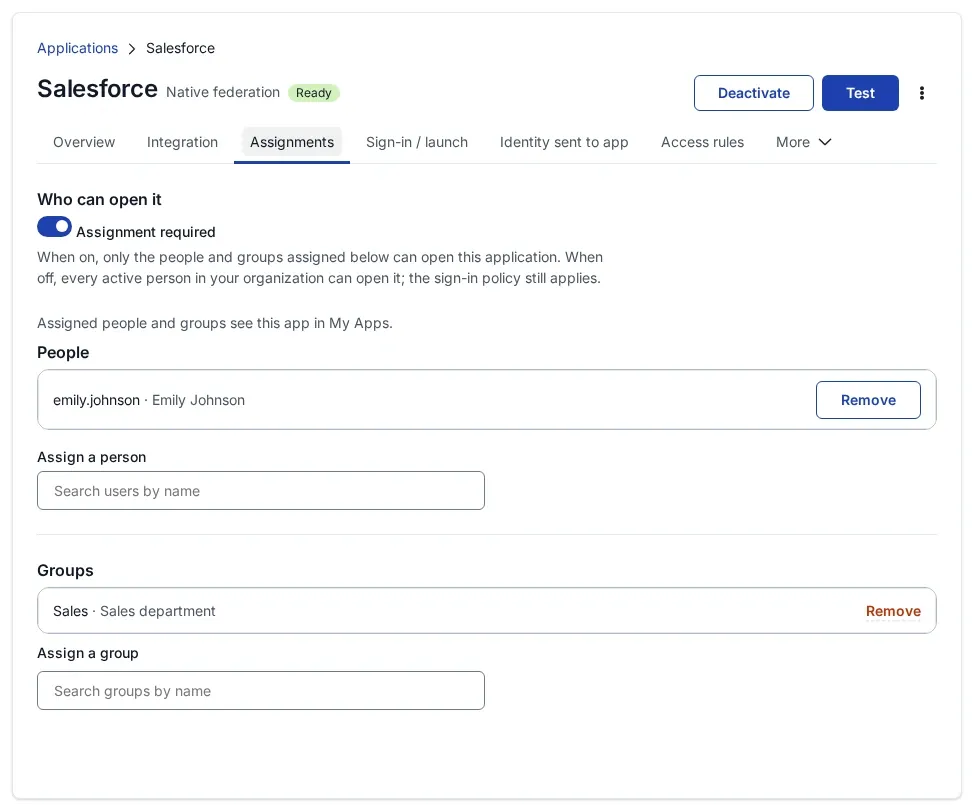
- Assign the people or groups who use Salesforce on the application’s Assignments tab in SSOGEN.
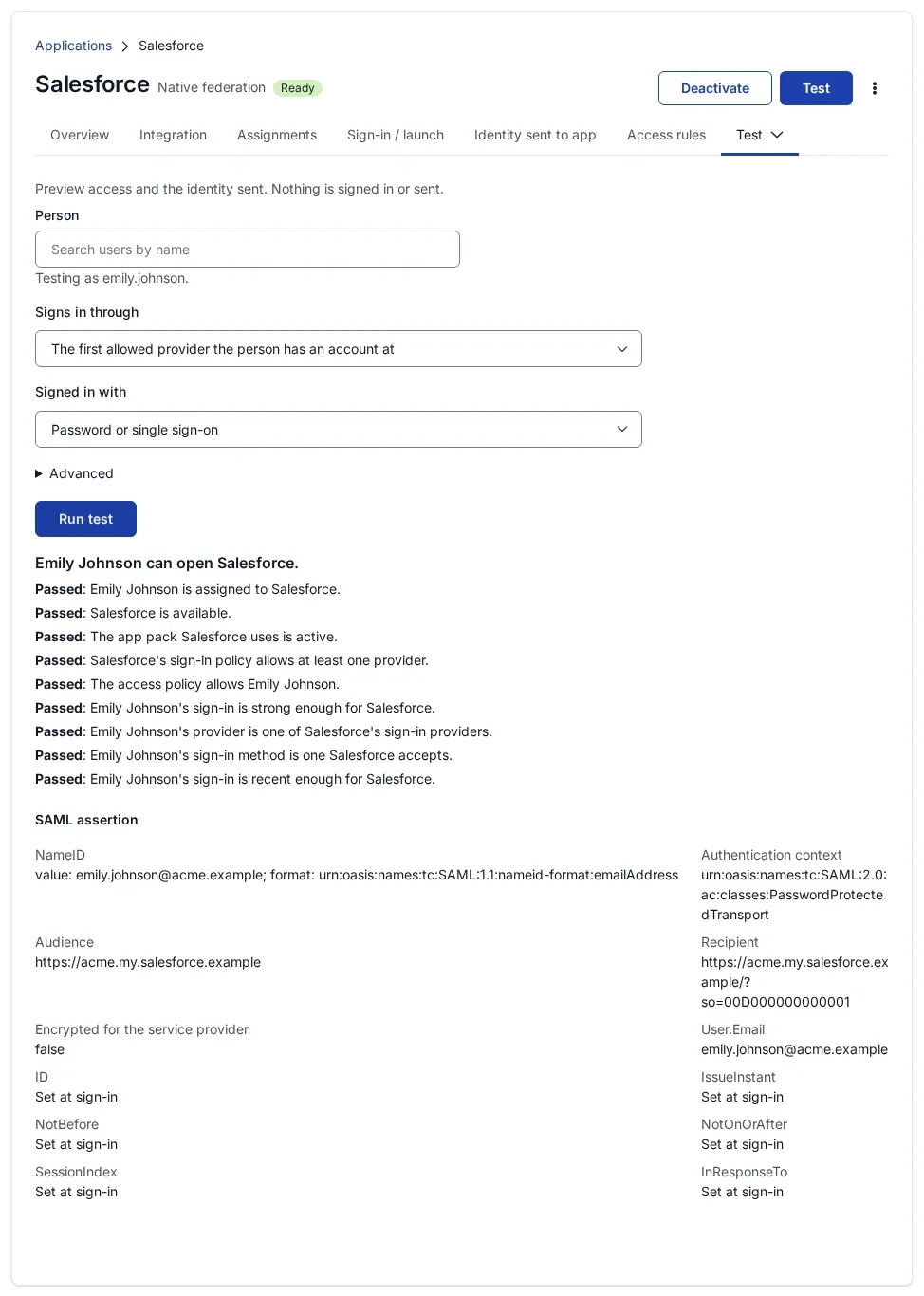
- Run the Test for one person and check that NameID equals their Federation ID.
- In a private browser window open
https://acme.my.salesforce.comand select SSOGEN on the login page, or sign in to SSOGEN and select the Salesforce tile. Salesforce opens as that user.
The way back in stays open: https://acme.my.salesforce.com/?login shows the username and password page even when the login page sends people to SSOGEN.
Signing in
People select Salesforce in My Apps, or open the My Domain address and select SSOGEN. They see SSOGEN’s sign-in page only if they have no SSOGEN session yet, then the Salesforce home page.
Troubleshooting
Salesforce’s Login History and SAML Assertion Validator (under Single Sign-On Settings) name the failure.
| Salesforce says | Cause |
|---|---|
| Audience Invalid | The setting’s Entity ID differs from the entity ID registered in SSOGEN. |
| Recipient Mismatched | The ACS URL in SSOGEN is not the setting’s Login URL. Copy it again, with its ?so= part if shown. |
| Issuer Mismatched | Issuer is not https://acme.ssogen.ai/saml/idp. |
| Signature Invalid | The uploaded certificate is not SSOGEN’s current one. Upload ssogen-idp-signing-certificate.pem again. |
| The assertion validates but the login fails | No active user has a Federation ID equal to the email address SSOGEN sent. |