SSOGEN / Single sign-on for SAP SuccessFactors with SSOGEN
SSOGEN
Single sign-on for SAP SuccessFactors with SSOGEN
SSOGEN is added as a corporate identity provider inside SAP Identity Authentication, which passes the sign-in through to SuccessFactors by user name.
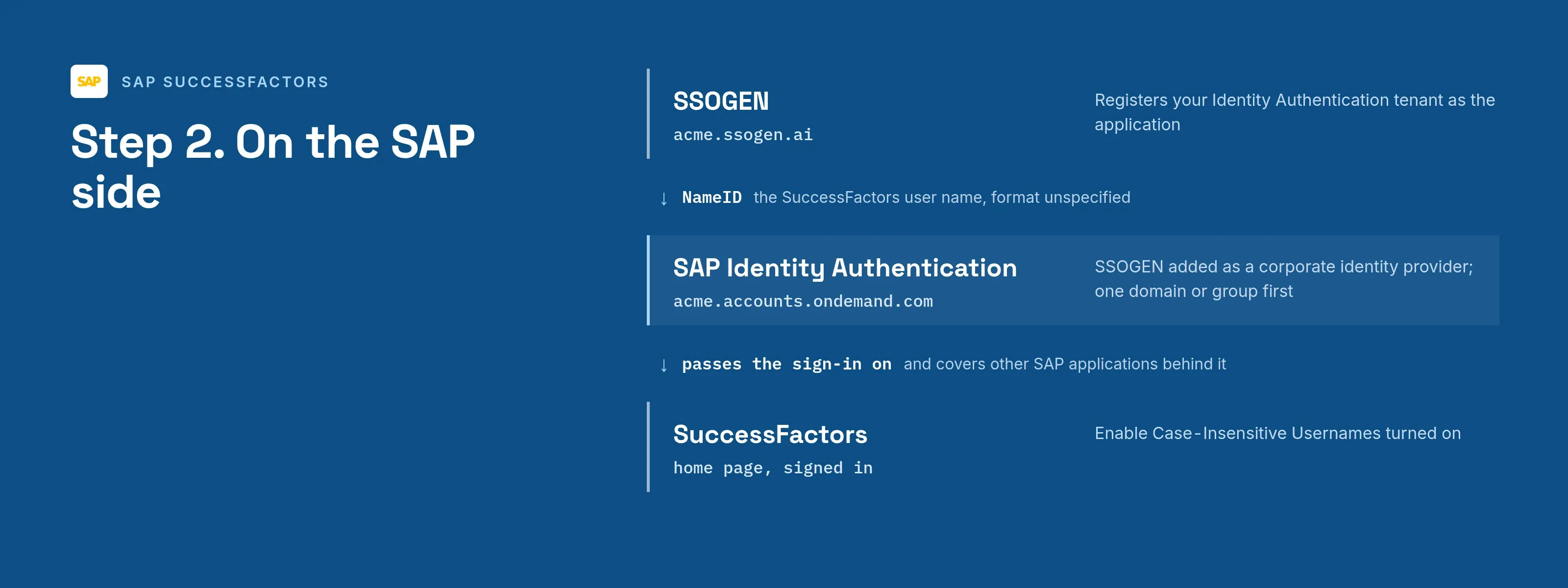
So the application you register in SSOGEN is your Identity Authentication tenant. The example tenant is https://acme.accounts.ondemand.com; SSOGEN runs at https://acme.ssogen.ai.
What you need
- A SuccessFactors tenant connected to Identity Authentication. Check Admin Center > Upgrade Center > View Recently Completed Upgrades for the Identity Authentication integration.
- In SuccessFactors, the permission Manage SAML SSO Settings. In Identity Authentication, the administrator roles Manage Corporate Identity Providers, Manage Applications and Manage Tenant Configuration.
- In SSOGEN, a value for every person that equals their SuccessFactors user name: their SSOGEN account name, or the user name from the directory they came from.
- An SSOGEN administrator who can save SAML applications (see Add a SAML application in SSOGEN).
Step 1. In SSOGEN: add SuccessFactors
- In SuccessFactors, Admin Center > Manage SAML SSO Settings, download the Identity Authentication service provider metadata.
- Follow Add a SAML application in SSOGEN with the gallery card SAP SuccessFactors and these values:
| SSOGEN field | Value for SuccessFactors |
|---|---|
| Metadata | Upload the file from point 1. Where it lists more than one ACS URL, choose the one on the domain your tenant uses. |
| Service provider entity ID | The tenant’s name from the metadata, for example https://acme.accounts.ondemand.com |
| Identify the person by | username — the SSOGEN account name if it equals the SuccessFactors user name; otherwise source_username |
| Launch URL (https) | The address your users already use to open SuccessFactors |
Both choices send the name ID with the format unspecified, which SuccessFactors compares with its user name. Assign the person who will run the first sign-in, then select Download metadata on the Integration tab to save ssogen-idp-metadata.xml.
Step 2. On the SAP side
- In SuccessFactors, Admin Center > Company System and Logo Settings, turn on Enable Case-Insensitive Usernames. Without it, a user name in other letter case fails.
- Open the Identity Authentication console: Admin Center > Tools > SAML 2.0 Single Sign On, Advanced Settings.
- Under Identity Providers choose Corporate Identity Providers, then Create. Enter Display Name
SSOGEN, keep Identity Provider Type on SAML 2.0 Compliant, and save. - With
SSOGENselected, choose SAML 2.0 Configuration. Uploadssogen-idp-metadata.xmlin Metadata File, or enterhttps://acme.ssogen.ai/saml/idp/metadatain Metadata URL. Leave Algorithm on SHA-256. The switches Sign authentication requests and Include scoping can stay as they are; SSOGEN does not need signed requests. Choose Save. - Choose Name ID Policy, select Unspecified and save.
- Under Applications and Resources choose Applications, select the SuccessFactors application, tab Trust, then Conditional Authentication. For a first test keep Identity Authentication as the default and add a rule that sends one email domain, group or IP range to
SSOGEN. Save.
When the pilot works, select SSOGEN as the default identity provider on the same page. In the same sitting, select Allow users stored in Identity Authentication service to log on, save, and keep the address shown below it: it opens Identity Authentication’s password sign-in for administrators and accounts that are not in SSOGEN.
Step 3. People and a sign-in test
- Assign the people or groups who use SuccessFactors on the application’s Assignments tab in SSOGEN.
- Run the Test for one person and check that NameID is their SuccessFactors user name.
- In a private browser window open the SuccessFactors address. Identity Authentication (which may ask for an identifier while a rule applies) sends the browser to SSOGEN, and the SuccessFactors home page opens as that person.
If a sign-in fails, read Monitoring & Reporting > Troubleshooting Logs in the Identity Authentication console, and run SuccessFactors’ Check Tool, section Authentication / Single Sign-On (SSO).
Signing in
People select SAP SuccessFactors in My Apps, or open the SuccessFactors address. They see SSOGEN’s sign-in page only if they have no SSOGEN session yet. Identity Authentication keeps its own session, so other SAP applications behind it open without another sign-in.
Troubleshooting
| What you see | Cause |
|---|---|
| SuccessFactors’ invalid-login page after signing in at SSOGEN | The name ID is not a SuccessFactors user name. Check the NameID on SSOGEN’s Test tab. |
| Sign-in works for some people only, differing by letter case | Enable Case-Insensitive Usernames is off. |
| Identity Authentication shows “An error occurred; try again” | A trust fault: an old SSOGEN certificate or metadata. Upload SSOGEN’s metadata again and read the troubleshooting logs. |
| SSOGEN: “The authentication request could not be read, or was not valid.” | Identity Authentication asked for an ACS URL on its other domain. Register the ACS URL of the domain it uses. |
| Sign-ins fail after a change in Identity Authentication | The tenant’s name or signing certificate changed. Import its metadata into SSOGEN again. |