SSOGEN / Customer Identity and Access Management for Portals
SSOGEN
Customer Identity and Access Management for Portals
Invite partners, let customers sign up with approval, or trust their own identity provider. One policy for each application.
Customer identity and access management (CIAM) is how customers, suppliers and partners get an account and sign in to the portals and supplier sites you give them. SSOGEN keeps them as their own accounts in the same directory as your staff, and each application has its own rules for who gets in.
Four ways in
| Way in | Who it suits and what happens |
|---|---|
| Invitation | For contacts you already know. An administrator creates the account with Send an invitation email on, and the person sets a first password from a one-use link, valid for 7 days by default. |
| Self sign-up with approval | For customers you do not know yet. The sign-in page offers Create an account. The person proves the mailbox, chooses a name and a password, and an administrator approves the request. |
| CSV file or SCIM | For a list of people or your own system of record. Import up to 5,000 people from a CSV file, each invited the same way, or provision them by SCIM. |
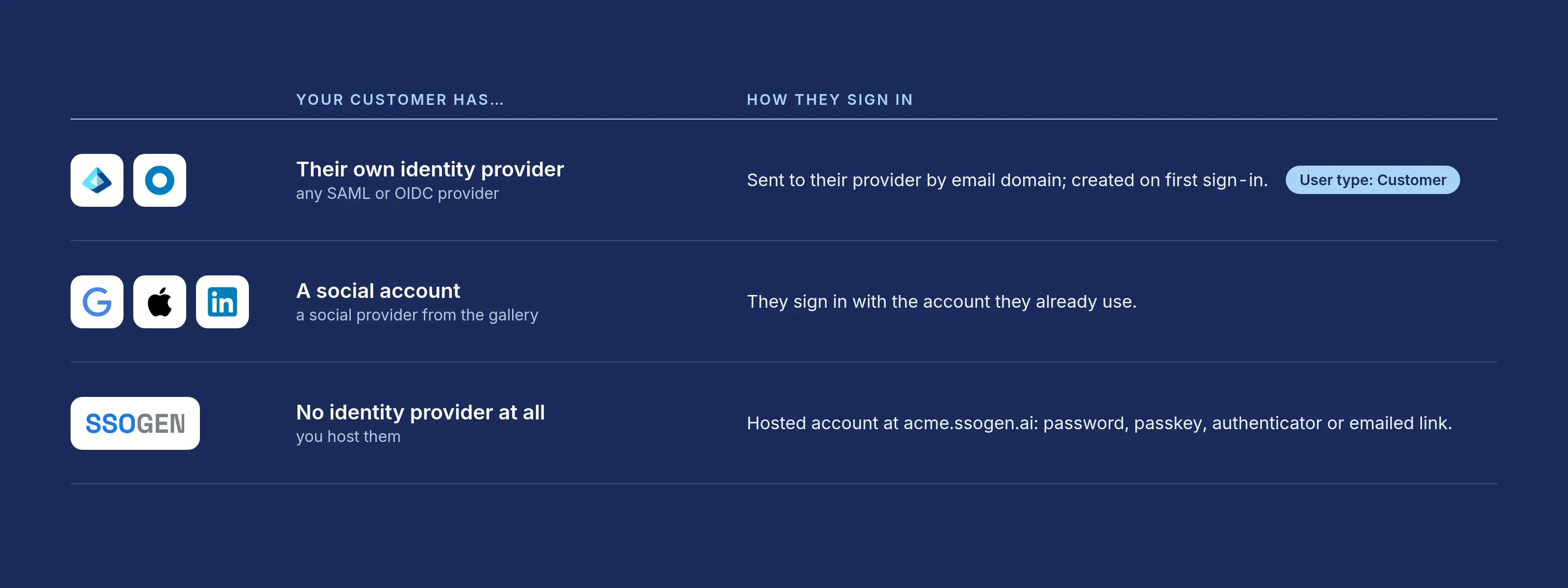
| Their own identity provider | For a customer with Microsoft Entra ID, Okta or another SAML or OIDC provider. The person types an email address, SSOGEN routes them to their provider by the domain, and the account is created at the first sign-in. |
One application can accept several customer providers at once, plus social providers from the gallery and accounts you host. Linked identities in My Account keep one person as one person.
| Customers and partners | Staff | |
|---|---|---|
| User type | Customer or Partner | Employee or Contractor |
| How they join | Invitation, sign-up, CSV, SCIM or their own provider | Your directory or identity provider |
| What they reach | Only the applications assigned to their group | The applications assigned to staff groups |
| Policy and audit | The same policy engine and audit trail | The same policy engine and audit trail |
How a new person gets in
- Invite or open sign-up. An administrator invites the person, or the person chooses Create an account.
- Prove the mailbox. With the one-use link, or with the 8-digit code from the email, valid for 15 minutes.
- Approve, where required. Approval is on for every sign-up entry by default, and no account exists before it.
- Set up a second step. SSOGEN Authenticator, an authenticator app or a passkey, as the policy allows. When your organization supplied the mobile number, a code texted to it proves the set-up.
How an admin sets it up
The pattern: one group for each customer organization, and the application assigned to that group.
- Create a group for the customer. For example “Customer - Blue Ridge Supply”.
- Choose how people join.
- Invite them. Under Identity, Users, choose Create user, turn on Send an invitation email and pick up to 10 groups. A CSV import invites every person in the file the same way.
- Let them sign up. A Super admin turns on Allow people to create accounts under Identity, Sign-up. Each sign-up entry names the group new people join. An application can have its own entry under Application, Sign-up.
- Trust their provider. Add a SAML or OIDC connection, enter the email domains it serves, and set “User type for new people” to Customer and “Add new people to group” to the customer’s group.
- Assign the application to the group. Everyone in the group sees it in My Apps and opens it with single sign-on. Nobody outside the group does.
- Approve requests. A Directory admin or Super admin approves or rejects under Waiting for approval, one request or up to 100 at once. A rejection takes a reason (Spam, Not eligible, Duplicate or Other) and can tell the person.
- Choose how they sign in. The application’s authentication policy says which providers it accepts and whether a password, a passkey, an emailed link or phone approval counts, with a second factor where you want one.
Control over what new people reach
| Control | What it does |
|---|---|
| Every application shown | Each sign-up entry lists every application a new person would reach, through its group, the group Everyone or a rule group |
| No silent extra access | With approval off, a save that grants more than the entry’s own group is refused |
| Approval off is a Super admin decision | Turning approval off needs the Super admin right and emails every Super admin |
| Customers stay customers | A sign-up entry sets the user type of the people it creates, Customer by default |
| Applications only | People who sign up themselves get access to applications, never administrative power. A sign-up group cannot approve Remote Access or hold an administrative role, and the rule follows the person into any group added later |
| Federated domains stay federated | An address at a domain an identity connection claims goes to that connection’s sign-in |
Bot protection without a CAPTCHA
The Create an account page shows no picture puzzle and loads no third-party script. Before each request, the browser solves a small SHA-256 puzzle in the background, so bulk sign-ups cost effort. The puzzle slows automated sign-ups; the limits below cap them.
| Protection | What it does |
|---|---|
| Browser puzzle | Signed with your organization’s own key, bound to the client network, accepted once within 5 minutes |
| Per address | At most 3 sign-up emails a day |
| Per email domain | At most 100 sign-up emails an hour |
| Per organization | At most 300 sign-up emails an hour, of which one network may use 60, so one source cannot use up sign-up for everyone else |
| Per client network | At most 5 sign-up requests a minute |
| Domain lists | Disposable-mail domains blocked by default, from a list that is always present, plus your own allowed and blocked domains |
| Same answer for every address | The page never shows whether an address already has an account |
An email held back by a limit never cancels the code the person already holds, and made-up resend requests do not use up the hourly budget.
Three customer scenarios
A supplier portal: invitation and approval. Acme Corp runs a supplier portal at suppliers.acme.example. Purchasing invites Linda Harris, the first contact at Blue Ridge Supply, into the group “Supplier - Blue Ridge Supply”. Her colleagues use the portal’s own sign-up entry, and a purchasing administrator with the Directory admin role approves each request.
A customer portal: self sign-up. Acme opens its ordering site at orders.acme.example to new buyers. The site’s sign-up entry adds them to “Customers - ordering” as user type Customer. A Directory admin on the sales team approves real buyers and rejects spam with a reason.
An outside auditor: access for the audit only. After a move to Oracle Fusion, Acme keeps an Oracle EBS archive for auditors. An administrator invites Robert King of the audit firm into “Auditors - EBS archive”, the only group assigned to the archive. When the audit closes, the administrator disables his account and access ends.
For when to invite and when to open sign-up in general, see invitation vs self-registration.
Leavers and changes
- Disable or archive the account, or let SCIM do it from your own system, and the person loses every application.
- Cancel an invitation that was never accepted. The Users list filters to “Invitation not accepted”, with Resend invitation and Cancel invitation.
- Requests nobody decides expire. A waiting sign-up request is removed after the approval window, 14 days by default.
- A customer organization that leaves is handled by turning off its connection.
- Forgot password works for everyone. People who signed up reset their password with the email address they sign in with.
What you get
- One SSOGEN for everyone. Employees and customers use the same SSOGEN, the same audit trail and the same policy engine, told apart by user type and kept apart by group.
- Choice for the customer. A large customer keeps its own provider and its own password rules. A small one gets an invitation, or signs up and is approved.
- MFA from the first sign-in. The policy asks for a second factor where you decide. See MFA and push approval and passkeys.
- Your choice of home. Run it yourself or use an organization hosted by SSOGEN: self-hosted or hosted.
Applications are protected the same way as for staff. See single sign-on.
Common questions
How does SSOGEN limit fake sign-ups without a CAPTCHA?
The browser solves a small puzzle before each request, and limits per address, domain, organization and client network cap bulk sign-ups. Disposable-mail domains are blocked by default.
How long does an invitation link last?
7 days by default; a Super admin sets 1 to 30 days. The link works once and ends when the person sets a password or signs in. Afterwards they sign in with a password, a passkey or an emailed sign-in link, as the policy allows.
Do customers see their own company’s sign-in page?
Yes, when they sign in with their own identity provider. Hosted customers see your SSOGEN sign-in page, with your logo and colors.
How do I tell customers from staff?
By user type, with a filter in the directory, and by group. People who sign up are Customer by default.
Step by step: invite people, let people create their own accounts, and what the person sees in create an account.