SSOGEN / Passkeys and passwordless sign-in with the device people already carry
SSOGEN
Passkeys and passwordless sign-in with the device people already carry
Passkeys work as the way in, as a second step or as the only way, set per sign-in policy and recorded in the audit trail.
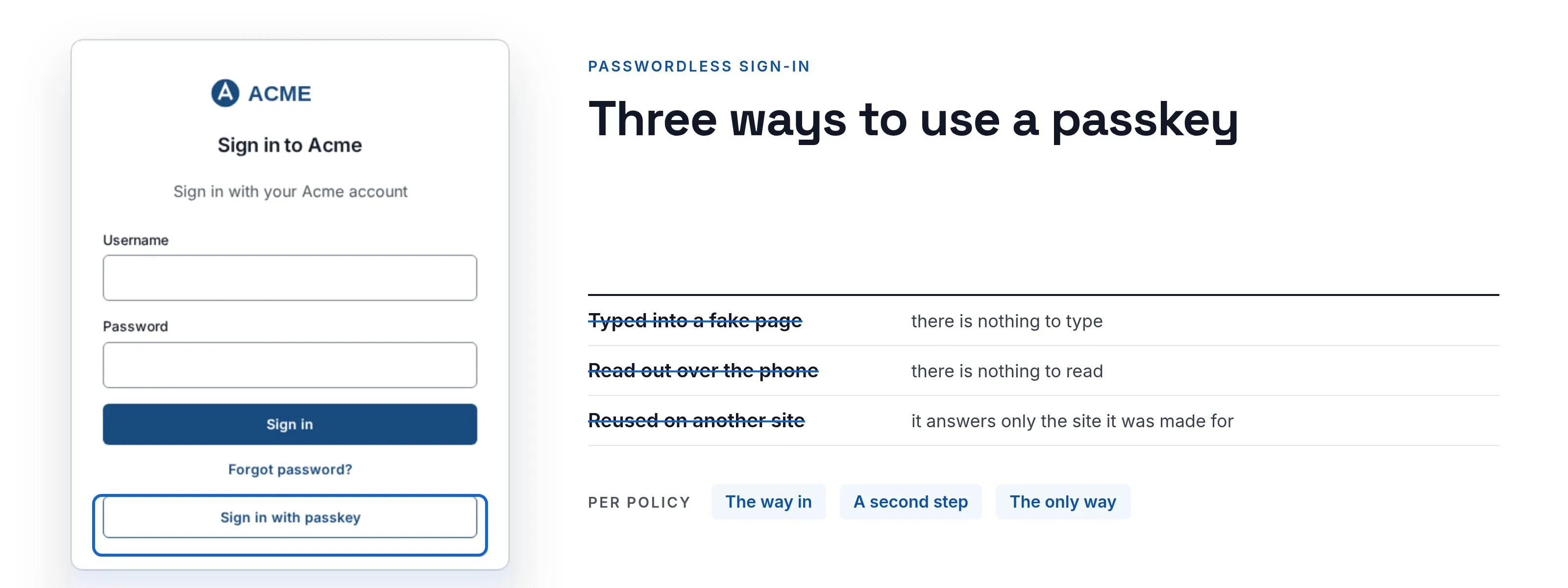
Three ways to use a passkey
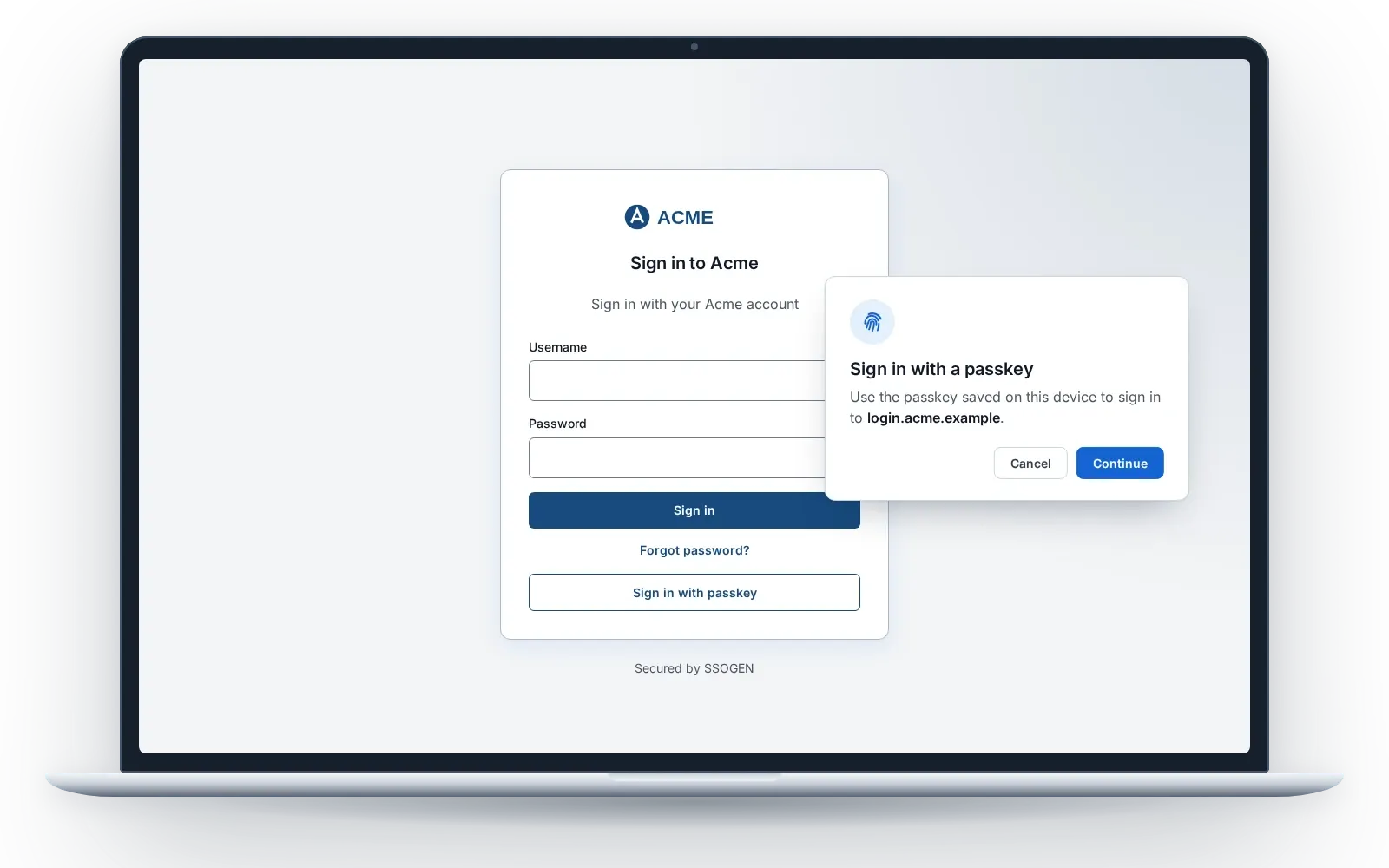
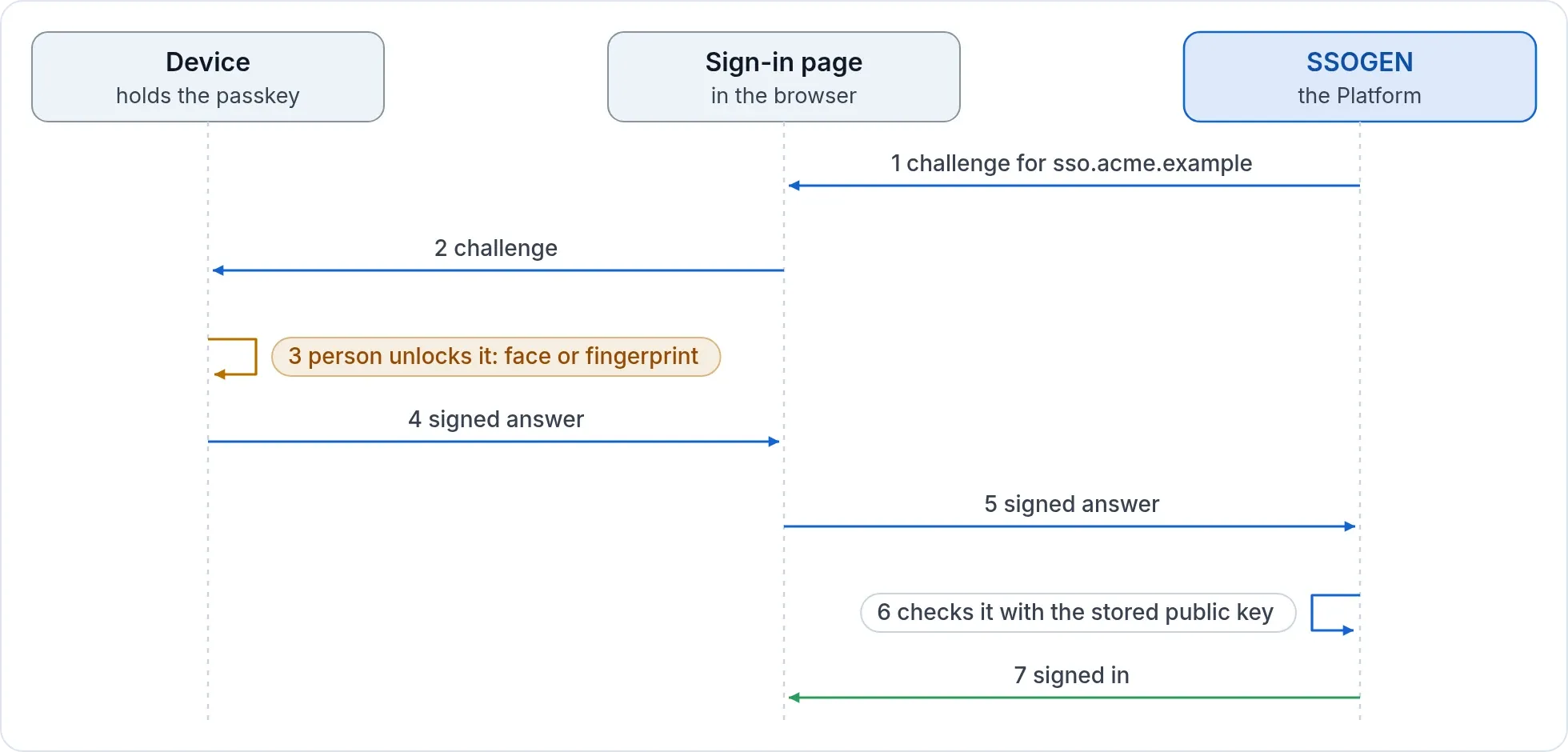
- As the way in. A person adds a passkey from their account page and signs in with it on the SSOGEN sign-in page. A passkey proves both who they are and that they hold the device, so it counts as both factors. The exception is an account your directory owns: there a passkey is a second step, so the directory stays in charge of who may sign in.
- As a second step. A password or directory sign-in comes first. The passkey follows. Choose this when you want to keep your directory in charge of the first step.
- As the only way. A policy can accept a passkey or security key and nothing else. People with passkey-only accounts need no password at all.
From the first sign-in
A person you invite, or who creates an account, can make a passkey the second step at the first sign-in.
- Offered at set-up. Where the policy admits passkey sign-in, Set up your second step offers Use a passkey beside SSOGEN Authenticator. This applies to accounts SSOGEN holds.
- No emailed code needed. Right after an invitation, emailed codes do not count as a second step for a while. A passkey is ready at once.
- Next time, the passkey. When that person types the password later, the page says the password is right and points to Sign in with passkey.
See customer identity for invitations and sign-up.
Administrators
Administrators can sign in to the console with a passkey where the console’s sign-in policy allows it. Because administrator powers are the highest risk, the console policy is the place to ask for the strongest proof. Elevated powers still need a sign-in with a second factor no more than an hour old, by default, and end on a timer. See Admin safety.
Built to be usable
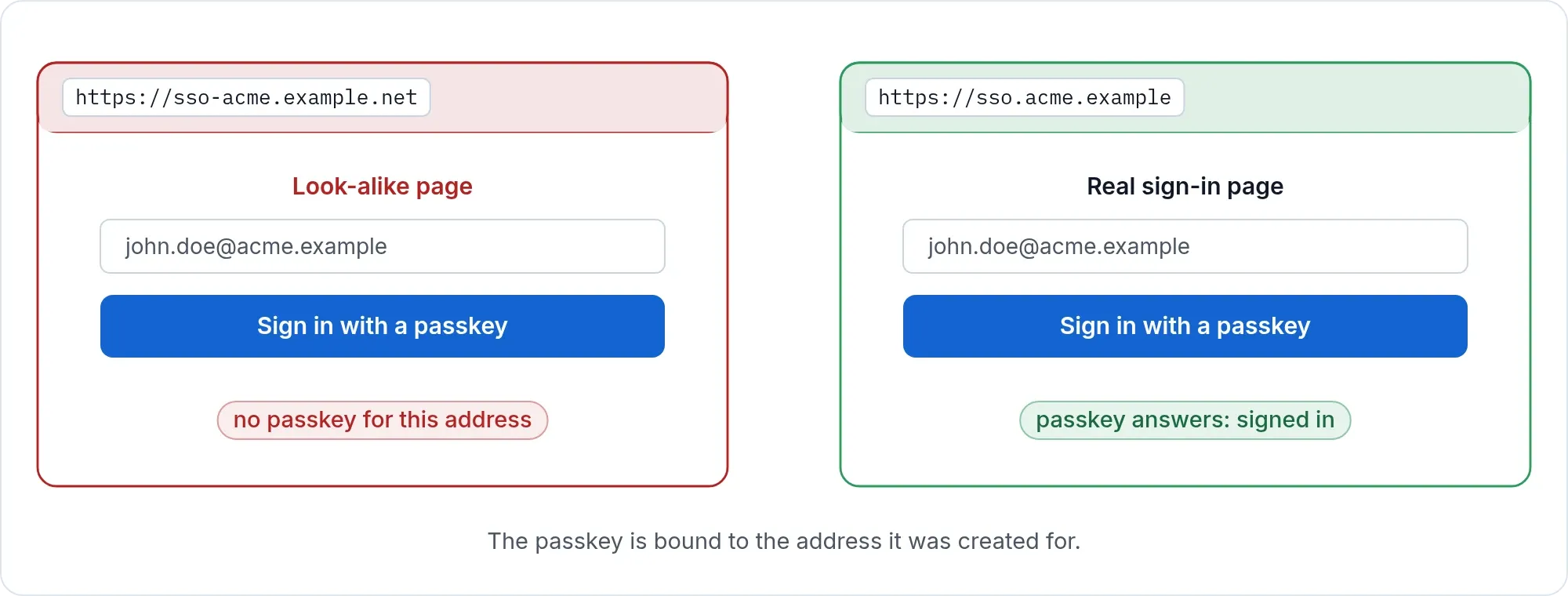
- No duplicate passkeys. If a device already holds one, it is told so instead of creating a dead copy.
- Adding one needs a recent sign-in. A first passkey can be added after a recent sign-in; a further one needs a second factor. A password alone never adds a passkey beside an existing one.
- Works with the devices people own. Security keys and passkeys stored on phones and laptops both work. Whether a passkey syncs between a person’s devices depends on their device and operating system.
Other ways to use fewer passwords
- Sign in with your phone. Approve on the SSOGEN Authenticator, with number matching and the phone’s own lock. See MFA and push approval.
- Emailed sign-in link. Off by default and switched on per policy. A link is one factor and is as strong as the mailbox, so where a policy asks for a second factor the link replaces only the password: the second factor is still asked, and an email code does not count as one. The link cannot be switched on for the admin console.
What administrators see
A person’s record lists their passkeys read only: how many, each name, when it was added, when it was last used, and whether it signs in on its own. No credential identifier is shown. A passkey that is refused at sign-in is recorded with a reason. When an administrator resets a person’s factors, each passkey removed is recorded too. All of it is in the audit trail.
One policy, many ways in
A passkey is one choice in a sign-in policy, next to password, single sign-on, push and codes. You can start with a template, open the policy, and change one block: first factor, second factor, remembered browsers. Then use What if to check what a person would be asked for. See Policy engine.