Apache SSO configuration with the SSOGEN Web Agent
The SSOGEN Web Agent adds single sign-on and multi-factor authentication to an application you run yourself, without changing the application. It is an Apache module (mod_ssogen) that sits in front of the application on Apache or Oracle HTTP Server (OHS), signs people in through SSOGEN, and passes the signed-in person to the application. The application does not need to know about SSO, SAML or OpenID Connect. This guide covers who does what, registering the application, installing the module, the configuration you paste, signing out, checking that it works, and a worked example for Oracle E-Business Suite, with notes for PeopleSoft and JD Edwards.
How it works
Section titled “How it works”- A person opens
https://ebs.acme.example/. Apache runs the Web Agent first. - With no valid session, the agent sends the browser to SSOGEN to sign in, remembering the page the person asked for. The request is protected with PKCE.
- SSOGEN signs the person in under the application’s sign-in policy and sends the browser back to the agent’s own address
https://ebs.acme.example/ssogen/callbackwith a one-time code. - The agent, from the Apache server, calls SSOGEN over HTTPS to swap the code for a signed grant: a statement of who the person is, plus the extra attributes you configured. It verifies the grant’s signature, audience and time window.
- The agent sets its own session cookie in the browser (secure, HTTP-only, no domain) and returns the person to the page they asked for.
- On every request the agent passes the signed-in person to the application. A browser cannot pass itself off as another person.
Choose your Apache
Section titled “Choose your Apache”| Your web server | Module file | Notes |
|---|---|---|
Apache 2.4 (for example the one in Oracle Linux, httpd) |
the Apache 2.4 module | Per-module log levels work. |
| Apache 2.2, or Oracle HTTP Server 11g or 12c R1 (these are Apache 2.2) | the Apache 2.2 module | No per-module log level: use LogLevel debug. No Mutex directive. |
| Oracle HTTP Server 12c R2 (Apache 2.4) | the Apache 2.4 module |
The directives are the same for both. The integration packages choose the right module for you.
Part A: register the application in SSOGEN (the SSOGEN administrator)
Section titled “Part A: register the application in SSOGEN (the SSOGEN administrator)”-
In the Admin Console open Applications, then Web Agents. The list is titled Web Agents; select Register Web Agent app.
-
General. Name
Acme E-Business Suite, slugacme-e-business-suite, Application IDapp_acme_e_business_suite, categoryERP. (The slug and ID are filled in from the name; the ID cannot be changed later.) Under My Apps icon choose a picture for the tile; an icon is required, and Next turns on once you pick one. You can change the icon and the category later. Select Next. -
Access mode. Web Agent: “An existing application behind Apache with mod_ssogen. The agent signs the person in and passes identity in request headers; the application itself needs no changes.”
-
Connection. The step says: “Where the app is served and its client ID.” The Integration tab later turns them into the Apache configuration.
Field Example Notes Client URL https://ebs.acme.example“Scheme and host only, no path (becomes SSOGENClientURL).” Include the port if it is not 443. Must be the address people’s browsers use, not an internal address behind a load balancer. This becomes SSOGENClientURL.Client ID x7m2k9pq-4tnb8rwd-hc5v3ayf(generated)Generated for you, in three groups of eight characters. “Generated. Copied into the vhost; no need to change. Lowercase letters, digits, hyphens.” Use Generate another for a different one. Below the fields the wizard shows the derived redirect: “Redirect:
https://ebs.acme.example/ssogen/callback— derived; exact match.”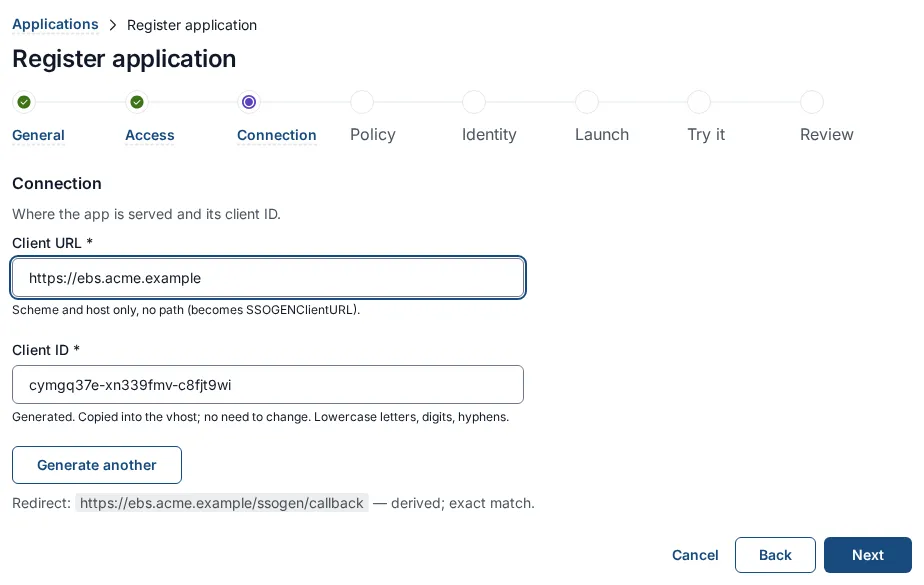
If you continue with the client URL empty you see “Enter the address where the application is served, for example https://app.example.com.”; if it does not start with
https://, “The client URL must start with https:// and name a host.”; if it has a path, “Enter the scheme and host only, such as https://app.example.com, without a path.”; if the client ID has capitals or spaces, “Use lowercase letters, numbers and single hyphens, at most 64 characters.” -
Sign-in policy. Choose the policy (see the SAML guide for the screen).
-
Identity sent to app. This is where you decide what Oracle will call the person. Identify the person by controls what the application receives as the user name. A sign-in whose provider cannot supply this is refused rather than sent under a different kind of name. Choose the attribute that equals the person’s name in the application. For Oracle E-Business Suite that is the person’s EBS user name. See “Worked example” below for how to choose.
Use Add an attribute for extra values, for example
EMPLOYEE_NUMBER←source_subject. Sent as can be Request header or Cookie in the browser. A cookie output is visible to the person and is set again by the agent on every request. Names reserved for routing and security cannot be used; the console refuses them when you save. -
Launch. Launch URL (https): the page that starts the application, for example
https://ebs.acme.example/OA_HTML/AppsLogin. Select Next (this saves the application). -
Try it (optional). Pick a person and select Run test. The card Web Agent grant and headers shows exactly what the application will receive for that person. A note may say which application type SSOGEN assumed; it matches the generated configuration unless your web team changed
SSOGENAppType. -
Review and activate, then Activate application.
You now have a registered application. The next parts happen on your web server.
Part B: get the module and install it (the application team)
Section titled “Part B: get the module and install it (the application team)”All of Part B happens on your web server, not in SSOGEN.
1. Get the module
Section titled “1. Get the module”SSOGEN delivers the Web Agent as part of the integration package for your product, a single zip file with a checksum file, from your SSOGEN contact. The package carries the module files for both Apache lines, checks the checksum, picks the right one for your web server, installs it, and writes the configuration for you. See Oracle and Apache integration packages. That is the recommended way, and the rest of this part is only for installing by hand.
To install by hand, ask your SSOGEN contact for the module file for your Apache line and its checksum file, and verify the checksum. If your operating system is not covered by the prebuilt modules, your contact can provide a build kit.
2. Install
Section titled “2. Install”| Server | Module directory | Where the configuration goes |
|---|---|---|
| Apache from the operating system | /etc/httpd/modules/ |
/etc/httpd/conf.d/ssogen.conf |
| OHS 11g | $ORACLE_HOME/ohs/modules/ |
$ORACLE_INSTANCE/config/OHS/<component>/ (httpd.conf includes moduleconf/*.conf) |
| OHS 12c | $ORACLE_HOME/ohs/modules/ |
$DOMAIN_HOME/config/fmwconfig/components/OHS/<component>/ (edit there; it is copied to the instance) |
The OHS rows are the documented layout; confirm them on your first OHS server.
Copy the module in by copy-then-rename, so a running server never sees a half-written file:
cp mod_ssogen-apache2.2.so <module dir>/.mod_ssogen.so.newmv <module dir>/.mod_ssogen.so.new <module dir>/mod_ssogen.soPart C: configure the site (the application team pastes, the administrator copies)
Section titled “Part C: configure the site (the application team pastes, the administrator copies)”The generated configuration
Section titled “The generated configuration”-
The SSOGEN administrator opens in the Admin Console Applications, Web Agents, then Acme E-Business Suite, then the Integration tab. The section Apache configuration says “Paste this into the configuration on the host that serves this application. Every value comes from what is registered here, so it matches what SSOGEN will accept. Generate the agent key first: it is filled in once, then never shown again. There is nothing to enroll and no file to create.” It shows the Agent key box, a table (Setting, Value, Why) and the same lines as a block of text. Select Generate agent key: the block now carries
SSOGENAgentKey ssogen_ak_...with the key filled in. Select Copy Apache Config to copy the block, then I have copied it: the key is not shown again, and the table shows it as a masked line.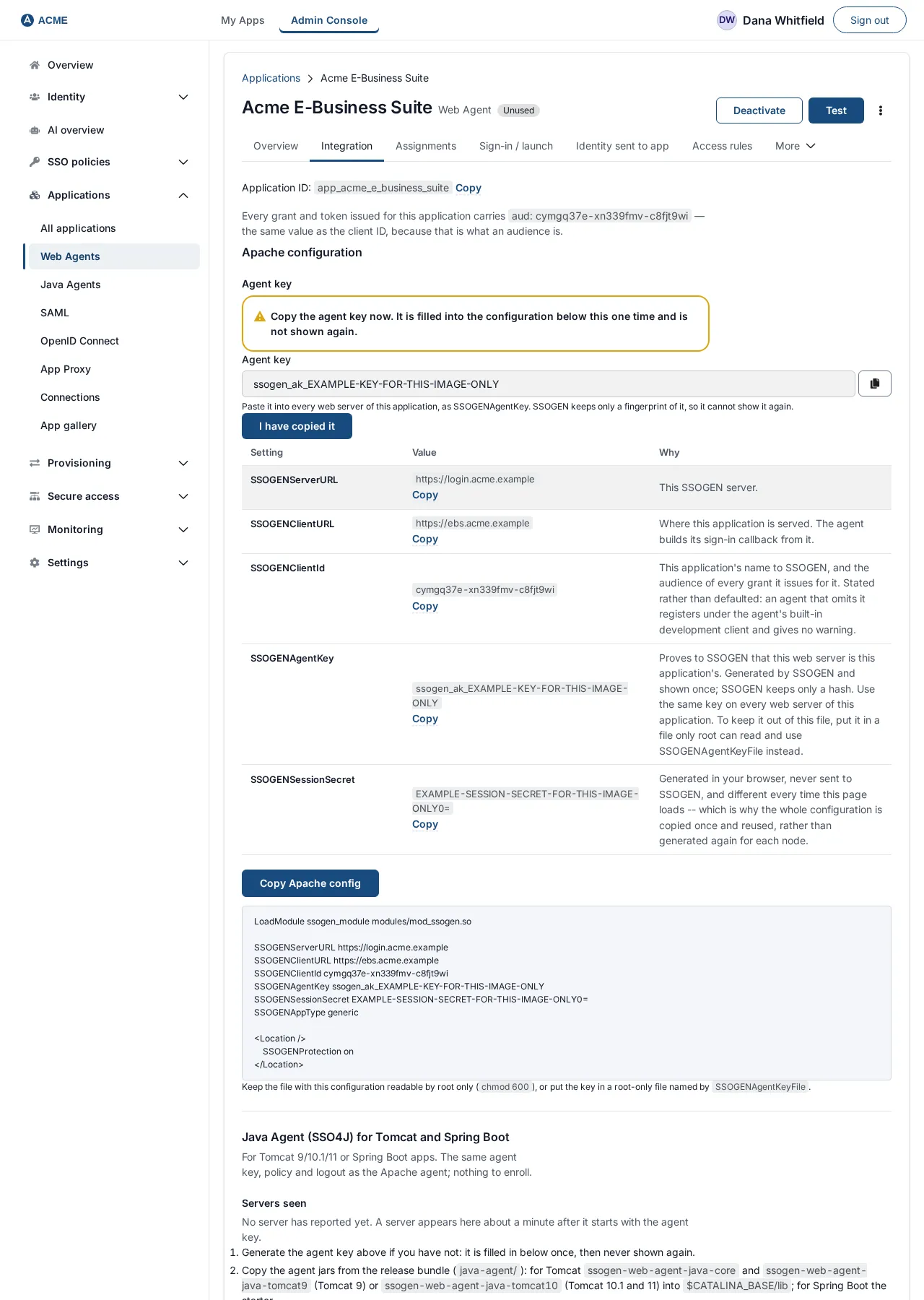
Setting Example Why SSOGENServerURLhttps://sso.acme.exampleSSOGEN’s address. SSOGENClientURLhttps://ebs.acme.exampleWhere this application is served. The agent derives its callback from it. SSOGENClientIdthe client ID This application’s name to SSOGEN, and the audience of every grant. Required. SSOGENRedirectURI(only if different) Shown only when the registered redirect is not the usual …/ssogen/callback.SSOGENAgentKeyssogen_ak_and 43 charactersProves to SSOGEN that this web server is this application’s. Generated by SSOGEN and shown once; SSOGEN keeps only a hash. The same key on every web server of this application. SSOGENSessionSecreta long random value Made up in your browser each time the page loads and never sent to SSOGEN. -
The session secret. The page makes up a new secret each time it loads and SSOGEN never stores it. Copy the whole configuration once and use that same value on every web server. If servers have different secrets, a person’s sign-in may come back to a server that cannot read the session cookie: the browser loops and then fails with “This server could not read your session. If there is more than one web server behind a load balancer, session stickiness may not be enabled.” Also, if you leave the secret unset, each server invents its own, and every restart signs everybody out. Keep the secret out of version control.
-
The agent key. Keep it like the session secret. To keep it out of the configuration file, write it on one line to a file only root can read (
chmod 0600) and useSSOGENAgentKeyFile <file>instead of theSSOGENAgentKeyline. If it is lost or leaked, select Regenerate agent key and choose how long the old key keeps working: 1 hour, 24 hours (the default) or 7 days, so you can update the web servers one by one. If the key may have leaked, select Regenerate and revoke the old key now instead. The console asks you to confirm, and the old key stops working at once, so until the new line is pasted on every web server of the application they cannot sign anyone in. Either way, paste the new line on every web server and restart gracefully. Apache refuses to start while the line still says<agent-key>: paste the key.The key is scoped to this one application: it cannot fetch another application’s configuration. SSOGEN keeps only a hash of it, so SSOGEN cannot show it to you again. The key travels over HTTPS, so it also works when a proxy or load balancer ends TLS in front of the web server or in front of SSOGEN. There is nothing to enroll on the web server: no command to run, no token file and no certificate authority file to copy. The person who runs the web server only pastes the block. Keep the key and the session secret out of tickets and chat; send the block over a channel you trust.
-
The block starts with
LoadModule, which belongs once per server, outside any<VirtualHost>. If another SSOGEN site on the same server already loads it, leave that line out: a second copy logs “module ssogen_module is already loaded, skipping”. -
Servers seen. The Java Agent (SSO4J) section of the Integration tab, below the Apache configuration, lists Servers seen: the Java servers that have reported to SSOGEN with this application’s agent key, with the time of the last report. A server appears about a minute after it starts with the key. Until then the list says “No server has reported yet.” The Apache module does not report, so Apache servers do not appear there.
When SSOGEN is down while Apache restarts
Section titled “When SSOGEN is down while Apache restarts”Start Apache once while SSOGEN is reachable. The module then saves SSOGEN’s public signing keys, sealed with the session secret, in a state directory (by default /var/lib/httpd/ssogen on Red Hat family systems, /var/lib/apache2/ssogen on Debian and SUSE). After that, a full restart or a reboot while SSOGEN is unreachable still starts the site, with a warning in the error log that names the saved file. People who are already signed in keep working, and new sign-ins work again as soon as SSOGEN is back. The saved keys are accepted for 7 days after the start that saved them, and every start or graceful restart that reaches SSOGEN refreshes them. Nothing is saved without a session secret, and there is nothing to back up.
The directive SSOGENStateDir <directory>, set outside any <VirtualHost>, chooses another directory. Use it when the default cannot be written, for example when Oracle HTTP Server runs as its own user: the directory must be owned by the user that starts Apache. In that case the start warns could not save the signing keys to …. A first start with nothing saved and SSOGEN unreachable does not start and says so.
A complete site
Section titled “A complete site”# Once per server, outside any <VirtualHost>LoadModule ssogen_module modules/mod_ssogen.so
<VirtualHost *:443> ServerName ebs.acme.example # ... your existing SSL and application configuration stays as it is ...
SSOGENMode ssogen SSOGENAppType Oracle SSOGENServerURL https://sso.acme.example SSOGENClientURL https://ebs.acme.example SSOGENClientId x7m2k9pq-4tnb8rwd-hc5v3ayf SSOGENAgentKey ssogen_ak_<the key you copied; the same on every node> SSOGENSessionSecret <the value you copied; the same on every node>
# Application paths that end the agent's session when the application logs out SSOGENLogoutEndpoint /accessgate/ssologout.do
# What to protect: <Location /> SSOGENProtection on </Location> # A path that must stay open (for example a load balancer health check): <Location /health> SSOGENProtection off </Location></VirtualHost>SSOGENMode ssogen is the default and can be left out. SSOGENAppType Oracle is the default and suits Oracle web tiers; use SSOGENAppType generic for any other application. The console writes the right line for you.
Test the configuration, then restart gracefully:
| Server | Test | Restart |
|---|---|---|
| Apache | apachectl configtest |
apachectl graceful (or systemctl reload httpd) |
| OHS 11g | Use your OHS’s own configuration test | opmnctl restartproc ias-component=<component> |
| OHS 12c | Use your OHS’s own configuration test | stopComponent.sh <component>, then startComponent.sh <component> |
Read the Apache error log. At every start the module writes a summary, for example:
[ssogen:notice] mod_ssogen <version> (build <id>) on Apache/<version> ...[ssogen:notice] mod_ssogen ebs.acme.example:443 -- ssogen mode, ...; AppType Oracle; sessions 12h max, 30m idle; sign-out ssoIf it says cannot start: SSOGENClientId is not set for <host> add the client ID. If it says cannot start: no signing keys from <url> Apache could not reach SSOGEN on its very first start and has no saved keys: fix the network path. Once Apache has started with SSOGEN reachable, it starts from its saved keys while SSOGEN is down (see “When SSOGEN is down while Apache restarts”). If it warns no agent key on <host>, paste the SSOGENAgentKey line.
Which paths are protected
Section titled “Which paths are protected”SSOGENProtection takes off, optional or on:
| Value | Meaning |
|---|---|
on |
Sign-in is required. Without a valid session the browser is sent to sign in (or gets 401 if SSOGENLoginRedirect Off). |
optional |
Identity is added when a valid session exists; the page is served either way. |
off (the default) |
No sign-in and no identity. Loading the module protects nothing until you say so. |
It can be set at server, virtual host, <Directory> and <Location> level; the most specific wins, so off inside an on area lets a path out. Even on off paths a browser cannot pass itself off as a signed-in person.
The paths /ssogen/… belong to the agent (/ssogen/login, /ssogen/logout, /ssogen/loggedout, /ssogen/callback, …). Do not route them elsewhere. The module claims them before any proxy or file rule.
The directives you will most often use
Section titled “The directives you will most often use”Every directive starts with SSOGEN. All except SSOGENProtection are set at server or virtual-host level, not inside <Location>, and server-level values are not inherited by virtual hosts, so repeat them inside each virtual host that needs them (the license key is the only exception). Repeating a single-valued directive uses the last one. Most values are checked only at the first sign-in (a wrong address shows as an HTTP 503 then), not by configtest.
| Directive | Default | What it does |
|---|---|---|
SSOGENServerURL |
none | SSOGEN’s address, https://host[:port]. Required. |
SSOGENClientURL |
none | The address browsers use for this site (origin only). Set it explicitly: behind a load balancer ServerName is often not what browsers use. |
SSOGENClientId |
none | The client ID registered in SSOGEN. Required. |
SSOGENRedirectURI |
client URL + /ssogen/callback |
Only if the registered redirect differs. |
SSOGENAgentKey |
none | The application’s agent key from the Integration page. Required with a production SSOGEN. |
SSOGENAgentKeyFile |
none | The agent key read from a file only its owner can read (0600), instead of SSOGENAgentKey. |
SSOGENProtection |
off |
See above. |
SSOGENLoginRedirect |
see note | On: an unauthenticated request is sent to sign in. Off: answered 401, for API-style paths. Unset, SSOGENProtection on paths sign in. |
SSOGENAppType |
Oracle |
Oracle (Oracle web tiers) or generic (other applications). The generated configuration sets it for you. |
SSOGENUserNameCase |
not set | How the user name’s letters are passed: upper, lower or none (as held). Not set: upper case with Oracle, unchanged with generic. |
SSOGENSessionSecret |
generated | The key that signs the session cookie. Same value on every node. |
SSOGENSessionMaxDuration |
12h |
How long a session lasts from sign-in (at most 30 days). Accepts 45s, 30m, 12h, 1d. |
SSOGENSessionIdleTimeout |
30m |
A session ends after this long without a request. off disables. |
SSOGENSessionCookie |
the default name | The cookie’s name. Keep the __Host- prefix on HTTPS. |
SSOGENLogoutEndpoint |
Oracle: /accessgate/ssologout.do; generic: none |
An application logout path that silently clears the agent’s session. Repeatable. |
SSOGENLogoutScope |
local |
What /ssogen/logout ends: sso also ends the SSOGEN session; local only this application. |
SSOGENLogoutRedirectURL |
/ssogen/loggedout |
Where /ssogen/logout lands. |
SSOGENCallbackPath |
/ssogen/callback |
Normally unchanged. |
SSOGENAttributeJoinDelimiter |
; |
Separator when an attribute has several values. |
SSOGENHttpProxyURL |
direct | A proxy for all of the agent’s outbound calls. |
SSOGENHttpProxyCredentialsFile |
none | A file holding user:password for the proxy. |
SSOGENHttpNoProxy |
none | Hosts reached directly. |
SSOGENCACertificateFile |
system store only | A PEM file of extra trusted certificate authorities for the calls to SSOGEN, for example your own. |
SSOGENStateDir |
see above | Where the saved signing keys are kept. Server level only. |
SSOGENAgentGroupId |
none | Only used for AI agent access to the site. See the AI agents guides. |
| There are more than 60 directives in total. The rest belong to the standalone SAML and OpenID Connect modes, which are configured with your SSOGEN contact. |
What the application receives
Section titled “What the application receives”After sign-in the application receives the signed-in person’s user name, in the form your application type expects: upper case for Oracle applications, unchanged for the generic type. It also receives any extra attributes you added under Identity sent to app, as request headers or cookies under the names you chose. Several values are joined with ;. An attribute sent as a cookie is set by the agent on every request; the person cannot change it. Applications that run inside Apache (CGI, mod_perl) see the user as Apache’s standard remote user.
To see exactly what a given person will deliver, open the application’s Test tab, pick the person and select Run test.
With the Oracle type, maria.lopez arrives as MARIA.LOPEZ; with the generic type it is unchanged; SSOGENUserNameCase overrides either. If you set it, use the same case in any Require user or Require not user lines and group files on that site, because they compare the name exactly.
The application must trust only the web server
Section titled “The application must trust only the web server”- Make the application reachable only through the web server: close the application’s own port to everything else (a firewall or network rule).
- Between the web server and a proxied application use a trusted network or TLS.
- Have the application read the user only from what SSOGEN sends (see the Test tab), not from a value an identity provider may also send.
Signing out
Section titled “Signing out”| What | How |
|---|---|
Link people to /ssogen/logout |
Clears this application’s agent session and lands on SSOGENLogoutRedirectURL. With SSOGENLogoutScope sso it also ends the person’s SSOGEN session. |
SSOGENLogoutScope local (the default) |
Ends only this application’s session. The next visit signs in again silently while the SSOGEN session lasts. |
SSOGENLogoutScope sso |
Ends the SSOGEN session too, so the person is asked to sign in again everywhere. |
| The application’s own logout page | List it with SSOGENLogoutEndpoint /your/logout/path. The agent silently clears its session there and lets the request through to the application. It does not end the SSOGEN session. |
| The default landing page | /ssogen/loggedout, a short “SSO Logout Complete” page. Replace it with SSOGENLogoutRedirectURL. |
Check that it works
Section titled “Check that it works”- In a private browser window open
https://ebs.acme.example/. You should be sent to SSOGEN to sign in, then returned to the page you asked for. - Use the console’s Test tab to see what the application receives for a person, and check that the user name is the one the application expects (for Oracle E-Business Suite, the upper-case EBS user name).
- If something is missing, raise the module’s log level (
LogLevel info ssogen:debug; Apache 2.2 and OHSLogLevel debug), sign in once, and send the sign-in line to your SSOGEN contact. The line never contains values. Put the level back afterwards.
If it does not work
Section titled “If it does not work”| Symptom | Cause and fix |
|---|---|
Apache will not start: cannot start: no signing keys from … |
SSOGEN is unreachable and this server has no saved keys yet, or they are older than 7 days. Make SSOGEN reachable (DNS, firewall, proxy; on a server with SELinux, allow Apache to make network connections) and start Apache once. |
403 after sign-in; the log says HTTP 401, invalid_workload_proof: SSOGEN refused this agent's credential |
No agent key, a key that was regenerated (and its old one stopped), or another application’s key. Paste the current SSOGENAgentKey line from the Integration page. |
cannot start: SSOGENClientId is not set for … |
Add the client ID. |
The protected page answers 401 instead of redirecting |
SSOGENLoginRedirect Off is set on that path. Remove it, or use SSOGENProtection on. |
403 at /ssogen/callback and the log says code redeem refused by SSOGEN: HTTP 400, invalid_grant |
The code was used twice or expired, or the registered redirect does not equal SSOGENClientURL + /ssogen/callback. Sign in again; compare the addresses. |
Sign-in fails and the log says code redeem failed: could not reach … |
The web server cannot reach SSOGEN. Check DNS, the firewall, the proxy settings and certificate trust from that server. |
403 after sign-in; the log says grant refused: key id "…" is neither configured … nor in SSOGEN's discovered key set |
SSOGEN changed its signing keys since the last restart. Restart gracefully. |
403; the log says grant carries no usable username |
The chosen Identify the person by attribute has no value. |
| A redirect loop, then an error page that mentions session stickiness | Servers have different session secrets. Use the same SSOGENSessionSecret on every node (or enable sticky sessions). |
| After sign-out, the person is signed straight back in | The SSOGEN or identity provider session is still alive: SSOGENLogoutScope is local (the default; set sso to end it), or the link used the application’s logout page only. Link /ssogen/logout. |
| The browser lands on an SSOGEN error at sign-out (HTTP 400) | The landing page is not registered. See the caution above. |
apachectl configtest fails after an upgrade or rollback |
A newer module has directives an older build does not know. Put back the module that matches the configuration. |
Replacing the module later: install the new file by copy-then-rename, run configtest, restart gracefully. Sessions survive a graceful restart. Keep the previous module file next to the new one, so you can put it back (there is no data to migrate).
Worked example: Oracle E-Business Suite
Section titled “Worked example: Oracle E-Business Suite”Acme Corp runs Oracle E-Business Suite (EBS) at https://ebs.acme.example, behind Oracle HTTP Server. People sign in to SSOGEN with their directory account; EBS knows them by an EBS user name, in capitals, such as MLOPEZ.
1. Decide which name EBS will see
Section titled “1. Decide which name EBS will see”EBS must find a user whose user name equals what the Web Agent passes. EBS receives the user name in capitals.
| If the EBS user names are… | Choose under Identify the person by |
|---|---|
the same as the SSOGEN account name, such as MLOPEZ for mlopez |
username (the default) |
the sign-in name from your directory (LDAP or OpenID), such as mlopez |
source_username |
the person’s employee number, such as E10442, held in the directory |
source_subject or a mapped attribute |
| their email address | email |
Check with Test that the name that comes out is the EBS user name, in capitals. A person who has no value for the attribute is refused rather than sent under a different name.
2. Register the application in SSOGEN
Section titled “2. Register the application in SSOGEN”As in Part A: access mode Web Agent, Client URL https://ebs.acme.example, Identify the person by as above, Launch URL https://ebs.acme.example/OA_HTML/AppsLogin (the usual EBS sign-in page; confirm yours), then activate and assign people.
3. Install and configure the module on OHS
Section titled “3. Install and configure the module on OHS”The quickest way is the EBS 12.2 or EBS 12.1 integration package, which does Parts B and C on the EBS web tier. To do it by hand, follow Parts B and C on the web tier host. Check which Oracle HTTP Server your EBS release uses: OHS 11g and 12c R1 are Apache 2.2, so use the Apache 2.2 module in that case (OHS 12c R2 is Apache 2.4). A site configuration for EBS looks like this (put it where the table in Part B says for your OHS version):
LoadModule ssogen_module modules/mod_ssogen.so
SSOGENServerURL      https://sso.acme.exampleSSOGENClientURL      https://ebs.acme.exampleSSOGENClientId       x7m2k9pq-4tnb8rwd-hc5v3ayfSSOGENAgentKey       ssogen_ak_<the key you copied; the same on every node>SSOGENSessionSecret  <the value you copied; the same on every node>SSOGENAppType        OracleSSOGENLogoutEndpoint /accessgate/ssologout.do
<Location />    SSOGENProtection on</Location><Location /health>    SSOGENProtection off</Location>
The EBS virtual host’s existing settings, such as proxying to the application server, stay unchanged. These directives are repeated inside the <VirtualHost> that serves EBS if the file you edit has several. Restart OHS as shown in Part C.
4. What EBS must do
Section titled “4. What EBS must do”EBS must be set to trust single sign-on from its web tier. The SSOGEN registration package for EBS does this for you (see Oracle and Apache integration packages). If you configure EBS by hand, your EBS administrator uses Oracle’s documentation for integrating E-Business Suite with single sign-on for your release, and the Test tab shows what EBS will receive. EBS users must exist in EBS before they can sign in.
5. Sign-out from EBS
Section titled “5. Sign-out from EBS”The default logout hook /accessgate/ssologout.do is already registered. If your EBS’s logout link goes somewhere else, add that path with another SSOGENLogoutEndpoint line, and test that logging out of EBS ends the person’s access. To also end the SSOGEN session, link people to https://ebs.acme.example/ssogen/logout and set SSOGENLogoutScope sso. Whether EBS can be configured to send its own Logout link there depends on your EBS release.
6. Close the back door
Section titled “6. Close the back door”Make sure the EBS application ports can be reached only from the web tier (a firewall rule), as described above. Then try signing in as Maria Lopez from a private window: she goes through SSOGEN, and arrives at EBS as MLOPEZ (or whichever name you chose).
Notes for PeopleSoft and JD Edwards
Section titled “Notes for PeopleSoft and JD Edwards”Register the application as a Web Agent application and use the configuration the console generates (application type Oracle). Under Identify the person by, choose the attribute that equals the user ID in that product; it arrives in capitals. The SSOGEN registration packages for PeopleSoft and JD Edwards set up the web tier. What the product needs in order to trust its web tier (PeopleSoft’s sign-on configuration for an external single sign-on, JD Edwards’s security server settings) is in the product’s own single sign-on documentation. For a product that is not Oracle’s, use SSOGENAppType generic.
Java applications
Section titled “Java applications”An application that runs on Tomcat or Spring Boot can use the Java agent instead of Apache, with the same agent key, policy and sign-out. See Protect a Java application with the Java agent.
Oracle registration packages
Section titled “Oracle registration packages”For Oracle web tiers, and for plain Apache, SSOGEN provides registration packages that install the module and write this configuration for you, including the agent key. See Oracle and Apache integration packages.
Other modes of the same module
Section titled “Other modes of the same module”The same module can also run as a plain SAML service provider or OpenID Connect client directly against another identity provider (Microsoft Entra ID, Keycloak, Okta and others), without SSOGEN in between: SSOGENMode saml or SSOGENMode oidc. Those modes need a license key from SSOGEN (SSOGENLicenseKey), and Apache will not start without a valid one. Ask your SSOGEN contact for a key; the integration packages write the settings of those modes for you. This guide covers SSOGENMode ssogen, the mode that works with the application you registered in SSOGEN.
Not covered here
Section titled “Not covered here”- The product-side settings in EBS, PeopleSoft and JD Edwards, and OHS-specific paths beyond those listed.
- The full list of directives and the standalone SAML and OpenID Connect modes.