LDAPS certificate: trust your internal CA
To connect to Active Directory or another directory over LDAPS, SSOGEN must trust the LDAPS certificate. Over LDAPS (LDAP protected by TLS), the directory presents a certificate to prove who it is. SSOGEN accepts it only if it was issued by an authority SSOGEN trusts. Out of the box SSOGEN trusts the public certificate authorities that the Java platform it runs on ships with. Most company directories, such as Active Directory, are signed by your own internal authority instead. Until you add that authority here, SSOGEN refuses to connect to them.
This page explains the Certificates page, where you add and remove those extra authorities. It also lists the signing keys SSOGEN itself uses.
Open it: Admin Console, Settings, then Certificates. Everyone who can open the console sees the Signing keys list. The Trusted certificate authorities section is shown only to a Super admin or an Authentication admin; while the Admin Console relies on a directory for administrator sign-in, only a Super admin can add or remove an authority. Other roles see: Your role doesn’t allow this. The list of trusted certificates is shown to roles that can change authentication settings.
1. Signing keys
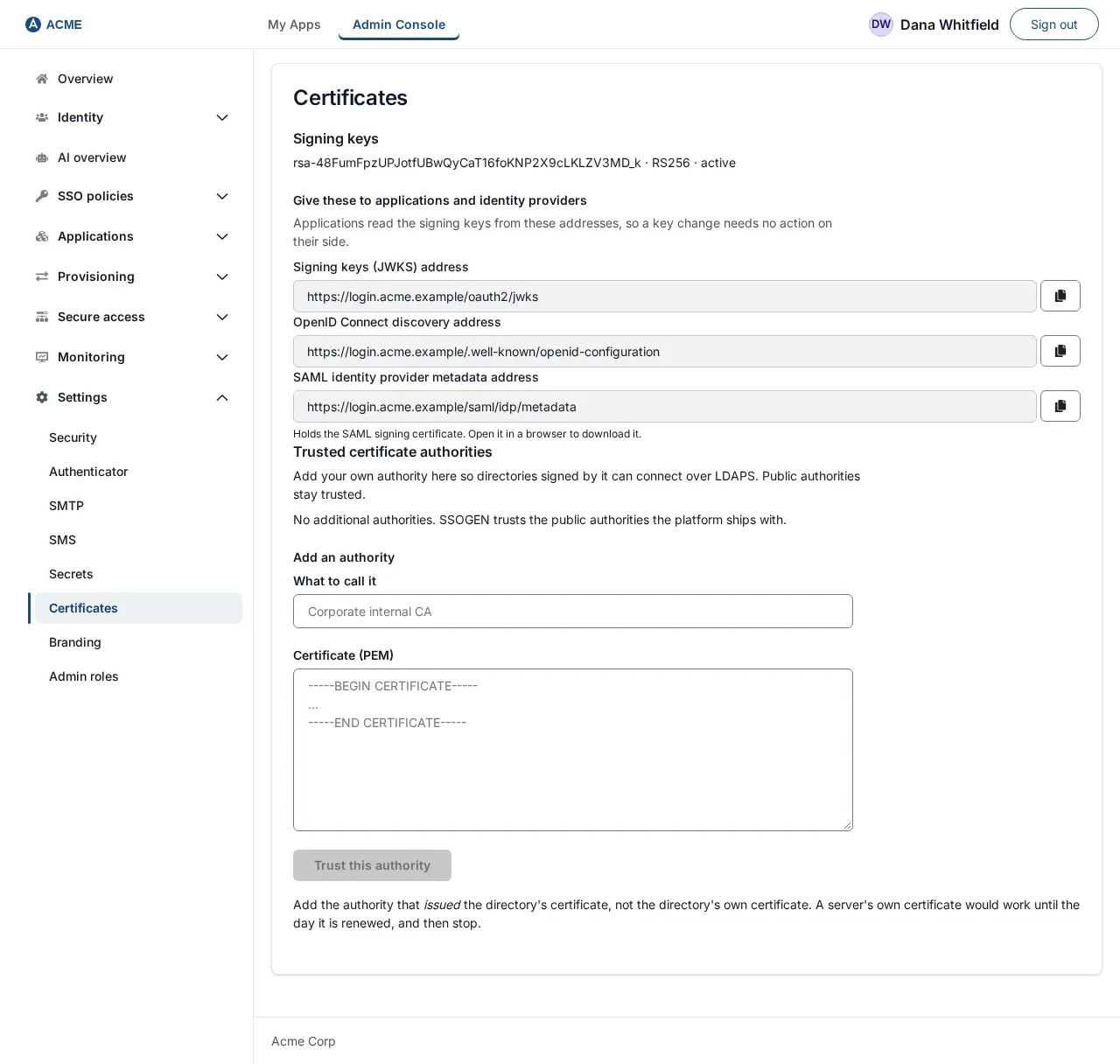
Section titled “1. Signing keys”At the top, Signing keys lists the keys SSOGEN signs tokens and sign-in assertions with, one line each, as the key’s id, its algorithm and its status (for example ssogen-2026-1 · RS256 · active). If none are published the page says No signing-key metadata published. The signing key itself is set up by your operator; to see its expiry date open System health and read Signing key, Valid until.
This list is information only. You cannot change the signing key from the console.
2. Find the certificate to add
Section titled “2. Find the certificate to add”This step happens outside SSOGEN, on your own systems. You need the certificate of the authority that issued your directory’s certificate, in PEM format. A PEM file is plain text that starts with -----BEGIN CERTIFICATE----- and ends with -----END CERTIFICATE-----.
Examples of where to get it:
- From your PKI team or your Active Directory Certificate Services administrator: ask for “the root CA certificate (and the issuing CA certificate, if there is one) in Base-64 / PEM format”. Windows saves this as a
.cerfile; if it opens as text starting with-----BEGIN CERTIFICATE-----it is already PEM. - From Windows: on the certification authority server, open a Command Prompt as an administrator and run
certutil -ca.cert acme-root-ca.cer, thencertutil -encode acme-root-ca.cer acme-root-ca.pemto convert it to text. - From a directory you can reach, with OpenSSL:
prints the certificates the directory presents. The last one in the chain is normally the authority. Copy that block, fromopenssl s_client -connect dc1.acme.example:636 -showcerts
-----BEGIN CERTIFICATE-----to-----END CERTIFICATE-----.
3. Add your internal CA as a trusted authority
Section titled “3. Add your internal CA as a trusted authority”- Open Settings, then Certificates, and scroll to Trusted certificate authorities.
- Under Add an authority, fill in:
| Field | What to enter | Example |
|---|---|---|
| What to call it | A name for people. | Corporate internal CA |
| Certificate (PEM) | Paste the whole PEM text including the BEGIN and END lines. Under 32 KB. | -----BEGIN CERTIFICATE----- … -----END CERTIFICATE----- |
- Select Trust this authority. (It stays gray until you have pasted something.)
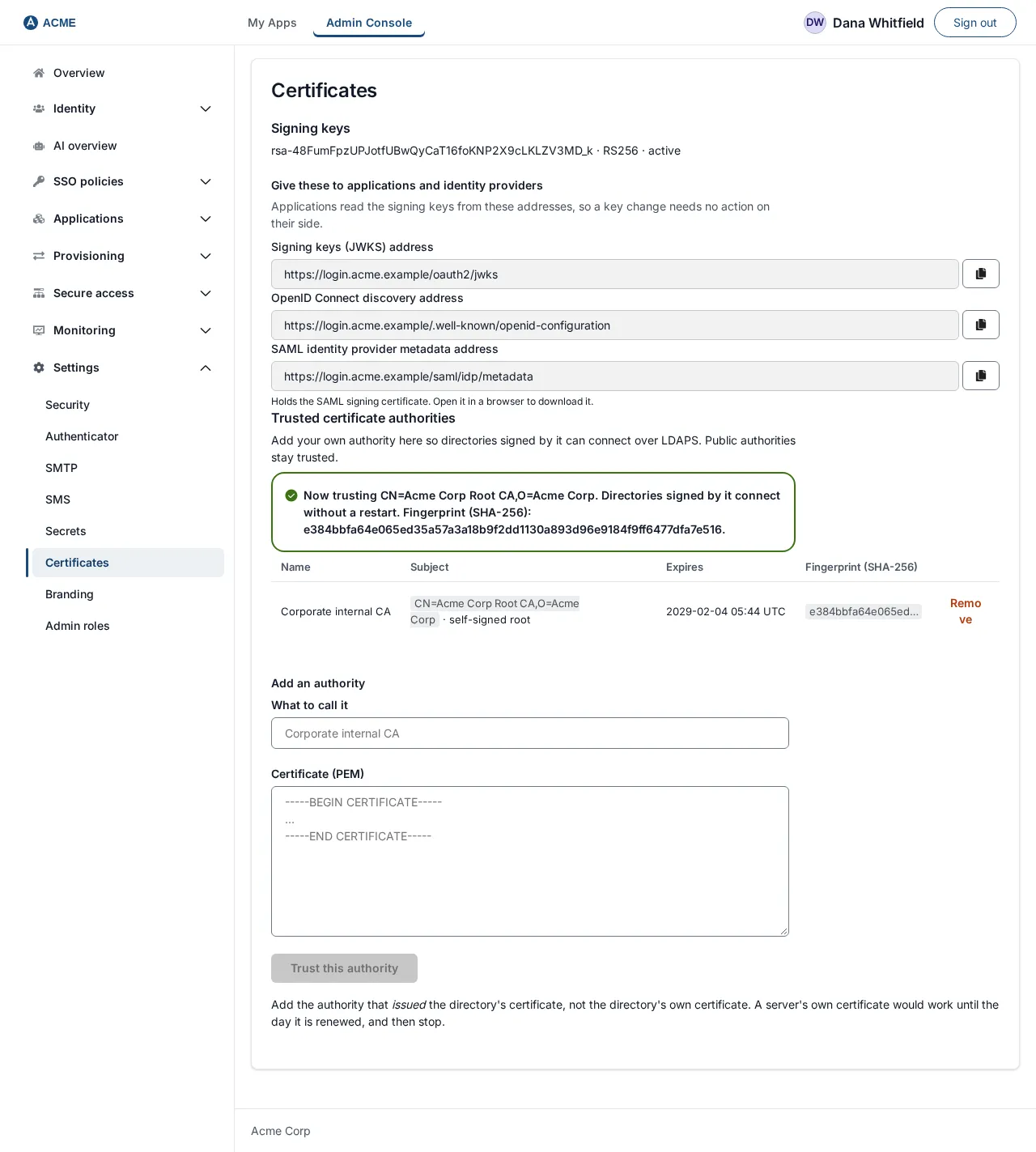
- A green message appears: Now trusting CN=Acme Corp Root CA, O=Acme Corp. Directories signed by it connect without a restart. The authority appears in the list.
The certificate must be a certificate authority certificate. If you paste a server’s own certificate, SSOGEN refuses it. SSOGEN keeps what the public authorities already provide: certificates added here are additional, nothing already trusted is affected.
If SSOGEN refuses the certificate
Section titled “If SSOGEN refuses the certificate”| Message | What to do |
|---|---|
| Paste the certificate in PEM form. | The box was empty. |
| That could not be read as a PEM certificate. It should begin with —–BEGIN CERTIFICATE—–. | You pasted something else (a private key, a .pfx, or a damaged copy). Paste the PEM text of the certificate. |
| A certificate is required, and must be under 32KB. | Paste one certificate, not a large bundle. |
| That is a certificate, but not a certificate authority. Add the CA that issued it instead – a server’s own certificate would stop working the next time it is renewed. | Find and paste the issuing authority (section 2). |
| That certificate could not be added. | A general refusal. Check the text is a complete certificate and try again. |
4. The list of trusted authorities
Section titled “4. The list of trusted authorities”Under the heading, a table lists each authority you added:
| Column | Meaning |
|---|---|
| Name | What you called it. |
| Subject | The authority’s identity. Shows “· self-signed root” when it is a root authority (it issued itself). |
| Expires | The date it expires. Amber N days left when 90 days or fewer remain; red Expired with the date once it has passed. |
| Fingerprint (SHA-256) | A short code that identifies the certificate. Hover over it to see the whole value. Use it to confirm you added the right one. |
| (action) | Remove |
With none added, the page says No additional authorities. SSOGEN trusts the public authorities SSOGEN ships with.
5. Check it worked
Section titled “5. Check it worked”- Open Identity, then Directories and open the directory that uses LDAPS.
- Run its Test. It should now connect. If it still fails with a certificate message, the certificate you added does not match the one that issued the directory’s certificate: find the right authority (section 2), add it, and test again.
No restart is needed; the change applies to the next connection.
6. Remove an authority
Section titled “6. Remove an authority”- Select Remove on its row.
- A dialog Stop trusting this authority? says: Directories signed by CN=Acme Corp Root CA, O=Acme Corp stop connecting, and sign-in through them fails, until it is added again.
- Select Stop trusting to confirm.
SSOGEN does not check whether a directory still depends on the authority, because that is only known when a connection is made. Test your directories afterwards. Adding and removing an authority is recorded in the audit log.
If the page says The trusted certificates could not be loaded. or That certificate could not be removed., reload and try again.