IdP failover: backup identity providers
Identity provider failover keeps people signing in when their provider goes down. If your directory is unreachable, or Entra ID has an outage, nobody can sign in through it. Failover lets a policy name a backup identity provider in advance: “if Corporate LDAP is unavailable, people may use Acme Entra ID instead.” This guide explains the settings on a policy page.
How identity provider failover works
Section titled “How identity provider failover works”- A policy names one or more primary providers (the ones its applications normally use).
- For each primary you choose fallbacks: other providers, in order of preference.
- A mode decides when the fallbacks would be used.
- A fallback never lowers what the policy asks for. If the policy’s Second factor is Required, a person using a fallback still has to meet it. The section’s help reads: “Other providers allowed when a provider is down. Fallbacks never lower the required strength.”
- A person can only use a fallback if they already have an account there that is linked to their SSOGEN user. The coverage check (below) tells you how many do.
Open the failover settings
Section titled “Open the failover settings”- Open SSO policies > Policies and select a policy, for example “Finance with second factor”.
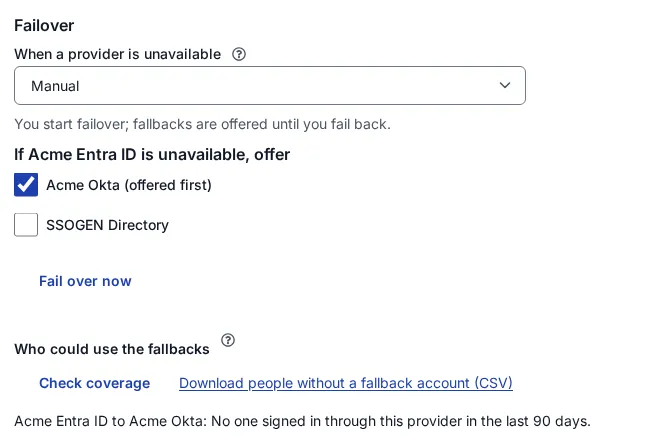
- Scroll to the section headed Failover, with the list When a provider is unavailable. (It appears once the provider list has loaded; until then you see “Loading failover settings…”.)
1. Choose a mode
Section titled “1. Choose a mode”When a provider is unavailable is a list:
| Mode | What it means |
|---|---|
| Off | “Off: no sign-in while the provider is down.” This is the default, and what every existing policy has. |
| Manual | “You start failover; fallbacks are offered until you fail back.” |
| Automatic | “Fallbacks are offered automatically when a provider is down.” |
2. Choose the fallbacks
Section titled “2. Choose the fallbacks”With Off nothing more is shown. With Manual or Automatic, one block appears for each provider the policy names, headed “If Corporate LDAP is unavailable, offer”. It lists every other provider that is switched on, each with a checkbox.
- Tick Acme Entra ID. Next to a ticked provider the order is shown: “(offered first)”, “(offered number 2)”. The order is the order in which you ticked them; untick and tick again to change it.
- Repeat for other primaries.
Limits: at most 8 fallbacks for each primary, and at most 32 primaries per policy.
3. Save
Section titled “3. Save”Select Save failover settings. It is enabled only when something changed. You see “Failover settings saved.” Saving never starts or ends a failover.
If the save is refused you see one of these:
| Message | What to do |
|---|---|
| A chosen fallback can never meet the required strength. Choose another or lower the strength. | The fallback provider cannot reach what this policy asks for (for example the policy needs a passkey and the fallback cannot deliver one). |
| A fallback must be an active provider, other than the one it stands in for, and chosen once. | Fix the ticks. |
| A failover is in progress for a provider. Fail back before changing these settings. | A manual failover is running. End it first. |
| Someone else changed this policy. The saved settings are shown; review and try again. | Redo your change. |
| Changing these settings needs permission to edit authentication. | Ask an administrator with that permission. |
| That policy no longer exists. | The policy was deleted. |
4. Check who could use the fallbacks (coverage)
Section titled “4. Check who could use the fallbacks (coverage)”A fallback is useless to somebody with no account there. Once at least one fallback is saved, a block Who could use the fallbacks appears. Its help: “People from the last 90 days who already have an account at each fallback.”
- Select Check coverage.
- A line appears per primary and fallback, for example: “Corporate LDAP to Acme Entra ID: 312 of 340 people who signed in through it in the last 90 days can use this fallback.” If nobody used the primary lately: “No one signed in through this provider in the last 90 days.”
- To see who is left out, select Download people without a fallback account (CSV). The file lists username and display name only.
312 of 340 means 28 people would be stuck: link their accounts, or give them a way in, before you depend on the fallback.
5. Manual mode: Fail over now and Fail back
Section titled “5. Manual mode: Fail over now and Fail back”In Manual mode, under each primary’s fallbacks:
- Fail over now starts the failover for that primary. It is disabled until the primary has at least one saved fallback. A confirmation opens: Fail over from Corporate LDAP now? “People are offered the fallbacks instead of Corporate LDAP until you fail back. Signed-in people stay signed in.” Select Fail over now. You see “Failed over from Corporate LDAP.”
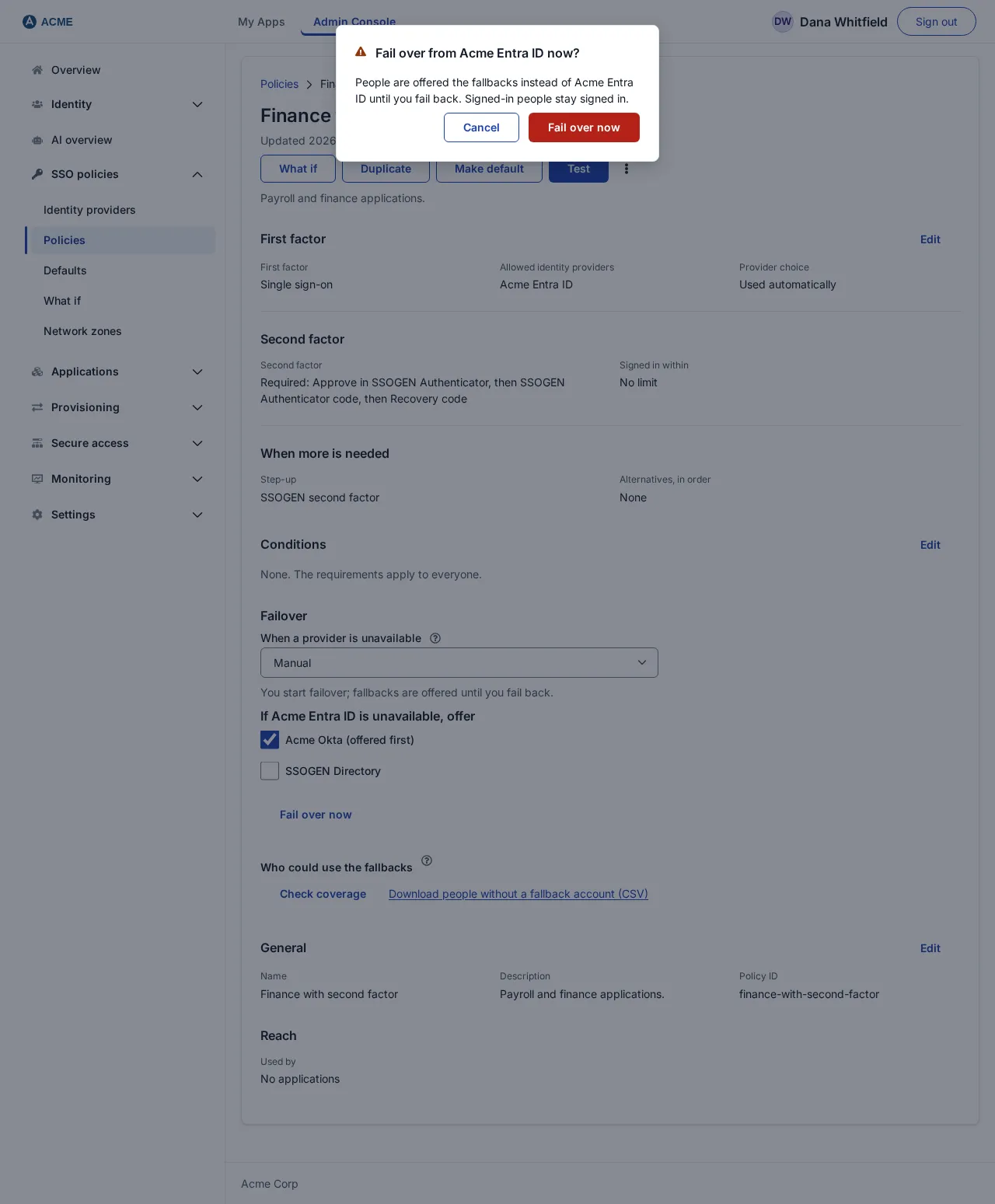 2. While it is on, the block says “Failed over: the fallbacks are being offered now.” and shows Fail back.
3. When the primary is healthy again, select Fail back. A confirmation: Fail back to Corporate LDAP? “Corporate LDAP is offered again and the fallbacks stop. People who used a fallback sign in through Corporate LDAP the next time they open an application.” Select Fail back. You see “Failed back to Corporate LDAP.”
Starting and ending a manual failover are recorded in the audit log with the administrator’s name. If Fail over now is used on a policy that is not in Manual mode: “Fail over now is only for policies set to Manual. Change the mode and save first.” Other refusals: “That provider is already failed over.”, “That provider is not failed over.”, “That provider is not one this policy names.”
How Automatic mode knows a provider is down
Section titled “How Automatic mode knows a provider is down”SSOGEN regularly checks every enabled provider (except its own local accounts), and also notes sign-ins that failed because the provider could not be reached. A provider becomes Unavailable after repeated failures, and Healthy again only after several successful checks in a row. A wrong client secret or a mismatched issuer is a configuration mistake, not an outage, and does not count as down, so a typing error in a provider’s setup cannot silently send people to the fallback. You can see a provider’s state on SSO policies > Identity providers as Healthy, Degraded or Unavailable.
If SSOGEN cannot read its own health records, it treats the provider as not down: a fallback is never offered on a guess.
What people see at sign-in during a failover
Section titled “What people see at sign-in during a failover”While a primary is failed over (Manual: after Fail over now; Automatic: while the provider is Unavailable):
- The sign-in page offers the fallbacks instead of the failed-over provider, in the order you chose. A fallback that is itself unavailable is not offered.
- A person can sign in through a fallback only if their SSOGEN account is already linked to it, the same people the coverage check counts. SSOGEN never creates an account or joins one by email through a fallback. Anybody else sees: “Your organization’s usual sign-in is unavailable right now, and your account isn’t set up for this backup sign-in. Try again later, or contact your help desk.”
- The policy’s second-factor rule still applies. If the policy’s Second factor is Required and the fallback is a password (a directory or local accounts), the person is asked for the second factor they already set up in SSOGEN. Somebody with none sees “This sign-in needs a second step, and no method is set up for your account. Contact your help desk.” The sign-in page never offers to set one up.
- If the primary and every fallback are unavailable, the sign-in page says “Sign-in is temporarily unavailable. Try again in a few minutes, and contact your help desk if it continues.”
- People already signed in stay signed in when you fail over and when you fail back.
Every sign-in through a fallback is recorded in Monitoring > Audit as “authentication.failover_used”, with how it ended: admitted, second factor asked, refused for having no link, or refused for having no second factor.
Check that it worked
Section titled “Check that it worked”- After saving, reload the policy page: the mode and ticks are as you left them.
- Check coverage returns a line per fallback.
- In Monitoring > Audit, a manual Fail over now and Fail back appear.
- In Manual mode, choose Fail over now, open the sign-in page in a private window and check that the fallback is offered instead of the primary; sign in as somebody the coverage check counts. Then Fail back and check the primary is offered again.