AI agent consent: what people see and approve
AI agent consent is how a person stays in control when an agent acts for them. They give consent before it starts, they can approve sensitive actions one by one, and they can take its access away whenever they like. This guide shows the places people see their agents. Share it with your staff, or adapt the wording for your own help pages.
The example person is Maria Lopez at Acme Corp. The agent is Invoice Assistant, owned by Maria Lopez, and it asks to read invoices.
1. The consent screen
Section titled “1. The consent screen”The first time an agent needs to act for Maria, the tool she is using sends her to SSOGEN. If she is not signed in, she signs in first, under the same sign-in rules as for the application. Then she sees the screen Approve access.
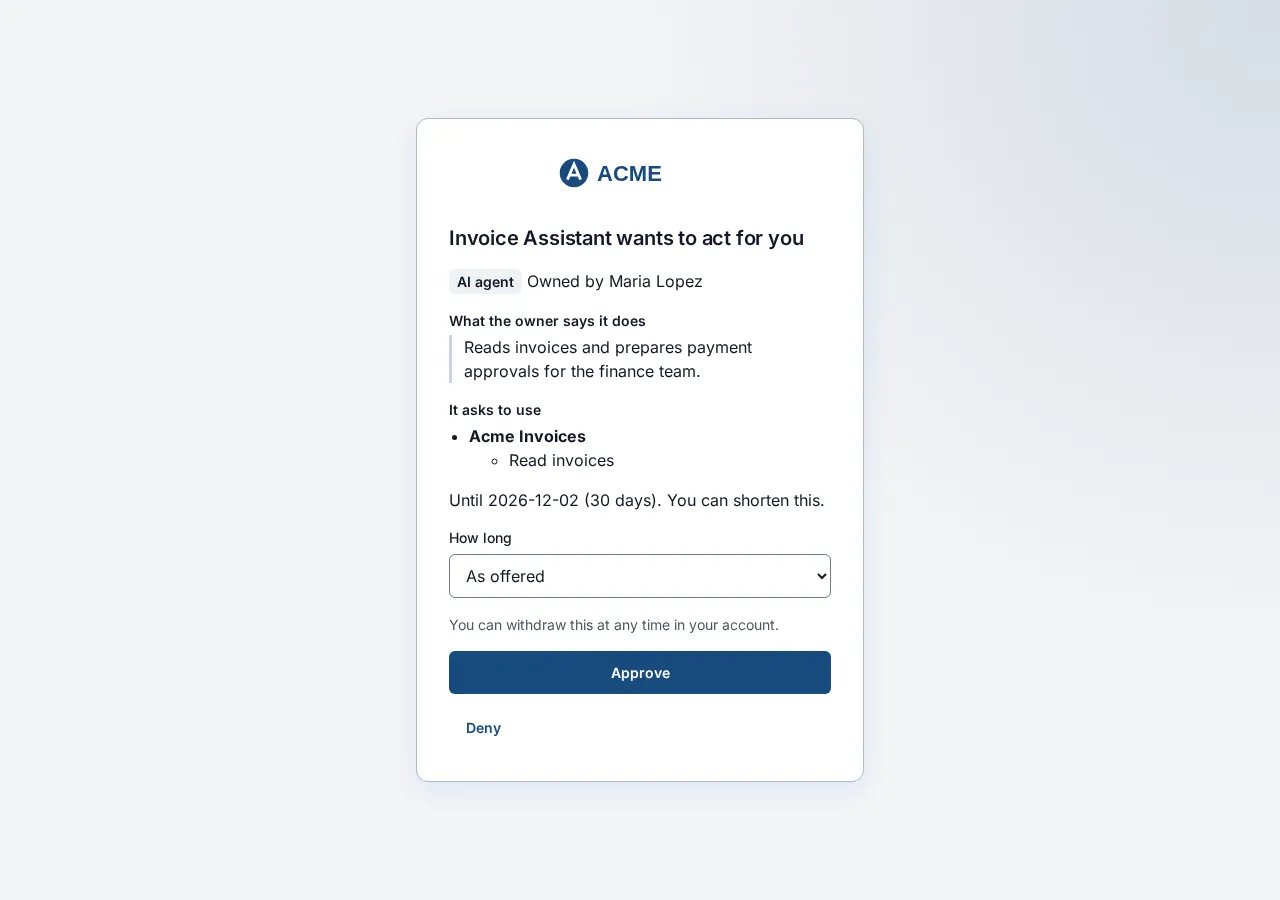
The screen shows:
| What you see | What it means |
|---|---|
| Invoice Assistant wants to act for you | The agent’s name. A badge beside it says its type, for example AI agent. |
| Owned by Maria Lopez | The person who answers for the agent. If it has none, the screen says “No owner is shown for this identity”. Think twice before approving. |
| What the owner says it does | The owner’s description of the agent. It is the owner’s words, not a check by SSOGEN. |
| It asks to use | Each application it wants, with a plain-language sentence per permission, such as “Read supplier invoices”. If a permission has no description, the screen says “Access the application has not described. Ask your administrator before approving.” |
| “It may hand this on to …” | Shown if the agent may pass the work to a second agent. |
| “Until 2026-11-05 (30 days). You can shorten this.” | How long the permission lasts. |
| How long | A menu: As offered, and shorter choices 1 hour, 1 day, 7 days where they are shorter than the offer. |
| “You can withdraw this at any time in your account.” | See section 3. |
Select Approve to allow it, or Deny to refuse. After Approve, the browser returns to the tool, which can now work for Maria. Approve is grayed out if the request has already expired.
What can go wrong:
| Message | Meaning |
|---|---|
| Your sign-in has ended. Start again from the application that asked. | Sign in and ask the tool to connect again. |
| This request is no longer available. Start again from the application that asked. | The request was used, canceled or timed out. Start again in the tool. |
| This request could not be loaded. Nothing was approved. | Try again. Nothing was granted. |
2. Requests that need your decision each time
Section titled “2. Requests that need your decision each time”Some actions need a human yes at the moment they happen, for example approving an invoice for payment. When an agent working for Maria wants to do one, SSOGEN holds it and asks her.
-
Open Approvals in the left menu of My Apps, or go to your My Apps address followed by
#approvals, for examplehttps://apps.acme.example/#approvals. The page is titled Approvals: “Requests for remote access, and from your AI agents, that you can decide.”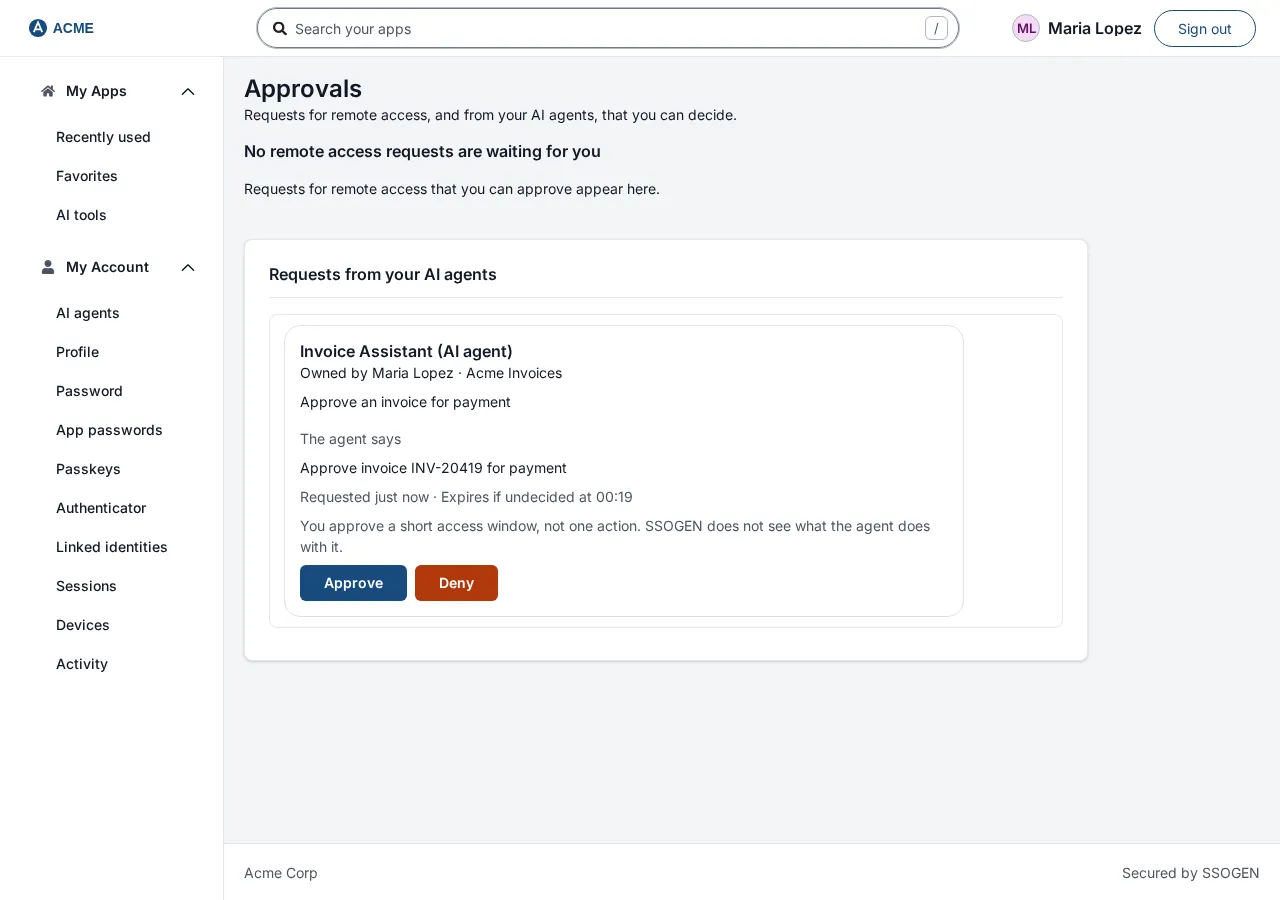
-
Under Requests from your AI agents, each waiting request is a card showing:
- The agent’s name and type, for example “Invoice Assistant (AI agent)”.
- “Owned by Maria Lopez” and the application, for example “Acme EBS Tools”.
- A list of what it wants to do, in words.
- The agent says, followed by the short message the agent sent, if any. This is the agent’s own text. Read it as you would an email from a stranger: SSOGEN cannot vouch for it.
- “Requested 2 minutes ago” and “Expires if undecided at 14:35”.
- The note: “You approve a short access window, not one action. SSOGEN does not see what the agent does with it.”
-
Select Approve or Deny. Deny asks you to confirm with Deny request (or Keep request to go back). SSOGEN may first ask you to sign in again with your second step, because this decision needs a recent strong sign-in. After you sign in you return to the page.
-
The card disappears. If you approved, the agent can use that one permission for a short window. If you did not decide, the request expires and the agent is refused.
The page also lists Remote Access requests above this section. With nothing waiting, this section says “No AI agent is waiting for your approval.” If the list cannot be read, you see “The request did not go through. Try again in a moment.” and a Retry link.
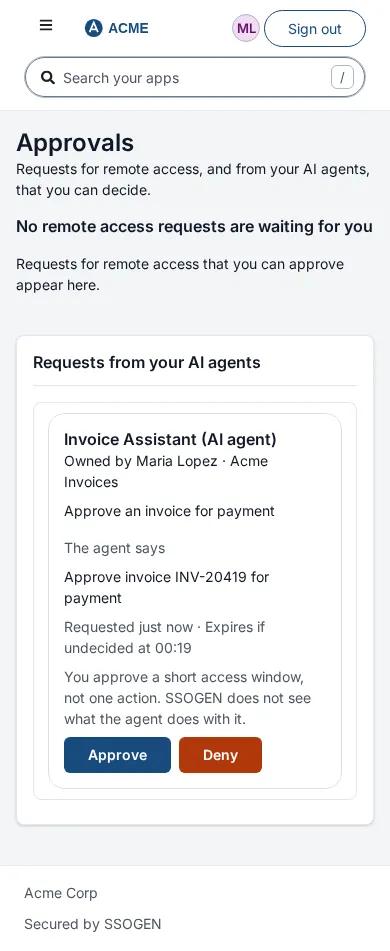
The page can be opened in a phone browser.
3. AI agents, in My Account
Section titled “3. AI agents, in My Account”-
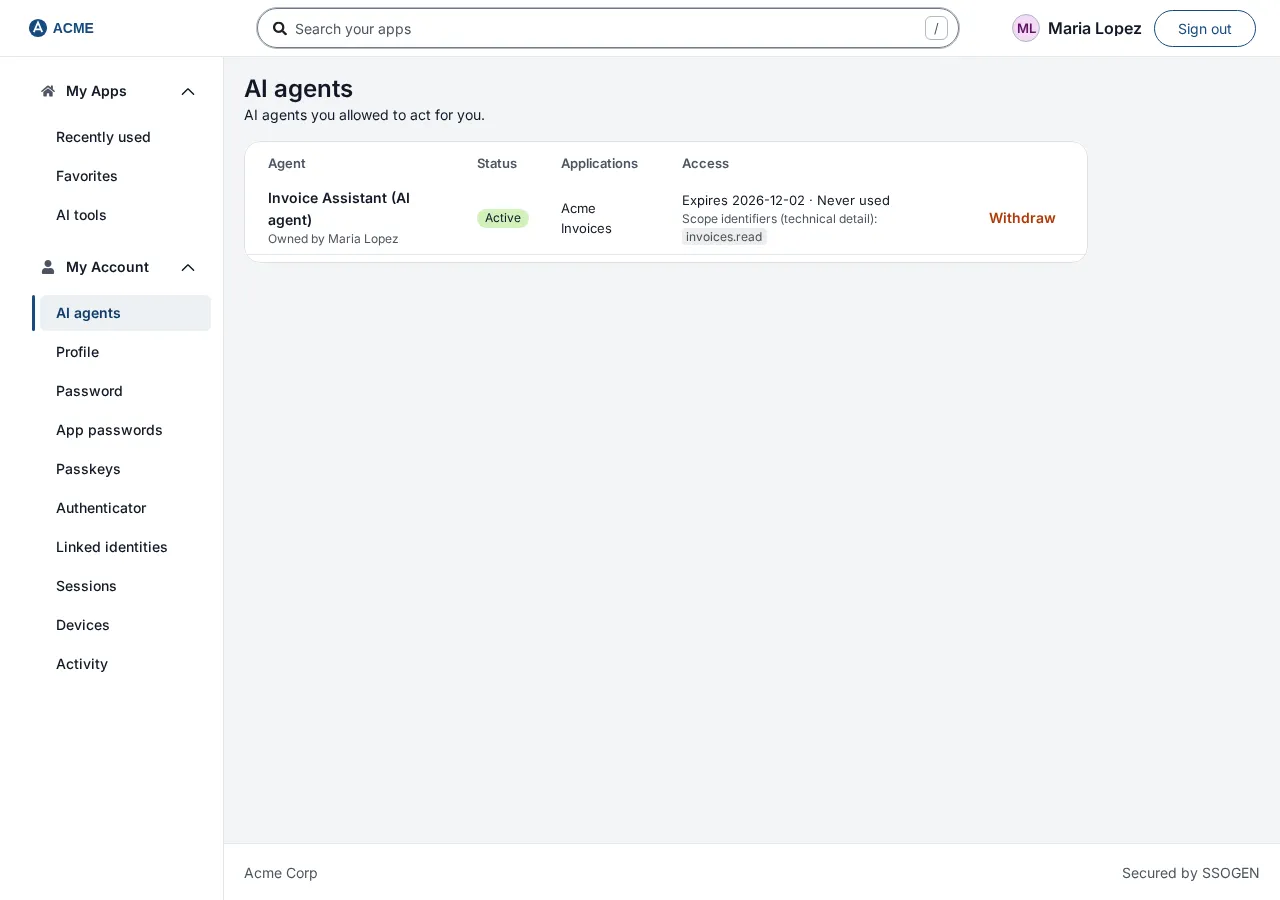
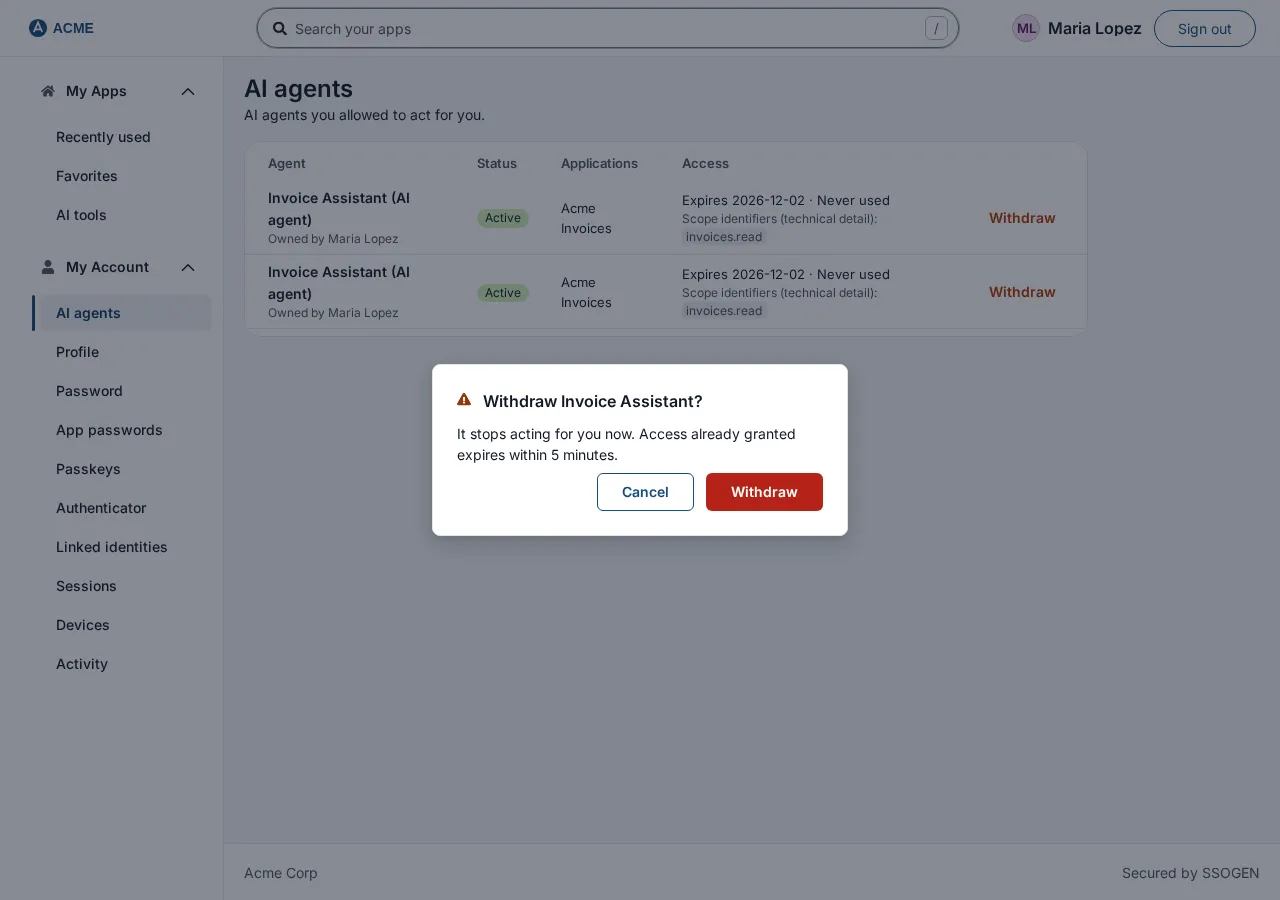
Open My Account, then choose AI agents in the menu. The page lists the AI agents you allowed to act for you, and you can withdraw any of them at any time.
-
Each agent you approved is a row of a table with the columns Agent, Status, Applications, Access and a Withdraw button:
What you see What it means Invoice Assistant (AI agent), “Owned by Maria Lopez” The agent, its type and its owner. Active Its state. “May hand this on to …” Shown if it may pass your work on to another agent. Applications: Acme EBS Tools What it may reach for you. “Expires 2026-11-05 · Last used 2026-10-07”, or “Never used” When the permission ends, and when the agent last used it. Scope identifiers (technical detail) The technical names of the permissions. The plain-language versions were on the consent screen. Withdraw Takes the permission away. Active permissions are listed first, soonest to expire first, then finished ones. A finished one shows why: Expired, “You withdrew it”, “An administrator withdrew it”, “The agent was removed”, “The agent is suspended” or “Your account was disabled”.
-
To take the permission away, select Withdraw. A dialog asks Withdraw Invoice Assistant? and says “It stops acting for you now. Access already granted expires within 5 minutes.” Select Withdraw to confirm.
-
The row now shows “You withdrew it”. If it fails, the page says “Unable to withdraw this access. Nothing was changed.”
With no agents, the page says No AI agents act for you: “Agents you approve appear here, and you can withdraw them.” If the list cannot load: “The list of AI agents acting for you could not be loaded.” with a retry.
4. AI tools in My Apps
Section titled “4. AI tools in My Apps”When your administrator has turned AI agents on and there is something for you to see, My Apps has an AI tools page. It shows no entry when there is nothing to connect to, nothing you allowed and nothing waiting.
- Connect an AI tool. For each place you can connect to, the page shows its name, what an AI tool can do there, and an address with a copy button. The three steps are: “Paste this address into your AI tool.”, “Sign in if asked.”, “Press Approve.” Under the address it says which tools are “Already allowed”, or “No AI tool is connected here yet.”
- AI tools you allowed. The same list as in My Account, with Withdraw. With none, it says No AI tools yet: “AI tools you approve appear here. You can withdraw them at any time.”
- Waiting for your approval. Requests an agent has made that need your decision, as on the Approvals page. With none, it says “No AI tool is waiting for your approval.”
What your administrator can do
Section titled “What your administrator can do”Administrators can see your delegations and revoke one, suspend or permanently remove an agent, or stop a whole type of agent with a kill switch. Anything they do shows here the next time you open the page.
Related guides
Section titled “Related guides”Register an AI agent, read how AI agent access control works, or see AI agent identity for the overview.