Restrict Access by IP With Network Zones
A network zone is a named group of IP address ranges, for example “the office”. Rules can ask “is this person on the office network?” through the Network condition (see Rules and conditions). This guide explains how zones work and how to set them up.
Where the console shows zones
Section titled “Where the console shows zones”Zones appear as choices wherever a rule or a test asks “from which network”:
- the Network condition in the rule editor (on a policy’s Conditions step and in Access rules): the list Choose a network…;
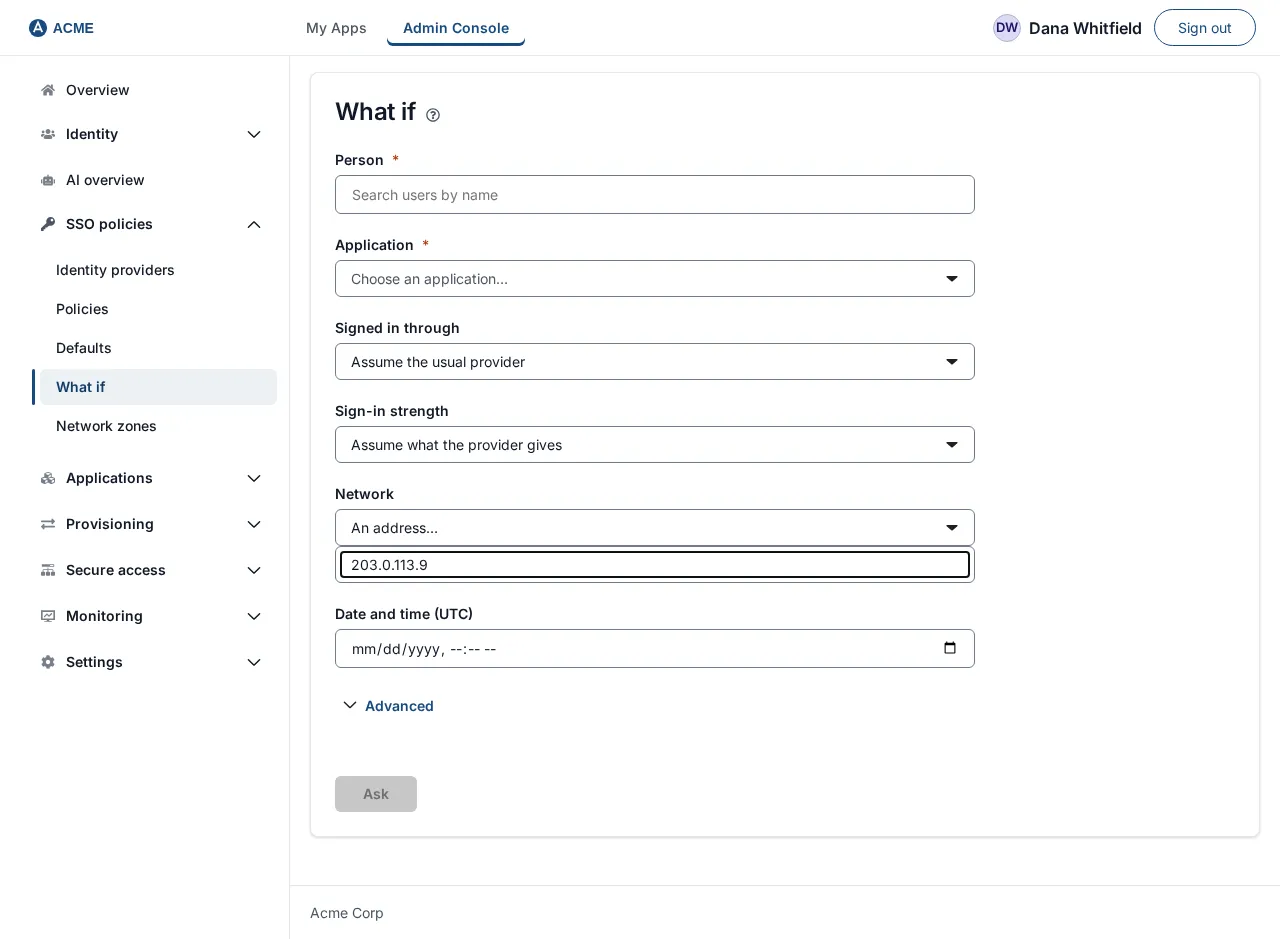
- the Network list on the What if page, with Not specified, each zone by name, and An address…;
- Network zone under Advanced in an application’s Test.
The console shows each zone’s name only. Nobody can type a zone name by hand in a rule, so a rule cannot name a zone that does not exist.
How a zone is decided
Section titled “How a zone is decided”- SSOGEN works out the visitor’s address (see “Behind a load balancer” below).
- It compares the address with the ranges of each zone, in the order the zones are configured. The first range that contains the address wins, and the visitor is “on” that zone.
- An address that no range contains is in the special zone
unknown. A rule “Network is on none of corporate” matchesunknown.unknownis not a name you can configure or choose.
A zone is only about where a request comes from. It does not by itself allow or refuse anything: a rule does.
Set the zones (operator, in SSOGEN settings)
Section titled “Set the zones (operator, in SSOGEN settings)”Zones are read from the setting SSOGEN_POLICY_NETWORK_ZONE_CIDRS, in the same settings file as the rest of SSOGEN’s configuration (see Install and first run, step 4).
The format
Section titled “The format”name=range,range|name=range- A zone is
name=followed by one or more address ranges separated by commas. - Zones are separated by a vertical bar
|. - A range is written
address/prefix, for example203.0.113.0/24(IPv4) or2001:db8::/32(IPv6). A single machine is203.0.113.7/32. - Zone names are lower-cased. Use lowercase letters, digits, hyphens and underscores, starting with a letter or digit, up to 64 characters, for example
corporate,branch-london,vpn. - The names
unknownand*are ignored. A zone with no range is ignored.
If you set nothing
Section titled “If you set nothing”One zone, corporate, exists and covers loopback and the standard private address ranges. That is convenient for a trial and wrong for production: every machine on any private network, including a guest Wi-Fi, counts as “corporate”. Set your own ranges.
Example for Acme Corp
Section titled “Example for Acme Corp”Acme’s office uses the public range 203.0.113.0/24 and its whole internal range 198.51.100.0/24. The guest Wi-Fi, 198.51.100.128/25, sits inside 198.51.100.0/24 but must not count as the office, and the branch uses 198.51.100.0/24. Because the first matching range wins, list the guest zone before corporate:
SSOGEN_POLICY_NETWORK_ZONE_CIDRS=guest=198.51.100.128/25|corporate=203.0.113.0/24,198.51.100.0/24|branch=192.0.2.0/24An address like 198.51.100.200 matches guest first and is never corporate. An address like 198.51.100.77 matches corporate.
Apply it
Section titled “Apply it”- Edit the settings file (in the install guide it is
/etc/ssogen/ssogen.env) and add or change the line above. - Restart SSOGEN with the settings loaded (the same way you started it). The setting is read when SSOGEN starts, so a running SSOGEN server does not notice the change.
- If you run several SSOGEN nodes, give every node the same value.
A range that is not written as address/prefix, or has an impossible prefix (for example 198.51.100.0/40), stops SSOGEN from starting. Check the start-up log if it does not come up after an edit.
Behind a load balancer: the visitor’s real address
Section titled “Behind a load balancer: the visitor’s real address”A rule can only be as good as the address it sees. By default SSOGEN uses the address of the machine that connected to it. If a load balancer or reverse proxy sits in front, that is the address it would see, so every visitor would look as if they came from the load balancer. If the load balancer is on a private range, everyone would then be “on” your office zone.
To fix it, tell SSOGEN which front-end addresses to trust. A trusted front end’s forwarded-address header (X-Forwarded-For) is then read; from anybody else it is ignored, so a visitor cannot choose their own address:
SSOGEN_TRUSTED_PROXY_CIDRS=198.51.100.10/32Set it to the range(s) of your load balancers only, not to a wide range that visitors might also be on. With the header present, SSOGEN reads the forwarded addresses from the right, skips trusted front ends, and takes the first address it does not trust.
Check that it worked
Section titled “Check that it worked”- Restart SSOGEN and sign in to the console.
- Open SSO Policies > What if. Open the Network list. You should see Not specified, then each zone you configured by name (for example
guest,corporate,branch), then An address…. - Choose An address… and type an address you know is in the office range, for example
203.0.113.9. Pick a person and an application and select Ask. If a rule uses the zone, its row in the table shows the Network condition as Met or Not met. - Try an address outside every range, for example
192.0.2.50. A condition “Not on network corporate” should show Met. - Finally try a real sign-in from a machine in the office and one outside it, and confirm each is treated as you expect.
Changing or removing a zone later
Section titled “Changing or removing a zone later”- Add a zone or a range: safe. Restart SSOGEN.
- Remove a zone, or rename it: first remove every rule that uses it. A rule that names a zone that is not configured can no longer match, and SSOGEN refuses every sign-in that list governs until the rule is fixed; the editor refuses to save such a rule: “A rule names a network that is not configured.” Saving may also be refused with a message about a hostname letting people sign in more weakly from outside your network zones; the fix it names is to keep a first rule that denies sign-in from outside your zones in that hostname’s policy.
- Changing the order of zones can change which zone an address is in, when ranges overlap.