SSO login page branding and admin roles
You can brand the SSOGEN login page with your company name, logo and colors, and limit what each administrator can do by giving them one of six built-in admin roles. The Settings group of the Admin Console has eight pages (Security, Authenticator, SMTP, SMS, Secrets, Certificates, Branding and Admin roles). Two are covered here:
- Branding: how your company appears to people signing in.
- Admin roles: who can administer SSOGEN, and what each kind of administrator can do.
The other Settings pages have their own guides: Security (organization-wide limits), Authenticator (download links and the lost-phone rule), SMTP (the mail server) and SMS (the text-message provider) are described with authentication settings; Secrets is in The Secrets page; Certificates is in Trusted certificates.
Branding
Section titled “Branding”Open it: Admin Console, Settings, then Branding. A Super admin can save changes; a Read-only admin can look at the page.
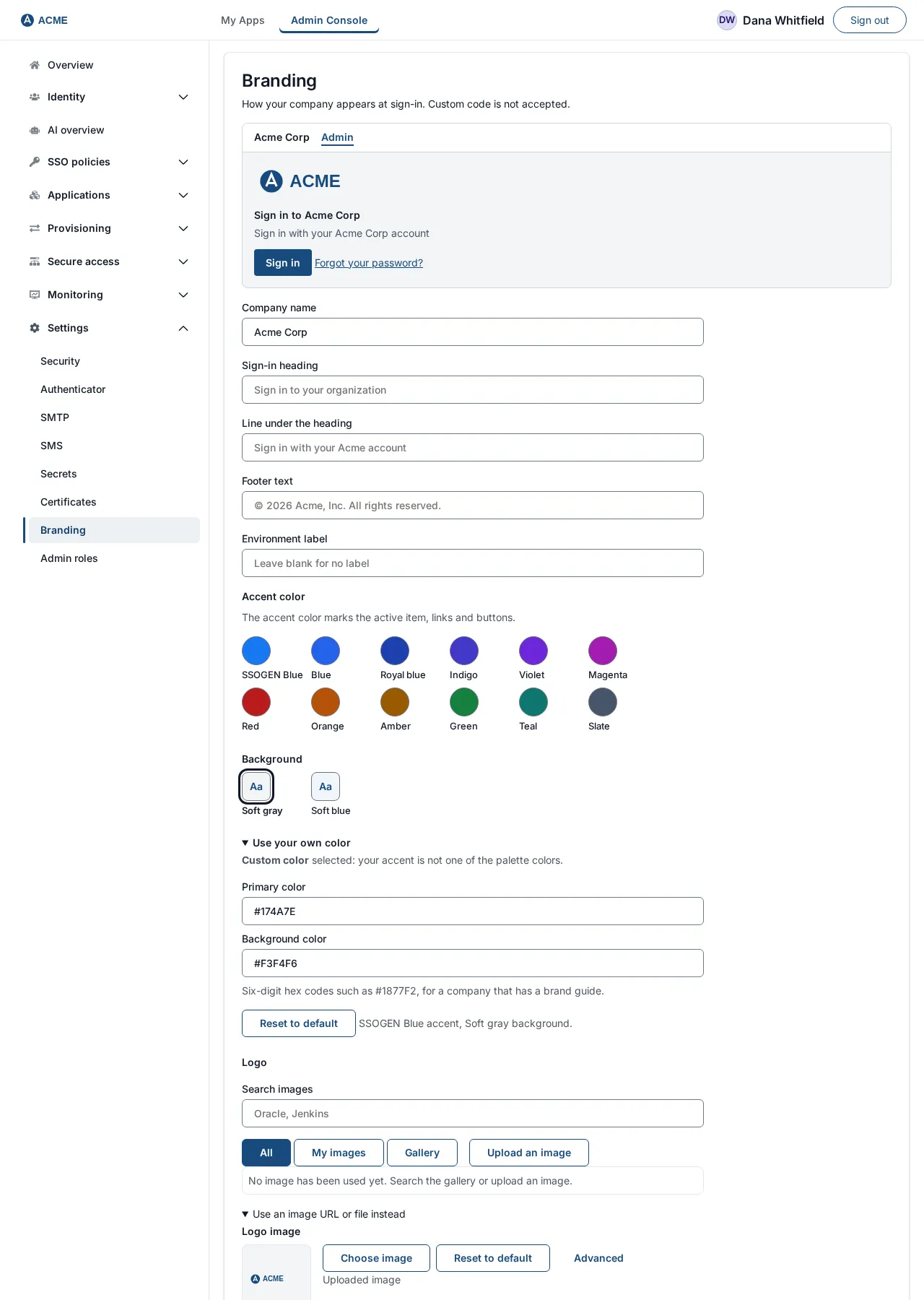
The page opens with a short note: How your company appears at sign-in. Custom code is not accepted. Below it a Branding preview shows your logo, company name and colors as you type, before you save anything.
1. Fill in the form
Section titled “1. Fill in the form”Example values are for the fictional Acme Corp.
| Field | What it does | Example | Limits |
|---|---|---|---|
| Company name | Shown on the sign-in pages and in browser tab titles. Required. | Acme Corp | 1 to 128 characters; no < or > |
| Sign-in heading | The large heading on the sign-in page. Blank uses the standard heading, “Single Sign-On”; the box shows the example “Sign in to your organization”. | Welcome to Acme | up to 120 characters |
| Line under the heading | A line of help text beneath it. | Sign in with your Acme account | up to 240 characters |
| Footer text | Your own wording in the footer of every page, above the support and privacy links. SSOGEN does not generate a notice for you. | © 2026 Acme Corp. All rights reserved. | up to 256 characters |
| Environment label | A short tag beside the logo on every page, so people can tell test from production. Leave blank for none. | TEST | up to 64 characters; none of < > " ' & ; |
| Accent color | “The accent color marks the active item, links and buttons.” Choose one of twelve named swatches (the default is SSOGEN Blue). The side bar of the console follows the accent. | SSOGEN Blue | a swatch, or a six-digit hex color under Use your own color |
| Background | The page background. Choose Soft gray, a soft tint of your accent, or a color of your own (the default is Soft gray). | Soft gray | a swatch, or a six-digit hex color under Use your own color |
| Logo | Your logo image (see below). | ||
| Favicon | The small icon in browser tabs (see below). | ||
| Support link address (optional) | The address behind the support link on the sign-in page and the home page: a web page (https://) or an email address (mailto:). |
https://support.acme.example |
up to 2,048 characters |
| Support link words (optional) | The text of that link. Blank shows “Support”. | Contact the IAM help desk | up to 60 characters |
| Privacy notice address (optional) | A web page, shown as “Privacy”. | https://www.acme.example/privacy |
must start with https:// |
| Show the “Forgot password?” link | Switch off to hide the link from the sign-in page. The reset itself still works for anyone who has a link to it. | on | |
| Forgot password link words (optional) | The text of the link. Blank shows “Forgot password?”. | up to 60 characters | |
| Forgot password address (optional) | Blank uses the built-in reset. Enter your own reset page or mailbox to send people there instead. | up to 2,048 characters | |
| Show “Secured by SSOGEN” | A small line at the foot of the sign-in page and the home page, linking to ssogen.ai. | on |
The last six fields sit under Sign-in page and home page links.
Reset to default returns the accent and the background to SSOGEN Blue and Soft gray (a confirmation, Reset colors, asks first; nothing changes until you select Save branding).
If the accent color is too light to read against white cards or your background, a note says so. A light accent color makes headings, links and buttons hard to read; choose a darker one when you see it.
Logo and favicon
Section titled “Logo and favicon”The Logo has an image picker with Search images, Upload an image, Recently used images and Reset logo; under Use an image URL or file instead it has the same two ways as the Favicon:
- Choose image: pick a PNG, JPEG, WebP or ICO file from your computer. SVG images are refused on save, because an SVG can carry script. The preview updates at once. The text beneath shows Uploaded image · 12 KB. Select Reset to default to go back to the SSOGEN image (Using the default image).
- Or a path on this server: type a path starting with a single
/to an image already published with SSOGEN. An address on another website is not accepted.
Messages you may see:
| Message | What to do |
|---|---|
| That file is not an image this product can use. Choose a PNG, JPEG, WebP, SVG or ICO file. | Pick a PNG, JPEG, WebP or ICO image. |
| That SVG contains script, which branding does not accept. Export it as a plain image, or use a PNG. | Re-export the SVG without scripts, or use a PNG. |
| That PNG is 120 KB; the limit for a logo is 48 KB. Scale it down. | Reduce the image size. (Your numbers and file type will be shown.) |
| Logos must be PNG, JPEG, WebP or ICO images. SVG is not accepted. (Favicons: the same, with “Favicons”.) | Convert the image to PNG. |
| That logo is not in your library any more. Choose another logo. | Pick a logo again from the picker. |
| A path has to start with a single / and name a file on this server. An address on another site is not accepted. | Use a path such as /logo.svg. |
2. Save and check
Section titled “2. Save and check”- Select Save branding.
- Open the sign-in page in a private browser window (see first sign-in) and check the heading, logo and footer. The changes are live as soon as the save succeeds.
If Save branding is refused, the console shows one of these:
| Message | Meaning |
|---|---|
| Company name must be 1 to 128 characters. | |
| Company name cannot contain markup. Remove any < or > characters. | |
| Enter a company name. | The field was empty. |
| Environment label must be 64 characters or fewer. | |
| Environment label cannot contain < > “ ’ & or ;. | |
| Primary color must be a hex value such as #1877F2. / Enter a primary color, such as #1877F2. | The accent color you typed under Use your own color. |
| Background color must be a hex value such as #F3F4F6. / Enter a background color, such as #F3F4F6. | The background you typed under Use your own color. |
| The support link address must be a web address starting with https:// or an email address starting with mailto:, with no spaces. | The privacy notice address must start with https://; the forgot password address may use either form. Each is also limited to 2048 characters, and each link text to 60 characters of plain text on one line. |
| That logo is not an image this product can use. / That logo is too large. Choose a smaller image. | Same wording for the favicon. |
| Footer credit must be 256 characters or fewer. | The Footer text is too long. |
| The sign-in heading must be 120 characters or fewer. | |
| The line under the sign-in heading must be 240 characters or fewer. | |
| Your role doesn’t allow this. Ask an administrator whose role can change this. | Only a Super admin can save branding. |
| This page is out of date with the server and sent a setting that no longer exists. Reload the page and try again. | Reload. |
At the foot of the page, Support details opens a line with the identifiers your SSOGEN support contact asks for.
Admin roles
Section titled “Admin roles”Everyone who signs in can use My Apps and My Account. Only people who hold an admin role can open the Admin Console, at /admin/. SSOGEN has six built-in roles; a person may hold more than one. This version has no custom roles.
Open it: Admin Console, Settings, then Admin roles. Only a Super admin can open it. Anyone else is told: Only a super admin can see or change Admin Console roles.
1. The six roles
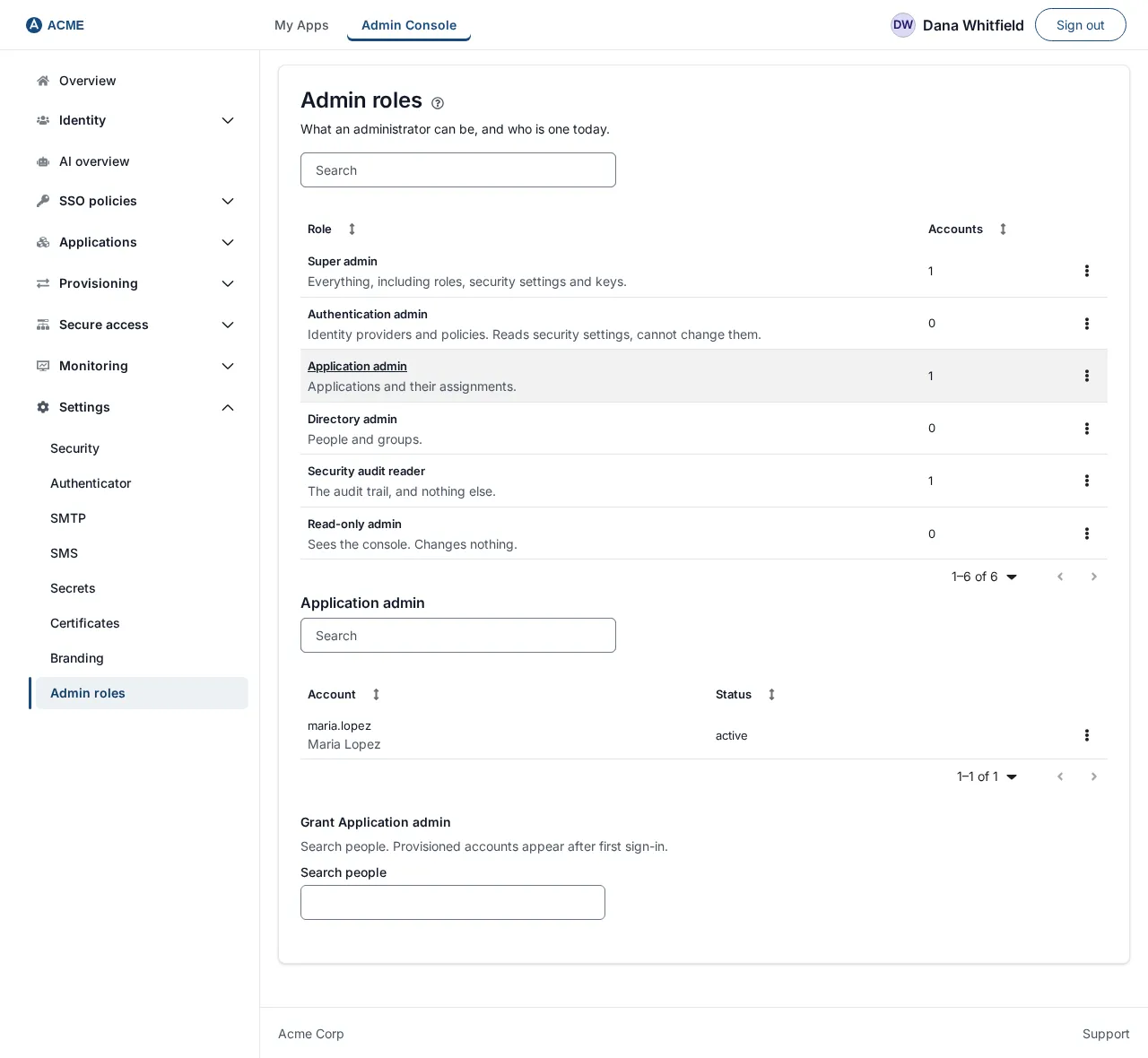
Section titled “1. The six roles”The table Admin Console roles (search with Search roles) lists each role and its Accounts count:
| Role | What it is for |
|---|---|
| Super admin | Everything, including roles, security settings and keys. |
| Authentication admin | Identity providers and policies. Reads security settings, cannot change them. |
| Application admin | Applications and their assignments. |
| Directory admin | People and groups. |
| Security audit reader | The audit trail, and nothing else. |
| Read-only admin | Sees the console. Changes nothing. Where it cannot change something, the page says so in place of the button. |
A fuller description of what each role can do and which menu items it sees is in the console tour. Give people the smallest role that does their job.
What a role sees
Section titled “What a role sees”The console shows each administrator only the menu items their role can read. A page the role can look at but not change shows the words “Your role can view this but not change it.” where the change button would be, and a page only a Super admin may change says “Only a Super Admin can change this.” If an action is attempted anyway, the console says “Your role doesn’t allow this.” Changing an administrator’s account, or administrator membership of a group, is refused for anyone but a Super admin: “Only a Super Admin can change this account.” and “Only a Super Admin can change administrator membership.” The Read-only admin role is the narrowest: it can read people and groups, authentication settings and policies, applications, the audit trail, branding, security settings and the Gateway pages, and every change control is replaced by its reason. Only a Super admin can grant or revoke any role. See also Admin lockout protection.
2. See who holds a role
Section titled “2. See who holds a role”- Select a role’s name, or Open in its actions menu.
- A section titled with the role appears, with a table Accounts with Super admin (for example) listing each Account and Status. An account that was deleted but still holds the role is shown with a warning “no such account”, so it does not sit unnoticed.
- With nobody, the table says Nobody holds this role.
3. Grant a role
Section titled “3. Grant a role”Example: make Maria Lopez an Application admin.
- Open the role Application admin. (Or choose Grant to a person in its actions menu, which opens it and puts the cursor in the search box.)
- Under Grant Application admin, type her name or username in Search people, for example
maria. An account provisioned by your identity provider appears here after its first sign-in. - A table Directory matches lists up to 20 people with Account and Name. Select Grant on her row. (It is grayed out if she already holds the role.)
- The page says Granted Application admin. and her name joins the table.
- Ask her to sign in again, then to open
/admin/.
4. Revoke a role
Section titled “4. Revoke a role”- Open the role and find the person in Accounts with ….
- Select Revoke on their row. The page says Revoked Application admin.
You cannot remove the last Super admin. The page says: This is the only super admin. Give another active account the role first.
Other messages: Could not load the roles., Could not load who holds Super admin. (reload), Could not read the current roles for that account. and Could not change the roles for that account. (try again).