Secrets management and encryption key rotation
SSOGEN signs in to other systems on your behalf: it binds to your directory with a service account, sends mail through your mail server, pushes accounts to an application with a token. Those passwords and tokens are secrets. The Secrets page is where you store them, replace them and delete them. Secrets are encrypted before they are saved, they take effect immediately without a restart, and no secret is ever shown again after you save it. The same page lets you rotate the encryption key that protects them (section 5).
Open it: Admin Console, Settings, then Secrets. Only a Super admin or an Authentication admin can use this page. Other roles do not see the menu item; if they reach the page anyway they are refused (“The secrets could not be loaded.”).
How secrets are used
Section titled “How secrets are used”Most of the time you will not come here at all. When you configure a directory, an identity provider, SMTP or an outbound provisioning connection, the form for it has its own field for the password or token, stores it as a secret owned by that object, and removes it again when the object is deleted. Those secrets appear in the list below, marked with their owner.
You come to this page to:
- store a secret first and refer to it later, when a form asks for a secret reference;
- replace a secret (for example after a password rotation) without editing everything that uses it;
- delete a secret that is no longer needed;
- change the key that encrypts all of them (section 5).
A reference is a short address for a secret, shown in the Reference column and looking like secret://stored/…. Anywhere SSOGEN asks for a reference, paste it. The secret’s value never travels with the reference.
1. Store a secret
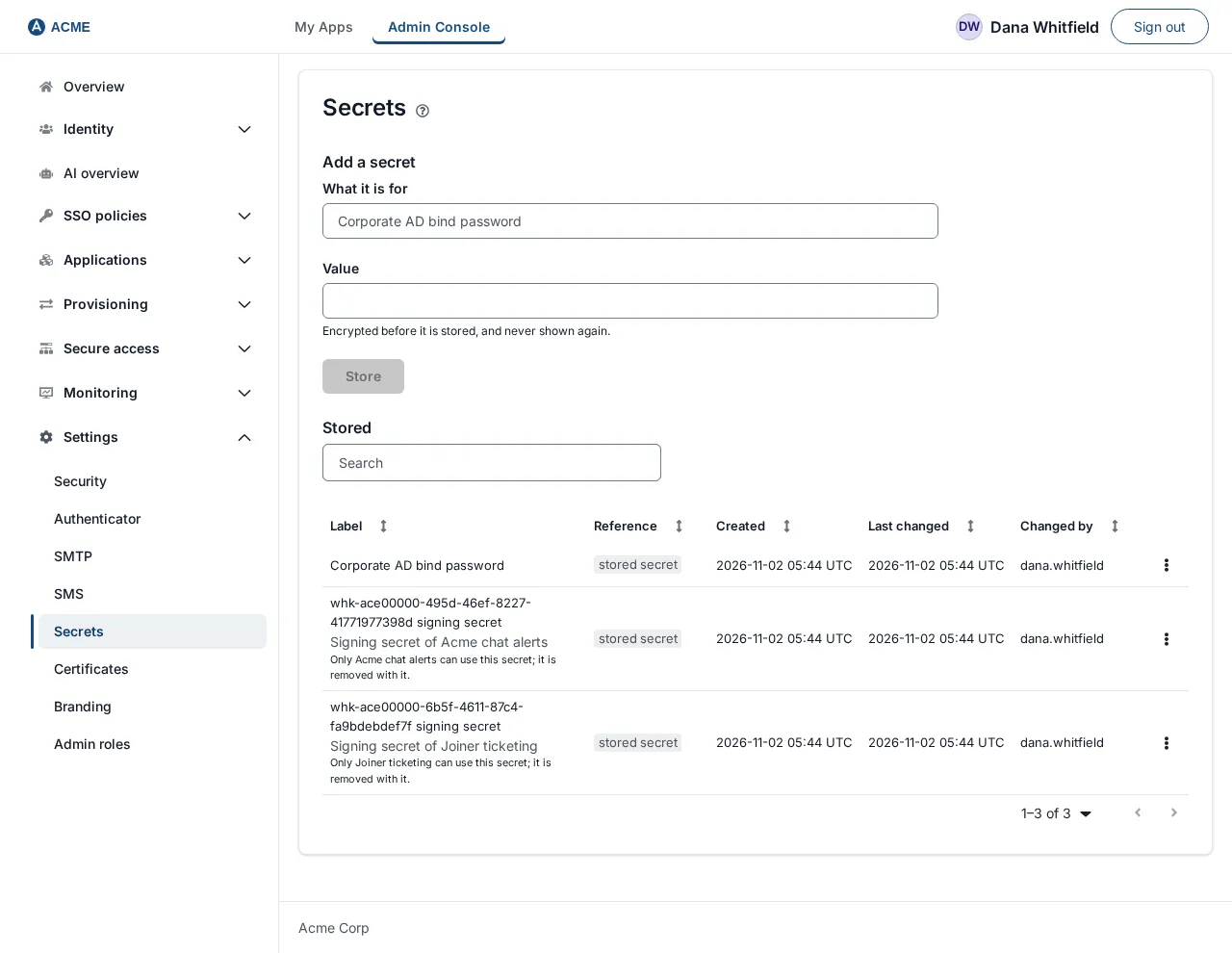
Section titled “1. Store a secret”Example: the bind password of Acme Corp’s service account svc-ssogen.
- Open Settings, then Secrets.
- Under Add a Secret, fill in:
| Field | What to enter | Example |
|---|---|---|
| What it is for | A label for people. Up to 128 characters. | Corporate AD bind password |
| Value | The secret. The field hides what you type. Between 1 and 16,384 characters. Below it: Encrypted before it is stored, and never shown again. | (the password) |
- Select Store. (It stays gray until both fields have text.)
- A green message says
"Corporate AD bind password" is stored. Refer to it as:and shows the reference in a box. Copy it where you need it, then select Done.
The new secret now appears under Stored.
If your server has no secret encryption key, a warning at the top says: This deployment has no secret encryption key, so secrets cannot be stored here. Set SSOGEN_SECRETS_MASTER_KEY and restart, or keep using secret://env/NAME references. Store is disabled. Your operator has to fix this first; see Backups and upgrades.
2. The list of stored secrets
Section titled “2. The list of stored secrets”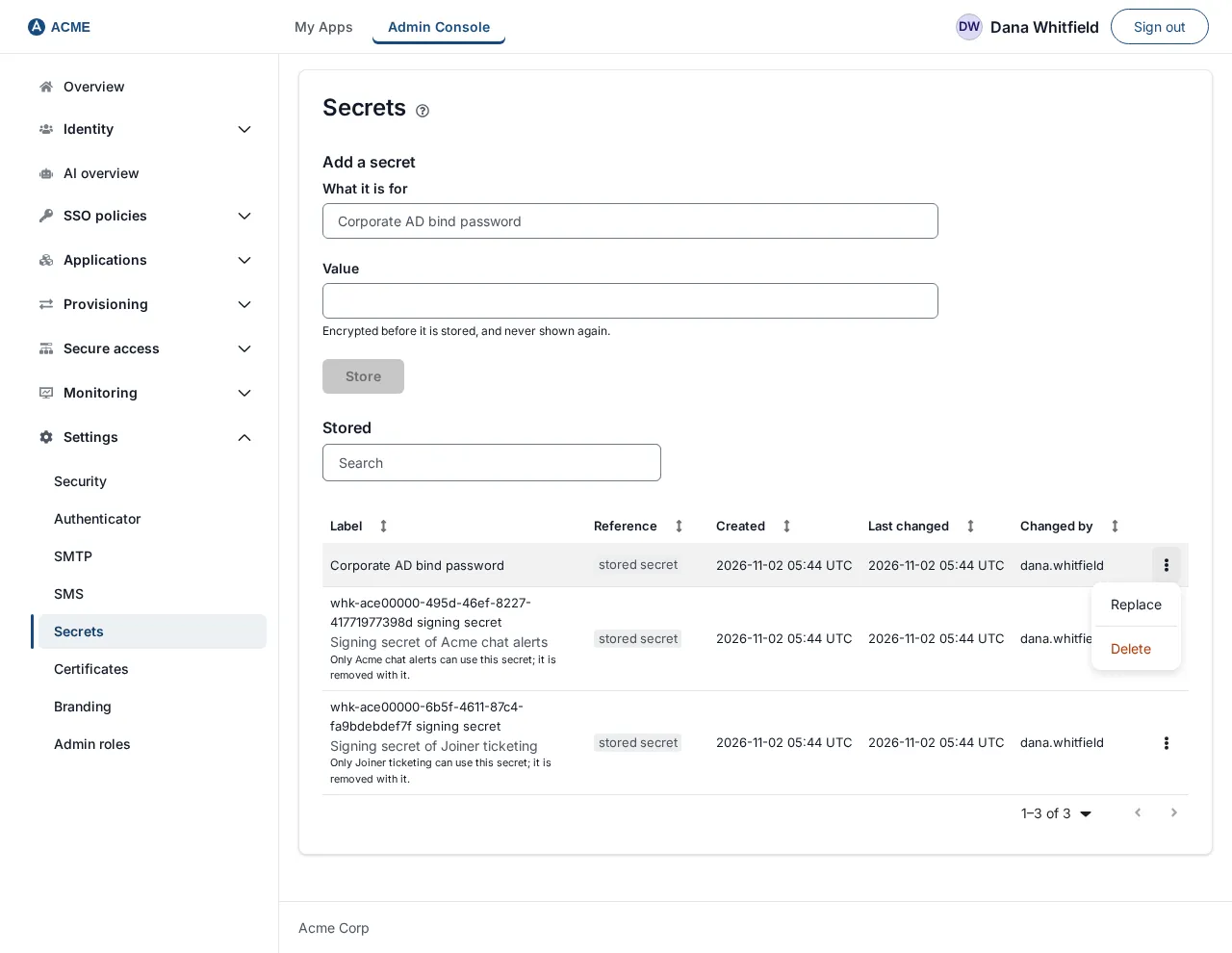
Under Stored a table called Stored secrets lists every secret. Type in Search stored secrets to filter by label, reference or owner name. The columns are:
| Column | Meaning |
|---|---|
| Label | The name. A secret that belongs to something shows who under the label, for example “Bind password of Corporate AD” with a link to it, and the note Only Corporate AD can use this secret; it is removed with it. |
| Reference | The address to paste elsewhere. |
| Created, Last changed, Changed by | When it was stored, when its value last changed and which administrator did it. |
Each row has an actions menu, named Actions for and the label, with Replace and Delete.
Kinds of owned secret you may see: Bind DN and Bind password (a directory), Client secret, SMTP password, Twilio auth token, Twilio API key secret, AWS secret access key, HTTP header token, HTTP basic password, HTTP client key, HTTP body secret, SCIM token, Form-fill password, Signing secret and TLS private key.
With nothing stored the page says No secrets stored yet. and offers Store a secret, which puts the cursor in What it is for.
3. Replace a secret
Section titled “3. Replace a secret”Replace changes the value behind a reference, so everything that uses it keeps working without being edited.
- In the row’s actions menu, select Replace. A line appears above the table with a hidden field labeled New value for Corporate AD bind password.
- Type the new value and select Save. (Or Cancel.)
- The new value is used the next time something needs the secret. Nothing is shown back to you.
Notes:
- A secret that belongs to a directory, provider or application can be replaced here only if your role may also edit that object. If you may not, Replace is not offered on that row.
- The private key of an App Proxy certificate (shown as “App Proxy certificate key of …”) cannot be replaced or deleted here: Rotate the certificate under App Proxy certificates to change the key; deleting the certificate there removes the key, and a certificate that hostnames or listeners still use cannot be deleted until they stop using it.
4. Delete a secret
Section titled “4. Delete a secret”- In the actions menu, select Delete.
- A dialog Delete Corporate AD bind password? says: Anything using this secret fails the next time it needs it, not now. To change the value, replace it instead.
- Select Delete to confirm.
SSOGEN does not check whether something still refers to the secret, because a reference can be written in many places. Search for the reference before deleting.
A secret that belongs to a live directory, provider or application cannot be deleted here, so Delete is not offered on its row. Clear it on the object, or delete the object; the secret is removed with it. If its owner has already been deleted (an orphan, marked “(deleted)” with the note Its owner no longer exists, so nothing can use this secret. Delete it.), you can delete it, and the dialog says Its owner was deleted, so nothing can use this secret any more. It is removed for good.
5. Rotate the secret encryption key (operator task)
Section titled “5. Rotate the secret encryption key (operator task)”Every secret is encrypted with one key held outside the database (the secret encryption key). To change it, an operator and an administrator work together:
- Operator: put the current key into the variable
SSOGEN_SECRETS_PREVIOUS_MASTER_KEY, put the new key intoSSOGEN_SECRETS_MASTER_KEY, and restart SSOGEN once. Everything keeps working: SSOGEN can read with either key. - Administrator: open Settings, then Secrets. A warning appears: N secrets are still encrypted under an older key. followed by They are readable because the previous key is still configured. Re-encrypt them under the current key, then remove SSOGEN_SECRETS_PREVIOUS_MASTER_KEY from the environment.
- Select Re-encrypt under the current key. The page reports Re-encrypted 12; 3 already current. (your numbers will differ). Pressing it twice is harmless.
- The page now shows Every secret is encrypted under the current key. The operator can remove
SSOGEN_SECRETS_PREVIOUS_MASTER_KEYat the next restart.
If the report ends with No configured key opens these, so their values have to be entered again: and a list of names, those secrets were encrypted with a key that is no longer configured. Enter each again with Replace.
If the old key was already removed, the warning reads The key that wrote them is no longer configured, so they cannot be read. Re-encrypting will name the ones that have to be entered again.
Environment references
Section titled “Environment references”Some settings can also point at an environment variable on the SSOGEN server, written secret://env/NAME. This is switched off by default: an operator must list the permitted names in SSOGEN_SECRETS_ENV_ALLOWED (exact names, or a prefix ending in * such as SSOGEN_LDAP_*). SSOGEN’s own variables (database, keys, enrollment tokens) never resolve, whatever is listed.
Errors
Section titled “Errors”| Message | Meaning |
|---|---|
| The secrets could not be loaded. | The page could not read the list (including when your role is not allowed). Reload; ask a Super admin to check your role. |
| That secret could not be stored. | The label was empty or over 128 characters, or the value was empty or too long. |
| A value is required. | The value was empty. |
| That could not be done. | A general failure. Reload and try again. |
| That secret could not be deleted. | Reload; it may already be gone. |
Related pages: Branding and Admin roles, Webhooks (a webhook’s signing secret is kept encrypted in the same way).
Related guides
Section titled “Related guides”Read the operator security notes for the settings to leave alone, and the backup and upgrade guide for what to save before a key change.