Custom user attributes and profile fields
Every person in SSOGEN has a name, an email and a mobile phone. An attribute (a custom user attribute) is an extra field you define for your organization, such as a badge number, a department code or a personal email for recovery. Once defined, an attribute can be filled in three ways: from a connected directory or an identity provider (by mapping it), from a CSV file when you import users, and it is shown on each person’s Overview tab with where its value came from.
1. Open the page
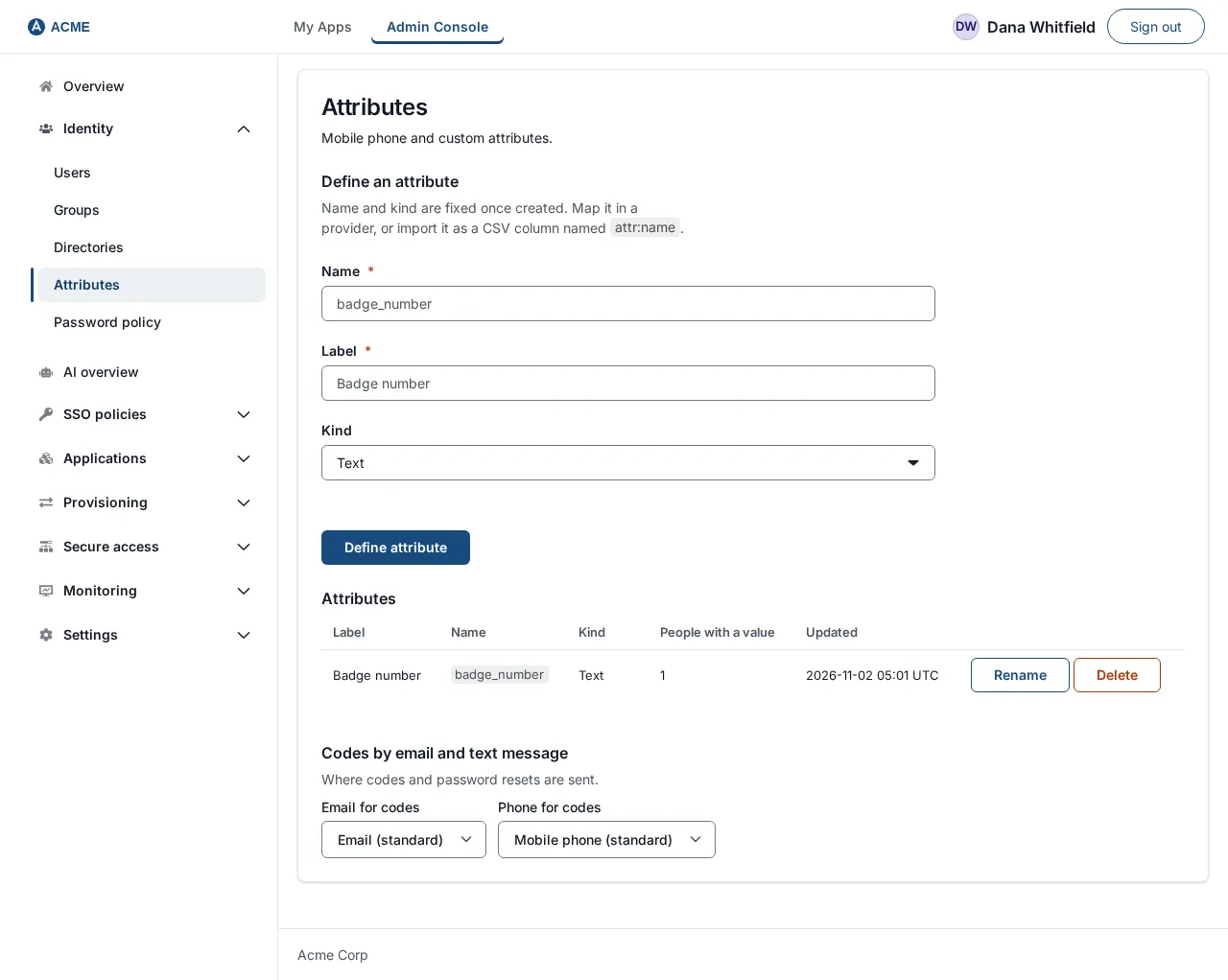
Section titled “1. Open the page”Open Identity → Attributes. The page is titled Attributes: “Mobile phone and custom attributes.”
2. Define an attribute
Section titled “2. Define an attribute”The section Define an attribute says: “Name and kind are fixed once created. Map it in a provider, or import it as a CSV column named attr:name.” Only roles that can change the directory see the form.
-
Fill in three fields:
Field What to enter Example Name The machine name. It starts with a lowercase letter, then lowercase letters, digits and underscores, up to 48 characters. It cannot be changed later. badge_numberLabel What people see, 1 to 128 characters. You can change it later. Badge numberKind Text, Email address or Phone number. Cannot be changed later. Email and phone kinds are checked as such, and only they can be chosen as the place sign-in codes go. Text -
Choose Define attribute. An empty field is named beside it: “Enter a name, for example badge_number.” or “Enter a label, for example Badge number.”
The attribute appears in the table Attributes with its Label, Name, Kind, People with a value, Updated and the buttons Rename and Delete. Before any exist the page says No custom attributes are defined.
Refusals:
| Message | Meaning |
|---|---|
| Use a lowercase letter first, then lowercase letters, digits or underscores, up to 48 characters. | Fix the name. |
| That name is one of the standard fields. Choose another. | For example email. |
| Give it a label of 1 to 128 characters. | |
| An organization holds at most 64 attributes. Delete one you no longer use first. | The limit is 64. |
| An attribute with that name already exists. | |
| Changing profile attributes needs the directory write permission. | Your role is read-only. |
| That attribute could not be saved. | Any other failure. |
3. Rename an attribute
Section titled “3. Rename an attribute”- On the attribute’s row choose Rename. The label becomes an input.
- Type the new label and choose Save (or press Enter). Cancel (or Escape) leaves it unchanged.
Only the label changes. People’s values and every mapping stay as they were.
4. Delete an attribute
Section titled “4. Delete an attribute”- Choose Delete on the row. The dialog Delete label? says how many people lose their value: “Values for 12 people are deleted. This cannot be undone.” (or “No one has a value for it. This cannot be undone.”).
- Choose Delete attribute.
If something still uses the attribute the console refuses and says what: This attribute is still in use by the claim mapping of provider, the extra attributes of directory, the Email for codes setting. Change those first, then delete it. Change those first and then delete it. Other messages: That attribute no longer exists.
5. Fill an attribute
Section titled “5. Fill an attribute”From a CSV import. Add a column named attr: plus the attribute name, for example attr:badge_number, to the file in Import users. A column naming an attribute that is not defined makes the file refused. The values are recorded as imported.
From a directory. Directories can keep extra LDAP attributes; the console refuses to delete an attribute while a directory’s extra attributes still use it. See Connect Active Directory or LDAP.
From an identity provider. In a SAML or OpenID Connect provider’s claim mapping, map the claim to Mobile phone or to Custom attribute…, then your attribute (it appears as Label (custom)).
By an administrator. The Edit profile form on a user (Manage users) has only the standard fields; it has no box for custom attributes. There is no other console route to type a custom value by hand; values arrive by CSV import, from a directory or identity provider, or from the person.
On a person’s Overview tab each custom attribute shows its label and value followed by its source: CSV import, Set by an administrator, Set by the person, Directory name or Identity provider name. An attribute with no value for a person is not listed on their record.
6. Choose where sign-in codes and password resets go
Section titled “6. Choose where sign-in codes and password resets go”At the bottom, Codes by email and text message says “Where codes and password resets are sent.” (This section is shown only to roles that may read security settings.) There are two pickers:
| Picker | Choices |
|---|---|
| Email for codes | Email (standard), plus every attribute of kind Email address, shown as Label (custom). |
| Phone for codes | Mobile phone (standard), plus every attribute of kind Phone number. |
Choosing an entry saves it at once. A role without the right to change security settings is refused. An attribute that cannot be used gets That attribute cannot be used for codes. Choose one of the listed attributes.
This is how Acme uses a personal address for a field team: define personal_email of kind Email address, import it from the HR file, choose it under Email for codes.
End-to-end example: a badge number from HR
Section titled “End-to-end example: a badge number from HR”- Identity → Attributes. Name
badge_number, LabelBadge number, Kind Text. Define attribute. - Prepare a CSV with the header
username,email,display_name,attr:badge_numberand one rowmaria.lopez,maria.lopez@acme.example,Maria Lopez,B-10442. - Identity → Users → Import users, choose the file. The page says “0 mobile phones and 1 custom attribute value will be recorded as imported.” Choose Import 1 person.
- Open Maria on Identity → Users. The Overview tab shows Badge number
B-10442with the note CSV import. - Back on Identity → Attributes, People with a value now reads 1. Try Delete: the dialog says “Values for 1 person are deleted. This cannot be undone.”
Troubleshooting
Section titled “Troubleshooting”| Symptom | Cause and fix |
|---|---|
| Define attribute shows “Enter a name…” or “Enter a label…” | Name and Label are both required. |
| The CSV file is refused with a message about an unknown column | The attr: name is not defined, or is misspelled; define it first. |
| An attribute cannot be deleted | Something still maps to it; the message names what. |
| The Codes by email and text message section is missing | Your role cannot read security settings. |
| A person’s value is overwritten | A directory or provider owns it and rewrites it at sign-in or sync; change it at the source. |