SSOGEN / Oracle EBS LDAP authentication with Active Directory
Integration
Oracle EBS LDAP authentication with Active Directory
SSOGEN checks the password against Active Directory or another LDAP directory at every sign-in and keeps no copy, so there is nothing to synchronize.
Which directories
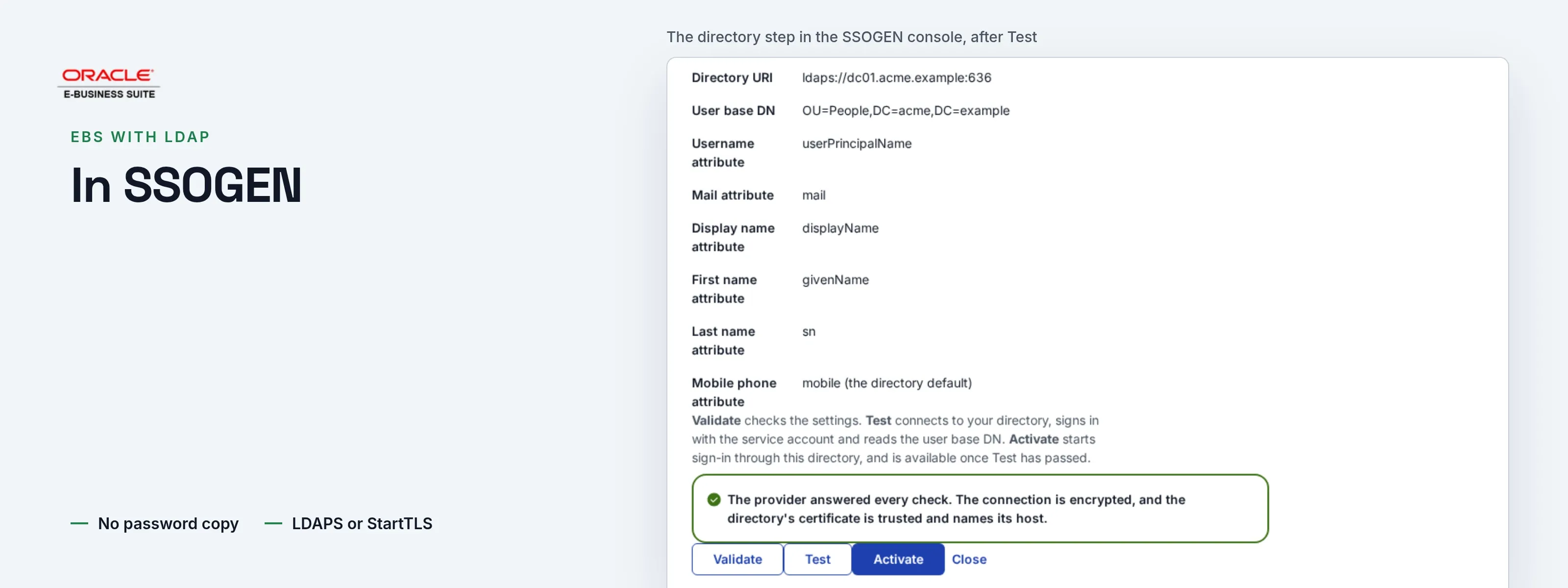
Active Directory, and any other directory that speaks LDAP over LDAPS or StartTLS and holds a user name, an email address and a name per person: OpenLDAP, 389 Directory Server, Apache Directory, Oracle Internet Directory and Oracle Unified Directory, Radiant Logic, UnboundID, OpenDJ, OpenDS, IBM and CA directories, NetIQ. The wizard has a directory type for Microsoft Active Directory (it fills in sAMAccountName, mail, displayName, givenName, sn); for the others the defaults are uid, mail and cn, and every attribute can be renamed.
Windows native sign-in with Kerberos sits on top of the directory, so people on the office network need not type anything: Kerberos. For critical environments a second factor follows the password: multi-factor.
No Oracle Access Manager, Oracle Internet Directory or Oracle Unified Directory is needed to use a directory this way. Where the password already goes through Entra ID or AD FS, connect that instead and the password never passes through SSOGEN: Entra ID, AD FS.
How a sign-in goes
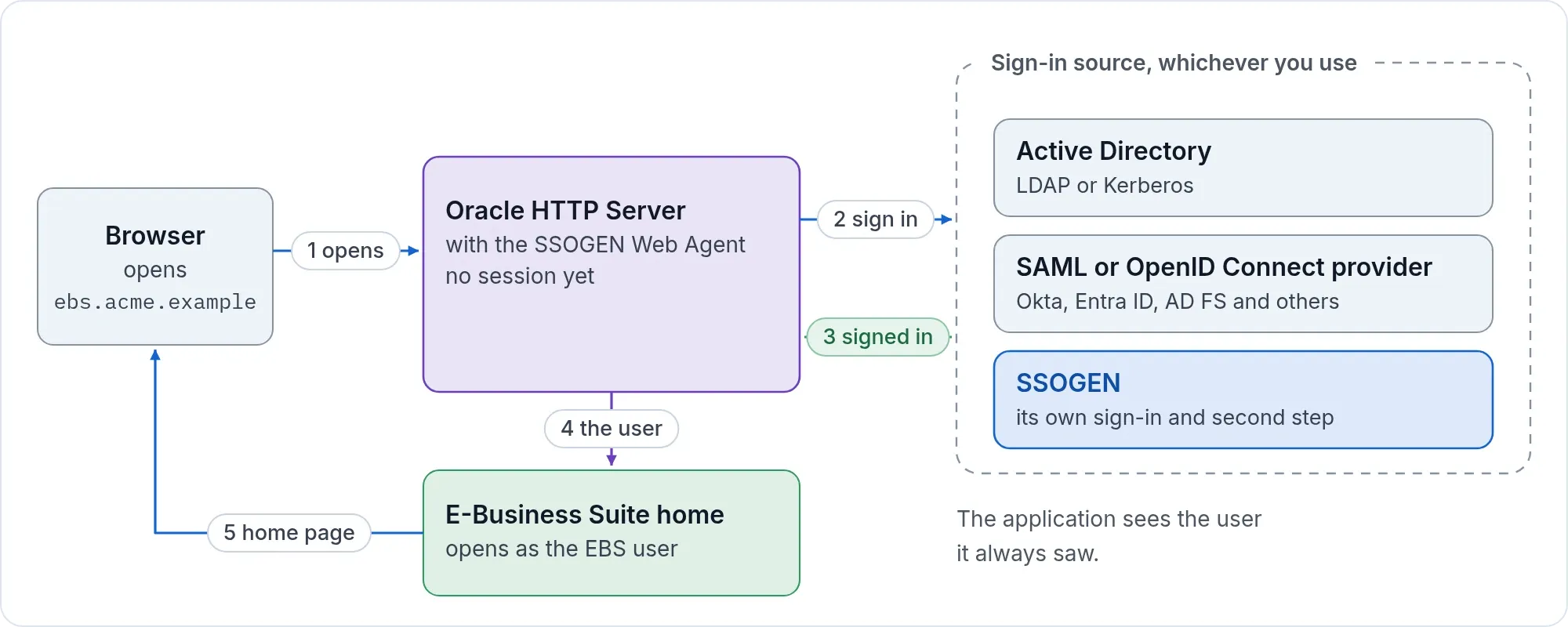
- A person opens
https://ebs.acme.example/OA_HTML/AppsLogin. - The SSOGEN Web Agent sends the browser to the SSOGEN sign-in page, with Username and Password fields.
- John Doe types
jdoeand his Windows password. SSOGEN looks him up, checks the password with the directory, asks for a second factor if the policy says so, and sends the browser back. - EBS opens his home page.
What you need
- A directory server that offers LDAPS (usually port 636) or StartTLS (usually 389), with a certificate that names the host you will type, such as
dc01.acme.example. - A read-only service account.
- The user base DN, such as
OU=Staff,DC=acme,DC=example. - The certificate of your own certificate authority in PEM form, if it issued the directory’s certificate.
- SSOGEN’s server must reach the directory on its port.
- Oracle E-Business Suite 12.2 or 12.1, and the SSOGEN integration tool for it.
In the directory
Create a service account, for example svc-ssogen-ro in OU=Service Accounts,DC=acme,DC=example, with a long password and no groups beyond Domain Users. It needs no write access. Make sure the domain controllers offer LDAPS with a certificate that names the host.
In SSOGEN
- If your own authority issued the directory’s certificate, add the authority under Settings > Certificates, Trusted certificate authorities.
- Identity > Directories, Add directory: display name
Acme directory, connection IDacme-ad. - Connection: LDAPS, Directory URI
ldaps://dc01.acme.example:636, User base DNOU=Staff,DC=acme,DC=example. - Credentials: Bind DN
CN=svc-ssogen-ro,OU=Service Accounts,DC=acme,DC=exampleand its password (stored encrypted). - User mapping: Directory type Microsoft Active Directory. The username attribute is
sAMAccountName; if people sign in asjohn.doe@acme.example, typeuserPrincipalName. - Group mapping:
memberOfandcn; if the directory has nomemberOf, give a Group base DN. At most 64 groups per person are read. - Create, validate and test, then Try connection with a real username to see whether that person can sign in, step by step. Activate, and tick the directory under First factor, Password in the policy that covers EBS.
There is no LDAP filter field: the user base DN, a username attribute that matches exactly one entry and an enabled account decide who can sign in. Every field and message is on Active Directory and LDAP.
On the EBS side
- Register EBS in SSOGEN as a Web Agent application with the Client URL
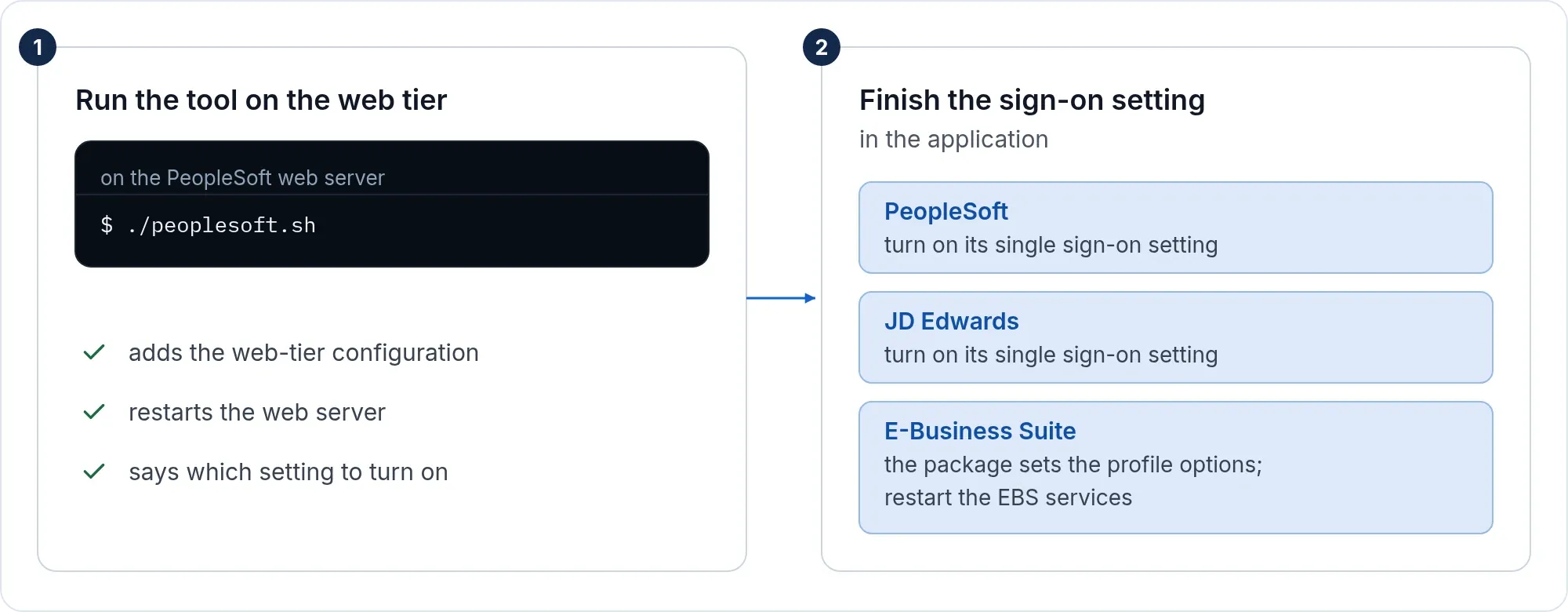
https://ebs.acme.example. Set Identify the person by to the value that equals the EBS user name. WithsAMAccountNameas the username,jdoegives EBS userJDOE; the agent sends it in capitals and never cuts off a domain part. - Run the tool and finish the setting in EBS as on the Oracle EBS single sign-on page. The tool sets Applications SSO Type to
SSWA w/SSO,APPS_AUTH_AGENTtohttps://ebs.acme.example/accessgate, Login Types toBoth, Auto Link User toYesandAPPS_SSO_LDAP_SYNCtoNo. - Create the EBS users. EBS links each to the signed-in account at the first sign-in.
- Accounts that are not in the directory, such as
SYSADMIN, keep signing in with the EBS password athttps://ebs.acme.example/OA_HTML/AppsLocalLogin.jsp.
Everyone under the user base DN whose password the directory accepts can sign in to SSOGEN; whether they can open EBS follows the assignment of the application. To create the accounts before anyone signs in, a Super admin selects Import users on the directory’s page.
If it does not work
| Symptom | What to do |
|---|---|
| “The directory’s certificate is not trusted” | Add the issuing authority under Settings > Certificates. |
| “The certificate does not name this host” | The Directory URI uses an IP address or alias. Use the name on the certificate. |
| “The directory refused the bind credentials” | Wrong bind DN or password, or the account is locked. |
| “Your username or password is incorrect” with the right password | The username attribute does not match what people type, or they are outside the base DN. Try connection shows the step. |
| Sign-in works, EBS does not know the user | The name sent is not an EBS user name. Change Identify the person by. |
When SSOGEN’s server cannot reach the directory over LDAPS or StartTLS, connect the directory through Entra ID or AD FS instead.