SSOGEN / Learn / MFA Fatigue Attacks: How Push Bombing Works and How to Stop It
Learn
MFA Fatigue Attacks: How Push Bombing Works and How to Stop It
MFA fatigue is when an attacker who has your password triggers prompt after prompt until you tap Approve, by mistake or just to make them stop.
Updated
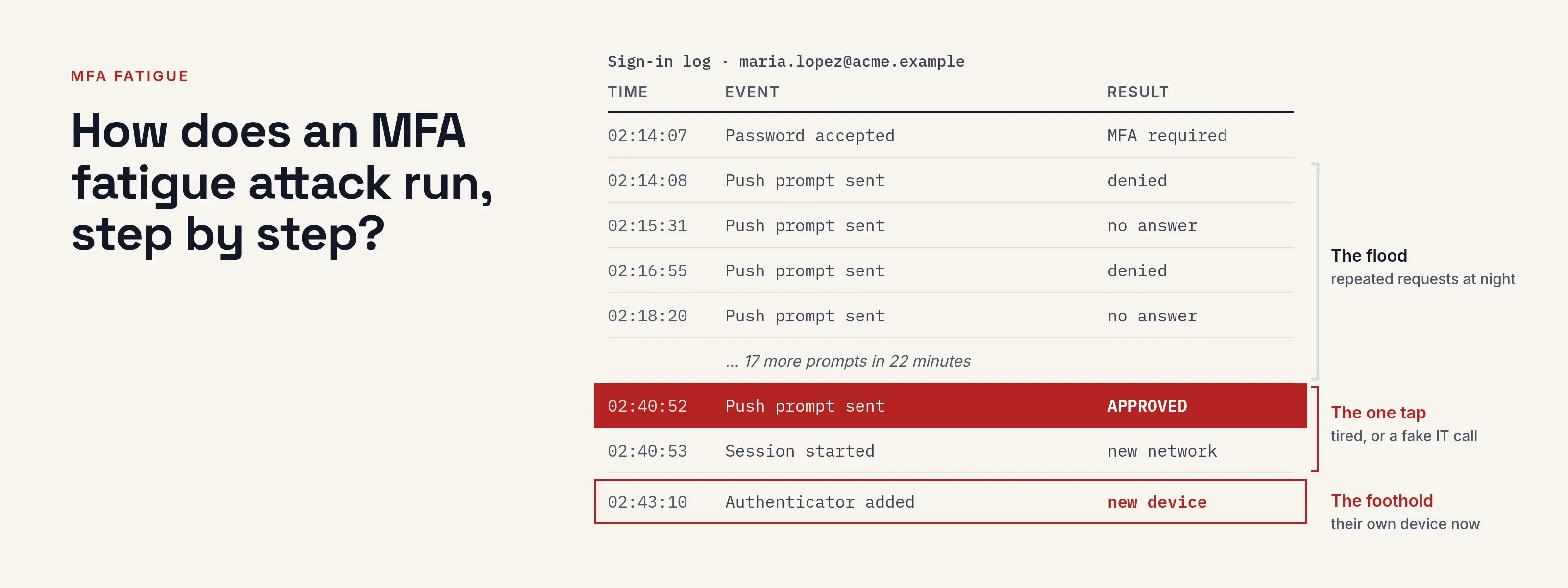
MFA fatigue is an attack on push-based sign-in approvals. The attacker already holds a valid username and password and signs in repeatedly. Each attempt sends a push prompt to the real owner’s phone, until the owner taps Approve to stop the prompts or by mistake.
The attack is also called push bombing or push fatigue. CISA’s fact sheet Implementing Phishing-Resistant MFA (October 2022, read 2026-10-09) describes it as bombarding a user with push notifications until they press “Accept”.
No single control stops MFA fatigue. The defenses below work in combination.
How does an MFA fatigue attack run, step by step?
The attack starts with a working password, obtained through phishing, a leaked list of reused passwords, or malware on a personal machine. The sequence is:
- The attacker signs in with the stolen password. The service accepts it and asks for the second step.
- The service sends a push prompt, “Approve sign-in?”, to the owner’s phone.
- The owner did not start a sign-in, so they decline or ignore it.
- The attacker repeats the sign-in. Dozens of prompts can arrive within minutes, sometimes at night.
- Some attackers add a second channel: a call or message, posing as IT support, says the prompts are a known glitch and the user should accept one to clear them.
- The owner accepts one prompt, out of tiredness, confusion or a wish to stop the alerts. The sign-in completes and the attacker has a session.
Prompt bombing, and where number matching and rate limits break it
- Attackerhas the password
- Sign-in service
- Owner phonereal account owner
- Attacker to Sign-in service1Signs in with the stolen passwordThe service accepts it and asks for the second step.
- Sign-in service to Owner phone2Sends a push prompt: Approve sign-in?
- Owner phone to Sign-in service3Owner did not start it, declines or ignores it
- Attacker to Sign-in service4Signs in again, and againDozens of prompts can arrive within minutes, sometimes at night.
- Owner phone to Sign-in service5One tap, from tiredness or confusion, completes the sign-inThe attacker has a session.
- Sign-in service6Rate limit caps second-step requests per minuteA flood becomes a trickle that is easy to see.
- Sign-in service to Owner phone7Number matching: type the number shown on the sign-in pageA bare tap no longer works.
No cryptography is broken. The attack works because a plain Approve/Deny prompt carries no information that ties it to a sign-in the owner started, so a genuine prompt and an attacker’s prompt look identical.
Two companies have published their own incidents:
- Uber, September 2022. An attacker bought a contractor’s password on the dark web and tried to sign in repeatedly. Each attempt sent the contractor a two-factor approval request, and “eventually, however, the contractor accepted one” (Uber security update, 2022-09-19, read 2026-10-09).
- Cisco, reported by Cisco Talos on August 10, 2022. An employee received calls over several days from people posing as trusted support organizations, who pressed the employee to accept push notifications the attacker had started (Cisco Talos, read 2026-10-09). Step 5 above describes this case.
What do the stages of an incident look like?
Each stage leaves a trace an administrator or user can notice:
| Stage | What happens | Where you can notice it |
|---|---|---|
| Credential theft | Password obtained somewhere else | Breach notices, impossible-travel sign-ins |
| Prompt flood | Many second-step requests for one account in a short time | Sign-in logs: repeated requests, then one success |
| Social contact | A call or chat claiming to be IT | A user reporting an odd call |
| Approval | One prompt accepted | A success from an unfamiliar network or device right after many failures |
| Foothold | Attacker registers their own device as a second factor, or reaches mail and files | New authenticator or passkey added, unusual mailbox rules |
Watch the foothold stage most closely. Once an attacker registers their own authenticator, they no longer need the owner’s phone.
How do you defend against MFA fatigue?
Number matching
With number matching, the sign-in page shows a number that the user must type into the authenticator app to approve. A bare tap no longer works, and a user who did not start the sign-in never sees the number.
- CISA’s fact sheet rates mobile push with number matching as resistant to push bombing, and push without it as vulnerable.
- Microsoft’s How number matching works in MFA push notifications for Authenticator (read 2026-10-09) states that number matching is on for all Authenticator push notifications and users can’t opt out.
Rate limits and lockouts
Cap the number of second-step requests one account can trigger per minute, and lock the second step after repeated failures. A limit does not stop a patient attacker. It turns a flood into a trickle that is easy to spot.
Phishing-resistant methods
The strongest defense removes the prompt entirely.
- Physical gesture. A passkey or security key requires a gesture on a device the attacker does not hold.
- Bound to the site. The credential is bound to the real site.
- Gold standard. CISA calls phishing-resistant MFA the gold standard, with FIDO/WebAuthn as its example.
Read phishing-resistant MFA and compare methods in MFA types.
Alerting
Alert on the pattern rather than a single prompt:
- several denied or unanswered second steps on one account, followed by a success;
- a new device or authenticator registered soon after that success.
Route the alert to someone who can act the same day.
User guidance
Users tap Approve when they are unsure. Give them one rule they can follow without judgment, for example this message:
Subject: If your phone keeps asking you to approve a sign-in
If you get an approval request you did not start, do not tap Approve, even if it keeps coming. Tap Deny, then tell us right away at help@acme.example or extension 0100.
Nobody from IT will ever call, text or message you asking you to approve a request or read out a code. If someone does, hang up and report it.
Repeated requests mean someone may have your password, so we will reset it for you.
Limit what a stolen password buys
Use short sessions for sensitive applications and require a fresh second step for risky actions, so one mistaken approval grants less. See step-up authentication.
What should someone do after an accidental approval?
- Report it to the help desk immediately. Speed matters more than embarrassment.
- Change the password from a trusted device, not one the attacker may be using.
- Sign out all sessions and review the registered authenticators and passkeys. Remove any you did not add.
- Ask the administrator to check the sign-in log for the time of the approval and for what the session accessed.
- Check mail forwarding rules and recent file access.
- Treat the source of the password leak as breached. Change the password on every other account that reused it.
How SSOGEN approaches it
SSOGEN’s second steps are an authenticator app code, a passkey, an emailed or texted code, or a recovery code.
The user types the code after the password is checked, as described in the multi-factor authentication guide, so there is no bare Approve tap to bomb.
A sign-in has 5 minutes to finish that screen, and each code survives five wrong guesses at most.
- Limits. The security settings allow 5 second-step code attempts per person and client per minute by default, then lock the second step for 15 minutes after 10 failed codes in a row. Both values are adjustable.
- Strength. For sensitive applications, an administrator can require Passkey or security key as the strength.
- Visibility. Users review their own recent sign-ins and changes under sessions and activity. Administrators read sign-ins and refusals in the audit log; each entry shows when, from where, who and what, and can be filtered by result.
- Alerts. SSOGEN emails the account owner when a passkey is added or removed.
Questions people ask
What is the goal of an MFA fatigue attack?
To turn a stolen password into a working session by getting the real owner to approve a sign-in.
What is another name for an MFA fatigue attack?
Push bombing or push fatigue, per CISA’s fact sheet.
Does number matching stop it completely?
It removes the blind tap. A user who is also being phished on a fake page can still be tricked into entering the number, which is why phishing-resistant methods rank higher.
Do codes from an authenticator app have the same problem?
No prompt is sent, because the user types a code. A fake page can still phish that code.
Where to go next
Compare second steps in MFA types, read about phishing-resistant MFA, or return to the Learn hub. For a rollout order, see passwordless authentication.
Sources, all read 2026-10-09: CISA fact sheet, Uber security update, Microsoft number matching.