SSOGEN / SAML single sign-on for GitLab with SSOGEN
SSOGEN
SAML single sign-on for GitLab with SSOGEN
Two setups share one page: a group Owner configures SAML in the browser on GitLab.com, and an administrator edits gitlab.rb on a self-managed instance.
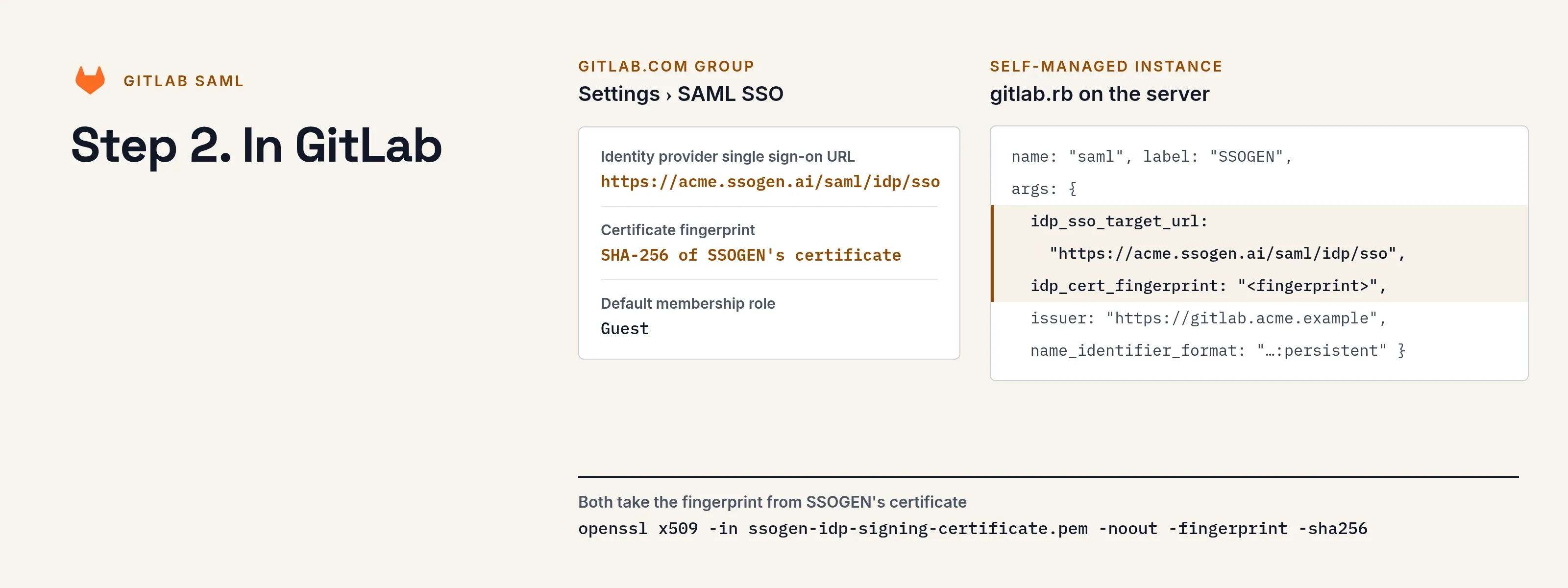
There are two setups. On GitLab.com a group Owner configures SAML for one top-level group in the browser. On GitLab Self-Managed a server administrator configures SAML for the whole instance in /etc/gitlab/gitlab.rb. The examples use the group acme on GitLab.com, the instance https://gitlab.acme.example, and SSOGEN at https://acme.ssogen.ai.
What you need
- GitLab.com: Premium or Ultimate, and the Owner role on the top-level group. Self-Managed: shell access to the server, and GitLab served over HTTPS.
- An SSOGEN administrator who can save SAML applications (see Add a SAML application in SSOGEN).
openssl, or another tool that prints a certificate’s SHA-256 fingerprint.
Step 1. In SSOGEN: add GitLab
Follow Add a SAML application in SSOGEN with the gallery card GitLab and these values:
| SSOGEN field | GitLab.com group | GitLab Self-Managed |
|---|---|---|
| Service provider entity ID | Identifier from the group’s Settings > SAML SSO page | https://gitlab.acme.example (the issuer you set in step 2) |
| Assertion consumer service URL | Assertion consumer service URL from the same page | https://gitlab.acme.example/users/auth/saml/callback |
| Identify the person by | SSOGEN user ID, permanent (recommended) | the same |
| Launch URL (https) | GitLab single sign-on URL from the same page | https://gitlab.acme.example/users/sign_in |
Add one attribute: email with the value email. GitLab requires it.
GitLab wants a name ID that never changes; changing it after people have signed in locks them out. Keep the permanent SSOGEN user ID.
Assign the person who will run the first sign-in. On the Integration tab select Download certificate (PEM) and print the fingerprint:
openssl x509 -in ssogen-idp-signing-certificate.pem -noout -fingerprint -sha256Step 2. In GitLab
GitLab.com group
-
Open the group, then Settings > SAML SSO. Copy Assertion consumer service URL, Identifier and GitLab single sign-on URL into SSOGEN (step 1).
-
Under Configuration fill in:
GitLab field Value Identity provider single sign-on URL https://acme.ssogen.ai/saml/idp/ssoCertificate fingerprint The SHA-256 fingerprint from step 1 Default membership role The role new members get, for example Guest -
Select Enable SAML authentication for this group. Leave the three enforcement boxes clear for the first test. Select Save changes.
-
Select Verify SAML Configuration. GitLab sends you through SSOGEN and shows what it received.
-
Link your own account: while signed in to GitLab.com, open the GitLab single sign-on URL and select Authorize.
When members have linked their accounts, select Enforce SSO-only authentication for web activity for this group (and, if wanted, the Git and Dependency Proxy box) and Save changes.
GitLab Self-Managed
-
Add the provider to
/etc/gitlab/gitlab.rb:gitlab_rails['omniauth_allow_single_sign_on'] = ['saml']gitlab_rails['omniauth_block_auto_created_users'] = falsegitlab_rails['omniauth_providers'] = [{name: "saml",label: "SSOGEN",args: {assertion_consumer_service_url: "https://gitlab.acme.example/users/auth/saml/callback",idp_cert_fingerprint: "<SHA-256 fingerprint from step 1>",idp_sso_target_url: "https://acme.ssogen.ai/saml/idp/sso",issuer: "https://gitlab.acme.example",name_identifier_format: "urn:oasis:names:tc:SAML:2.0:nameid-format:persistent"}}] -
Run
sudo gitlab-ctl reconfigure. -
The sign-in page now shows an SSOGEN button below the regular form.
To link a SAML sign-in to an existing GitLab user with the same primary email, add gitlab_rails['omniauth_auto_link_saml_user'] = true. To send every sign-in straight to SSOGEN, add gitlab_rails['omniauth_auto_sign_in_with_provider'] = 'saml'; local sign-in then stays reachable at https://gitlab.acme.example/users/sign_in?auto_sign_in=false.
Step 3. People and a sign-in test
- Assign the people or groups who use GitLab on the application’s Assignments tab in SSOGEN.
- GitLab.com: a person who already has a GitLab.com account opens the GitLab single sign-on URL (or the SSOGEN tile, which opens it) and links the account once. A person without an account gets one at first sign-in, with the default role.
- Test as a second, ordinary user in a private browser window before you enforce.
On GitLab.com, Owners can still open the top-level group’s settings without SSO while web enforcement is on. On Self-Managed, local accounts such as root keep their password sign-in.
Signing in
People select GitLab in My Apps. On GitLab.com the tile opens the group’s single sign-on address; on Self-Managed it opens the sign-in page, where people select SSOGEN. They see SSOGEN’s sign-in page only if they have no SSOGEN session yet.
Troubleshooting
| GitLab says | Cause |
|---|---|
SAML authentication failed: Email can't be blank |
The email attribute is missing. Add it on the application’s Identity sent to app tab. |
Fingerprint mismatch, or 404 during Verify SAML Configuration |
The fingerprint in GitLab is not the one of SSOGEN’s current certificate. Print it again. |
Request to link SAML account must be authorized |
An existing GitLab.com account is being linked without starting from the GitLab single sign-on URL, or the person is not assigned in SSOGEN. |
SAML authentication failed: Extern uid has already been taken. |
Another GitLab account already holds this name ID. |
| Invalid audience | The entity ID in SSOGEN is not GitLab’s Identifier or issuer. Watch for trailing spaces. |