SSOGEN / Single sign-on for Google Workspace with SSOGEN
SSOGEN
Single sign-on for Google Workspace with SSOGEN
Create one SAML SSO profile in Google Admin, assign it to a test group first, and keep a super administrator who can still sign in with a password.
The examples use the domain acme.example and SSOGEN at https://acme.ssogen.ai.
What you need
- A Google administrator with the Security Settings privilege.
- Every person as a Google user whose primary email equals their email in SSOGEN. Google does not create users at sign-in.
- A super administrator with a known Google password and 2-Step Verification, for the way back in.
- An SSOGEN administrator who can save SAML applications (see Add a SAML application in SSOGEN).
Step 1. In SSOGEN: add Google Workspace
Google shows its two values only after its profile is saved, so do points 1 to 4 of step 2 first. Then follow Add a SAML application in SSOGEN with the gallery card Google Workspace:
| SSOGEN field | Value for Google Workspace |
|---|---|
| Service provider entity ID | Entity ID from the profile’s SP details |
| Assertion consumer service URL | ACS URL from the profile’s SP details |
| Identify the person by | email — mail address |
| Launch URL (https) | https://www.google.com/a/acme.example/ServiceLogin?continue=https://mail.google.com |
The launch URL starts a sign-in for your domain and opens Gmail afterwards; put another Google address after continue= to open something else. Assign the person who will run the first sign-in.
Step 2. In Google Workspace
-
In the Admin console (
https://admin.google.com) go to Menu > Security > Authentication > SSO with third party IdP, and in Third-party SSO profiles click Add SAML profile. -
Name the profile
SSOGENand fill in IdP details:Google field Value IdP entity ID https://acme.ssogen.ai/saml/idpSign-in page URL https://acme.ssogen.ai/saml/idp/ssoSign-out page URL https://acme.ssogen.ai/(where people land after signing out of Google)Change password URL Optional -
Click Upload certificate and choose
ssogen-idp-signing-certificate.pem(Download certificate (PEM) on SSOGEN’s Integration tab). -
Click Save. Copy Entity ID and ACS URL from SP details into SSOGEN (step 1).
-
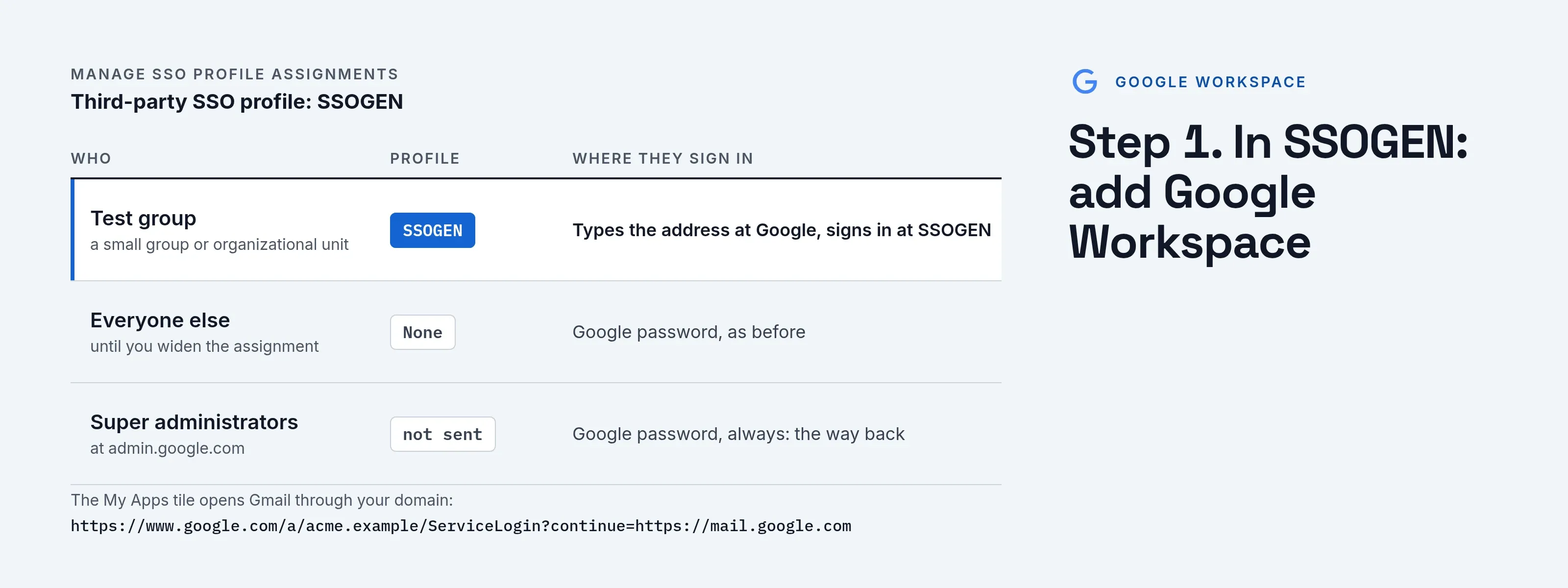
Assign the profile to a test group. Click Manage SSO profile assignments, then Get started or Manage assignments. Select a small test group or organizational unit, choose Another SSO profile and
SSOGEN, choose the sign-in option that asks for the user name at Google and then sends the person to the identity provider, and click Save.
Nothing changes for anyone until a profile is assigned. Assignment changes can take up to 24 hours, though they are usually quick. When the test group works, assign the profile to more units or to the top-level unit the same way.
Google may ask for its own 2-Step Verification after the SSOGEN sign-in. If SSOGEN already asks for a second factor, turn that off under Security > Authentication > Login challenges > Post-SSO verification.
Step 3. People and a sign-in test
- Assign the people or groups who use Google Workspace on the application’s Assignments tab in SSOGEN.
- In a private browser window open
https://mail.google.com, type an ordinary test user’s address (not a super administrator) and continue. The browser goes to SSOGEN and back to Gmail.
Super administrators are not sent to SSOGEN when they sign in at https://admin.google.com with an SSO profile; they use their Google password and can always change or remove the profile. To back out for a group, assign it None.
Signing in
People select Google Workspace in My Apps, or type their work address at any Google sign-in page. They see SSOGEN’s sign-in page only if they have no SSOGEN session yet, then the Google service.
Troubleshooting
| Google says | Cause |
|---|---|
| “This service cannot be accessed because your login request contained invalid [destination|audience|recipient] information.” | The entity ID or ACS URL in SSOGEN differs from the profile’s SP details. |
| “This account cannot be accessed because the login credentials could not be verified.” | The uploaded certificate is not SSOGEN’s current one, or the name ID is not the person’s primary Google address. |
| “This domain is not configured to use single sign-on.” | The response reached an old address. Use the ACS URL of this profile. |
| “This service cannot be accessed because your login credentials have expired.” | A clock is wrong, or an old response was replayed. Sign in again from the start. |
| A person is sent to SSOGEN unexpectedly, or not at all | Group priority or organizational unit inheritance in Manage SSO profile assignments. Allow up to 24 hours after a change. |