SSOGEN / SAML single sign-on for GitHub Enterprise Cloud with SSOGEN
SSOGEN
SAML single sign-on for GitHub Enterprise Cloud with SSOGEN
SSOGEN becomes the SAML identity provider of a GitHub organization or a whole enterprise, and each member links their own account on first sign-in.
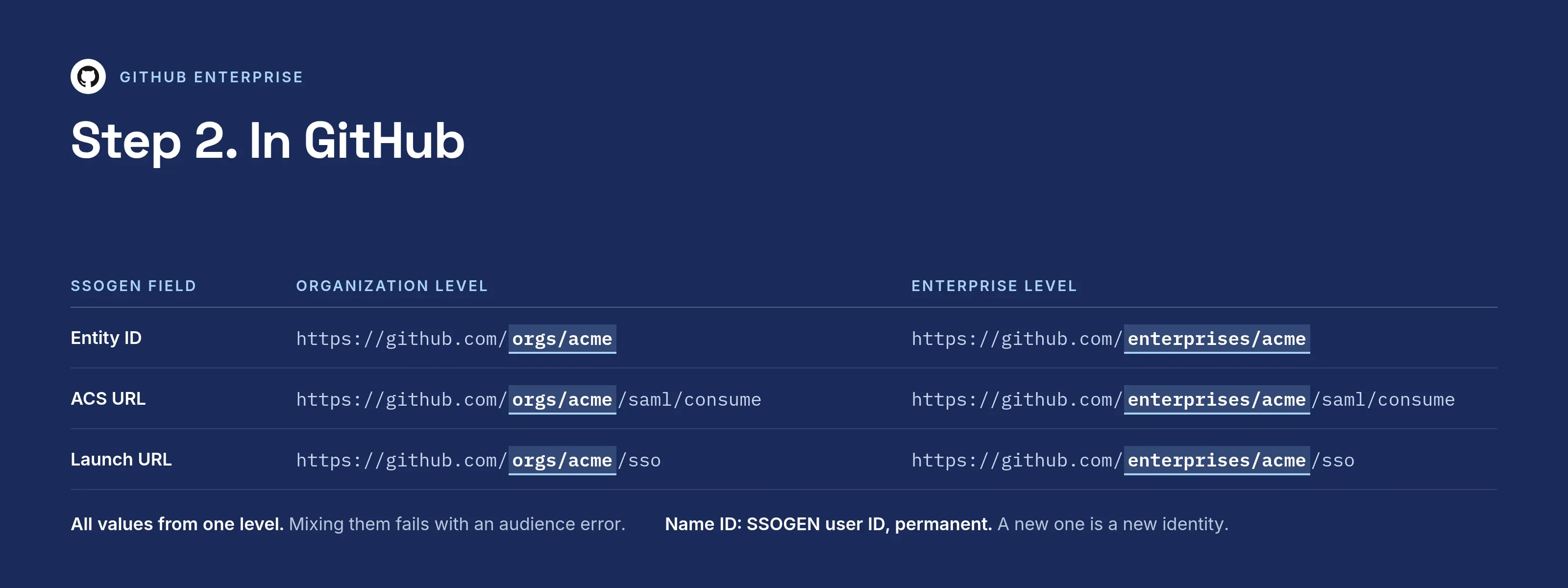
The example organization and enterprise are both called acme; SSOGEN runs at https://acme.ssogen.ai.
What you need
- GitHub Enterprise Cloud, and an organization owner (organization level) or an enterprise owner (enterprise level).
- A second owner who also links their account, and a safe place for the recovery codes.
- An SSOGEN administrator who can save SAML applications (see Add a SAML application in SSOGEN).
Choose the level first. Organization level gives each organization its own setup; enterprise level applies one setup to every organization of the enterprise and replaces the organizations’ own. All values below must come from the same level.
Step 1. In SSOGEN: add GitHub
Follow Add a SAML application in SSOGEN with the gallery card GitHub and these values:
| SSOGEN field | Organization level | Enterprise level |
|---|---|---|
| Metadata URL | https://github.com/orgs/acme/saml/metadata |
https://github.com/enterprises/acme/saml/metadata |
| Service provider entity ID | https://github.com/orgs/acme |
https://github.com/enterprises/acme |
| Assertion consumer service URL | https://github.com/orgs/acme/saml/consume |
https://github.com/enterprises/acme/saml/consume |
| Identify the person by | SSOGEN user ID, permanent (recommended) | the same |
| Launch URL (https) | https://github.com/orgs/acme/sso |
https://github.com/enterprises/acme/sso |
GitHub needs a name ID that never changes for the person: GitHub treats a new name ID as a new identity. No attribute is needed.
Assign yourself before step 2: GitHub’s test signs you in through SSOGEN. On the Integration tab select Download certificate (PEM).
Step 2. In GitHub
-
Open the organization’s Settings (enterprise: the enterprise’s Settings), then Authentication security.
-
Under “SAML single sign-on”, select Enable SAML authentication (enterprise: Require SAML authentication).
-
Fill in the form:
GitHub field Value Sign on URL https://acme.ssogen.ai/saml/idp/ssoIssuer https://acme.ssogen.ai/saml/idpPublic Certificate The content of ssogen-idp-signing-certificate.pem -
Click the pencil icon next to the signature and digest methods. In Signature Method choose RSA-SHA256 and in Digest Method SHA-256: those are what SSOGEN uses.
-
Click Test SAML configuration. GitHub sends you through SSOGEN and returns. GitHub saves the settings only after the test succeeds.
-
Organization level: leave Require SAML SSO authentication for all members clear for now and click Save. Enterprise level: click Save; saving enforces SSO for every organization of the enterprise.
-
Save the recovery codes: Save your recovery codes, then Download, Print or Copy.
At organization level, enforce only after every member has linked their account (step 3): select Require SAML SSO authentication for all members, review the list of members GitHub will remove, and click Remove members and require SAML single sign-on.
Step 3. People and a sign-in test
- Assign the members, or a group holding them, on the application’s Assignments tab in SSOGEN.
- Each member signs in to GitHub as usual, then opens
https://github.com/orgs/acme/sso(or the SSOGEN tile) and signs in through SSOGEN once. This links their GitHub account. - Test with a second, ordinary member in a private browser window before you enforce.
If SSOGEN cannot be reached, an owner opens the organization, chooses Use a recovery code in the single sign-on dialog and enters a code. Each code works once.
Signing in
People sign in to GitHub.com with their own GitHub account, then select GitHub in My Apps or open an organization resource. GitHub sends them through SSOGEN, which asks them to sign in only if they have no SSOGEN session yet. Git and API access need personal access tokens or SSH keys that the member has authorized for the organization.
Troubleshooting
| What you see | Cause |
|---|---|
| “Digest mismatch” | The certificate in Public Certificate is not SSOGEN’s current one, or the signature and digest methods are not RSA-SHA256 and SHA-256. |
| Test fails with an audience or recipient error | The entity ID and ACS URL in SSOGEN are from the other level (orgs/acme against enterprises/acme). |
| Members must link again at every sign-in | The name ID changes. Keep SSOGEN user ID, permanent (recommended). |
| “… SAML identity which is already linked to a different GitHub user account …” | The SSOGEN identity is linked to another GitHub account. An owner revokes the linked identity, or the member signs in to GitHub with the account that holds it. |
| Git or API returns 403 after enforcement | The token or SSH key is not authorized for the organization. |