SSOGEN / My Apps portal: every assigned application on one page
SSOGEN
My Apps portal: every assigned application on one page
After sign-in, each person lands on My Apps: the applications assigned to them, the servers they may reach, the requests they approve and their own account.
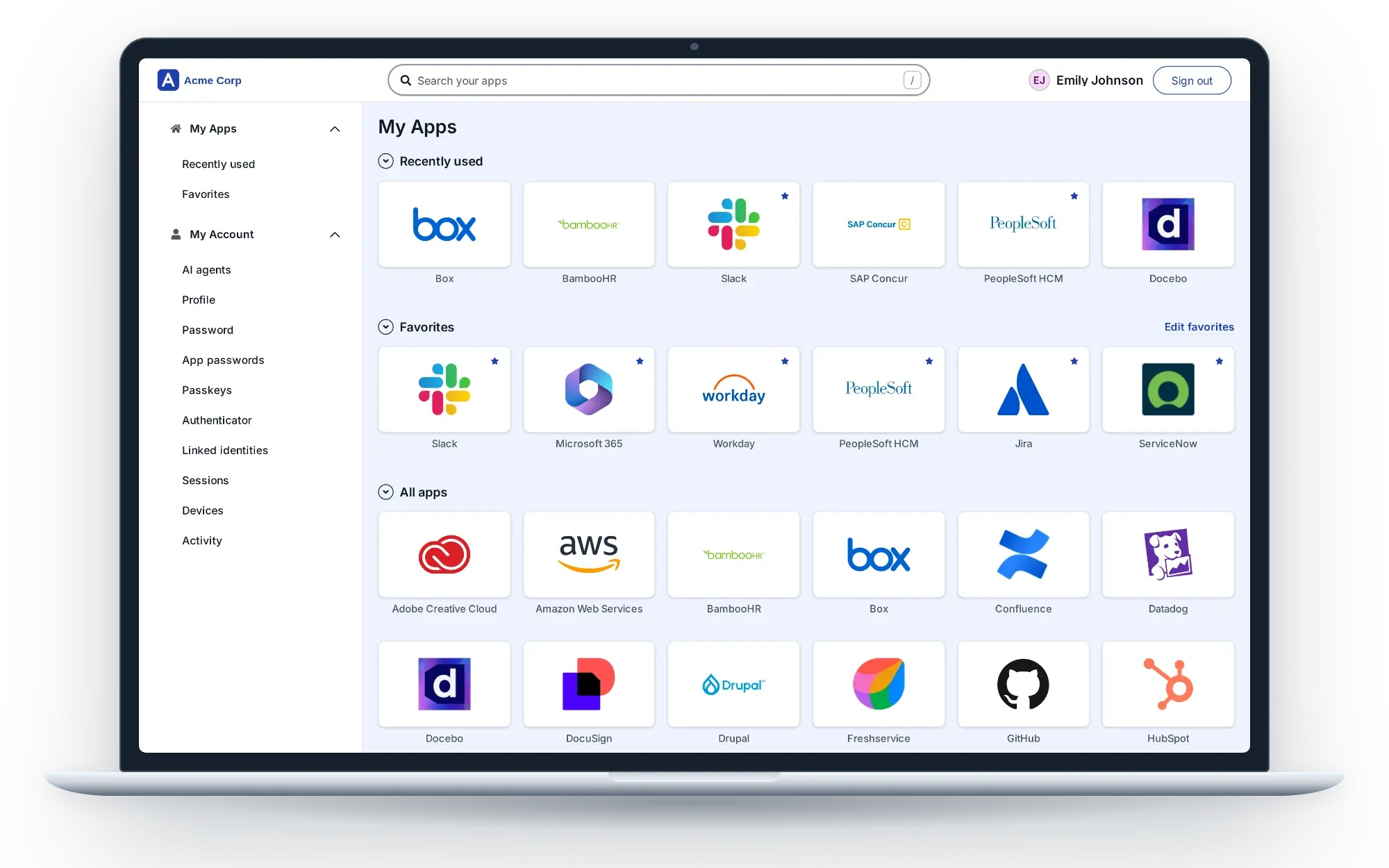
My Apps at Acme Corp: Recently used, Favorites and All apps, with the My Account pages in the same menu.
My Apps is the end-user portal of SSOGEN. A person opens the organization’s SSOGEN address, for example https://sso.acme.example/, signs in once and lands on the My Apps portal. Every tile opens an assigned application already signed in, whether it connects over SAML, OpenID Connect, the Web Agent or the App Proxy.
What the page shows, in order
The page is headed My Apps. A group appears only when it has something in it, and one application can sit in several groups.
| Group | What it holds |
|---|---|
| Recently used | The applications the person opened last: up to six on the page, up to eight in the menu entry |
| Favorites | Applications the person starred, in the order the person chose |
| One group per category | The other applications, alphabetical, under the categories the administrator set |
| All apps | Applications with no category, last |
| Remote Access | Servers and desktops the person may open in the browser over SSH, RDP or VNC |
Each tile shows the application’s logo, or its first letter when it has none, and its name. On a computer the application opens in a new tab; on a phone or tablet it opens in the same tab.
Built for the way people open applications
- Search with one key. Press / anywhere, type part of a name, short name or category, and press Enter to open the first match.
- Favorites in any order. A star on the tile adds it. Edit favorites moves tiles one place at a time with arrow buttons, and the order follows the person to any device.
- Recently used first. The applications a person opened last sit at the top of the page.
- Extra checks in place. When an application’s policy asks for more, SSOGEN asks for the second step, then opens the application without a second click.
- Messages on the tile. A grayed tile carries a short label, and a failed launch explains on that tile what to do next.
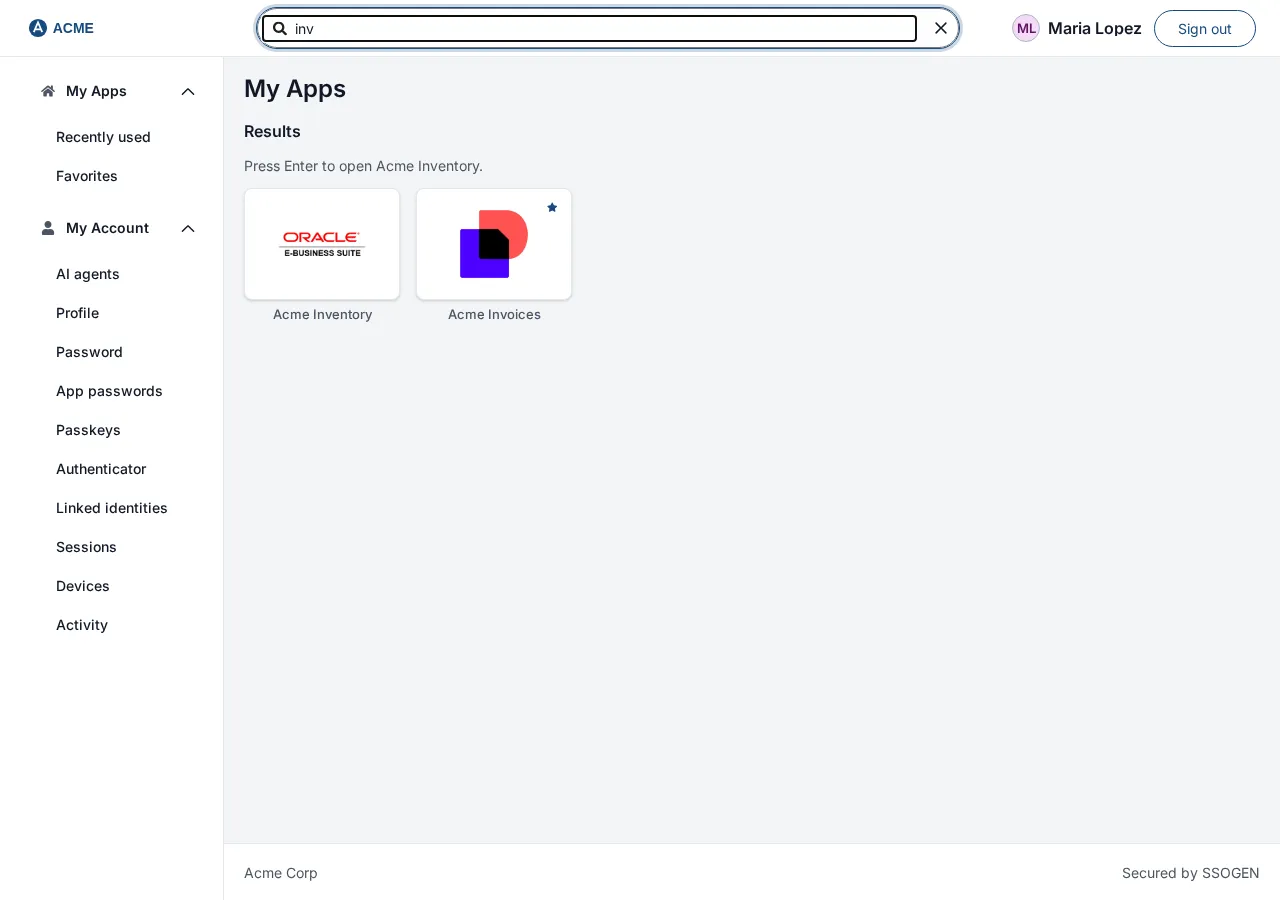
Servers, desktops and approvals beside the applications
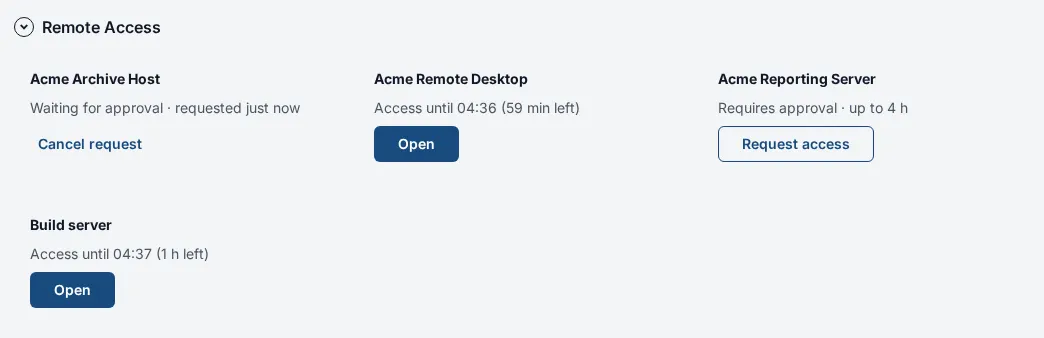
The Remote Access group lists each server or desktop as a card with its state and one button. Nothing is installed on the person’s computer.
- A card that requires approval offers Request access.
- The person gives a reason of 10 to 500 characters and a duration of at least 15 minutes, up to the limit the administrator set.
- Access starts when approved, or at a chosen time within 7 days.
- An approver sees a bell with a number in the top bar and an Approvals entry in the menu.
- Once approved, the card shows the time left and an Open button. The group refreshes about once a minute.
Organizations that use AI agents also get an AI tools entry: the addresses a person may connect an AI tool to, the tools they allowed, and requests to approve or deny.
My Account in the same menu
My Apps and My Account are one page. The second menu group holds the person’s own settings:
- AI agents acting for the person
- Profile and account source
- Password
- App passwords for applications with a login page
- Passkeys
- Authenticator and recovery codes
- Linked identities
- Sessions, with sign-out of any one
- Devices SSOGEN remembers
- Activity, the recent security events
Each entry has its own address, such as #passkeys, so a help desk can send a direct link. Details: My Account: sign-in and security.
A phone layout, not a shrunken desktop
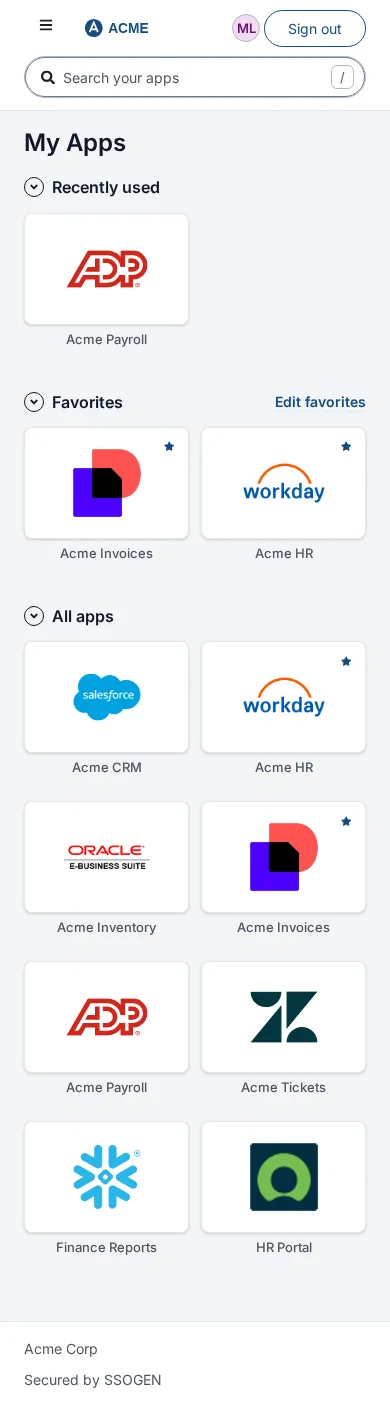
The phone layout keeps the same features in less space:
- The top bar holds only the logo, the bell and Sign out.
- The menu folds behind a button with three bars and closes again after a choice.
- A person who may open the Admin Console finds Administration in that menu.
- Tiles stack to fit the screen; the search box, stars and favorite arrows work as on a computer.
What administrators control
My Apps reflects decisions made in the Admin Console. People see only what they may open.
| Setting | Effect on My Apps |
|---|---|
| Assignment | A person sees the applications assigned to them or to their groups |
| Assignment required off | Every active person in the organization sees and may open the application |
| Show in My Apps off | The tile leaves My Apps, favorites, recent and search; assignment and sign-in stay as they are |
| Category | Decides the group the tile sits in |
| My Apps icon | The App Gallery logo, or an uploaded PNG, JPEG, GIF or SVG of up to 2 MB |
| Branding | The organization’s logo, the support and privacy links in the footer, and the Secured by SSOGEN line, which can be turned off |
Questions people ask
What is the My Apps portal?
How does a person open an application from My Apps?
Why does My Apps show no applications?
Does My Apps work on a phone?
Where to go next
- Share the user guide. Using My Apps covers every screen and message for your help desk.
- Remote Access. Access request approval and remote sessions walks through requests and approvals.
- Connect applications. SSO integration shows the four ways an application reaches My Apps.