SSOGEN / Active Directory Connector: SSOGEN Directory Connector
SSOGEN
Active Directory Connector: SSOGEN Directory Connector
The Directory Connector sits beside Active Directory or LDAP inside your network and answers typed, read-only questions, so no directory port faces the internet.
Why identity platforms cannot reach a directory behind your firewall
Identity platforms need to read your directory: who exists, which groups they belong to and whether an account is disabled. The directory usually sits deep inside your network, where SSOGEN cannot reach it.
Security teams refuse two things, and they are right to:
- Inbound LDAP. Opening LDAP to the outside.
- A raw query channel. Giving an outside service a powerful bind account and a raw query channel.
The SSOGEN Directory Connector is an Active Directory connector built for exactly this review. It needs neither.
Typed, read-only LDAP questions through a connector inside your network
- Runs inside your network. SSOGEN Gateway, in Directory Connector mode, sits beside your AD or LDAP server and talks to it locally.
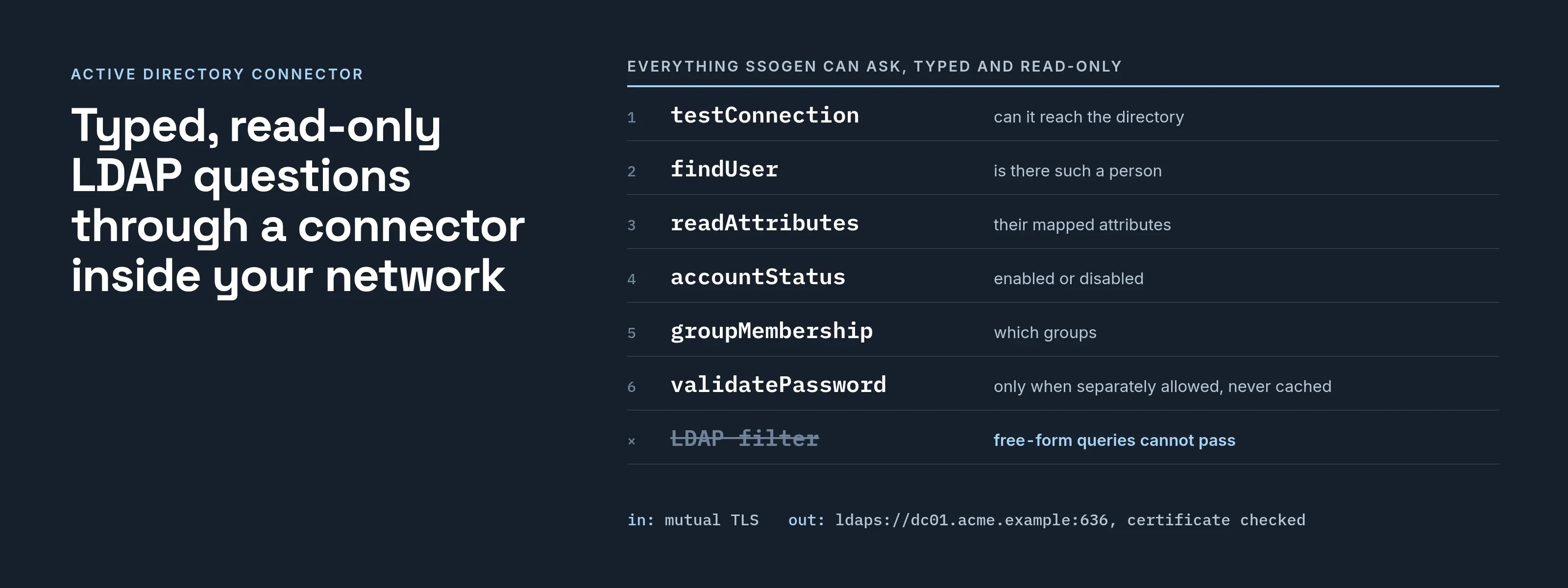
- Answers six questions, nothing more. Test the connection, find a user, read a user’s attributes, check account status, list group membership and (when separately allowed) validate a password. A free-form LDAP filter cannot pass through it.
- Configured and tested from the console. Add a directory connection on the Directory Connector page, pick the gateway group that serves it, and press Test. The result shows the connector reaching the directory.
- Credentials stay out of the browser. The form takes the name of a stored secret, not the bind password. SSOGEN resolves it when it builds the configuration.
- Safe by default. Connections use LDAPS or StartTLS, and the directory’s certificate is verified. An internet-facing gateway group never receives a directory connection.
- Active Directory defaults that make sense. Give no mapping and the connector uses standard Active Directory attribute defaults. You can override base DNs, attributes, group strategy and account-status rules.
How the Directory Connector connects and what it asks
- Operations:
testConnection,findUser,readAttributes,accountStatus,groupMembership,validatePassword. Each request is typed. The connector builds the LDAP query itself. - Transport: requests arrive over mutual TLS. On the directory side, LDAPS or StartTLS is required, with certificate verification.
- Resilience: connection pooling, timeouts, paging and a short-lived cache for non-secret results.
- Passwords: validation is a separate entitlement. A password result is never cached and never retried after an unclear answer.
- Trust: configuration is signed. A bad bundle is refused, and the previous one stays active.
- Use: the Admin Console uses the connector to test a connection, set up on the Directory Connector page. For sign-in and directory sync, SSOGEN connects to the directory directly over LDAP or LDAPS.
Where the Directory Connector fits
- Connection tests. Testing a connection to an Active Directory in a datacentre with no inbound path, from a SSOGEN deployment elsewhere.
- Typed lookups. Group and account-status lookups, without exposing a bind account to a service you do not run.
- Security review. A security review that needs “typed operations only” in writing.
What it looks like in the Admin Console
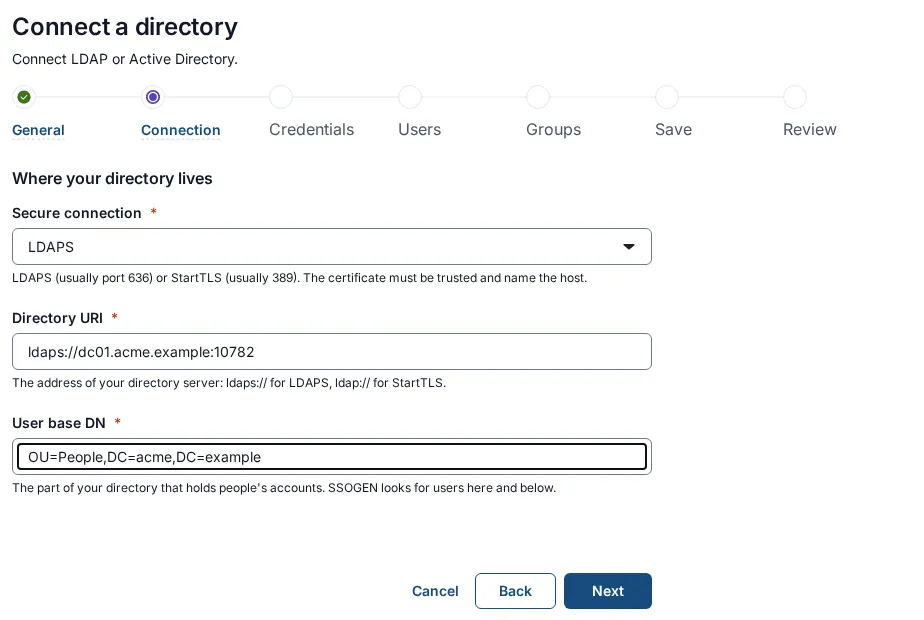
The Connection step filled in for Acme’s Active Directory.
Where to go next
- Set it up. Follow the LDAP proxy setup guide.
- Reach a directory directly. Connect a directory SSOGEN can reach directly with LDAP authentication.
- Where it runs. The connector runs on the SSOGEN Gateway and feeds user provisioning.