SSOGEN / Learn / What Is an Authenticator App? See a Code Being Made
Learn
What Is an Authenticator App? See a Code Being Made
An authenticator app is a phone app that makes a new six-digit code every 30 seconds from a secret it shares with the service, so a stolen password alone is not enough to sign in.
Updated
What is an authenticator app? It is an application on a phone that stores a secret key for each account and combines that key with the current time to produce a six-digit code. The user enters the code after the password. The service holds the same key, computes the same code and compares the two.
The code changes every 30 seconds, and the app needs no network connection, so it still works on a plane. The standard behind it is TOTP (time-based one-time password).
The demo below is a working implementation. It runs in your browser, uses a public demo secret and sends nothing anywhere.
Watch a code being calculated
The demo reads your device clock, computes a code from the public secret JBSWY3DPEHPK3PXP and shows each of the four calculation steps as it runs.
- Test button. It runs your browser’s HMAC-SHA1 against the test vector in RFC 6238, Appendix B.
- What a pass means. A pass confirms that the page performs the same computation as a real app.
- Secret box. It accepts a made-up Base32 secret. Never enter a real account’s secret into any web page, including this one.
Demo secret (public, for learning only): JBSWY3DPEHPK3PXP
Next code in 30 s
Try another secret
| 1. Time step | - |
|---|---|
| 2. HMAC-SHA1 | - |
| 3. Dynamic truncation | - |
| 4. Last six digits | - |
Load the same secret into a real authenticator app and its six digits match the demo, second for second.
Nothing travels between the two devices: each one derives the code independently from the same two inputs.
The four steps, in plain words
The algorithm is TOTP, RFC 6238, which builds on the counter-based HOTP, RFC 4226. Each row in the demo is one step.
- Shared secret. At enrollment the service generates a random key and shows it once, as a QR code or as a setup key in Base32 (letters and the digits 2 to 7). RFC 4226 requires at least 128 bits and recommends 160. The app and the service each store a copy, and neither side transmits it again.
- Time step. Both sides count the 30-second intervals since 1 January 1970 UTC; 30 seconds is the RFC 6238 default step. That integer is the counter, so two devices with synchronized clocks arrive at the same value.
- HMAC. The secret keys an HMAC-SHA1 over the counter, the RFC 6238 default (SHA-256 and SHA-512 are also allowed). The output is 20 bytes that look random and cannot be reversed to recover the secret.
- Truncation. The last four bits of those 20 bytes select a starting offset. Four bytes are read from that offset, the top bit is cleared, and the last six decimal digits of the number form the code. This is the dynamic truncation defined in RFC 4226, section 5.3. Six digits is the minimum the RFC allows.
| Input | Where it comes from | Same on phone and server? |
|---|---|---|
| Secret | Set at enrollment | Yes, copied once |
| Time step | Device clock, divided by 30 | Yes, if the clocks agree |
| HMAC output | Computed | Yes |
| Six-digit code | Truncated from the HMAC | Yes |
Why a code works with no signal
None of the four steps uses the network, because the phone already holds the secret and a clock.
- No network step. The phone already holds the secret and a clock.
- No late code. A code cannot arrive late, since it is never sent.
- No signal. Read the code from the phone and type it on the device that is online.
Why the code changes every 30 seconds
The time-step counter increases by one every 30 seconds. A new HMAC input produces a completely different output.
- Short lifetime. It is a safety feature: a code copied over someone’s shoulder becomes useless shortly after.
- No reuse. RFC 6238 requires the verifier to reject a code that has already been used.
- Replay refused. Once a code has completed a sign-in, replaying it inside its 30 seconds is refused.
Clock drift: a checklist
The clock is an input, so a wrong clock produces a wrong code, and the phone shows no error.
RFC 6238 tells verifiers to accept a small window and to allow at most one time step of delay. A few seconds of drift are absorbed; several minutes are not.
When a code looks correct but is rejected, work through this list:
- Phone time settings. Set date, time and time zone to “set automatically”.
- Long power-off or a network change. Turn automatic time off and on to force a re-sync.
- Rollover. The code may have expired while it was typed. Wait for the next one.
- Server clock. Check the clock of the system that verifies the code; it runs the same math in reverse.
- Setup key. A mistyped key makes every code wrong, every time. Remove the account and add it again.
What happens when the phone is lost
The secret exists only on the phone and on the server, and the service shows it once, at enrollment. SSOGEN codes cannot be copied from one phone to another, so a new phone is enrolled again.
Services cover this case in two ways. Plan for it in advance: save the recovery codes at enrollment and treat them like a spare key.
- Recovery codes. They are stored somewhere other than the phone.
- Administrator reset. An administrator resets the second step.
What an authenticator app does not protect against
The user types the code, so the user can type it into the wrong page.
- Real-time relay. A fake sign-in site forwards the password and the six digits to the real site within the 30 seconds and signs in as that user.
- NIST position. NIST SP 800-63B-4, section 3.2.5 states that authenticators whose output the user types in, “out-of-band and OTP authenticators”, are not phishing-resistant.
- The reason. The earlier SP 800-63B-3 (section 5.2.5) gives it: nothing binds the code to the site that requested it.
- What it still blocks. The most common attack, a password reused from another breach.
- What it does not stop. A user who is persuaded to enter both on a lookalike page.
- Attempt limit. NIST (SP 800-63B-4, section 3.2.2) expects the service to limit consecutive failed attempts to 100 or fewer, because six digits can be guessed if nothing counts the attempts.
When a passkey is the better choice
A passkey signs a challenge with a private key that never leaves the device, and only for the site it was created for. A lookalike page receives nothing it can relay.
- Use a passkey. Where the service offers passkeys and the device supports them.
- Keep the app as fallback. Use it where passkeys are not yet available.
- Compare the options. The trade-offs are in passkey vs password, and all the second-step methods are compared in MFA types.
How the SSOGEN Authenticator works
SSOGEN Authenticator is a phone app for iPhone and Android.
- Codes. It shows the six-digit code and a countdown ring for each account.
- Approvals. Once a phone is paired with SSOGEN it can also approve a sign-in: the user taps the number that matches the one on the sign-in page and confirms with a fingerprint, face or screen lock.
- Other apps. Any standard TOTP app also works with SSOGEN for codes, if the organization allows it.
To add the account, open My Account, Sign-in & Security, Authenticator App, then Set Up Authenticator. The page shows a QR code and, under Can’t scan it? Enter this key instead:, a setup key.
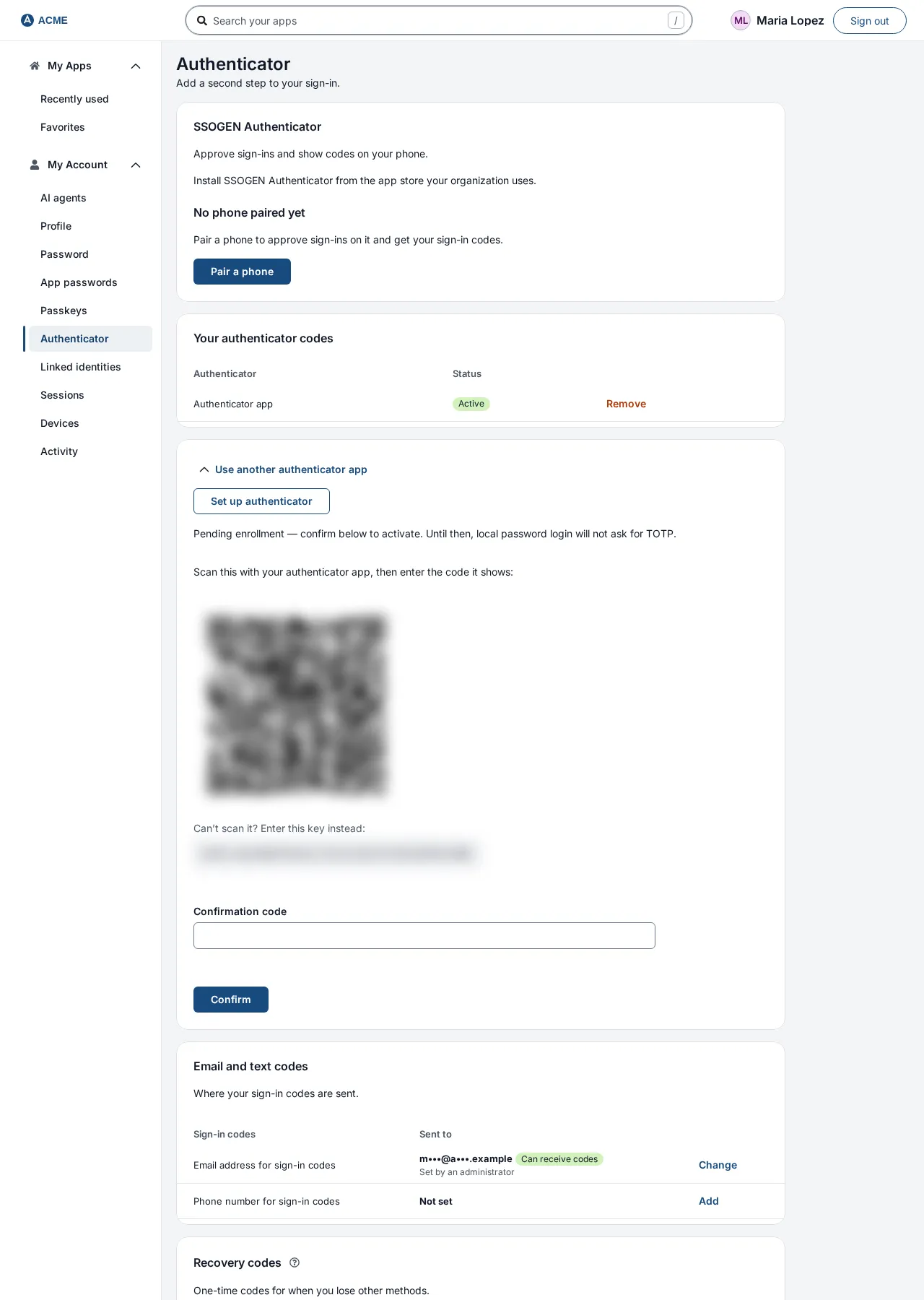
The SSOGEN Authenticator app takes the setup key, not the QR code. In Accounts, select Add TOTP and fill in Label, Issuer, Account and Base32 secret. Other apps scan the QR code.
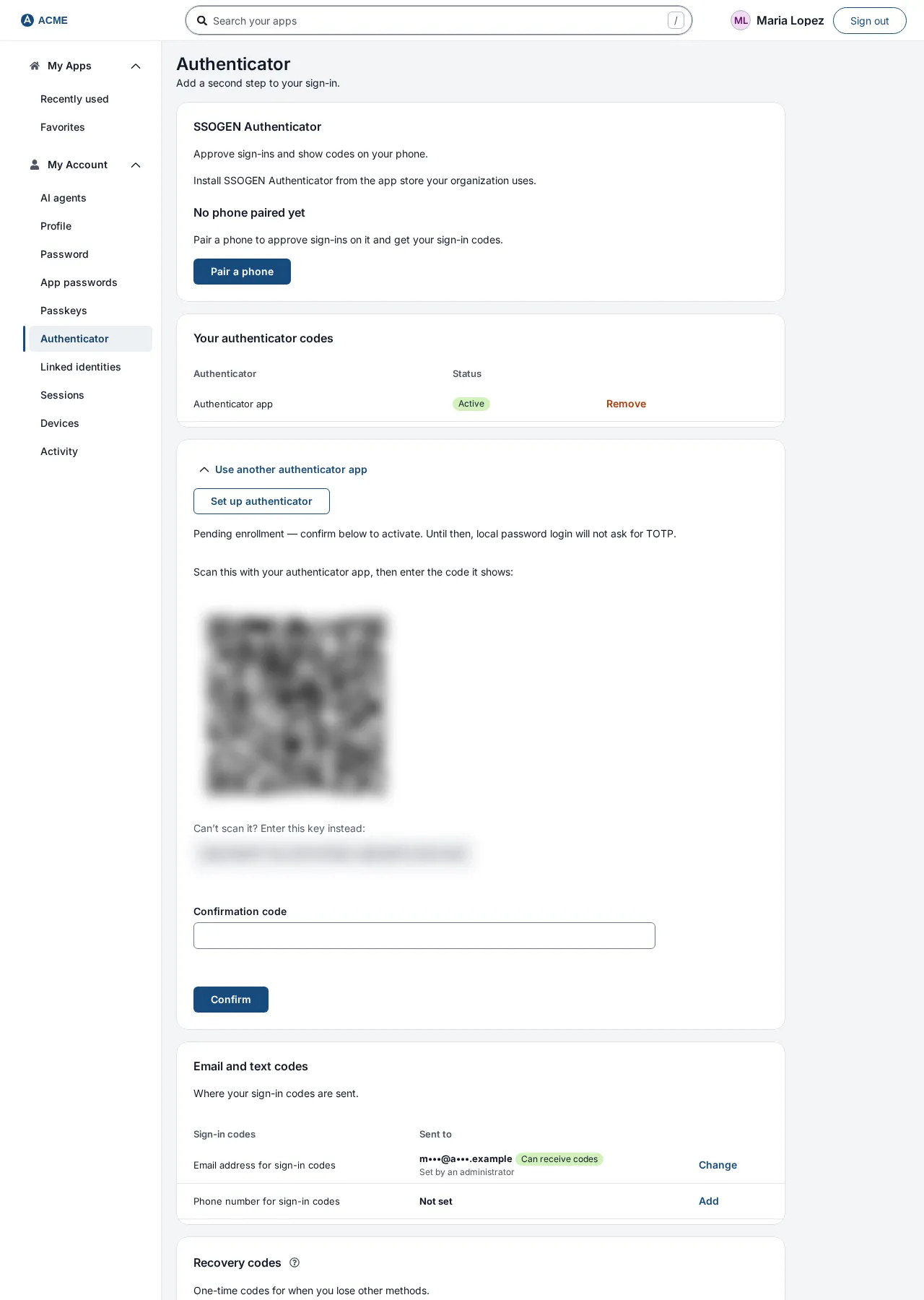
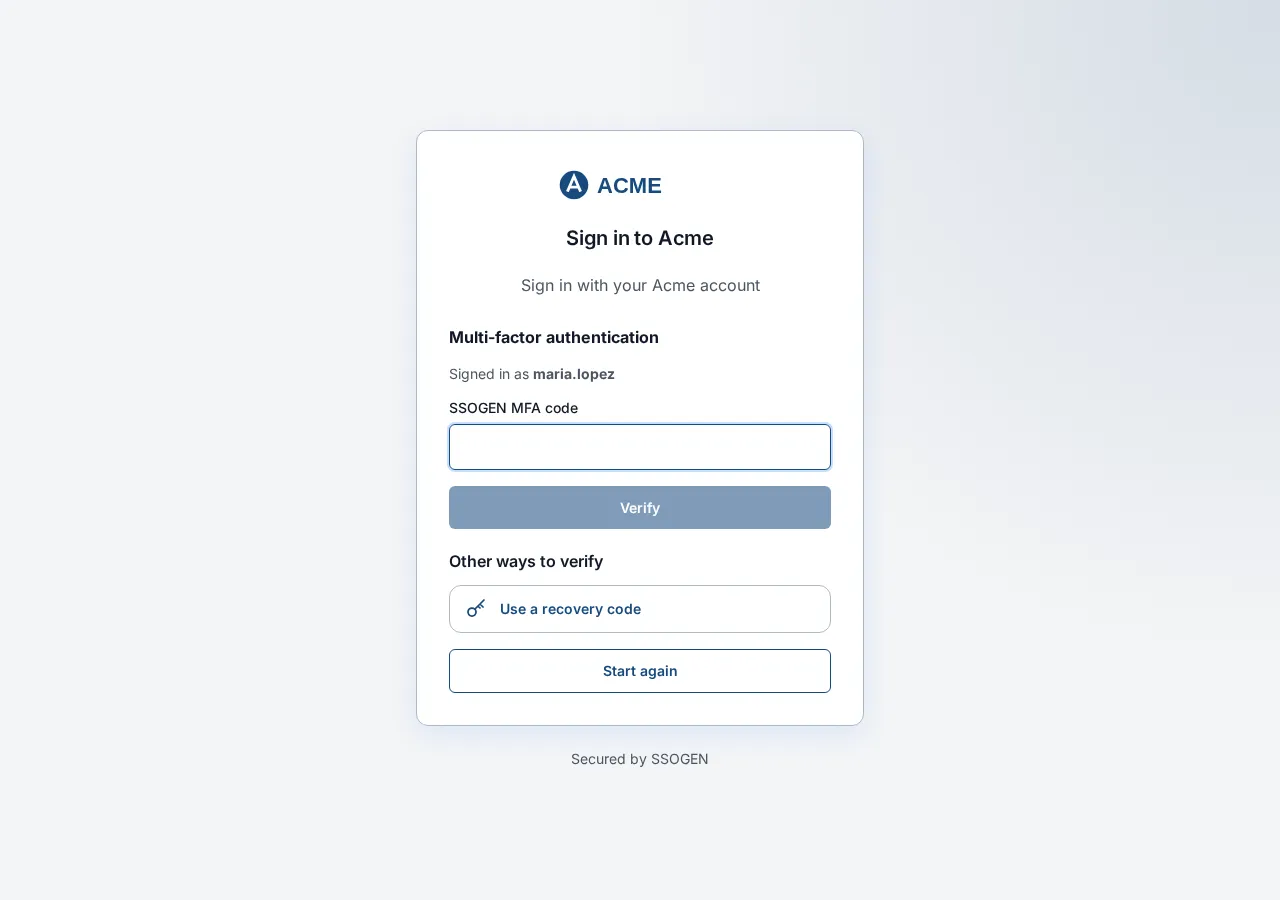
Then type the app’s current code into Confirmation code and select Confirm. The authenticator is not active until this succeeds. At sign-in, SSOGEN asks for the SSOGEN MFA code.
- Recovery codes. SSOGEN issues ten single-use recovery codes, each ten characters long and shown once.
- Lockout. After 10 wrong codes in a row, second-step sign-in locks for 15 minutes by default, and administrators can change the threshold.
- Full steps. They are in the guide to the SSOGEN Authenticator on iPhone, the authenticator product page and sign-in with the authenticator.
Questions people ask
How do authenticator apps work?
The app holds a secret shared with the service and computes a code from it and the current 30-second time step, using HMAC-SHA1 and truncation. The demo above shows each step.
How do I use an authenticator app?
Sign in to the service and open its security settings. Scan the QR code or type the setup key into the app, then enter the code it shows to confirm. At later sign-ins, enter the password, then the current code.
What is TOTP in MFA?
It is the code type most authenticator apps generate, defined in RFC 6238. It counts as a second factor because it proves possession of the device that holds the secret.
Does the app need internet?
No. It needs only the secret and a correct clock.
Can I use one app for many accounts?
Yes. Each account has its own secret and its own code.
Where to go next
Compare every second-step option in MFA types, see why passkeys resist phishing in passkey vs password, or set up the app with the SSOGEN Authenticator guide. More explainers are in Learn.
Sources, all read 2026-10-09: RFC 6238, RFC 4226, NIST SP 800-63B-4.