SSOGEN / Single sign-on for Oracle NetSuite with SSOGEN
SSOGEN
Single sign-on for Oracle NetSuite with SSOGEN
NetSuite reads SSOGEN's metadata, people land in a SAML role from My Apps, and the Administrator role keeps its password as the way back in.
The example account ID is 1234567, with the account address https://1234567.app.netsuite.com; SSOGEN runs at https://acme.ssogen.ai.
What you need
- A NetSuite Administrator. The Administrator role itself never signs in through SAML; it always uses the NetSuite login page, which keeps a way back in.
- An employee record for every person, with the email address they have in SSOGEN.
- An SSOGEN administrator who can save SAML applications (see Add a SAML application in SSOGEN).
Step 1. In SSOGEN: add NetSuite
- In NetSuite, go to Setup > Integration > SAML Single Sign-on (after step 2, point 1) and copy the address in NetSuite Service Provider Metadata, or download the file from it.
- Follow Add a SAML application in SSOGEN with the gallery card Oracle NetSuite and these values:
| SSOGEN field | Value for NetSuite |
|---|---|
| Metadata | NetSuite’s metadata address or file from point 1 |
| Service provider entity ID | http://www.netsuite.com/sp (from the metadata) |
| Assertion consumer service URL | https://system.netsuite.com/saml2/acs (from the metadata) |
| Identify the person by | email — mail address |
| Launch URL (https) | https://1234567.app.netsuite.com/app/center/card.nl |
Do not add an account attribute: it ties people to one NetSuite account and stops them reaching a sandbox. Assign the person who will run the first sign-in.
Step 2. In NetSuite
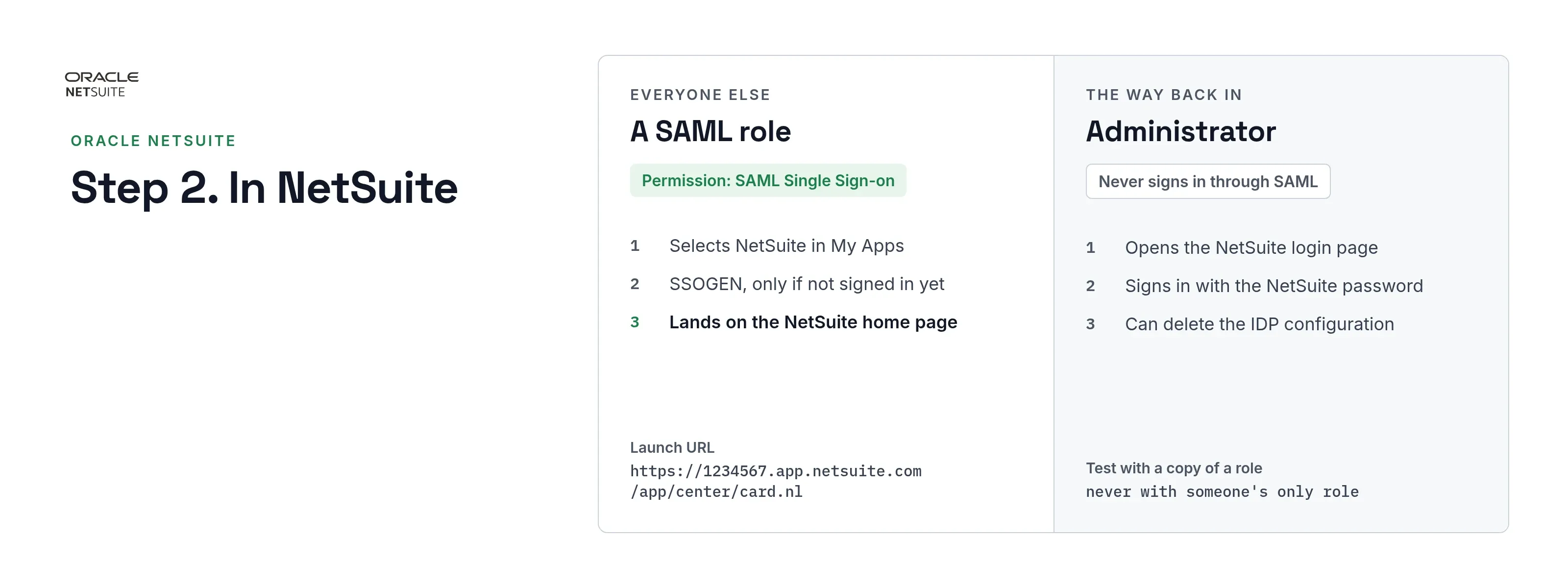
- Turn on the feature. Setup > Company > Setup Tasks > Enable Features, subtab SuiteCloud, section Manage Authentication: check SAML Single Sign-on, accept the SuiteCloud Terms of Service and Save.
- Make a SAML role. Setup > Users/Roles > User Management > Manage Roles, choose a role and Customize. Name the copy so it can be recognized, for example with “SAML” in the name. On Permissions > Setup add SAML Single Sign-on and Save.
- Give it to a test user. Lists > Employees > Employees, open the user, Edit, subtab Access: add the SAML role and Save. A role with the SAML permission can no longer be used from the NetSuite login page, so test with a copy, never with someone’s only role.
- Give NetSuite SSOGEN’s metadata. On Setup > Integration > SAML Single Sign-on, choose Indicate IDP metadata URL and enter
https://acme.ssogen.ai/saml/idp/metadata, or choose Upload IDP metadata File and pickssogen-idp-metadata.xml. Fill Logout Landing Page with the page people should see after logging out of NetSuite. - Check Primary Authentication Method. The SSOGEN tile opens NetSuite, and NetSuite must then send the person to SSOGEN rather than to its own login page; this box does that.
- Click Submit.
A new SAML permission on a role works after a short cache delay. For each sandbox and Release Preview account, repeat point 4 there with the identical SSOGEN metadata; NetSuite does not copy the setting from production.
Step 3. People and a sign-in test
- Assign the people or groups who use NetSuite on the application’s Assignments tab in SSOGEN.
- Run the Test for the test user and check that NameID is the email on their employee record.
- In a private browser window sign in to SSOGEN as that user and select the NetSuite tile. NetSuite opens on the user’s home page in the SAML role.
To take SAML away from one person, remove the SAML role from their employee record. For everyone, use Actions > Delete IDP Configuration on the SAML setup page.
Signing in
People select NetSuite in My Apps, or open a NetSuite link that carries the account. They see SSOGEN’s sign-in page only if they have no SSOGEN session yet. A session started through SSOGEN stays in SAML roles; switching to a role without the SAML permission needs a separate sign-in at the NetSuite login page.
Troubleshooting
| What you see | Cause |
|---|---|
| “Email must be provided using NameID value or the email attribute.” | The assertion carries no email address. Choose email — mail address in SSOGEN. |
| The NetSuite login page instead of SSOGEN | Primary Authentication Method is not checked, or the link does not carry the account (1234567.app.netsuite.com, or c= in the address). |
| SAML Metadata Warning when loading SSOGEN’s metadata | Another NetSuite account sharing this setup holds a different SSOGEN metadata file. Delete the IdP configuration in each such account and load the same file in all. |
| The user signs in but cannot reach other roles | SAML and non-SAML roles cannot be mixed in one session. Add the SAML permission to every role the person needs. |
| The user cannot switch to a sandbox | An account attribute is being sent. Remove it from the application’s Identity sent to app tab. |
Related guides
- NetSuite SSO With SSOGEN: which roles get the SAML permission, and what NetSuite accepts in the assertion
- Add a SAML application in SSOGEN
- Single sign-on for Salesforce with SSOGEN
- Single sign-on for SAP SuccessFactors with SSOGEN