SSOGEN / MFA Software and Passwordless Sign-In
SSOGEN
MFA Software and Passwordless Sign-In
SSOGEN asks for an authenticator code or a passkey per application, per group and per situation, so finance gets strict rules while the intranet stays light.
Why passwords and blanket MFA fall short
Most MFA software settles for one of two compromises: MFA for everyone, or a gap left open on the systems that matter most. SSOGEN asks for a stronger factor only where the risk is.
| Approach | What goes wrong |
|---|---|
| Passwords alone | The weakest sign-in method |
| Blanket MFA | Frustrates everyone |
| Applications with no MFA | Some applications cannot do MFA at all |
Passwordless and phishing-resistant MFA without blanket prompts
- Several ways to prove identity. Authenticator app codes (TOTP), passkeys (WebAuthn), single-use recovery codes, and one-time codes by email or text message. At sign-in, each person sees only the methods that apply to them and work for them.
- Passwordless when you want it. SSOGEN signs people in with passkeys and security keys, and a policy can require “a passkey or security key” so that sensitive applications accept only the strongest sign-in.
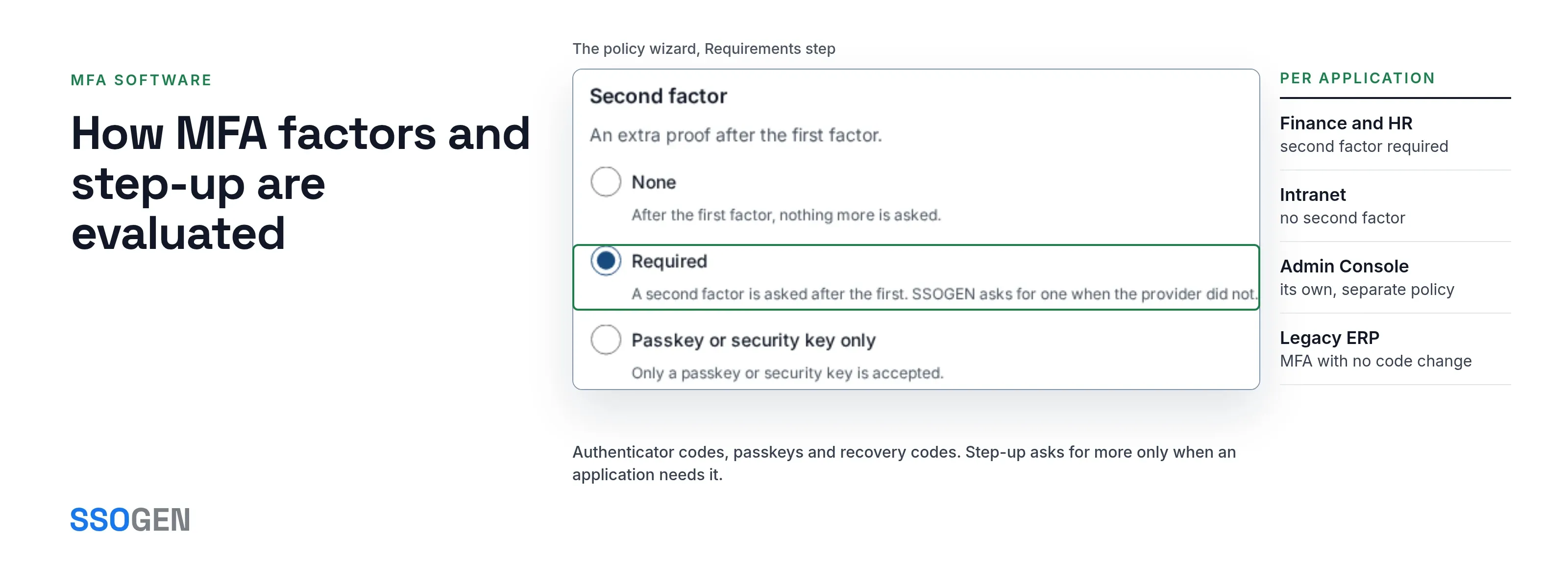
- Step-up, not blanket MFA. An employee already signed in is asked for a stronger factor only when they open something that demands it, and then continue where they left off.
- MFA for applications that have none. Because SSOGEN sits in front of the application through the Web Agent or the SSOGEN Gateway, SSOGEN enforces the second factor even when the application has no MFA support.
- Self-service in My Account. People manage their own authenticator, passkeys, recovery codes and sign-in contacts.
- Self-service that stays safe. Adding or changing a second factor needs a recent sign-in or a fresh second step. People are emailed whenever a factor is added or removed, so a stolen session cannot quietly swap in a new one.
- Brute-force protection. Repeated wrong codes lock the second factor for a period (by default ten failures and fifteen minutes; the threshold is a setting).
- Your messaging providers. Text codes go through Twilio, Amazon SNS or any HTTP gateway; email codes go through your own mail server. SSOGEN never offers a method whose provider cannot send.
How MFA factors and step-up are evaluated
| Topic | How it works |
|---|---|
| Factors | TOTP per RFC 6238; WebAuthn passkeys; recovery codes are single-use. |
| Authentication strength | Evaluated by policy (see Authentication policies): single factor, multi-factor, or phishing-resistant. |
| Sign-in contacts | Email and mobile can come from your directory; where the directory owns a value, people cannot overwrite it. |
| Email and text codes | Sent from the realm’s own SMTP and SMS settings in the console. Secrets for providers are stored encrypted and never displayed again. |
| SSOGEN Authenticator mobile app | For iPhone and Android: approve a sign-in by tapping a number, and six-digit sign-in codes that work offline. Passkeys are added in My Account and kept by the phone. |
Where MFA software fits
- Finance and HR. These applications require a second factor; the intranet does not.
- Admin console. It has its own sign-in policy, separate from the one for employees’ applications.
- Legacy ERP. It gets MFA with no code change.
- Different groups. They get different requirements: a stricter rule for finance, a lighter one for the intranet.
What it looks like in the Admin Console
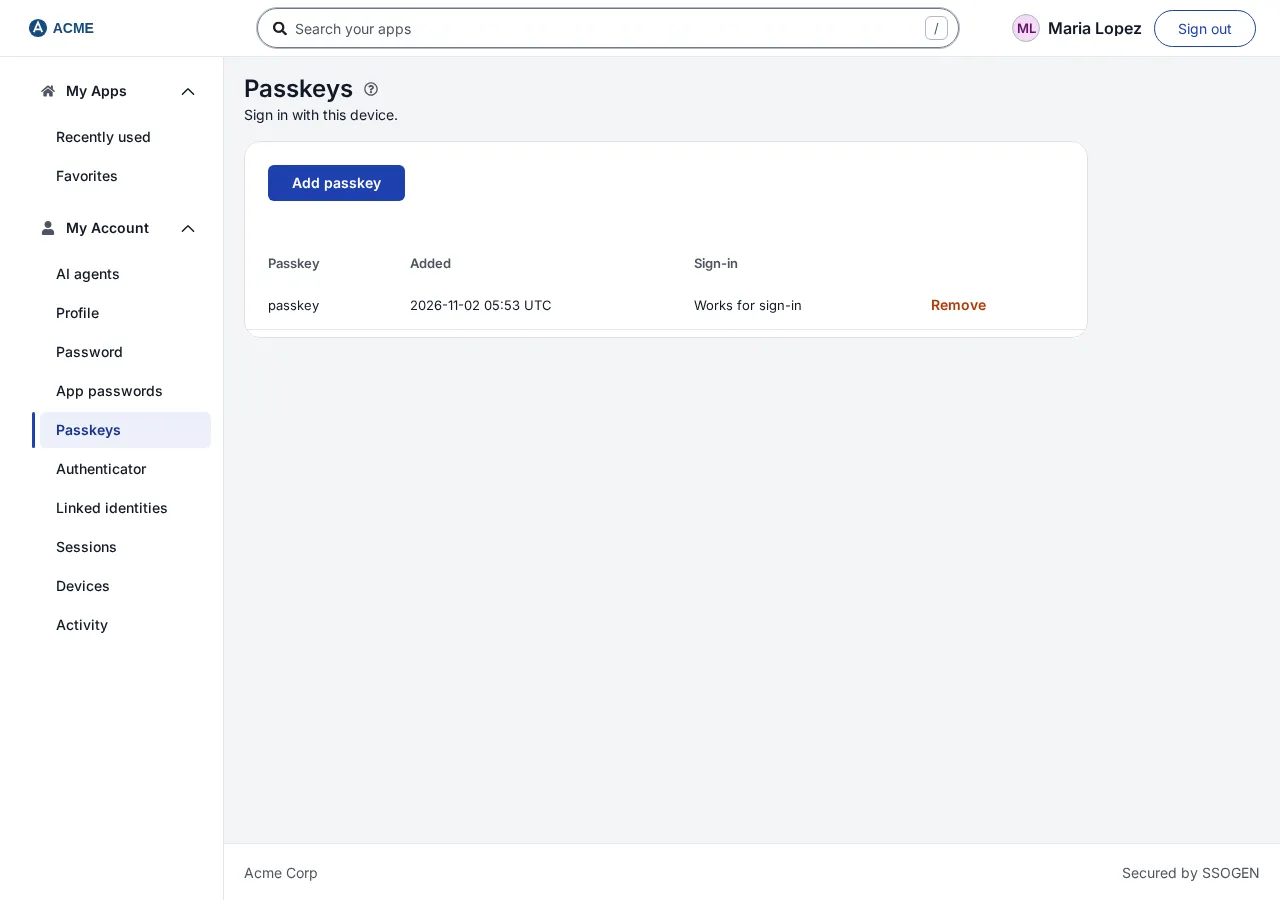
The Passkeys section with one passkey.
Where to go next
- Setup guide. The multi-factor authentication setup guide covers every factor.
- Authenticator app. People can set up the authenticator app in a few minutes.
- Policies. Decide when to ask for a stronger factor with adaptive authentication policies on top of single sign-on software.