SSOGEN / Single sign-on for Zendesk with SSOGEN
SSOGEN
Single sign-on for Zendesk with SSOGEN
Zendesk checks SSOGEN's signature by its SHA-256 certificate fingerprint, and you assign the configuration to team members and keep an owner bypass.
The example account is https://acme.zendesk.com; SSOGEN runs at https://acme.ssogen.ai.
What you need
- A Zendesk admin. The account owner is needed for the SSO bypass setting.
- Every person’s email address in SSOGEN equal to their Zendesk email.
- An SSOGEN administrator who can save SAML applications (see Add a SAML application in SSOGEN).
openssl, or another tool that prints a certificate’s SHA-256 fingerprint.
Step 1. In SSOGEN: add Zendesk
Follow Add a SAML application in SSOGEN with the gallery card Zendesk and these values:
| SSOGEN field | Value for Zendesk |
|---|---|
| Service provider entity ID | https://acme.zendesk.com |
| Assertion consumer service URL | https://acme.zendesk.com/access/saml (the path is case-sensitive) |
| Identify the person by | email — mail address |
| Launch URL (https) | https://acme.zendesk.com |
Zendesk publishes no metadata address; type the values. Two optional attributes are worth knowing:
external_idwith the value subject: Zendesk then follows a person whose email address changes instead of creating a second user.role: only if SSOGEN should decide who is an agent or admin. When it is sent, it overwrites the person’s Zendesk role at every sign-in.
Assign the person who will run the first sign-in. On the Integration tab, select Download certificate (PEM) and print the fingerprint:
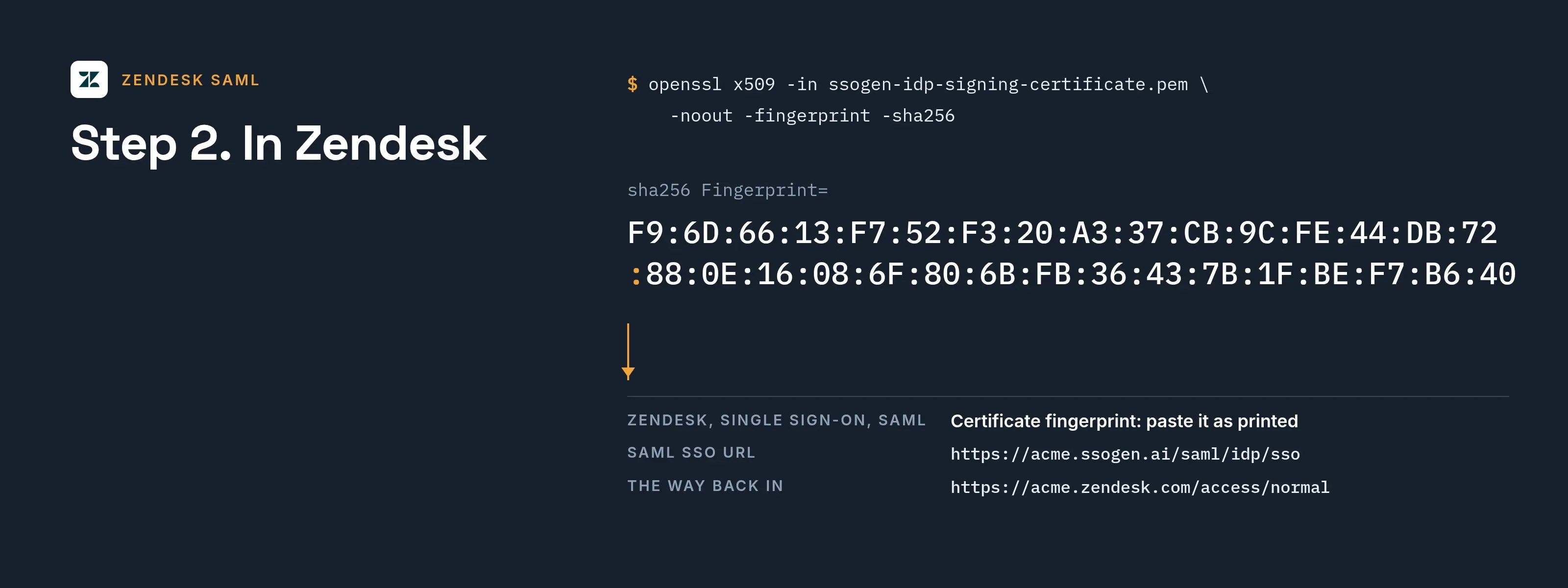
openssl x509 -in ssogen-idp-signing-certificate.pem -noout -fingerprint -sha256Step 2. In Zendesk
-
In Admin Center select Account > Security > Single sign-on, then Create SSO configuration and SAML.
-
Fill in the form:
Zendesk field Value Configuration name SSOGENSAML SSO URL https://acme.ssogen.ai/saml/idp/ssoCertificate fingerprint The SHA-256 fingerprint from step 1, the pairs separated by colons as opensslprints themRemote logout URL Optional: a page to send people to after they sign out of Zendesk IP ranges Empty, so everyone uses it -
Select Show button when users sign in and type
SSOGENin Button name. The sign-in page then shows Continue with SSOGEN. -
Select Save. The configuration is saved inactive.
-
Assign it to team members. Go to Account > Security > Team member authentication, select External authentication, tick
SSOGENunder Single sign-on (SSO), choose Let them choose for now and select Save. The configuration is now active. Do the same under End user authentication if customers should use it.
When the test in step 3 works, switch the same pages to Redirect to SSO with SSOGEN as Primary SSO. If you also turn off Zendesk authentication for team members, the account owner then sets SSO bypass under Account > Security > Advanced, tab Authentication, to Account owner or Admins.
Step 3. People and a sign-in test
- Assign the agents and admins (and end users, if they use SSOGEN) on the application’s Assignments tab in SSOGEN.
- In a private browser window open
https://acme.zendesk.com, select Continue with SSOGEN and sign in at SSOGEN. Agents land on the agent dashboard, end users on the help center, or on the page they first asked for.
Keep the way back in: https://acme.zendesk.com/access/normal takes a Zendesk email and password while Zendesk authentication is on. With passwords off, https://acme.zendesk.com/access/sso_bypass emails a one-time link to the people SSO bypass allows.
Signing in
People select Zendesk in My Apps. Before Redirect to SSO is set they choose Continue with SSOGEN on Zendesk’s sign-in page; afterwards Zendesk sends them to SSOGEN directly. They see SSOGEN’s sign-in page only if they have no SSOGEN session yet.
Troubleshooting
| What you see | Cause |
|---|---|
| People are sent to the logout URL instead of being signed in | The fingerprint in Zendesk no longer matches SSOGEN’s certificate. Print it again and update Certificate fingerprint. |
| “Please use one of the options below to sign in.” | The configuration is not assigned to this kind of user (team members or end users). |
| Sign-in rejected although SSOGEN sent an assertion | The audience does not match. The entity ID in SSOGEN must be https://acme.zendesk.com. |
| A new user gets a name made from the email address | Zendesk reads first and last names only under long namespace attribute names, which SSOGEN attribute names do not take. Set names in Zendesk, or let Zendesk keep the name it derived. |
| Optional attributes are ignored | The names differ from Zendesk’s in letter case. Use Zendesk’s names exactly, for example external_id. |