SSOGEN / Self-hosted SSO: an identity provider you run yourself
SSOGEN
Self-hosted SSO: an identity provider you run yourself
Sign in against Active Directory or LDAP and add phone approval and passkeys. Kerberos signs in domain computers with no password.
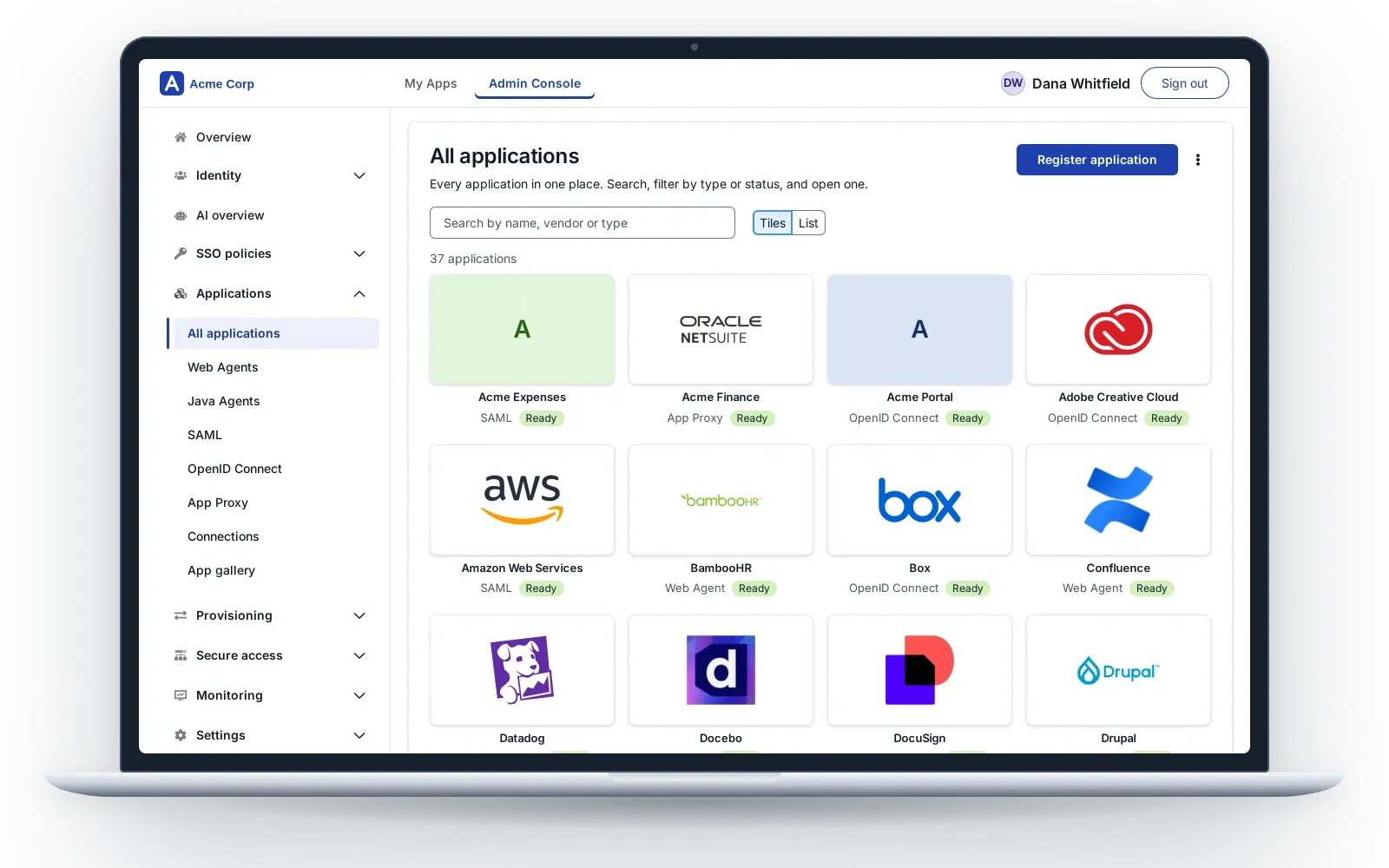
You can also use an organization hosted by SSOGEN: same product, same release. See self-hosted or hosted. For AI agents, policies, applications and the add-ons, see SSOGEN Identity Provider.
Sign in with your directory
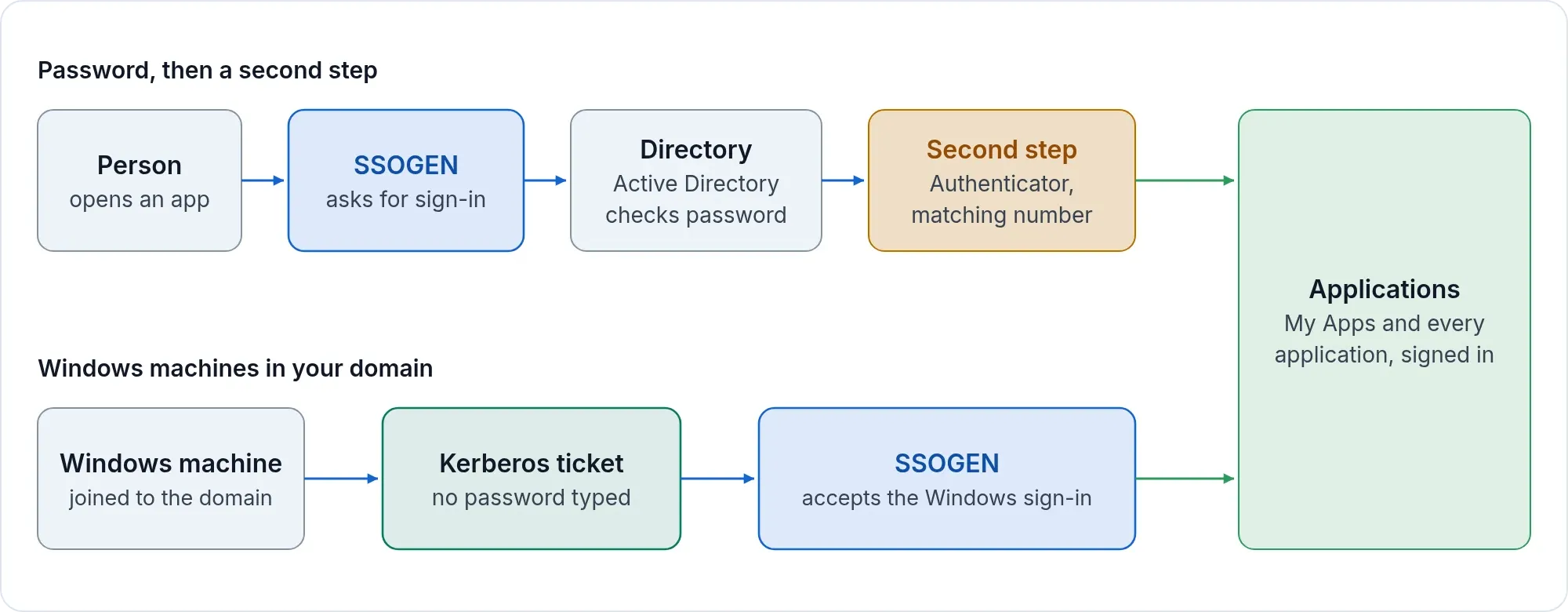
At every sign-in, SSOGEN checks the password against Active Directory or another LDAP directory. It keeps no copy of it. It finds the person with a read-only service account, then signs in to the directory as that person. The connection is always encrypted, with LDAPS or StartTLS.
- Pick the directory type. The console offers Microsoft Active Directory, and OpenLDAP or another LDAP directory. It fills in the attribute names each one uses. You can still edit the fields.
- Map people and groups. Map the user name, email and display name. Group membership comes from
memberOf, or from a group base DN if the directory has nomemberOf. - Test before anyone signs in. The test connects, sets up the encryption, binds with the service account and searches the base DN. A second check walks one real person through each step: find them, check the password, read attributes and resolve groups.
- Create accounts on first sign-in, or import them. Groups are refreshed at each sign-in. An import can disable the accounts of people who left the directory.
- Directories that must not face the internet can be checked through the Gateway’s Directory Connector.
Step by step: Active Directory and LDAP. People who sign in through Entra ID, Okta or AD FS keep their password there. See sign-in sources.
A second step on every sign-in that needs one
A sign-in policy decides which apps and which people need more than a password.
- Phone approval with number matching in the SSOGEN Authenticator for iOS and Android, confirmed by face or fingerprint. See push approval.
- Codes from the Authenticator, which work offline. Other standard authenticator apps work too if you allow them.
- Passkeys and security keys. See passkeys.
- Recovery codes for a lost phone.
- Codes by email or text message, for people with no phone, when you set up a mail or SMS provider. They are off until a policy lists them, and the console labels them weaker.
The Authenticator comes with SSOGEN.
Kerberos: no password on a domain computer
A person is signed in to a domain-joined Windows computer. They open SSOGEN or a protected app and are signed in without typing anything. The browser hands SSOGEN the Kerberos ticket. SSOGEN checks it with a keytab and finds the person in your directory.
A person off the office network, or on a computer outside the domain, sees the normal sign-in page. See Windows sign-in.
What it installs on
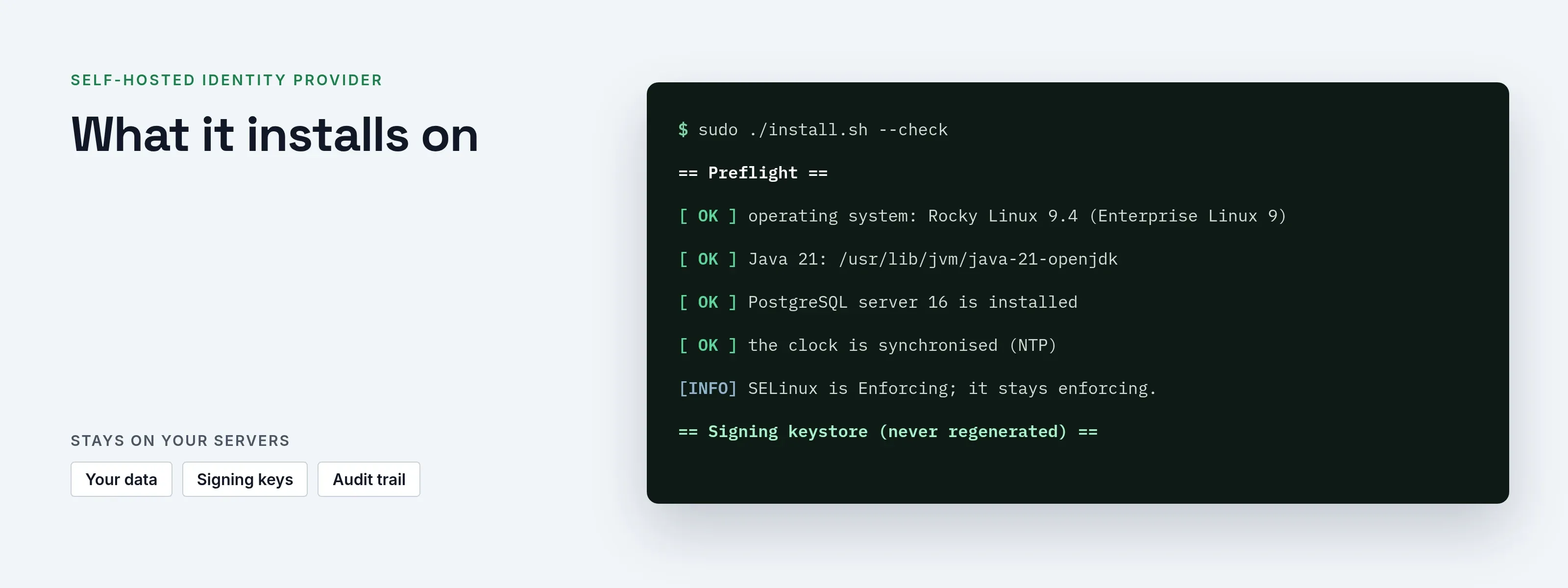
One SSOGEN archive with an installer for Red Hat Enterprise Linux, Oracle Linux, Rocky Linux, AlmaLinux and CentOS Stream 8, 9 and 10. It needs Java 21 and PostgreSQL 15 or later. If they are missing, it installs them from your repositories.
The first admin is created with a one-time token. They enroll a second factor and get recovery codes. Upgrade is one command.
Questions
Which directories does it work with?
Active Directory, OpenLDAP and other LDAP directories that offer LDAPS or StartTLS.
Is the directory password stored in SSOGEN?
No. SSOGEN passes it to the directory to check, and keeps nothing.
Can I use it with Entra ID or Okta instead of a directory?
Yes. Add the provider as a sign-in source. SSOGEN then opens every app, even the old ones the provider cannot reach.