SSOGEN / Secure Remote Access / What Is a Jump Server? How to Secure or Replace a Jump Box
Free tool
What Is a Jump Server? How to Secure or Replace a Jump Box
Administrators open SSH, RDP or VNC to one host in the browser, with single sign-on, MFA and a record, so no shared box needs accounts or keys.
What is a jump server? It is a single hardened server that administrators connect to first and then use to reach other servers that are not exposed directly. It is also called a jump box, jump host or bastion host. It gives one controlled entry point: one machine to patch, monitor and log, instead of every server on its own.
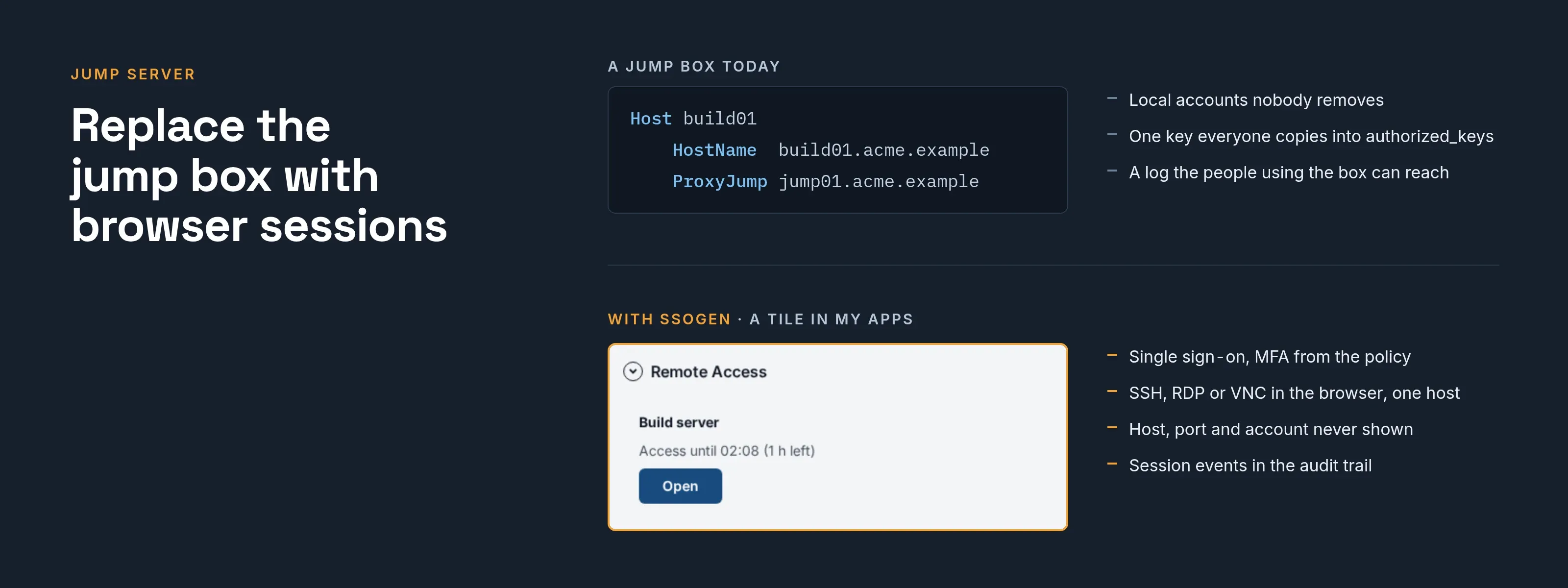
The top of the diagram below shows the setup most teams run. The bottom shows the same job done with SSOGEN Remote Access.
When a jump box is still the right tool
A jump box is a sound choice more often than vendor marketing suggests. It fits when:
- A small, stable estate. You have a small, stable set of servers, a few administrators, and a box that is already hardened and logged.
- Tools on the hop. You need command-line tools on the hop itself, for example scripts that run from inside the network segment.
- One machine per segment. Exactly one machine must reach a network segment, and you want that visible in a firewall rule.
- SSH’s own jump support. OpenSSH can chain through a host with
ProxyJump, which connects to the jump host first and then forwards to the target. See the OpenSSH ssh_config manual, read 2026-10-08.
Problems start when the box turns into a shared account system. The typical symptoms:
- Stale accounts. Local users that nobody removes.
- Shared keys. One key that everyone copies.
- Reachable logs. A log that the people using the box can reach.
The sections below address each of these.
Jump box SSO
On most jump boxes, identity is local. Each administrator has an account on the box, or several people share one.
Leavers are removed by hand, if someone remembers. Keys accumulate in authorized_keys with no record of whose is whose.
Single sign-on moves the question “who is this?” off the box. With SSOGEN, a person signs in once against your directory or identity provider.
The resources they may reach appear in a Remote Access section on My Apps, below the application tiles. Each resource has one tile, named like SSH · Build server.
There is no box to log in to first and no account on a hop to maintain. Two details matter for audit:
- Access follows assignments. When a person leaves a group, the tile disappears, with nothing to remove from a server.
- Hosts stay hidden. The tile never shows the employee a host name, port or account. Only administrators see the host.
The account on the target server remains a normal local account. SSOGEN asks for the person’s username and password on the host at every connection, uses them once and does not store them.
Jump box MFA
On a jump box, a second factor usually means a PAM module on the box or a VPN with MFA in front of it. Either way it protects the entry point, not each server behind it.
In SSOGEN the second factor is part of the sign-in policy. Sign-in strength is not set per resource; it follows the application’s sign-in policy:
- Required strength is Plus a second factor (or Passkey or security key).
- The Second step section lists the methods that count: authenticator app, recovery codes, and email or text codes if you allow them.
The policy help line notes that email and text codes can be intercepted, and that NIST SP 800-63B does not accept email as a second factor and restricts SMS. For a server fleet, choose the authenticator app or a passkey.
Step-up covers a person who is already signed in. If they opened My Apps with a password and the policy requires more, SSOGEN shows the Multi-factor authentication screen without asking for the password again.
Approving a Remote Access request always requires a fresh second step, regardless of policy. An approver who added a sign-in method during the current session is asked to sign out and back in first.
Plan enrollment before you raise the strength, because a person with no usable method cannot sign in. The guides are multi-factor authentication and how sign-in decisions work.
Jump box for SSH
An SSH jump box only needs sshd reachable from the hop and from each target. The real decisions concern trust and accounts:
- Host key trust. Without a pinned host key, a first connection trusts whatever answers. In SSOGEN, a resource’s Host identity defaults to Verify the host (recommended). Paste the fingerprint into Host key fingerprint; it has the form
SHA256:followed by 43 characters. Read it on the server with:
ssh-keygen -lf /etc/ssh/ssh_host_ed25519_key.pub- Leave it empty and nothing is trusted on first use. The first session is refused, and its timeline shows the key the host presented. Compare that with the host’s own key, then select Trust this host key.
- Accounts. Create a normal account for people to sign in with. SSOGEN asks for the username and password on the host, so console access uses password sign-in. A target with a key-only SSH policy needs a password-enabled account for this purpose.
- File transfer. On SSH hosts it uses SFTP, and the gateway confines it to a folder, by default the account’s home directory. For a strict boundary, give people a dedicated file-transfer-only account with
ChrootDirectoryandForceCommand internal-sftpinsshd_config.
Remote Access provides the console and file transfer. Many jump box setups also rely on port forwarding and agent forwarding; keep a jump box for those, and check for them before you migrate.
Jump box for RDP
An RDP jump box is usually a Windows machine that people log in to and then open mstsc from. The target only needs Remote Desktop enabled:
- In Settings, System, Remote Desktop, switch Remote Desktop on and keep Require devices to use Network Level Authentication on. SSOGEN always requires NLA and TLS.
- Add the people’s accounts to Remote Desktop users.
- Windows presents a self-signed certificate unless you installed one. To pin it, read the SHA-256 fingerprint of the whole certificate:
openssl s_client -connect fin-rdp01.acme.example:3389 </dev/null 2>/dev/null \ | openssl x509 -noout -fingerprint -sha256Remove the colons and convert to lower case to get 64 hexadecimal characters. Enter up to 16 of them, one per line, in Certificate pins.
A pinned certificate is trusted as is, so a self-signed certificate works. With neither a pin nor a trust bundle, the first session is refused and the timeline offers Trust this certificate.
The unsafe choice is Don’t verify the host (insecure). It requires ticking Connect without verifying this host’s identity. I accept the risk. The audit trail records the choice, and the person connecting is told the host is not verified.
The session carries the desktop itself; drive, printer and USB redirection are not part of it.
Replace the jump box with browser sessions
SSOGEN Remote Access gives people a terminal (SSH) or a desktop (RDP or VNC) in the browser, through a SSOGEN Gateway in your network.
- One hop only. Only the gateway talks to the server.
- No VPN. Each person gets access to one server, not the whole network.
The full setup is in the Remote Access guide. In outline:
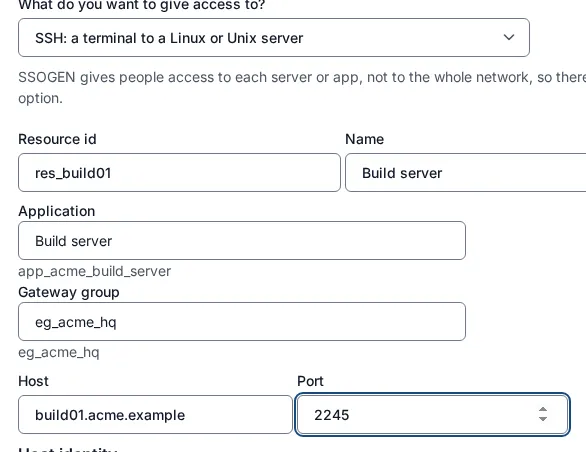
Add a resource with these settings:
- Id. An id such as
res_build01. - Name. A name for the resource.
- Application. The application people are assigned to.
- Gateway group. The gateway group for the resource.
- Host and port. One exact host and port.
- Idle timeout. The default is 900 seconds.
- Maximum session. The default is 28800 seconds, 8 hours.
Then open the resource’s Access tab and choose how access is granted:
- Standing: everyone who may open it can do so at any time.
- Just in time: a person asks, an approver says yes, and access lasts for a limited time.
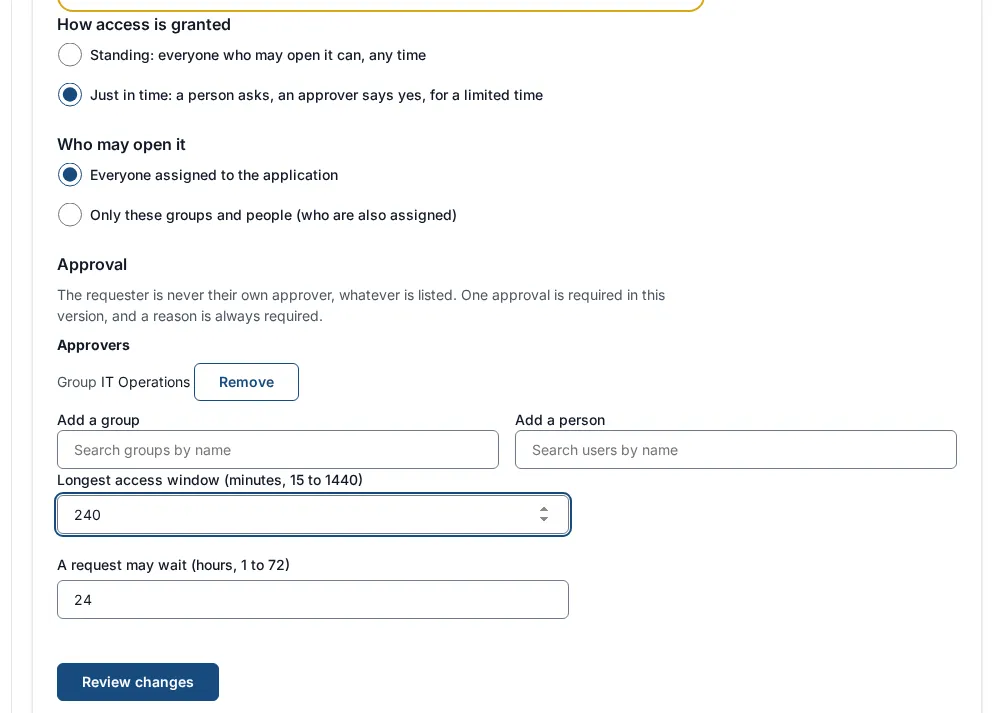
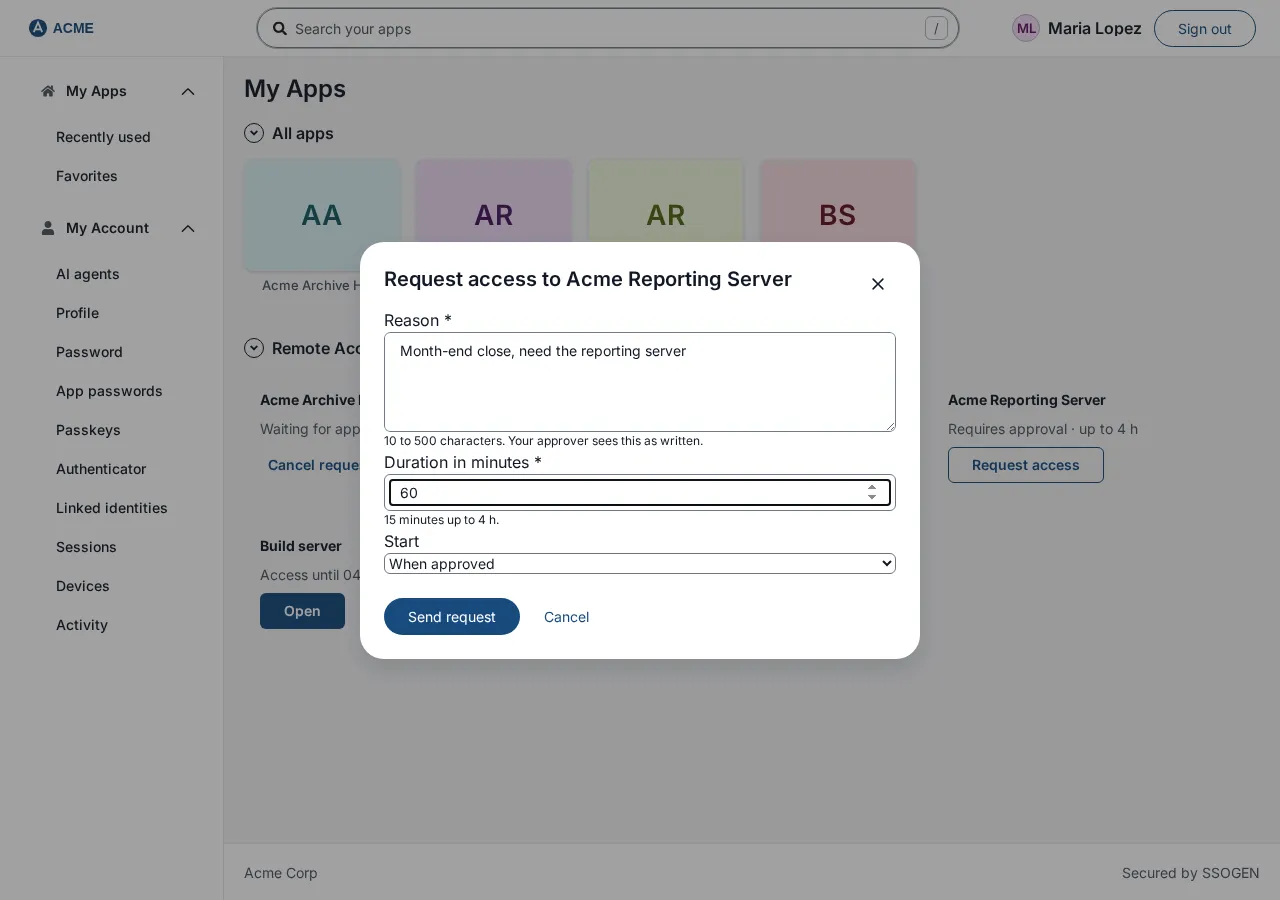
Just-in-time access requires one approval and always a reason, and a requester is never their own approver. The Longest access window is 15 to 1440 minutes. The requester enters a reason of 10 to 500 characters and a duration.
The approver sees the requester, the resource, the reason and the window. They can untick capabilities, then select Approve or Deny.
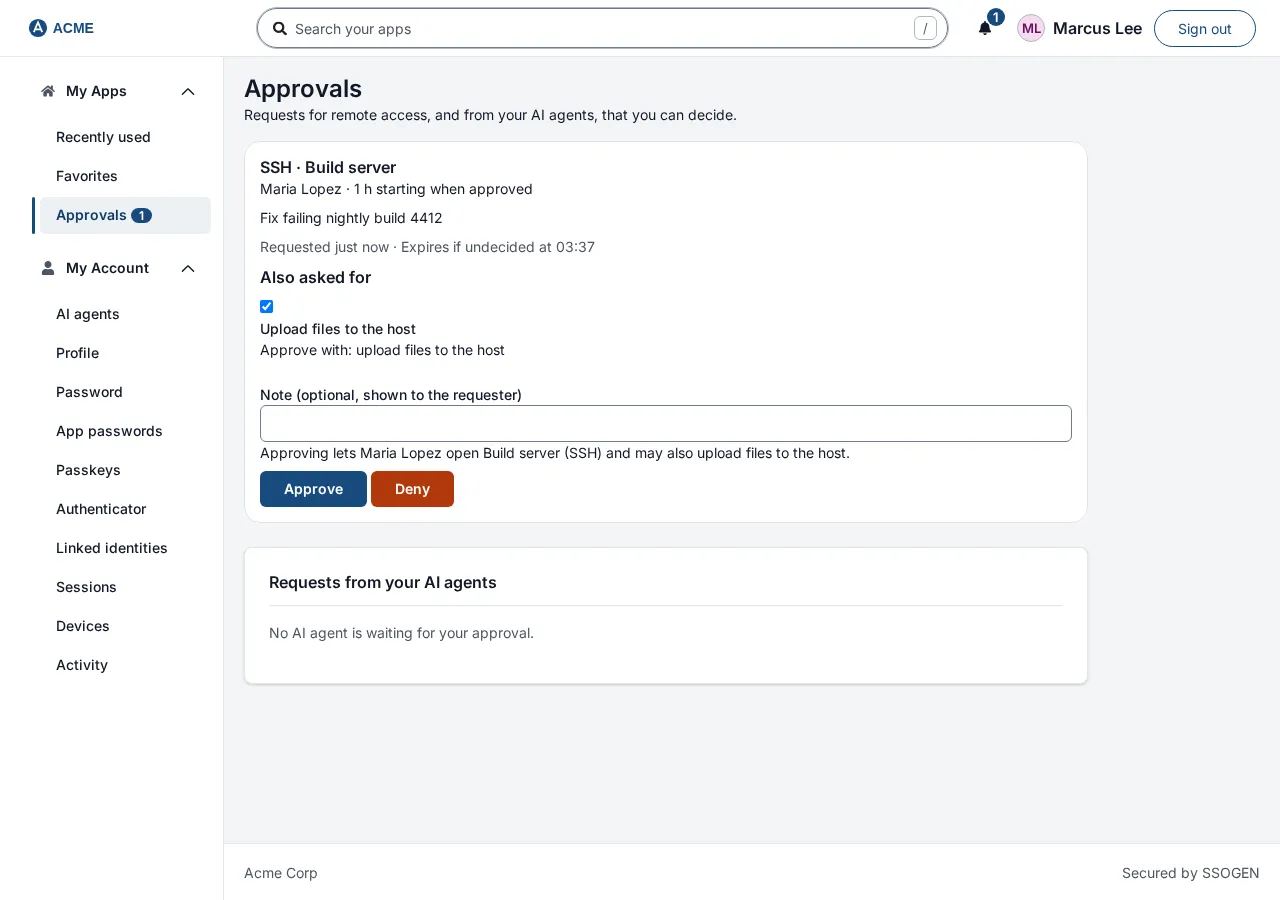
Clipboard and file transfer are off until an administrator turns each one on with a written reason of 10 to 500 characters. The reason goes into the audit log.
File transfer also has a Largest file (MB) limit of 1 to 2048, default 100.
The end user’s side is described in Remote access and approvals.
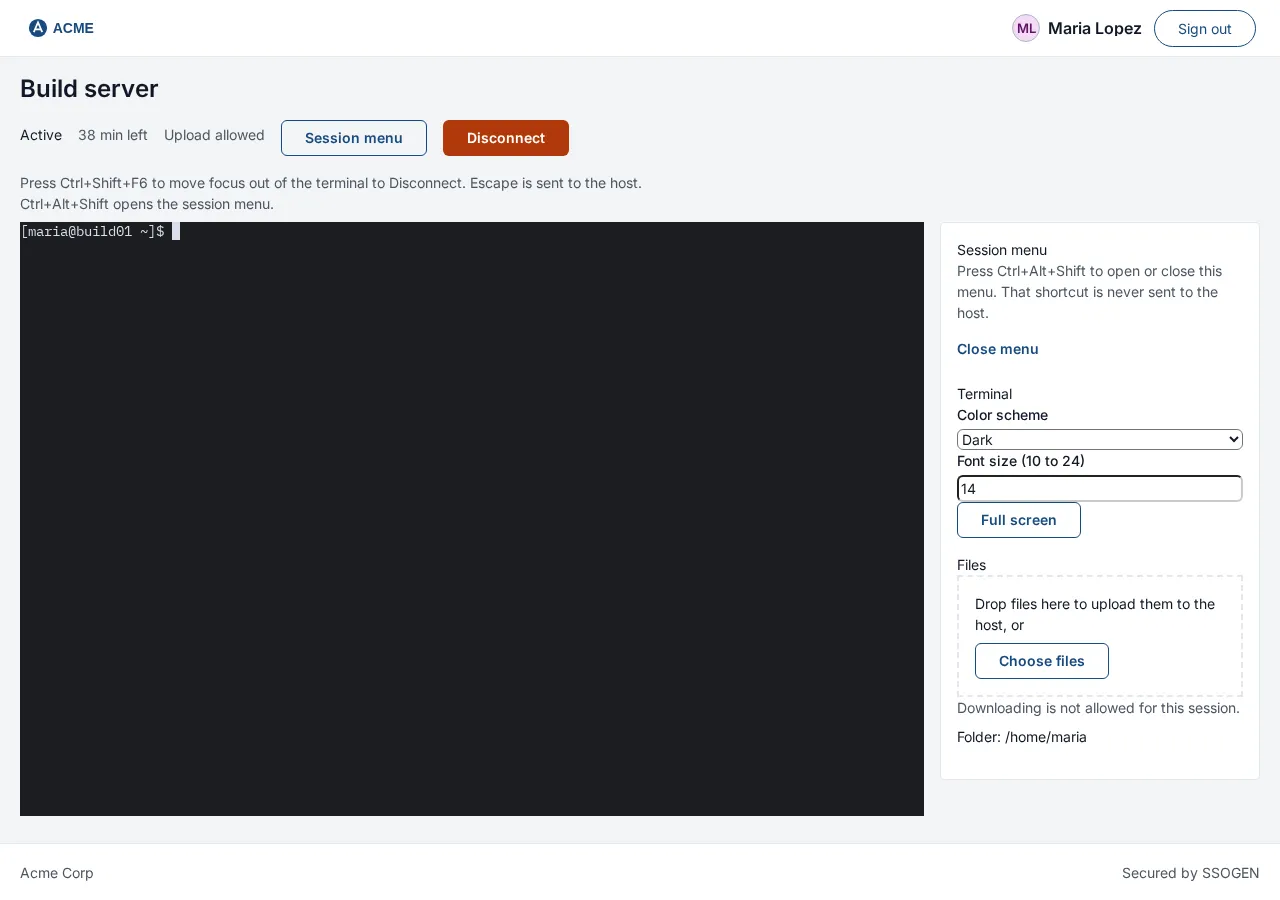
Administrators watch Live sessions and can Terminate one with a required reason. Each resource has a Timeline that records each step: access requested, approved, the host presented its identity, signed in, clipboard used, file transferred, session ended.
The audit log records session events, not screen content. This differs from a jump box with session recording, so decide whether you need recording. For external users, see contractor and vendor access.
A migration checklist
| Jump box duty | What covers it in SSOGEN | What stays on the host |
|---|---|---|
| One controlled way in | Sessions go through the SSOGEN Gateway; no VPN needed | The host’s firewall still allows the gateway |
| Local accounts on the box | SSO and the Remote Access tile, from application assignments | The normal account on each target |
| Shared SSH keys | No key on a hop; the person types their host credentials, used once | sshd stays as you run it; key-only sign-in is not offered |
| MFA at the door | Application sign-in policy: Plus a second factor, step-up | Nothing |
| Who may reach which server | Resource Access tab, groups and people | Nothing |
| Time-limited access | Just-in-time, window of 15 to 1440 minutes | Nothing |
| Approval and reason | Required reason and an approver who is not the requester | Nothing |
| Copy and paste, file moves | Capabilities, off by default, reason recorded | SFTP folder confinement with ChrootDirectory if you want it strict |
| Host identity checks | Host key fingerprint or Certificate pins | The server’s own key or certificate |
| Session log | Timeline and Live sessions; terminate with a reason | Any command-level logging you already run |
| Port forwarding, agent forwarding | Not offered | Keep a jump box for these |
Questions people ask
How does a jump server work?
An administrator connects to the jump server first, with their own account, and from there opens a session to a target server, usually over SSH or RDP.
Firewalls allow the target servers to accept connections only from the jump server. Every administrative path therefore runs through one controlled, logged point.
What is the difference between a server and a jump server?
A jump server is an ordinary server with one job: it is the only machine administrators connect to before reaching other servers.
It runs few services, is patched and logged closely, and holds no business data. The servers behind it are not reachable from outside, so every administrative path goes through it.
Are jump servers still used?
Yes. Teams still use them for SSH and RDP access to private networks. They remain a sound choice where sessions must be recorded on the host or ports forwarded. Browser-based access can replace them when administrators only need a console on each server.
Is a jump box the same as a bastion host?
In everyday use, yes. Jump box, jump server, jump host and bastion host all mean a hardened machine that serves as the entry point to a private network. “Bastion host” is more common for the internet-facing version.
Does a jump box need MFA?
Yes, if anyone can reach it from outside. Apply the second factor at sign-in, not only on a VPN, so that it covers each server people can open.
Can I use SSH keys with SSOGEN Remote Access?
Console sessions use the account and password on the host, which the person enters when connecting. SSOGEN uses them once and does not store them.
Does SSOGEN record the screen?
No. The audit log records session events, not screen content.
Can I keep my jump box and add SSOGEN?
Yes. Move resources one at a time, and keep the box for anything in the “stays on the host” column, such as port forwarding.
Where to go next
Start with secure remote access, read about the SSOGEN Gateway, then follow the Remote Access guide to add your first resource.
Sources, all read 2026-10-08: OpenSSH ssh_config manual.