SSOGEN / Vendor Access Management for Contractors, Without a VPN
SSOGEN
Vendor Access Management for Contractors, Without a VPN
A vendor opens a browser terminal or desktop to one approved host for a set window, with MFA, a written reason and a record, no VPN account.
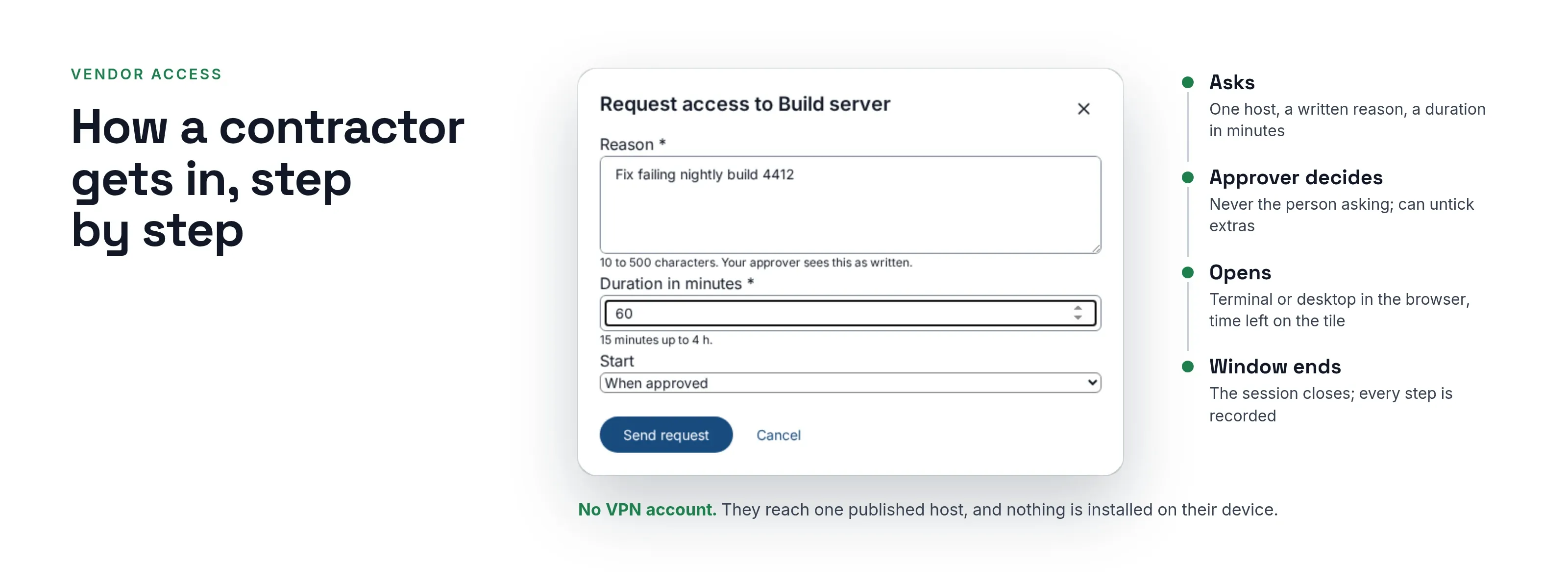
A vendor engineer needs to fix one application server on Thursday. The usual answer is a VPN account, which puts a laptop you do not manage on your network. The account often stays open long after the work is done.
Vendor access management with SSOGEN is narrower: that person, that server, four hours, approved by the system owner and logged.
SSOGEN Remote Access delivers exactly that.
The contractor opens a terminal (SSH) or a desktop (RDP or VNC) in the browser, through your SSOGEN Gateway. Nothing is installed on their device, and they never reach the network, only the host you published.
The secure remote access page has the wider picture. This page covers contractors and vendors.
What a vendor access setup has to cover
A contractor setup holds up when all of these are true:
| Requirement | How SSOGEN covers it |
|---|---|
| Access to one named resource, not a network | Each host is a separate resource that the person is assigned to through an application. The gateway is the only thing that connects to the host. |
| Time limit | Just-in-time access: a longest window of 15 to 1,440 minutes per resource. Idle sessions close (default 900 seconds) and sessions have a maximum length (default 8 hours). |
| Someone says yes first | An approver group or named approvers. The requester can never approve their own request. |
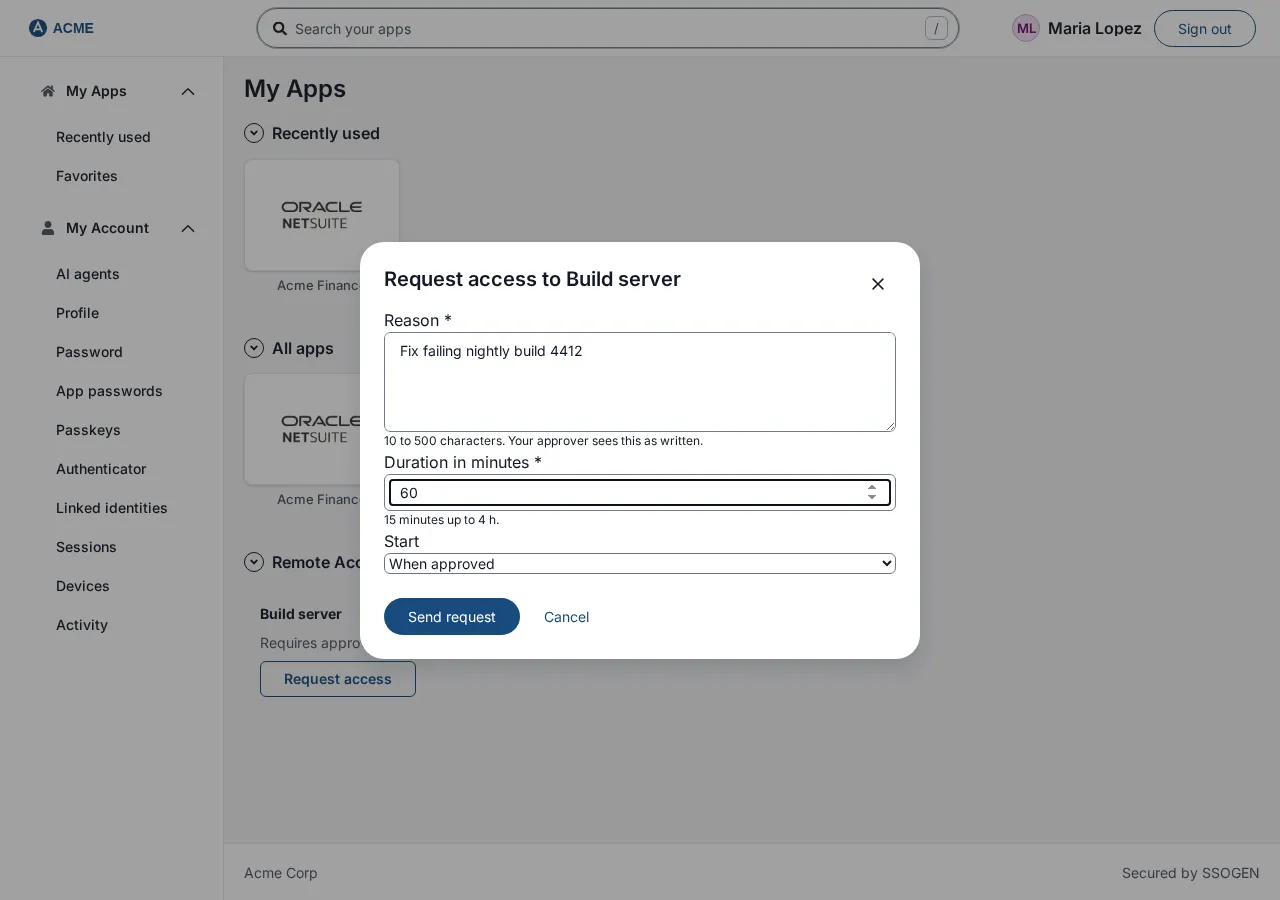
| A reason on record | Every request needs a written reason of 10 to 500 characters. The approver reads it as written. |
| Strong sign-in | The resource follows the application’s sign-in policy, so MFA and step-up rules apply the same way as for any other application. |
| Limits on what a session can do | Clipboard and file transfer are off until an administrator turns each one on, with a written reason that goes in the audit log. |
| A record | Requests, approvals, the host’s identity check, session start and end, clipboard and file events are recorded, and administrators can end a live session. |
How a contractor gets in, step by step
The fictional example is Acme Corp. Megan is a vendor engineer. She needs the build server build01.acme.example for one afternoon.
Megan is not in Acme’s directory, so an administrator invites her. Create user with Send an invitation email puts her in the Vendors group, and the link in her email works for 7 days. She chooses a password and sets up her second step at the first sign-in. See customer identity.
- Megan signs in to SSOGEN, with whatever MFA the application’s policy requires, and opens My Apps. In the Remote Access section, the build server’s tile says “Requires approval” and shows the longest window the administrator set.
- She selects Request access. The dialog asks for a reason, a duration in minutes (15 up to the maximum), and a start: when approved, or at a time within the next 7 days. She sends it and the tile changes to “Waiting for approval”.
- The approver opens the Approvals page from their own My Apps. Each request shows who is asking, which resource, the reason and the window. The approver can untick any extra capability the requester asked for, add a note for the requester, then approve or deny.
- When the window opens the tile shows the time left and Open. Megan types her own account name and password for the host. SSOGEN uses them once and does not store them.
- When the window ends, or an administrator revokes the request, the session closes. A request nobody answers expires after a wait you set, from 1 to 72 hours.
The person never sees the host name, port or account the gateway uses. Only administrators do.
What the administrator sets once per host
Under Secure Access, then Remote Access, an administrator adds a resource (SSH, RDP or VNC), picks the gateway group that carries the connection and sets how access is granted.
There are two modes:
- Standing access: everyone allowed can open the host any time.
- Just-in-time access: a person asks and an approver decides. For contractors, pick just-in-time and name the approvers.
A new resource fails closed. Until you save an access policy, it behaves as just-in-time with no approver, so nobody can request or open it.
Before you save a change, the Access tab also shows a list headed “Who loses access now”. You see a policy edit’s effect on named people first.
Host trust lives on the same screen.
SSOGEN pins an SSH host key fingerprint or an RDP certificate, and refuses to connect if the host shows something different. Skipping that check takes a ticked acknowledgement, and the audit log records it.
Vendors who need a web application, not a server
Some vendors need one internal website, not a shell.
- Publish it through the App Proxy. The App Proxy is the other half of the SSOGEN Gateway.
- One hostname only. The vendor signs in to SSOGEN, passes the application’s policy, and reaches that hostname only.
- Its own policy. The hostname can have its own policy, such as one that denies sign-in from outside your network zones.
- Steps and idea. The App Proxy guide has the steps, and identity-aware proxy explains the idea.
What Remote Access covers
Remote Access gives a contractor one host and nothing beyond it:
- The session carries the terminal or desktop only. Port forwarding, agent forwarding, and printer, USB and audio redirection stay off, so nothing else crosses the gateway.
- People sign in to the host with the host account’s password, which SSOGEN uses once and does not store. SSH key-based sign-in is outside the console’s scope.
- The audit log records session events, not screen content.
- Contractors who need a VPN-style route to a whole subnet fall outside this model, on purpose.
Questions people ask
How do I give a contractor access without a VPN?
Publish the server or application through a gateway, assign the contractor and require approval for a limited window. SSOGEN Remote Access does this for SSH, RDP and VNC hosts.
Can access expire on its own?
Yes. A just-in-time request has a window of 15 minutes to 24 hours, and the session ends when the window ends. Idle and maximum-length limits apply on top.
Does the contractor need an account in my directory?
No. They need a person in SSOGEN assigned to the application, from your directory, another identity provider or SSOGEN’s own users, and an account on the host itself.
Can I see what a vendor did?
Yes. You can see each request, approval and session event in order, and which host key or certificate the host showed. The log holds no screen content.
Where to go next
- Their own provider. Contractors and partners can sign in through their own provider next to yours: multiple identity providers.
- Partner pattern. Partners with their own identity provider fit the identity broker pattern.
- Set up the resource. Use the Remote Access guide, and read the approvals guide for employees and approvers.
- The product view. See secure remote access and the SSOGEN Gateway.