SSOGEN / Learn / Free SAML Tracer and Decoder: Read SAML Without an Extension
Free tool
Free SAML Tracer and Decoder: Read SAML Without an Extension
A SAML decoder turns the encoded message your browser passes during single sign-on into readable fields, and a SAML tracer captures it. Take the message from the Network tab of any browser's DevTools and read it here, with nothing to install.
Decode a SAML message here
Paste the bare value, a whole SAMLResponse=... form line or the long SAMLRequest from a redirect URL, then select Decode.
Nothing is sent over the network. To see the output first, select Load an Acme sample.
The SAMLResponse or SAMLRequest value from your browser's network tab. Base64, URL-encoded text, a whole SAMLResponse=... form line or a deflated redirect request are all accepted.
Private by design. Decoding happens in this page. Nothing is sent to SSOGEN or anyone else (open your browser's network tab and check). A SAML response still holds a person's name, email and group memberships, so use a test account when you can.
What a SAML tracer shows
A SAML tracer or SAML decoder shows what an identity provider sent to an application. When a sign-in fails with an uninformative error, you need the message itself, and the browser’s DevTools can already capture it.
- Capture. Capture the request in DevTools and copy the encoded
SAMLResponseorSAMLRequest. - Paste. Paste it into the decoder above. This SAML response and request decoder runs on your computer.
- Read. It lays out the fields that decide whether a sign-in works and flags the usual faults.
Get the message out of DevTools in six steps
The steps use Chrome; Edge runs on the same DevTools. Firefox has the same features under slightly different names, listed after the steps.
Open the Network tool before you sign in
Press F12 (or right-click and choose Inspect) and open the Network tab. Per the Chrome DevTools Network reference (read 2026-10-09), select Keep log (the Chrome reference calls the checkbox Preserve log) so the requests survive the redirects that SSO causes.Start the sign-in
Open the application’s sign-in address in the same window and sign in as a test user.Find the POST to the assertion consumer URL
Filter the list by the application’s host name, or look for a POST request whose address ends in something like/saml/acs. This is the assertion consumer service (ACS) URL, where the identity provider delivers its response.Open the Payload tab
Select that request and open Payload. The Chrome documentation says this tab shows the query string parameters and the form data, with a View source option for the raw text.Copy the SAMLResponse value
Under form data, copy the whole value ofSAMLResponse. If the decoded view truncates it, use View source. Leave out the parameter name and any quotes (the decoder accepts the name too).Paste it above and select Decode
To decode a sign-in request instead, see the next section.
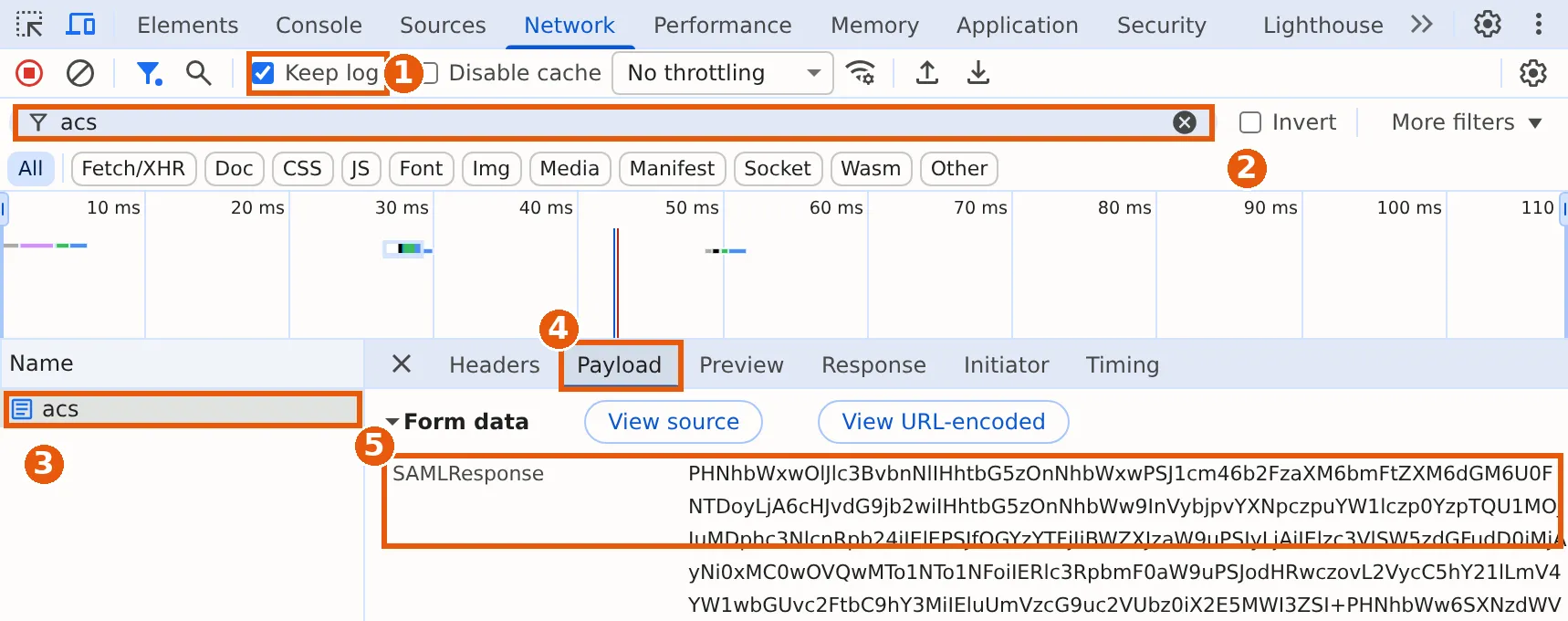
A real Chrome Network tool after a test sign-in at a fictional Acme application. (1) Tick Keep log. (2) Type part of the address, such as acs or saml, in the filter. (3) Select the request. (4) Open Payload. (5) The SAMLResponse value is what you copy.
The first request, from the application to the identity provider, carries a SAMLRequest. Depending on the binding, it travels as a form field or as a query parameter on a redirect.
For the redirect case, the SAML 2.0 bindings specification (section 3.4.4) says the XML is compressed with DEFLATE, base64-encoded and then URL-encoded.
To decode it:
- Open the redirect request in the Network tab.
- Find the query string in Payload and copy the
SAMLRequestvalue. - Paste it above; the decoder reverses all three layers.
The response is simpler. In the POST binding (section 3.5 of the specification) it is plain base64 in a form field.
Other browsers:
- Edge documents the same flow: a Preserve log checkbox on the Network tool and a Payload tab for query string parameters and form data (Microsoft Learn, read 2026-10-08).
- Firefox names the setting Persist Logs in the Network Monitor, per its toolbar documentation, and shows form data and URL parameters on the Request tab of the request details (read 2026-10-08).
Asking a user for their SAML response: a message you can send
In support work you often need a user’s SAML response because you cannot reproduce the failure yourself.
Someone who has never opened DevTools can capture it in about two minutes with the steps in order. Copy this into your ticket reply:
- Open a private (incognito) window in the browser where the sign-in fails.
- Press F12, then click Network.
- Tick Keep log.
- In the Filter box, type
acs(if nothing shows up later, trysaml).- Go to the application and sign in until you see the error.
- Click the line that says acs (or similar). Click Payload, then View source.
- Click in the text, press Ctrl+A to select all, copy it, and paste it into your reply.
Three points to know before the reply arrives:
- What the person will see. The first sign-in request often appears as a long address that starts with the identity provider’s name; ignore it. You want the request to the application, whose address ends in something like
/saml/acs. If no request appears at all, Keep log was off or the filter hid it. Have them clear the filter and repeat step 5. - What the text looks like. It starts with
SAMLResponse=followed by letters and numbers, and ends withRelayState=and a path. Paste it into the decoder above as it is; the decoder finds the response inside it. - Treat it as personal data. A SAML response holds a person’s name, email address and group memberships. Ask for it through your support channel, not in a public chat, and use a test account when you can. It is useful for only a few minutes: the assertion inside expires, usually after five minutes, so nobody can replay it later.
If the person cannot do this, use a screen share: you drive, they sign in, and you copy the value yourself.
What the SAML-tracer extension is, and when a paste-and-decode page is enough
SAML-tracer is a browser extension for viewing SAML and WS-Federation messages during single sign-on and single logout.
- Publisher. Its Firefox listing names Jan Köhler as the publisher, and the source is public on GitHub.
- What it does. It records requests as you browse and decodes the SAML messages among them.
An extension needs permission to read your traffic. Many managed work laptops block extension installs, or the security team requires sign-off first.
In those cases a paste-and-decode page is enough:
- You copy one value yourself, so you choose exactly what leaves the network panel.
- It works when someone pastes a message into a ticket and the text is all you have.
The fields to check, and what SSOGEN says when they are wrong
Every row is a value the application compares character for character.
The error text in the last column is quoted from two guides:
- SSOGEN as the relying side. The SSOGEN SAML provider guide.
- SSOGEN as the identity provider. The SAML application guide.
| Field in the decoder | What it must match | The usual mistake | SSOGEN error text |
|---|---|---|---|
| Status | Success | The identity provider refused and sent a failure status | “Sign-in was not completed”: “The identity provider did not complete your sign-in, or you chose to go back.” |
| Issuer | The IdP entity ID the application has on file | A copy from another environment or a trailing slash | “The metadata names a different entity ID than the one entered.” |
| Signature | The certificate the application trusts | An old certificate after the identity provider rotated it | “The assertion’s signature did not verify. Check the signing certificate.” |
| Destination | The ACS URL registered at the application | http instead of https, or a path that differs |
“The response came back to a different ACS URL than the one this provider registered.” |
| Recipient | The same ACS URL as Destination | Registered with one address, used with another | “The response was addressed to a different address than this provider’s ACS URL.” |
| Audience | The application’s entity ID | Entity ID typed by hand, not copied | “The assertion was addressed to a different service provider. Its audience must be this provider’s entity ID.” |
| NotBefore and NotOnOrAfter | The current time, within a few minutes | A server clock that drifts | “The assertion is outside its validity window. Check that both clocks are correct.” |
| NameID | A stable value the application can match to an account | A format the application does not expect, or no NameID | “The assertion carried no subject (NameID).” |
| Attributes | The names the application asks for | mail sent where emailaddress is expected |
“The provider did not send an attribute this connection requires.” |
When SSOGEN is the identity provider for the failing application, the request side has its own messages:
- A request from an unregistered Issuer gets “No service provider is registered here with that entity ID.”
- A request that cannot be read gets “The authentication request could not be read, or was not valid.”
As the relying side, SSOGEN enforces several of these checks itself:
- It requires a signed assertion.
- It checks the signature against the certificates in the identity provider’s metadata.
- It allows five minutes of clock difference by default.
Eight checks, in the order that finds the fault fastest
Work through the decoder output from the top. Each check rules out a whole class of causes, so do not skip ahead.
- Status is Success. If not, the problem is at the identity provider. Stop and read its log.
- The message is a Response with an Assertion. If you see an
EncryptedAssertion, the decoder cannot show its contents. - Issuer matches. Compare it with the entity ID entered in the application.
- A Signature exists and is the right one. Compare the certificate’s SHA-256 fingerprint shown by the decoder with the one in the identity provider’s metadata.
- Destination equals the ACS URL. Look at scheme, host, port and path.
- Recipient equals Destination.
- Audience equals the application’s entity ID. The decoder shows the value but does not know the expected one, so compare it yourself.
- The time window contains now, and the NameID and attributes are what the application maps. This comes last because it is the cheapest to fix.
A worked example: the Acme sample and three mistakes you can make on purpose
Select Load an Acme sample. It is a fictional unsigned response from https://sso.acme.example/saml/idp about Maria Lopez, addressed to https://erp.acme.example/saml/acs, and valid for five minutes.
It has an email attribute and a groups attribute holding Finance and ERP-Approvers.
The Quick checks mark it healthy. Because it is unsigned, the tool also reports that no service provider would accept it, which is the correct result for a teaching sample.
Copy the XML from The XML panel into the box (the decoder takes raw XML), edit it, and decode again:
- Change the Audience to
https://erp.acme.example/other. The decoder shows the new value without a warning, because it cannot know what your application expects; this is why check 7 is manual. The mismatch appears only when you compare it with the entity ID on file. A real service provider would refuse it. - Change the Recipient to
https://erp.acme.example/saml/other. The Quick checks turn red and report that Destination and Recipient differ: the classic recipient mismatch. - Move NotOnOrAfter into the past, or wait for the sample to age past its window. The tool allows five minutes of clock difference, as SSOGEN does by default, so a sample expires about ten minutes after loading. The check then reports that the assertion has expired.
What this tool does not do
The same facts inside the SSOGEN console
If SSOGEN is your identity provider, there is nothing to capture.
The Test tab on an application is a dry run for a chosen person. Nobody is signed in and nothing is sent. It shows:
- a checklist (assigned, available, providers allowed, access policy, assurance)
- a SAML assertion card with the NameID, audience, recipient and attributes the application would receive
The Diagnostics tab is a read-only summary of the protocol and the sign-in policy in force. Both are described in Test SAML SSO and activate an application.
When SSOGEN is the relying side, a provider’s Try signing in result shows what the provider sent, the account it would map to and the strength of the sign-in. It creates nothing.
Is there a SAML tracer for Chrome?
How do I use a SAML tracer?
How do I decode a SAML response or request?
What does a SAML decoder do?
Is it safe to paste a SAML response here?
Where to go next
- Test sign-in. To start one and get a response to decode, build a request with the SAML request builder.
- Mismatch. If a value does not match, see ACS URL, entity ID and audience.
- Flows. For the two sign-in flows, see SP-initiated vs IdP-initiated.
- Logout. See SAML single logout.
- Elements. Learn what each element means in a SAML assertion, annotated and the basics in what SAML is.
- Connect. To connect an identity provider, see SAML integration with SSOGEN. For application setup, see register a SAML application.
- Background. More lives in the Learn hub.
When the SAMLResponse is buried in a long sign-in, load the whole capture into the HAR file analyzer first. It masks secrets and labels the SAML step.
Sources, all read 2026-10-09: Chrome DevTools Network reference, SAML 2.0 bindings specification, SAML-tracer on Firefox Add-ons.