SSOGEN / Learn / Password Policy: What Each Setting Does and What to Set
Learn
Password Policy: What Each Setting Does and What to Set
In Active Directory, five settings govern the password itself and two govern lockout, and Microsoft and NIST recommend different values for several of them.
Updated
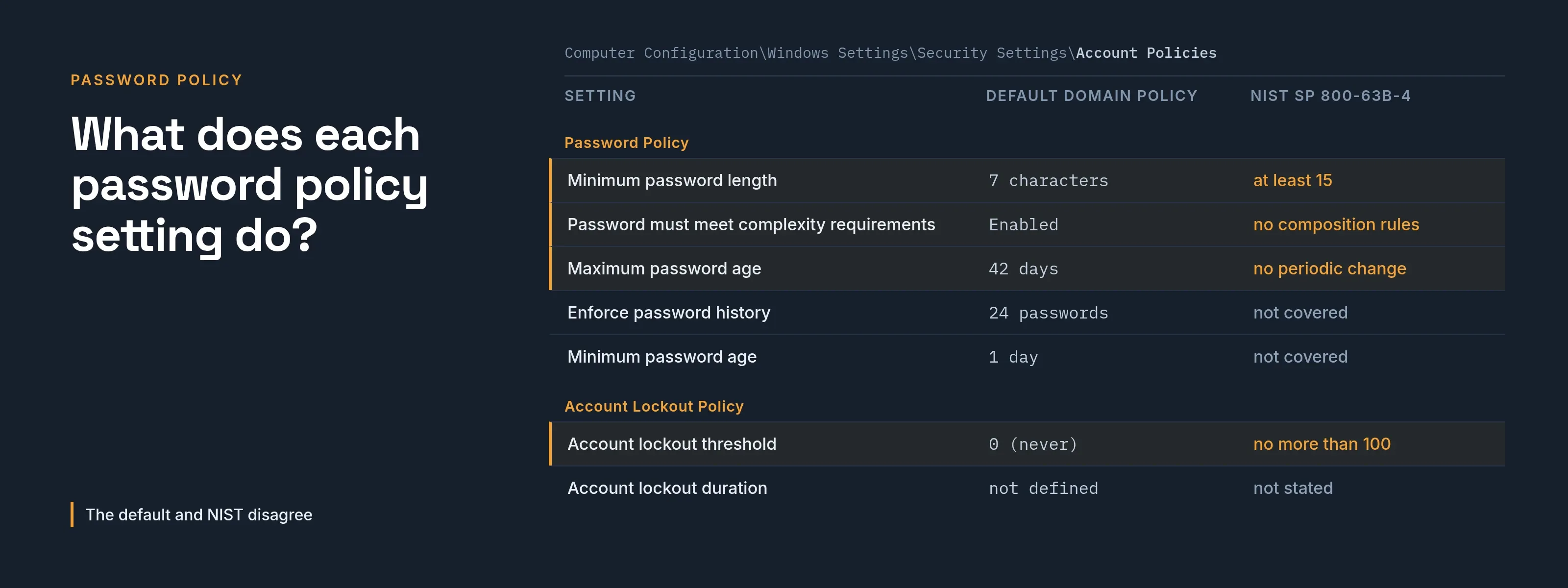
A password policy is a short list of directory settings. In Active Directory, five settings govern the password itself (length, complexity, maximum age, history and minimum age) and two govern lockout (threshold and duration).
Microsoft and NIST recommend different values for several of them. This page sets them side by side, with the source of each number:
- Microsoft: the Windows 10 and 11 policy reference, which Microsoft lists as archived.
- NIST: SP 800-63B-4, published July 2025.
Both were read 2026-10-08.
For NIST’s guidance on its own, see NIST password guidelines.
What does each password policy setting do?
Microsoft’s password policy overview (read 2026-10-08) places these settings in a Group Policy Object:
- Password settings: Computer Configuration\Windows Settings\Security Settings\Account Policies\Password Policy
- Lockout settings: Account Policies\Account Lockout Policy
Each Microsoft value in the table comes from that setting’s own page, linked from the overview. The default domain policy applies at the domain level.
| Setting | What it does | Microsoft’s page | NIST SP 800-63B-4 |
|---|---|---|---|
| Minimum password length | Fewest characters allowed | Default 7 on the default domain policy; recommends at least 8 | At least 15 when the password is the only factor, at least 8 when used only inside multi-factor authentication (section 3.1.1.2) |
| Complexity requirements | Requires characters from three of five categories and bars the account name and parts of the full name | Default enabled; recommends enabled | Must not impose composition rules such as mixed character types (3.1.1.2) |
| Maximum password age | Days before a change is forced | Default 42 days; page suggests 30 to 90, but notes Microsoft’s security baseline omits expiry | Must not require periodic change; must force a change on evidence of compromise (3.1.1.2) |
| Enforce password history | Unique new passwords before reuse | Default 24; recommends 24 | Not covered in the sections read |
| Minimum password age | Days before the next change is allowed | Default 1 day; baseline recommends 1 day | Not covered in the sections read |
| Account lockout threshold | Failed attempts before lockout | Default 0 (never); baseline suggests 10 as a starting point | Limit consecutive failed attempts to no more than 100 (3.2.2) |
| Account lockout duration | Minutes locked; 0 means until an administrator resets the account | Not defined by default; “approximately 15 minutes” is advised | No duration stated in the sections read |
| Banned-password list | Refuses known weak passwords | Not a built-in Group Policy setting; Microsoft Entra Password Protection adds it (below) | Must compare against a blocklist (3.1.1.2) |
Where do Microsoft and NIST disagree?
They disagree on length, complexity and expiry. Each source gives its reasons.
Length. Microsoft’s page recommends 8 and states that the setting does not support a length above 14. NIST’s 15 characters for single-factor use is therefore reachable on current Windows, after testing.
Complexity. Microsoft’s page recommends enabling it; NIST says services must not impose composition rules. Microsoft’s own text on the complexity setting points readers to its separate password guidance for current advice.
Expiry. Microsoft’s maximum age page gives 30 to 90 days as a best practice. It then notes that its security baseline omits expiry, because expiry is less effective than modern mitigations.
How do you raise the length limit above 14?
A separate Microsoft support article (KB 4557232) describes the RelaxMinimumPasswordLengthLimits setting:
- Effect. On Windows 10 version 2004, Windows Server version 2004 and later, it raises the range from 0 to 14 to 0 to 128.
- Warning. Microsoft warns that values above 14 may break compatibility with clients, services and applications.
- Test first. Microsoft advises testing with the audit setting first.
Which expiry rule applies to you?
- Without modern controls. Organizations without Entra Password Protection, MFA or similar controls should keep expiry enabled.
- Compliance or insurance. Microsoft notes that these rules sometimes require a short password lifetime, while NIST says to stop requiring periodic changes.
- Your auditor. Neither source settles which rule your auditor applies, so confirm that first.
How do you set a password policy in Active Directory?
Default domain policy. Open the Group Policy Management Console, edit the default domain policy and go to the path above. According to Microsoft, changes take effect without a restart once distributed.
Fine-grained password policies. When some accounts need different rules, create a password settings object. Microsoft’s Active Directory Administrative Center guide (updated 2025-06-26, read 2026-10-08) gives these steps:
- In Active Directory Administrative Center, select Tree View, your domain, System, Password Settings Container, then New and Password Settings.
- Add the users or groups the object applies to.
- Set a precedence.
Details from Microsoft’s pages that are easy to miss:
- A fine-grained policy applies to user objects and global security groups, not directly to an organizational unit. Microsoft’s workaround is a “shadow group” mapped to the OU.
- Every setting in the object must have a value, lockout included.
- By default, only Domain Admins can create them.
- Right-click a user and choose View resultant password settings to see which policy wins.
- The cmdlets are
New-ADFineGrainedPasswordPolicy,Set-ADFineGrainedPasswordPolicyandAdd-ADFineGrainedPasswordPolicySubject.
For how Active Directory differs from a plain LDAP directory, see LDAP vs Active Directory.
How do you add a banned-password list?
The built-in complexity rule has no banned-password list; Microsoft says dictionary checks require a custom password filter. Entra Password Protection provides one.
Microsoft Entra Password Protection (page dated 2025-03-04, read 2026-10-08) checks password changes and resets on on-premises domain controllers.
It compares them against Microsoft’s global banned list plus a custom list kept per tenant, and runs as a proxy service plus an agent on each domain controller.
That page lists four points to plan for:
- The agent checks passwords only on domain controllers where it is installed, so install it on all of them. Microsoft states that partial deployment is not secure beyond testing.
- A domain controller that has not downloaded a policy accepts the password and logs a warning.
- Changes made in Entra do not reach every domain controller instantly.
- It adds to the existing Active Directory rules, and a password must pass both.
Worked example: Acme drops forced password changes
Acme Corp (acme.example) runs the Microsoft defaults: 7 characters, complexity on, 42-day expiry, history 24, minimum age 1 day and no lockout. Its auditors accept NIST.
The administrator writes the plan below. These are Acme’s choices for its own situation, not a recommendation from either source.
| Setting | Before | After | Reason from the sources |
|---|---|---|---|
| Minimum length | 7 | 15, after an audit run | NIST single-factor figure; Microsoft’s compatibility warning above 14 |
| Complexity | Enabled | Enabled, until the banned list is live | NIST says no composition rules, but Entra Password Protection must be in place first; Acme drops it afterward |
| Maximum age | 42 days | 0 (never expires) | NIST; Microsoft’s note on baselines with Entra Password Protection and MFA |
| History | 24 | 24 | Unchanged; works with minimum age |
| Minimum age | 1 day | 1 day | Stops cycling through history, per Microsoft |
| Lockout threshold | 0 | 10 | Microsoft baseline starting point; far below NIST’s ceiling of 100 |
| Lockout duration | not defined | 15 minutes | Microsoft’s advised figure |
| Banned list | none | Entra Password Protection on all domain controllers | NIST blocklist rule |
A lockout threshold has a cost, which Microsoft states directly: anyone who knows account names can lock accounts on purpose. Acme monitors lockout events and keeps a process for resetting locked accounts.
What message can you send staff when you drop forced changes?
Subject: You no longer have to change your password every 42 days
From 20 October, your Acme password will stop expiring. Your current password stays as it is.
We made this change because forced changes tend to push people toward small variations like adding a number, which are easier to guess.
Instead we now block known weak passwords when you choose one, and new passwords need at least 15 characters. A short sentence you will remember works well.
Change your password at once, and tell us at help@acme.example, if you think someone else knows it, or if we ask you to. We will never ask you for your password by phone or message.
For a second step that resists phishing, see phishing-resistant MFA.
What SSOGEN does with passwords
SSOGEN handles passwords in two ways, depending on where the account lives.
Local accounts:
- The My Account password page says “Use at least 12 characters”, and a forced change at sign-in has the same minimum.
- Under Settings > Security, Password attempts per minute defaults to 20 per client and accepts 1 to 10,000.
- A reset-link limit defaults to 5 per minute.
Active Directory accounts: as the directory guide explains, SSOGEN keeps no copy of directory passwords. It verifies each sign-in against the directory, so the directory’s own rules define a valid password.
With Directory password write enabled (off by default), the directory’s length, complexity, history and minimum age rules still apply to each new password.
SSOGEN’s risk scoring ignores a wrong password at a directory sign-in, because the directory applies its own lockout.
The same guide recommends setting the SSOGEN service account to Password never expires. See security settings and LDAP single sign-on.
Questions people ask
What are the password requirements in Active Directory by default?
According to Microsoft’s pages, the default domain policy sets 7 characters, complexity enabled, a 42-day maximum age, 24 remembered passwords and a 1-day minimum age. Lockout is off.
Does Microsoft still recommend password expiration?
Its maximum age page gives 30 to 90 days. Its security baseline omits expiry, however, and the page reserves expiry for organizations without modern mitigations.
Does NIST allow a password expiration policy?
No. SP 800-63B-4 says services must not require periodic changes, and must force a change when there is evidence of compromise.
Can different groups have different rules?
Yes, with fine-grained password policies applied to users or global security groups.
Where to go next
- Guidance. Continue with NIST password guidelines.
- Directories. Compare LDAP vs Active Directory.
- Lockouts. When a lockout fires, the event ID 4740 decoder names the computer that sent the bad password.
- Length rules. The password entropy calculator shows what a length rule is worth.
- Hub. Return to the Learn hub.
Sources, all read 2026-10-09: NIST SP 800-63B-4, Microsoft Learn password policy settings, Microsoft Entra Password Protection.