SSOGEN / SSO Applications: How SSOGEN Signs People In to Cloud and SaaS Apps
Integration
SSO Applications: How SSOGEN Signs People In to Cloud and SaaS Apps
SSOGEN is the identity provider for cloud and SaaS apps over SAML 2.0 or OpenID Connect: register, copy the values, assign people, test, activate.
How an application signs in through SSOGEN
Any application that can trust an outside identity provider can work as one of your SSO applications in SSOGEN. The application is the service provider (SAML) or the client (OpenID Connect). SSOGEN is the identity provider. For every sign-in it:
- signs the person in;
- checks that the person is assigned to the application;
- applies the sign-in policy;
- gives the application a signed statement of who the person is.
Nothing is installed. To add an application:
- Register the application once in the SSOGEN Admin Console.
- Copy a few values into the application’s single sign-on screen.
- Assign people.
- Test.
- Activate.
SSOGEN decides everything else, including the second factor your policy requires, in the same way for every application.
Applications that run on your own servers, such as Oracle E-Business Suite or PeopleSoft, use the SSOGEN Web Agent instead. This page covers cloud applications.
How to pick the protocol: SAML 2.0 or OIDC
Choose the protocol from the application’s own settings page:
- SAML application. The application asks for an identity provider’s metadata, entity ID or sign-in URL.
- OpenID Connect application. The application asks for a client ID, a client secret or an issuer (discovery) URL.
- Both offered. Either one works.
| SAML 2.0 | OpenID Connect | |
|---|---|---|
| You give SSOGEN | The application’s entity ID and assertion consumer service URL, or its metadata file | One or more exact https:// redirect URIs and a client ID |
| You give the application | SSOGEN’s metadata address, or entity ID, sign-in URL and signing certificate | SSOGEN’s discovery address, the client ID, and a secret or key if the client keeps one |
| The application learns who signed in from | The NameID and attributes in a signed assertion | The sub and other claims in an ID token |
| Protection built in | Assertions go only to the registered URL | PKCE with S256, authorization code flow only, no wildcards in redirect URIs |
SAML guide. It explains every field of the eight-step wizard. Start with Register a SAML application.
OpenID Connect guide. It does the same for client IDs, secrets and keys. Start with Register an OpenID Connect application.
Not sure which fits?
Choose how to connect an application lists the questions to ask, in order.
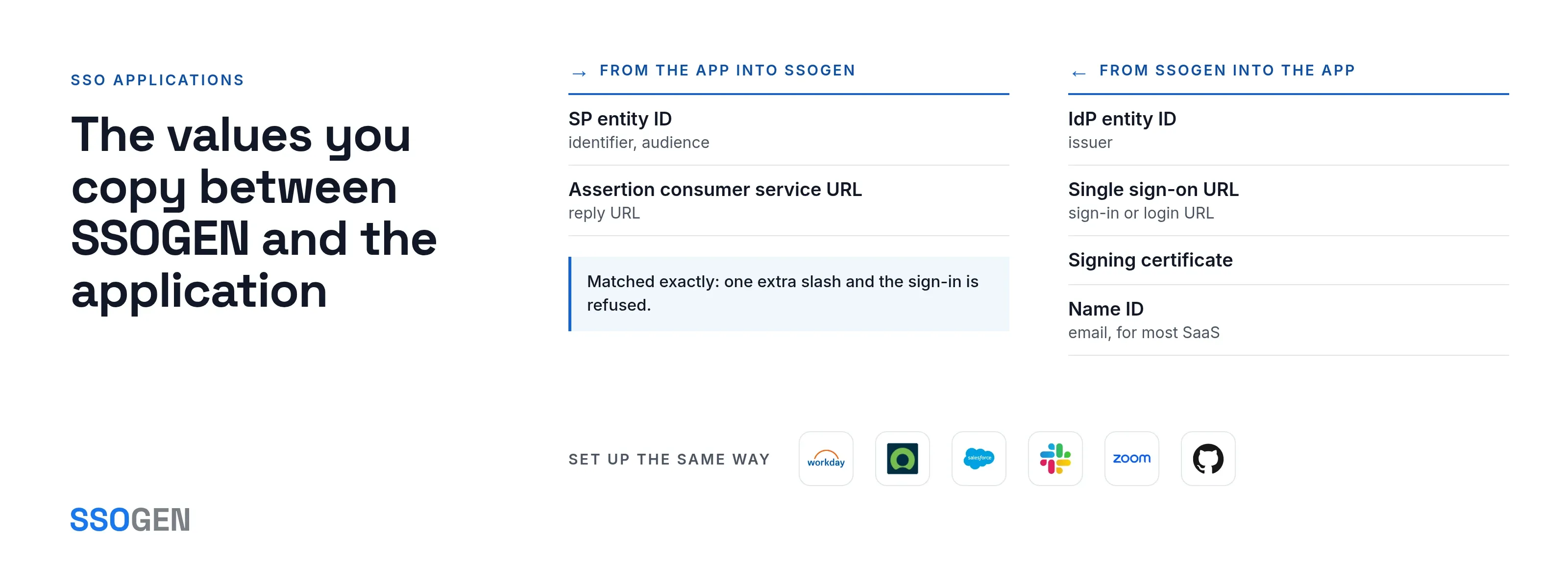
The values you copy between SSOGEN and the application
Every cloud application setup uses the same exchange of values. Products name the fields differently, so match them by meaning.
| Value | Comes from | Goes into |
|---|---|---|
| SP entity ID (also called identifier or audience) | The application | SSOGEN, Service provider entity ID |
| Assertion consumer service URL (also reply URL) | The application | SSOGEN, Assertion consumer service URL |
| IdP entity ID (also issuer) | SSOGEN Integration tab | The application’s identity provider entity ID |
| Single sign-on URL (also sign-in or login URL) | SSOGEN Integration tab | The application’s identity provider sign-in URL |
| Signing certificate | SSOGEN Integration tab | The application’s identity provider certificate |
| Name ID | SSOGEN Identity sent to app step | The application’s user matching setting |
Two details cause most setup errors:
- Exact match. SSOGEN matches the entity ID and the assertion consumer service URL exactly, so one extra slash causes a refused sign-in.
- NameID. A SAML application defaults to an opaque, stable NameID, not the account name. Most SaaS products match people by email address. Choose
emailunder Identify the person by, and set the application’s NameID format to email address.
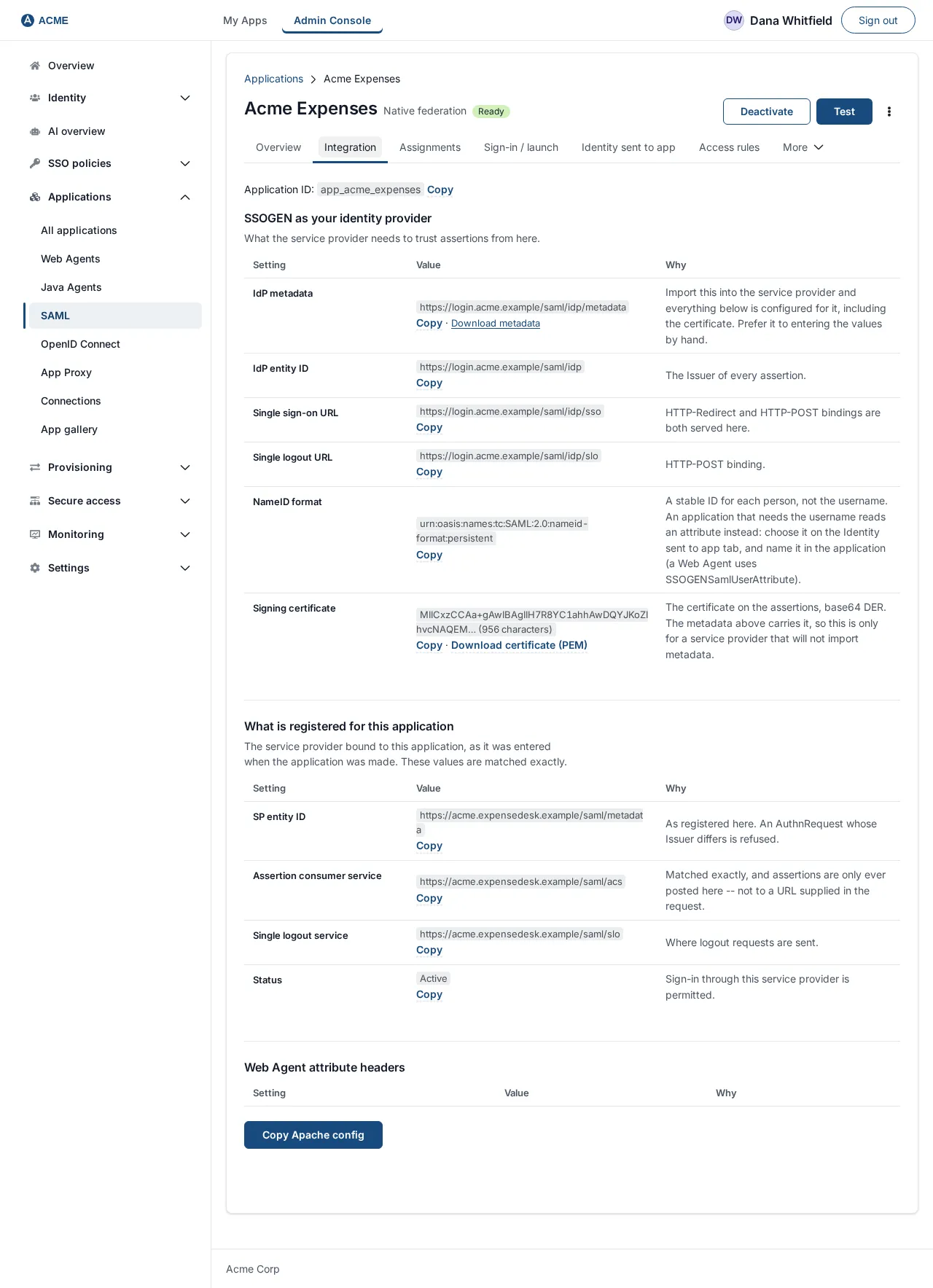
You can also test before anyone is affected. The Test step picks a person and shows the SAML assertion or the ID token claims the application would receive.
It does not sign anyone in or send anything. The steps are in Assign people, set the sign-in policy, test and activate.
Applications people connect most
SSOGEN has long listed these cloud applications among the SaaS products it signs people in to with SAML. You set up each one the same way, using that application’s own single sign-on screen for the values in the table above.
This is an integration through standard protocols, not a vendor partnership or certification.
| Application | What you register in SSOGEN | Where the guide is |
|---|---|---|
| Workday | A SAML application | Register a SAML application |
| ServiceNow | A SAML application | Register a SAML application |
| Salesforce | A SAML application | Register a SAML application |
| Slack | A SAML application | Register a SAML application |
| Zoom | A SAML application | Register a SAML application |
| GitHub | A SAML application | Register a SAML application |
The generic guides cover the whole SSOGEN side. If a product offers OpenID Connect instead, register it as an OpenID Connect application.
Keeping accounts in step with SCIM
Signing in is half of the job. The other half is making sure a person who leaves also loses the account in the application.
If the application offers SCIM 2.0 over https://, SSOGEN:
- creates accounts for the people assigned to it;
- keeps their details current and sends groups;
- switches accounts off when access is removed.
You supply the application’s SCIM base URL and a bearer token that it accepts.
- Inactive, never deleted. SSOGEN switches accounts off by setting them inactive. It never deletes them.
- Deactivate leavers. The setting stays off until you turn it on.
- Outbound. The Outbound Provisioning guide covers the settings and what a run reports: Outbound provisioning to an application.
- Inbound. To have an HR system push people into SSOGEN instead, see SCIM endpoint: inbound provisioning from HR.
Questions people ask
Does SSOGEN need a separate identity provider to sign people in to SaaS apps?
No. SSOGEN is a complete identity provider with local users, your own database, LDAP, SAML and OpenID Connect sign-in. You can also keep Entra ID, Okta or Ping Identity as a sign-in source.
Can I use my own sign-in policy for each application?
Yes. Policies are named and shared. You choose one for each application, for example a policy that requires a second factor. When you change a policy, every application that uses it changes too.
What does a person see?
They open My Apps, select the tile, and arrive signed in. If the policy requires a second factor, SSOGEN asks for it once.
Why was my SAML sign-in refused?
SSOGEN shows a Sign-in refused page with a reason and a correlation identifier. The most common causes are an entity ID that differs by one character, a person who is not assigned, or an application saved but not yet activated. The SAML guide has the full table.
Where to go next
- Register. Your first application with the SAML guide.
- Fit. See how SSOGEN fits with your existing sign-in sources on the integrations page.
- Directory. For the directory behind it all, read about the SSOGEN Directory.
The applications covered so far: Adobe, Box, Docusign, GitHub, NetSuite, Salesforce, ServiceNow, Slack, Workday and Zoom.